How to Manage Calls in Windows 11 with Phone Link

You can manage your Android phone’s calls directly from your Windows 11 PC using the Phone Link app.
Phone Link is a Microsoft application that bridges your Android smartphone and your Windows computer, enabling seamless call management from your desktop or laptop.
With Phone Link, you can initiate and accept calls using your PC’s microphone and speakers, transforming your computer into a powerful hands-free calling hub.
This feature is particularly beneficial when your phone is not immediately accessible, allowing you to continue working on your PC without missing important calls.
Once connected, Phone Link lets you view your recent call history on your PC and even dial numbers with your keyboard.
Manage calls in Windows 11 using the Phone Link app. Open Phone Link, go to Settings, select Features, and toggle the Calls section on or off. Ensure your phone and PC are paired via Bluetooth and on the same Wi-Fi network.
System Requirements and Compatibility
To manage calls on Windows 11, you need the following:
- An Android device running Android 9.0 or later.
- The Link to Windows app installed on your phone.
- Both devices must be on the same Wi-Fi network.
- Bluetooth must be enabled on both your PC and your phone.
How to Enable or Disable Calls
- Open the Phone Link app on your PC.
- Click the Settings (gear icon) at the top right.
- Select Features.
- Look for the Calls section.
- Toggle the switch to On or Off.
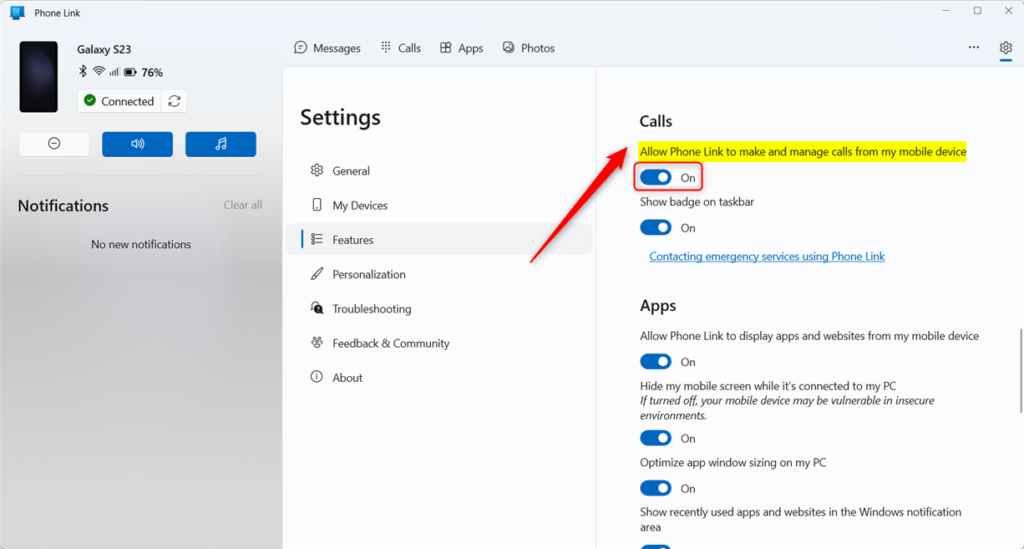
Note: This process does not require admin privileges.
Troubleshooting and Error Handling
If you cannot see the call option, make sure your Bluetooth is set up correctly. Sometimes, you must remove the device from your Bluetooth settings and re-pair it. If you’re facing trickier problems, the official Microsoft Troubleshoot Calls page has more detailed help.
Important Limitations
Can I use Phone Link to call emergency services? No. Phone Link is not a replacement for your primary phone service. You cannot use it to call emergency services (like 911). Always use your mobile device for emergency calls.
Summary
Managing calls with Phone Link turns your PC into a powerful communication hub. You can toggle call features on or off using the steps we’ve covered. Always remember, this feature is for standard calls, not emergencies. Keep your Bluetooth and Wi-Fi active for the smoothest experience.
Can I delete my recent call history from the PC?
You can manage your recent call history directly from the Phone Link app on your Windows 11 PC. Deleting calls from the app usually removes them from the list shown on your computer, though they might still appear on your phone’s actual call log.
How many recent calls can I view in Phone Link?
The Phone Link app typically displays the most recent calls synced from your Android device. While the exact number can vary based on app updates, it usually shows up to 50 recent entries. This allows you to quickly redial contacts or return missed calls directly from your Windows desktop interface.
Why don’t I see the call option in my Phone Link app?
The call option might not show in your Windows 11 Phone Link app if Bluetooth isn’t set up correctly, as this connection is needed for calls.
Was this guide helpful?

About the Author
Richard
Tech Writer, IT Professional
Richard, a writer for Geek Rewind, is a tech enthusiast who loves breaking down complex IT topics into simple, easy-to-understand ideas. With years of hands-on experience in system administration and enterprise IT operations, he’s developed a knack for offering practical tips and solutions. Richard aims to make technology more accessible and actionable. He's deeply committed to the Geek Rewind community, always ready to answer questions and engage in discussions.



[…] banners in the mobile app or Phone Link, enable or disable Phone Link to show text messages, enable or disable Phone Link to make calls from your mobile device, and […]