How to Manage Calls in Windows 11 with Phone Link

Phone Link connects your Android phone to your Windows 11 PC. It lets you use your computer to handle phone tasks. You can make and receive calls without picking up your phone. This keeps you focused on your work.
Why use this?
Using your PC for calls is convenient. You can use your computer’s microphone and speakers. It is helpful when your phone is charging or in another room.
What happens when you do this?
Once enabled, your PC acts like a hands-free device for your phone. Your call history will sync, and you can dial numbers using your PC keyboard.
System Requirements and Compatibility
To manage calls on Windows 11, you need the following:
- An Android device running Android 9.0 or later.
- The Link to Windows app installed on your phone.
- Both devices must be on the same Wi-Fi network.
- Bluetooth must be enabled on both your PC and your phone.
How to Enable or Disable Calls
- Open the Phone Link app on your PC.
- Click the Settings (gear icon) at the top right.
- Select Features.
- Look for the Calls section.
- Toggle the switch to On or Off.
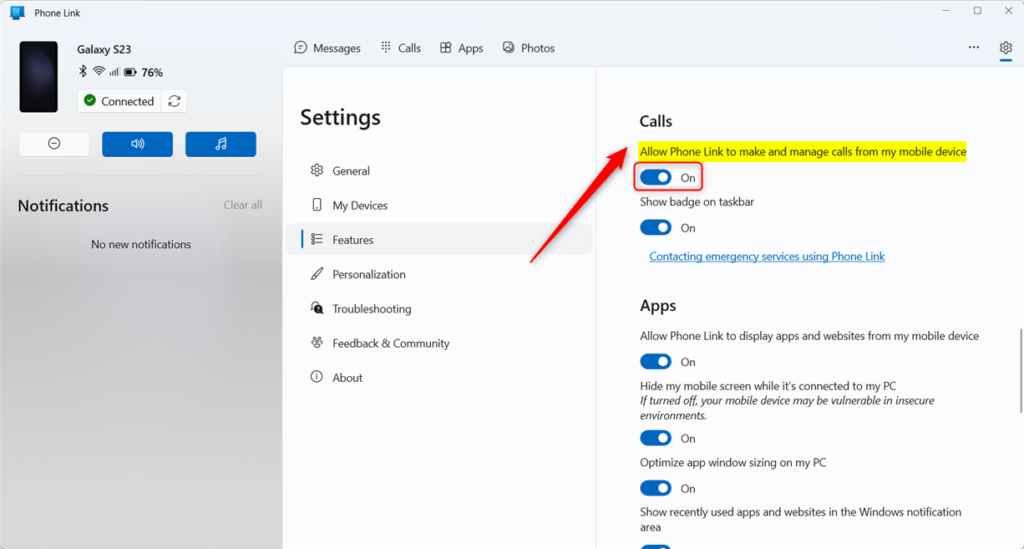
Note: This process does not require admin privileges.
Troubleshooting and Error Handling
If you cannot see the call option, ensure your Bluetooth is paired correctly. Sometimes, you must remove the device from your Bluetooth settings and re-pair it. For advanced issues, visit the official Microsoft Troubleshoot Calls page.
Important Limitations
Can I use Phone Link to call emergency services? No. Phone Link is not a replacement for your primary phone service. You cannot use it to call emergency services (like 911). Always use your mobile device for emergency calls.
Summary
Managing calls with Phone Link makes your PC a powerful communication hub. By following the steps above, you can easily toggle call features on or off. Always remember that this feature is for standard calls and cannot be used for emergency services. Keep your Bluetooth and Wi-Fi active for the best experience.
Can I delete my recent call history from the PC?
Yes, you can manage your call history within the Phone Link app. While you can view recent calls, deleting them from the app interface will generally remove them from the synced list on your PC. Note that this may not always delete the entry from your physical phone’s native call log.
How many recent calls can I view in Phone Link?
The Phone Link app typically displays the most recent calls synced from your Android device. While the exact number can vary based on app updates, it usually shows up to 50 recent entries. This allows you to quickly redial contacts or return missed calls directly from your Windows desktop interface.
Why don’t I see the call option in my Phone Link app?
If the call option is missing, check your Bluetooth connection. Your PC and phone must be actively paired via Bluetooth to handle audio. Also, ensure the Link to Windows app on your phone has the necessary permissions to access your contacts and phone logs. Restarting both devices often resolves this.
Was this guide helpful?

About the Author
Richard
Tech Writer, IT Professional
Richard, a writer for Geek Rewind, is a tech enthusiast who loves breaking down complex IT topics into simple, easy-to-understand ideas. With years of hands-on experience in system administration and enterprise IT operations, he’s developed a knack for offering practical tips and solutions. Richard aims to make technology more accessible and actionable. He's deeply committed to the Geek Rewind community, always ready to answer questions and engage in discussions.



[…] banners in the mobile app or Phone Link, enable or disable Phone Link to show text messages, enable or disable Phone Link to make calls from your mobile device, and […]