How to Show Windows 11 Taskbar on All Monitors

You can easily show your Windows 11 taskbar on all monitors to improve your multi-monitor workflow.
This setting makes the Windows taskbar, which includes the Start button, pinned apps, and system tray icons, visible on every display connected to your PC.
Windows 11, by default, limits the taskbar to just your primary display, which can be frustrating when managing multiple screens. A simple adjustment within the Personalization settings lets you extend it to all your connected monitors.
This tutorial walks you through the straightforward steps to activate this useful feature, typically found within the Taskbar behavior options.
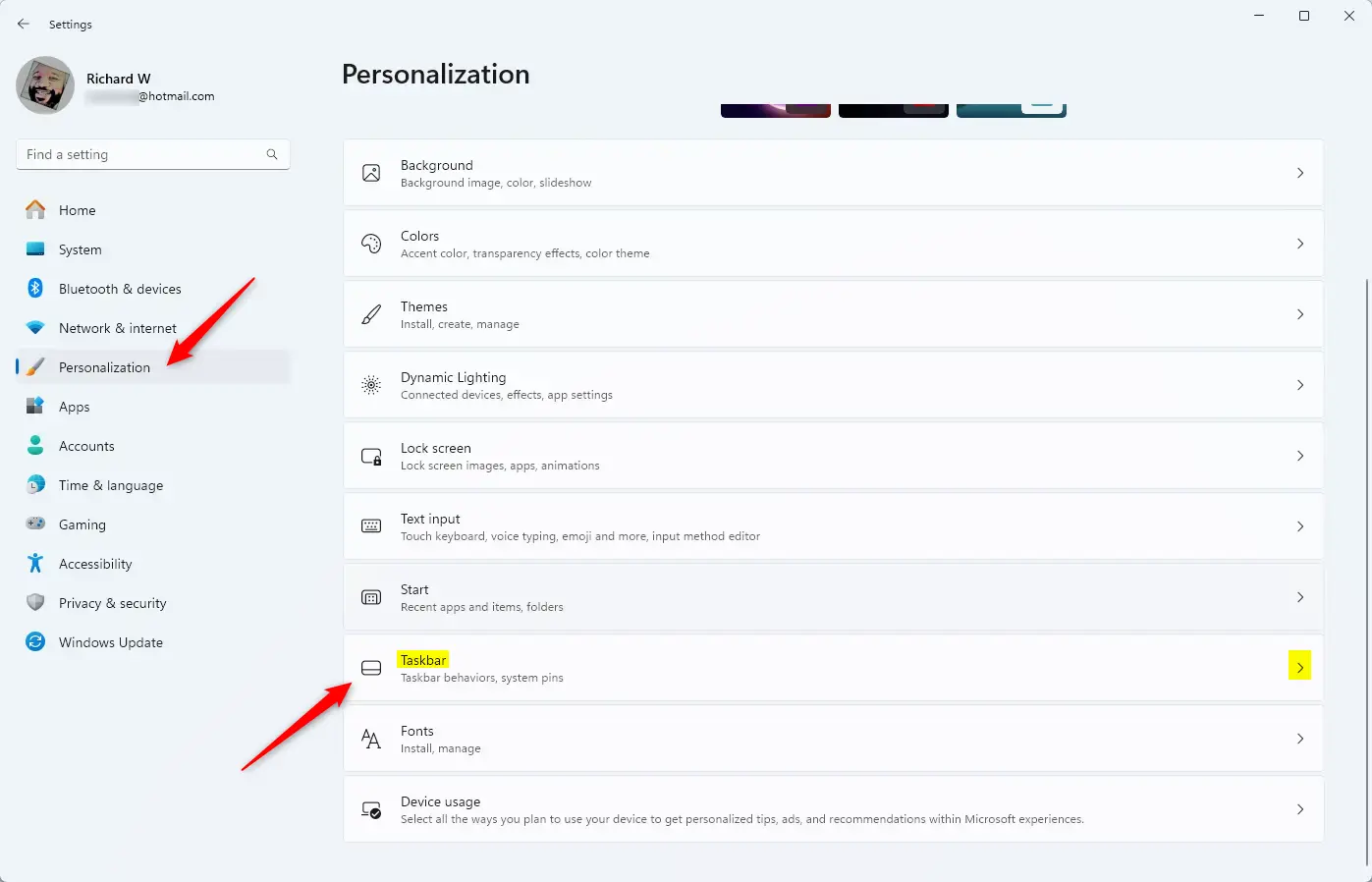
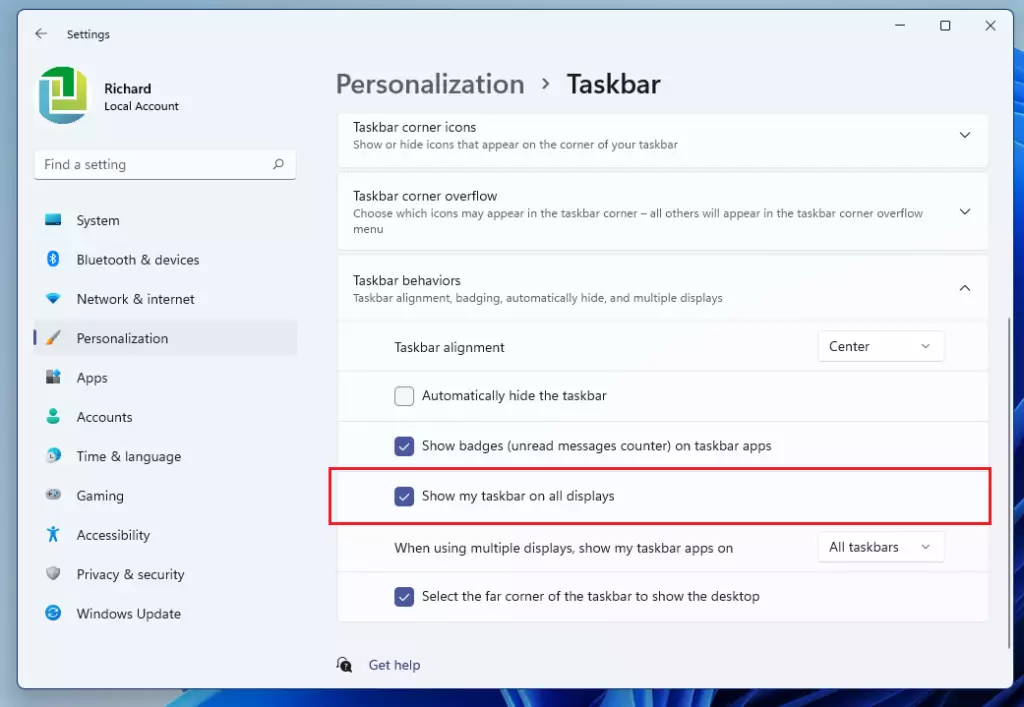
Go to Settings > Personalization > Taskbar > Taskbar behaviors. Check the box for “Show my taskbar on all displays.” This setting makes your taskbar visible on every connected monitor.
What happens when done?
Once you finish these steps, the taskbar will appear on every monitor you have connected. You can pin apps to specific screens, see which programs are open, and access the system tray from any display. This creates a consistent experience across your entire workspace.
Steps to enable the taskbar on all monitors
You can turn on the Windows 11 taskbar for all your monitors using the simple Settings app. Just follow these steps to make sure your taskbar appears on every screen you use.
- Open Settings by pressing Windows key + I.
- Click Personalization on the left menu.
- Select Taskbar from the list.
- Click Taskbar behaviors to open the menu.
- Check the box for Show my taskbar on all displays.
Advanced Configuration: Registry Editor
If the normal settings don’t work to show your Windows 11 taskbar on multiple monitors, you can try using the Registry Editor. This tool lets you make advanced changes to Windows settings.
You can force this setting using the Registry Editor (a tool for making advanced system changes).
- Press Windows key + R, type regedit, and hit Enter.
- Navigate to: 🗝️HKEY_CURRENT_USER\Software\Microsoft\Windows\CurrentVersion\Explorer\Advanced
- Look for the value named MMTaskbarEnabled.
- Double-click it and set the value to 1 to enable it .
Troubleshooting: Why is the option greyed out?
If the option to show your Windows 11 taskbar on all displays is greyed out, it usually means your computer isn’t seeing your second monitor properly.
Summary
Getting your Windows 11 taskbar to show on multiple monitors can really help you get more done.
Does 🪟 Windows 11 allow different taskbar settings for each monitor?
Yes, Windows 11 lets you choose different settings for your taskbar on each monitor.
How do I pin apps to the taskbar on a specific monitor?
Windows 11 taskbar icons are generally mirrored across all displays. You cannot pin an app to only one specific monitor taskbar natively. However, you can manage which apps appear on the taskbar by adjusting the Taskbar behaviors settings to show only the apps currently open on that specific display.
Was this guide helpful?

About the Author
Richard
Tech Writer, IT Professional
Richard, a writer for Geek Rewind, is a tech enthusiast who loves breaking down complex IT topics into simple, easy-to-understand ideas. With years of hands-on experience in system administration and enterprise IT operations, he’s developed a knack for offering practical tips and solutions. Richard aims to make technology more accessible and actionable. He's deeply committed to the Geek Rewind community, always ready to answer questions and engage in discussions.



Hello,
This does not work if you have selected “Automatically hide the taskbar”. I prefer to have the task bar hidden whilst I work, but with my extended display, I cannot “unhide” my taskbar now, I have to return to the Main display to access the task bar.
Thank you,
Zaira
Same. this method did not work on my end so I decided to leave the auto hide task bar option unchecked
i can’t choose this option on my pc.
How do we have the System tray on both monitors or move it to a secondary monitor
I had that option on, and the past few days the bottom of my documents hide under the task bar only on my second display. I loose the function then to scroll etc. So I had to turn it off. It worked fine for the past few months my computer upgraded to 11, but now it’s been a huge issue.
Any tips or fixes?
Thank you,
This. Windows 11 is just broken here. Do you also have the issue when you maximize the window on the second display, the whole taskbar disappears? I’ve been trying to find a solution for days now. Win10 didn’t have this issue.