How to Hide Users on Windows 11 Sign-in Screen

You hide users on the Windows 11 sign-in screen by editing the Windows Registry to disable their visibility.
Disabling user visibility on the login screen is a security measure that prevents unauthorized individuals from seeing available account names, thus protecting your PC from unwanted access.
This technique primarily affects local user accounts, not those linked to Microsoft accounts. You’ll need to access the Registry Editor to implement this change, allowing you to hide accounts like the default Administrator if it’s showing.
Edit the Windows Registry by navigating to WinlogonSpecialAccountsUserList and creating a DWORD value for the username, setting its data to 0. This hides the user from the sign-in screen without deleting data.
Why Hide Users on 🪟 Windows 11?
You can hide users on the Windows 11 sign-in screen to make your computer more private and secure by keeping certain accounts hidden from view.
Why do this? It adds a layer of security by obscuring the usernames available on your system.
What happens when done? The user account remains fully functional, but it will no longer appear on the sign-in screen, requiring you to type the username manually to log in.
Before You Begin: Safety First
Editing the Windows Registry is powerful. A mistake can cause system issues. Always create a System Restore point before proceeding. This allows you to revert your system to a working state if something goes wrong.
Method 1Using the Registry Editor (Advanced)
One way to hide users on Windows 11 is by using the Registry Editor, which lets you change how Windows works by making specific adjustments.
- Press
Win + R, typeregedit, and press Enter. - Navigate to:
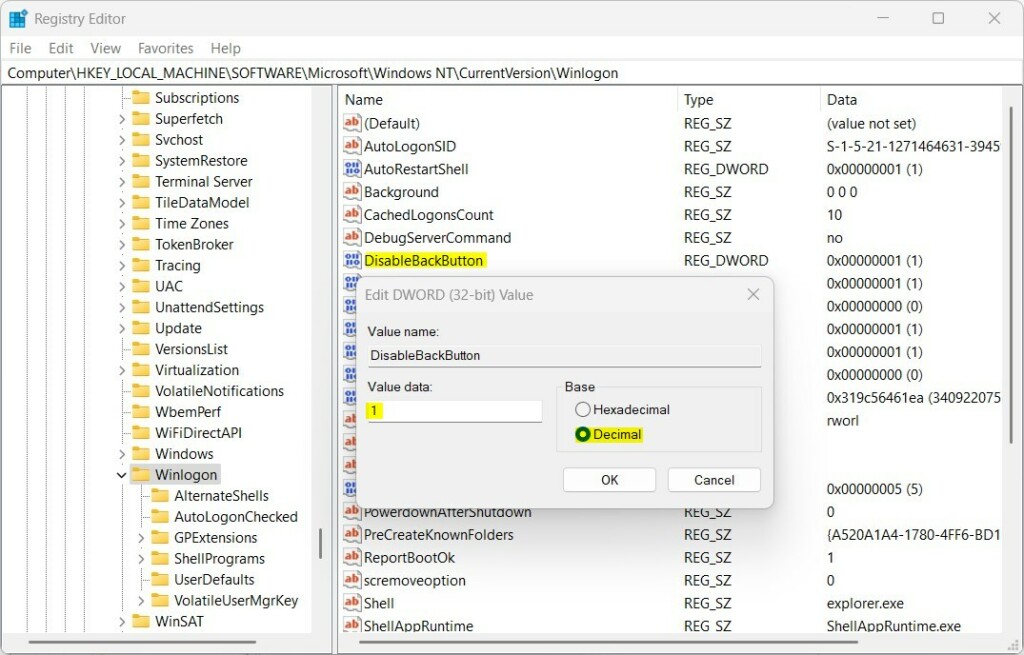
HKEY_LOCAL_MACHINE\SOFTWARE\Microsoft\Windows NT\CurrentVersion\Winlogon - If the
SpecialAccountskey does not exist underWinlogon, right-clickWinlogon, select New > Key, and name itSpecialAccounts. - Inside
SpecialAccounts, create another key namedUserList. - Right-click in the right pane of
UserList, select New > DWORD (32-bit) Value. - Name the DWORD exactly as the username you wish to hide (e.g.,
GenericUser). - Double-click the new DWORD and set the
Value datato0.
Downloadable Registry File
You can automate this by saving the following code as a .reg file:
Windows Registry Editor Version 5.00

[HKEY_LOCAL_MACHINE\SOFTWARE\Microsoft\Windows NT\CurrentVersion\Winlogon\SpecialAccounts\UserList]
"GenericUser"=dword:00000000
Method 2Using Group Policy Editor (Pro/Enterprise Only)
If you use Windows 11 Pro or Enterprise, you can use gpedit.msc. [Admin privileges required]
- Press
Win + R, typegpedit.msc, and hit Enter. - Go to
Computer Configuration > Windows Settings > Security Settings > Local Policies > Security Options. - Find
Interactive logon: Do not display last signed-inand set it to Enabled.
Summary
To hide users on Windows 11, you can use tools like the Registry Editor to keep your sign-in screen tidy and secure.
Does hiding a user account delete the data inside it?
No, hiding a user account on Windows 11 does not delete any of its files or data; the account simply becomes hidden from the sign-in screen.
Can I still log into a hidden account?
Yes, you can still log into a hidden account. Because the account is not deleted, it remains active. When you reach the sign-in screen, you will need to select the option to sign in with a different user and manually type the exact username and password to gain access.
Why does the registry path not exist on my 🪟 Windows 11 version?
If a registry path like SpecialAccounts does not exist, it simply means the key has not been created yet. Windows does not create these keys by default. You can safely create the keys manually by right-clicking the parent folder and selecting New Key to build the required path structure.
Was this guide helpful?
100% of readers found this helpful (1 votes)

About the Author
Richard
Tech Writer, IT Professional
Richard, a writer for Geek Rewind, is a tech enthusiast who loves breaking down complex IT topics into simple, easy-to-understand ideas. With years of hands-on experience in system administration and enterprise IT operations, he’s developed a knack for offering practical tips and solutions. Richard aims to make technology more accessible and actionable. He's deeply committed to the Geek Rewind community, always ready to answer questions and engage in discussions.



[…] display name in Windows refers to the full name of an account shown on the Sign-in screen, Start Menu, and Settings. This name can differ from the username used to sign in to the […]
[…] can turn Voice Access on or off from the lock screen using the accessibility menu on the Lock screen. Or you can have it start automatically every time by checking the setting “Start voice […]