How to Enable Voice Access on Windows 11 Sign-In

You can enable Voice Access on Windows 11 to control your PC hands-free right from the sign-in screen.
Voice Access is a powerful Windows 11 accessibility feature that uses speech recognition to let you navigate, open apps, and perform tasks using only your voice, even before you log in.
This hands-free control is invaluable for accessibility, but it’s also a convenient way for anyone to interact with their PC without touching a mouse or keyboard. You can activate this feature within the Windows 11 accessibility settings.
Once enabled, your PC will listen for commands, and you’ll often see a numbered grid overlay on your screen, guiding you to select and interact with specific elements using your voice.
Enable Voice Access by opening Settings, navigating to Accessibility, then Speech, and turning on the Voice access toggle. Check the box to start Voice Access before signing in. This allows hands-free control of your PC from the sign-in screen.
Voice Access vs. Voice Typing
| Feature | Voice Access | Voice Typing |
|---|---|---|
| Scope | Full PC Control | Dictation Only |
| Navigation | Yes | No |
| Commands | Advanced | Basic |
How to Enable Voice Access Before Sign-In
You can enable this feature so your PC is ready for commands as soon as it turns on.
Method 1Using Settings (Recommended)
- Open Settings by pressing Windows key + I.
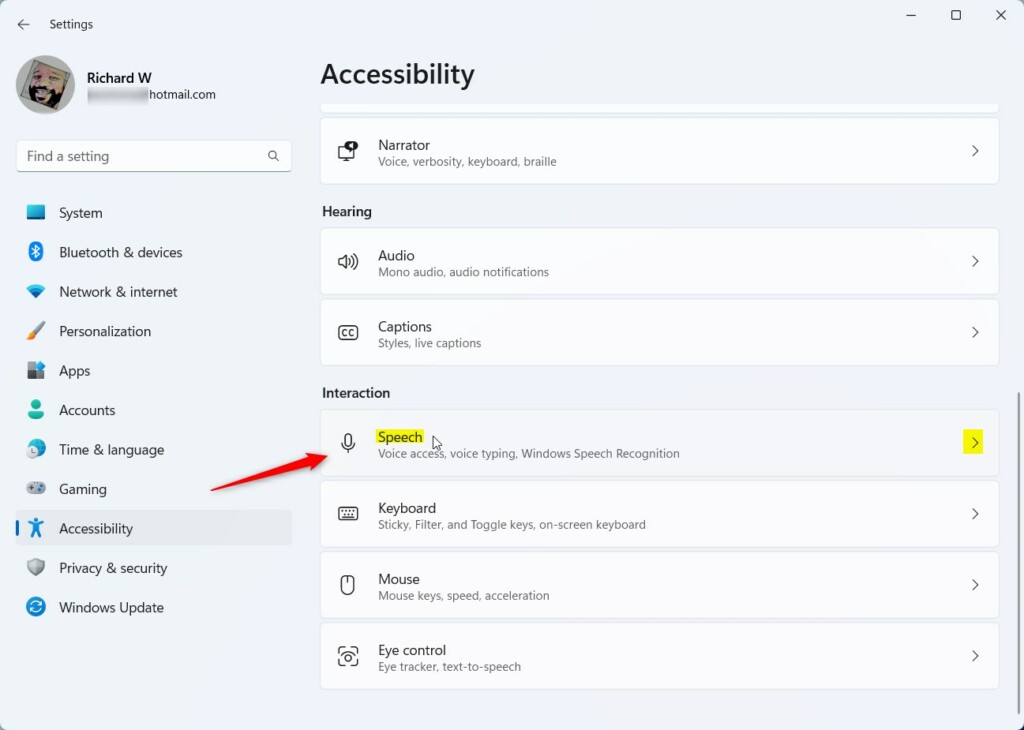
- Click Accessibility on the left menu.
windows 11 accessibility tile - Select Speech.
Start voice access before you sign in the PC - Toggle the switch for Voice access to On.
- Check the box labeled Start voice access before you sign in to your PC.
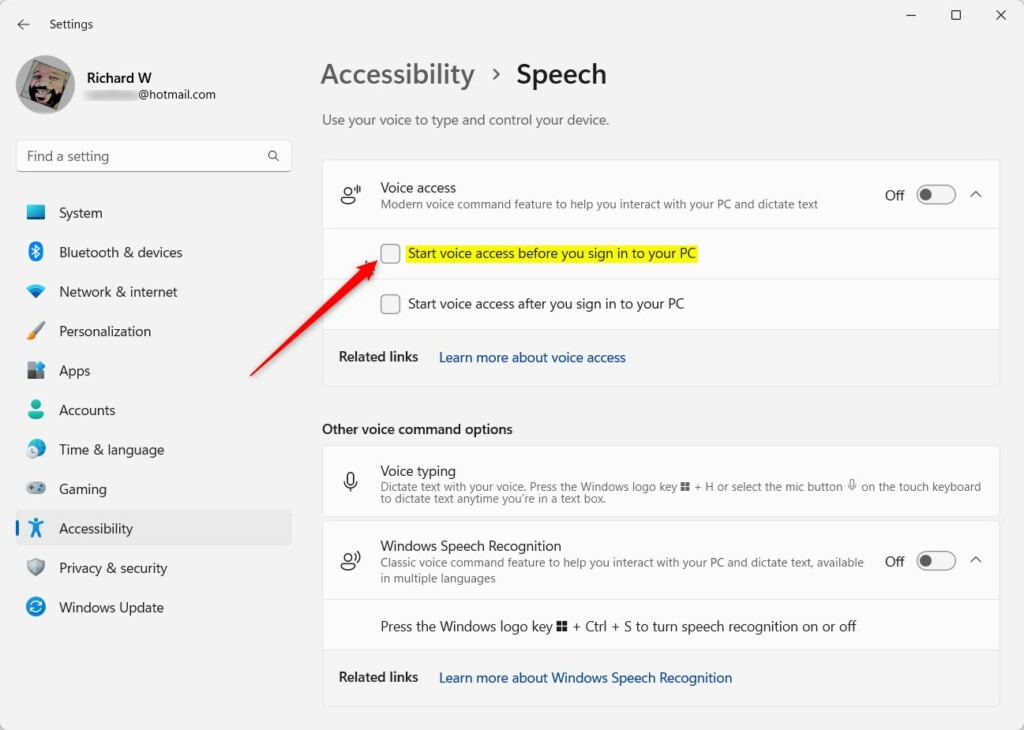
Start voice access before you sign in the PC
Method 2Using Registry Editor (Advanced)
You can turn on Voice Access on Windows 11 using the Registry Editor, but it’s a more technical way that requires administrator permission.
- Press Windows key + R, type
regedit, and press Enter. - Navigate to
HKEY_LOCAL_MACHINE\SOFTWARE\Microsoft\Windows NT\CurrentVersion\Accessibility.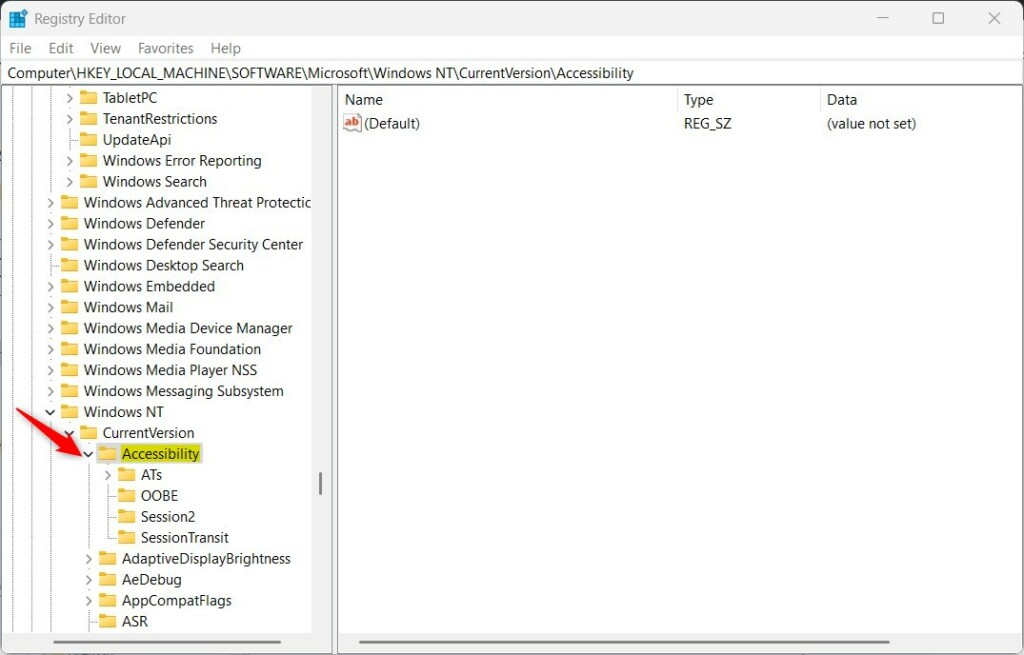
Start voice access before you sign in the PC - Right-click in the right pane and select New > String Value.
- Name it
Configuration. - Double-click it and set the value to
voiceaccess.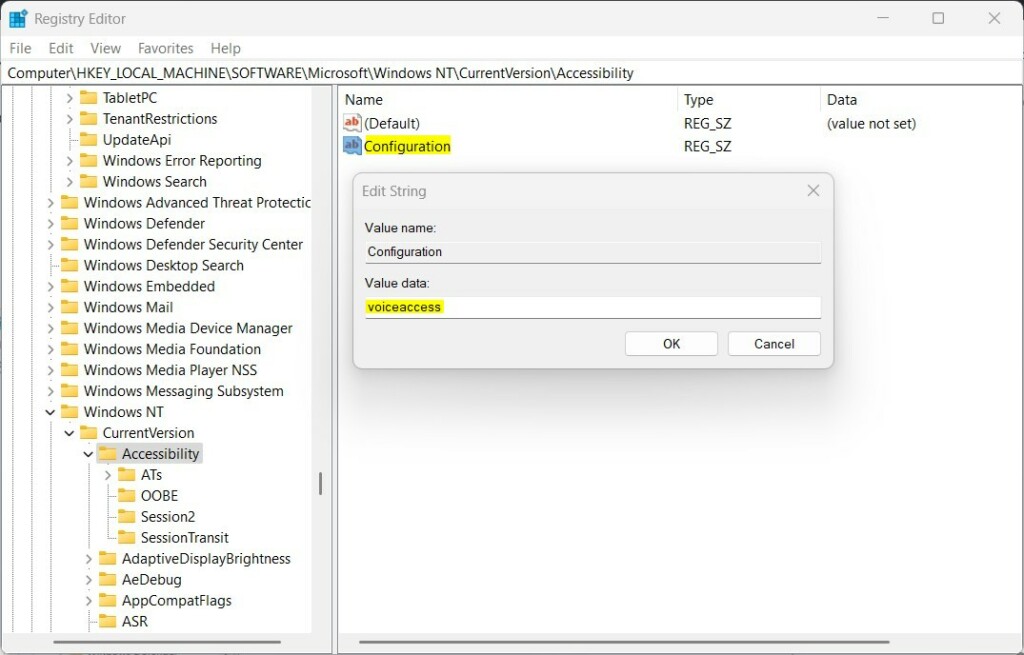
Start voice access before you sign in the PC - Restart your computer.
Troubleshooting and Tips
If you use a screen reader, Voice access is designed to work alongside it, though you may need to adjust your settings to ensure they do not conflict. For complex tasks, refer to our Voice Access Command List to master your workflow.
Summary
Voice Access makes your Windows 11 computer easier to use without a mouse or keyboard, especially when you turn it on right at the sign-in screen.
What is the difference between Voice access and Voice typing?
Voice Access lets you control your whole Windows 11 computer just by talking, like opening apps or clicking buttons, while Voice Typing only turns your speech into text for writing.
What should I do if language files fail to download?
If the language files for Voice Access on Windows 11 don’t download, first check your internet and make sure you have enough space on your C: drive.
Was this guide helpful?

About the Author
Richard
Tech Writer, IT Professional
Richard, a writer for Geek Rewind, is a tech enthusiast who loves breaking down complex IT topics into simple, easy-to-understand ideas. With years of hands-on experience in system administration and enterprise IT operations, he’s developed a knack for offering practical tips and solutions. Richard aims to make technology more accessible and actionable. He's deeply committed to the Geek Rewind community, always ready to answer questions and engage in discussions.


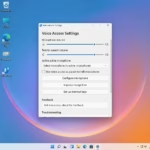

[…] can turn on or off Voice access, automatically start it up before signing on, stop it from starting automatically, install additional languages, list and create custom […]
[…] can turn on or off Voice access, automatically start it up before signing on, stop it from starting automatically, install additional languages, list and create custom […]