How to Uninstall Voice Access Languages in Windows 11

You uninstall Voice Access languages in Windows 11 by removing them from the Language settings within the Settings app.
Voice Access is a powerful Windows 11 feature that lets you control your computer entirely using your voice, acting as a comprehensive alternative to keyboard and mouse input. It supports a wide range of languages for its speech recognition capabilities.
Deleting unused Voice Access language packs is a smart way to reclaim significant disk space, as each pack can consume hundreds of megabytes. This action also helps optimize your PC’s performance by reducing the amount of speech data it needs to manage.
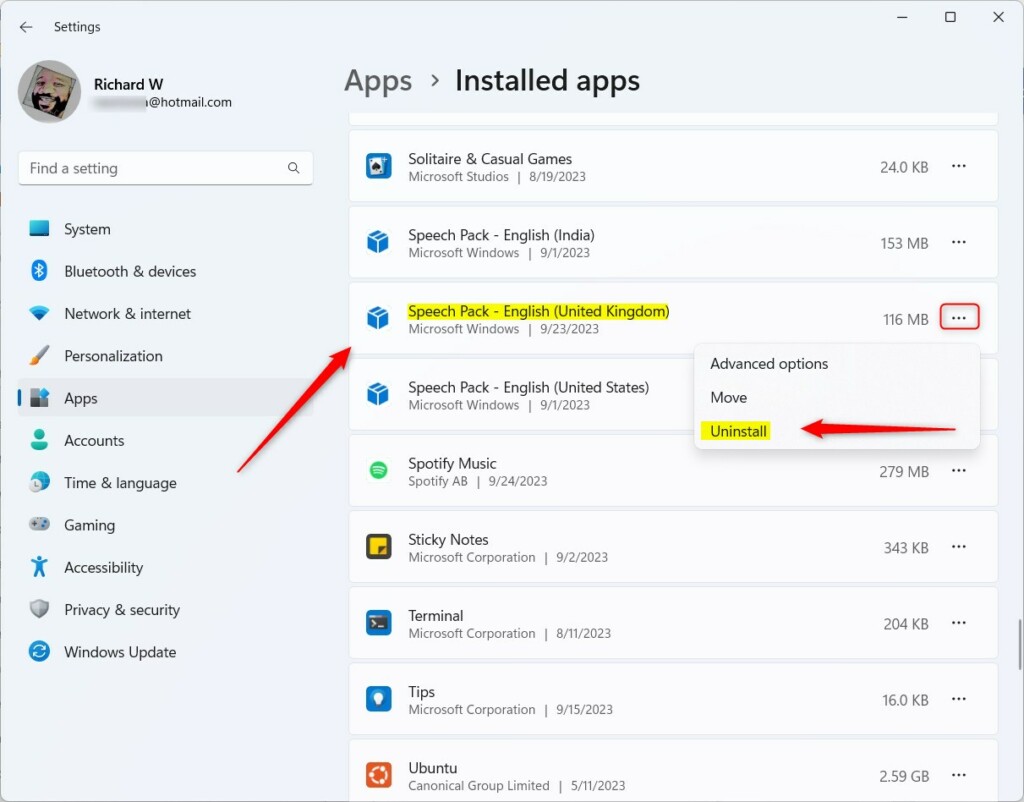
Go to Settings, then Apps, and Installed apps. Find the Speech Pack you want to remove, click the three dots, and select Uninstall. Confirm the action to remove the language.
Using the Windows Settings App
Uninstalling a Voice Access language in Windows 11 is simple using the Settings app. Just go to Apps, then Installed apps, find the Speech Pack you want to remove, and click the uninstall button.
- Click Start and select Settings.
- Go to Apps then Installed apps.
- Find the Speech Pack you want to remove in the list.
- Click the three dots (…) next to the item.
- Select Uninstall.
- Click Uninstall again to confirm.
Using Windows Terminal (Advanced)
If you’re comfortable with more technical steps, you can uninstall a Voice Access language faster using Windows Terminal with administrator rights. This method uses specific commands to remove speech packs from your system.
Find the PackageFullName of the language you want to remove, and then use that name in this command:
Get-AppxPackage *MicrosoftWindows.Speech* | Select Name, PackageFullName
Remove-AppxPackage -Package 'MicrosoftWindows.Speech.en-GB.1_1.0.7.0_x64__cw5n1h2txyewy'
Troubleshooting Greyed-Out Options
If the uninstall button for a Voice Access language is greyed out, it usually means the language is your main display language or needed by Windows Update, so you’ll need to change your primary language first.
Verification of Removal
To check if you’ve successfully uninstalled a Voice Access language, you can verify its removal in a couple of ways. Look in an elevated PowerShell window to see if the language package name is gone, or check your system’s storage space in Settings.
Get-AppxPackage -Name *Speech*
If the package name no longer appears in the output, the removal was successful. You can also check your disk space in Settings > System > Storage to confirm the space has been reclaimed.
Summary
Managing Voice Access languages in Windows 11 is simple, using either the Settings menu for a visual approach or Windows Terminal for a faster, command-based method to keep your system organized.
Why can’t I find the language pack in the Installed Apps list?
If you can’t find a Voice Access language pack in the Installed Apps list, it’s likely an optional feature, and you can remove it by going to Settings > Time & language > Language & region and looking under Speech options.
Does removing a Voice Access language affect other Windows features?
Removing a Voice Access language only impacts the speech-to-text capabilities for that specific language. It does not affect your display language, keyboard layout, or other core Windows features. However, ensure you do not remove the language currently set as your primary system language to avoid potential interface issues.
Can I reinstall a Voice Access language after removal?
Yes, you can easily reinstall any language pack at any time. Simply go to Settings > Time & language > Language & region, click Add a language, and ensure the Speech recognition box is checked during the installation process. This will restore full Voice Access functionality for that language.
Was this guide helpful?

About the Author
Richard
Tech Writer, IT Professional
Richard, a writer for Geek Rewind, is a tech enthusiast who loves breaking down complex IT topics into simple, easy-to-understand ideas. With years of hands-on experience in system administration and enterprise IT operations, he’s developed a knack for offering practical tips and solutions. Richard aims to make technology more accessible and actionable. He's deeply committed to the Geek Rewind community, always ready to answer questions and engage in discussions.




No comments yet — be the first to share your thoughts!