How to Change Your Display Name in Windows 11

You change your Windows 11 display name by either updating your Microsoft account online or modifying your local account settings directly within Windows.
Your Windows 11 display name is the full name that appears on your sign-in screen, Start Menu, and within the Settings app. This differs from your username.
For Microsoft accounts, this is typically the name associated with your email address. Local accounts often use your username by default. You can update this name to personalize your PC or to clearly identify your profile if others share your device.
You can change your Windows 11 display name using the Netplwiz tool or the Local Users and Groups console. Open the Run window with Windows key + R, type ‘Netplwiz’ or ‘lusrmgr.msc’, and follow the prompts to edit the ‘Full name’ field for your user account.
Why Change Your Display Name?
You might want to update your display name if you got married, prefer a different name, or want your account to show a professional name instead of a username.
Method 1Using Netplwiz
You can change your display name in Windows 11 using the Netplwiz tool, which is a simple way to manage user accounts. This method lets you quickly update the name that appears on your login screen and in other places.
- Press the Windows key + R on your keyboard to open the Run window.
- Type
Netplwizand press Enter. Or, you can search for “Netplwiz” using Windows search.
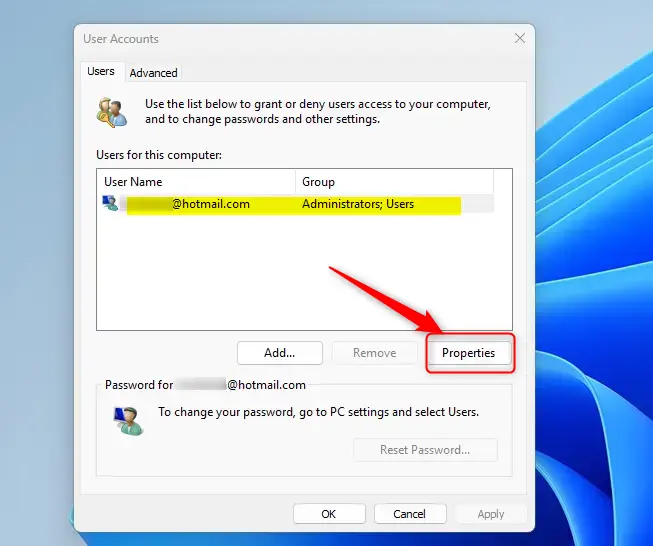
- A window will open showing all user accounts on your computer. Click the account you want to change.
- Click the Properties button.
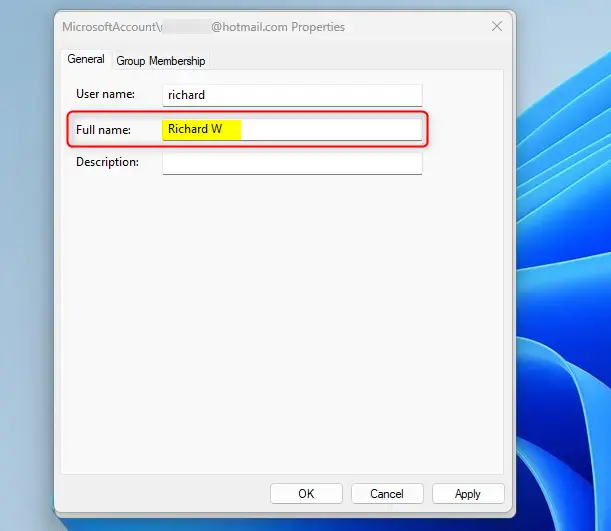
- Under the General tab, you’ll see a box labeled Full name. Delete the current name and type your new display name.
- Click OK to save your changes.
Method 2Using Local Users and Groups Console
For more control when you change your display name in Windows 11, you can use the Local Users and Groups console, but you’ll need admin rights. This tool lets you adjust various settings for user accounts on your PC.
- Press Windows key + R to open the Run window.
- Type
lusrmgr.mscand press Enter. This opens the Local Users and Groups console.
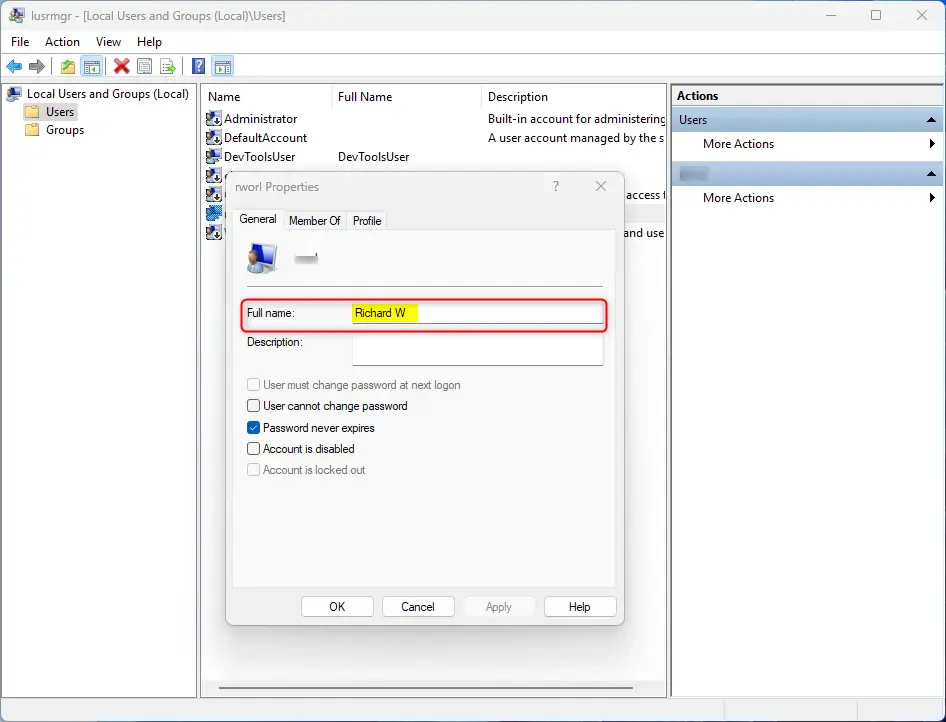
- In the left panel, click the Users folder to see all accounts.
- Find the account you want to change and double-click it to open it.
- Find the Full name field, delete the current name, and type your new display name.
- Click OK to save your changes.
What Happens After You Change Your Display Name?
Your new display name will show up in several places right away. You’ll see it on the Windows Sign-in screen, in the Start Menu, and in your Settings. Other people who share your computer will also see the new name.
Summary
Changing your display name in Windows 11 is a straightforward process, achievable through either the Netplwiz tool or the Local Users and Groups console. Both methods are quick and result in your updated name appearing on your sign-in screen and in Settings.
Is it possible to change the user name in 🪟 Windows 11?
Change display name in Windows 11 safely and effectively Use netplwiz, lusrmgr. msc, or Control Panel to change the display name for a local account. These tools provide direct access to account settings. For a Microsoft account, update your name on the Microsoft Account website.
Was this guide helpful?

About the Author
Richard
Tech Writer, IT Professional
Richard, a writer for Geek Rewind, is a tech enthusiast who loves breaking down complex IT topics into simple, easy-to-understand ideas. With years of hands-on experience in system administration and enterprise IT operations, he’s developed a knack for offering practical tips and solutions. Richard aims to make technology more accessible and actionable. He's deeply committed to the Geek Rewind community, always ready to answer questions and engage in discussions.



No comments yet — be the first to share your thoughts!