How to Show Email on Windows 11 Sign-In Screen

You can display your email address on the Windows 11 sign-in screen by enabling a specific personalization setting.
This feature makes it easy to confirm the correct user account, especially if you manage multiple Microsoft accounts or share your PC.
Seeing your full email address beneath your username on the lock screen helps you avoid logging into the wrong profile.
You find this option within Personalization > Lock screen, under the “Personalize your lock screen” settings in Windows 11.
Show your email on the Windows 11 sign-in screen by going to Settings > Accounts > Sign-in options. Scroll to Additional settings and toggle “Show account details such as my email address on the sign-in screen” to On. This helps identify your user account quickly.
How to show your email on the sign-in screen (Settings App)
You can show your email address on the Windows 11 sign-in screen by using the Settings app and turning on a simple option.
1. Press Windows key + I to open Settings.
2. Click Accounts in the left sidebar.
3. Select Sign-in options.
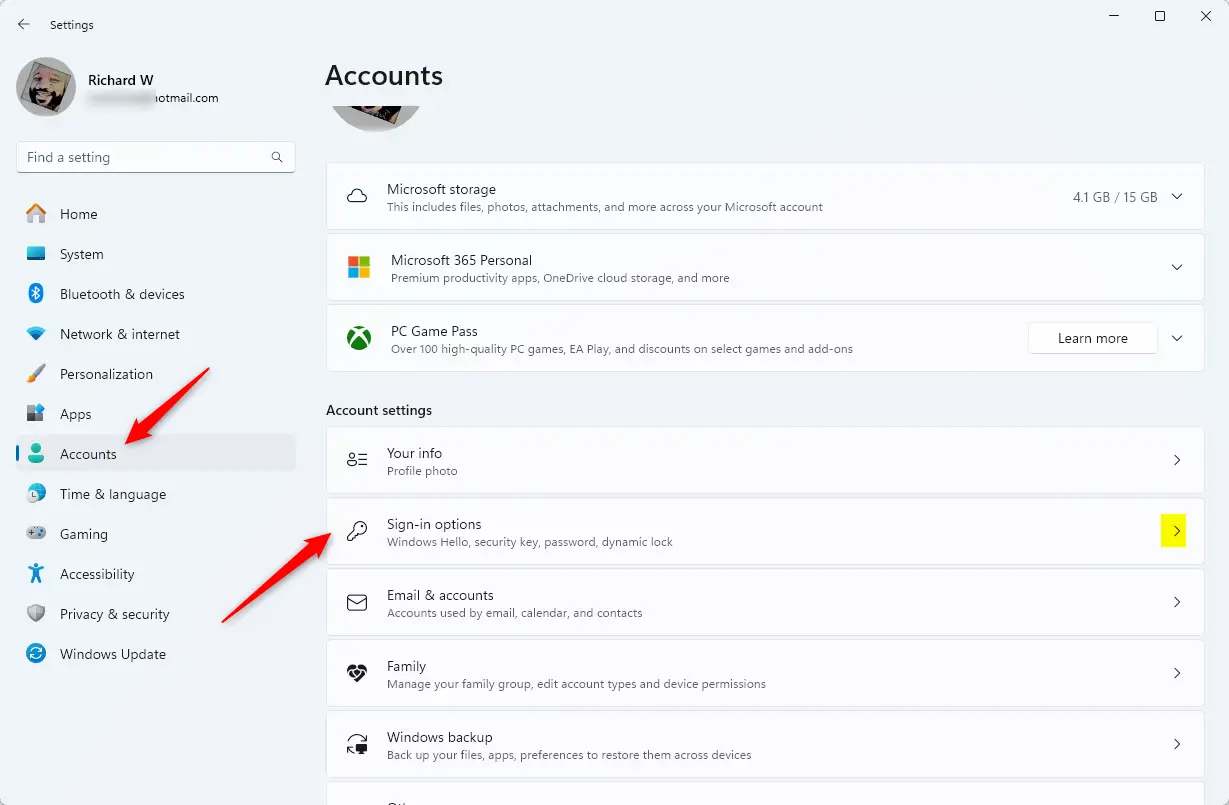
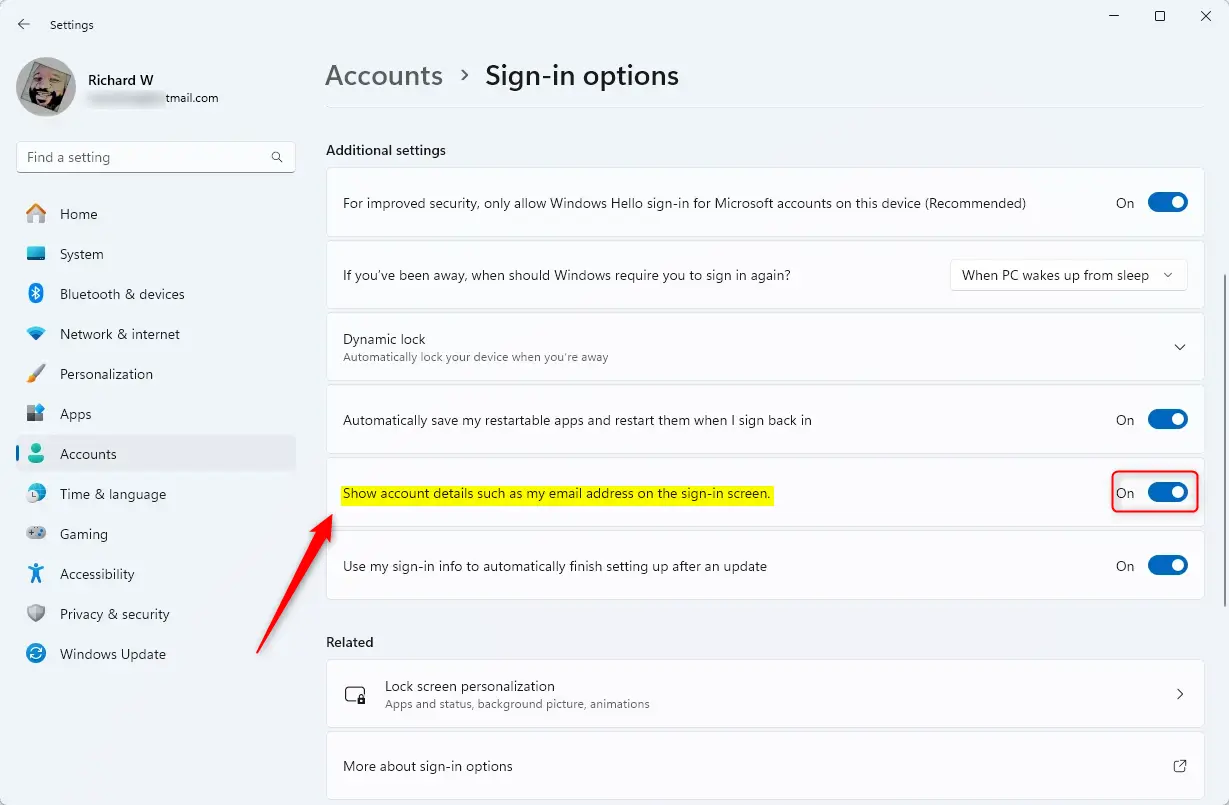
4. Scroll to Additional settings.
5. Toggle Show account details such as my email address on the sign-in screen to On.
Advanced Method: Using Group Policy Editor
Windows 11 Pro and Enterprise users can show their email on the sign-in screen using the Group Policy Editor, a tool for managing computer settings.
- Press Windows key + R, type gpedit.msc, and hit Enter. You’ll need administrative privileges for this.
- Navigate to: Computer Configuration > Windows Settings > Security Settings > Local Policies > Security Options.
- Find Interactive logon: Display user information when the session is locked.
4. Double-click it and choose Display user display name and email address.
5. Click Apply and OK.
Advanced Method: Using Registry Editor
Windows Home users or those who like making system changes can show their email on the sign-in screen by using the Registry Editor.
1. Press Windows key + R, type regedit, and hit Enter. You’ll need administrative privileges for this.
2. Navigate to: 🗝️HKEY_LOCAL_MACHINE\SOFTWARE\Microsoft\Windows\CurrentVersion\Policies\System. This is a specific location within Windows where settings are stored.
3. Look for DontDisplayLastUserName. If you don’t see it, right-click in the empty space, choose New > DWORD (32-bit) Value, and name it DontDisplayLastUserName.
4. Set its value to 0. This tells Windows to show your account details.
Summary
You can show your email on the Windows 11 sign-in screen using the easy Settings app, the Group Policy Editor for advanced control, or the Registry Editor for direct system changes.
Is it a security risk to show my email on the sign-in screen?
Showing your email on the sign-in screen is a minor security risk because it tells anyone with access to your computer a bit about your account.
Why is the ‘Display user information’ option greyed out in Group Policy?
If the option is greyed out, you may not have the necessary administrative permissions to modify security policies. Alternatively, your computer might be managed by an organization or school that has enforced specific security policies via a central server, which overrides local settings on your individual machine.
Was this guide helpful?

About the Author
Richard
Tech Writer, IT Professional
Richard, a writer for Geek Rewind, is a tech enthusiast who loves breaking down complex IT topics into simple, easy-to-understand ideas. With years of hands-on experience in system administration and enterprise IT operations, he’s developed a knack for offering practical tips and solutions. Richard aims to make technology more accessible and actionable. He's deeply committed to the Geek Rewind community, always ready to answer questions and engage in discussions.




No comments yet — be the first to share your thoughts!