How to Change Your Device Name for Nearby Sharing in Windows 11

You change your device name for Nearby Sharing in Windows 11 by renaming your PC in the System Properties. Your device name is what appears to others when using Windows 11’s Nearby Sharing feature, a quick way to send files wirelessly between PCs.
Nearby Sharing uses your PC’s name to make it discoverable over Wi-Fi or Bluetooth. A custom name ensures your PC stands out and is easily identifiable to friends or your other devices.
This custom name replaces the default, often complex, computer name that Windows assigns. Once you update it, that new name will be visible whenever your device is available for sharing or network discovery.
Change your device name for Nearby Sharing in Windows 11 by going to Settings > System > About. Click “Rename this PC,” enter your desired name, and restart your computer. This makes your PC easier to identify on the network.
Computer Name vs. Device Manager Names
Your computer’s name, the one other devices see on your network, is different from the names of specific hardware parts like your graphics card that you see in Device Manager.
It’s important to know your “Computer Name” (also called a hostname) isn’t the same as hardware names in Device Manager. Your computer name is what other devices see on your network. Device Manager names refer to specific hardware drivers, like your graphics card or network adapter. Changing your computer name won’t affect these hardware driver names.
Change Your Device Name via System Settings
Changing your device name in Windows 11 for things like Nearby Sharing is simple and done right through the System Settings app.
- Open the Settings app by pressing Windows key + I.
- Go to System and select About at the bottom of the list.
- Click the Rename this PC button.
- Enter your new name and click Next.
- Restart your computer to apply the changes.
Note: This method requires admin privileges.
Rename Using PowerShell
Advanced users can use the Rename-Computer cmdlet to change the name quickly.
- Right-click the Start button and select Terminal (Admin).
- Type the following command and press Enter:
Rename-Computer -NewName "New-Friendly-Name" - Restart your computer to finish.
Note: This method requires admin privileges.
Advanced Registry Method
Advanced users can change a device name just for Nearby Sharing, without changing your main computer name, by editing the Windows Registry.
Warning: This method requires admin privileges. Be careful, as changing registry settings can affect your system.
- Open the Registry Editor by searching for regedit in the Start menu.
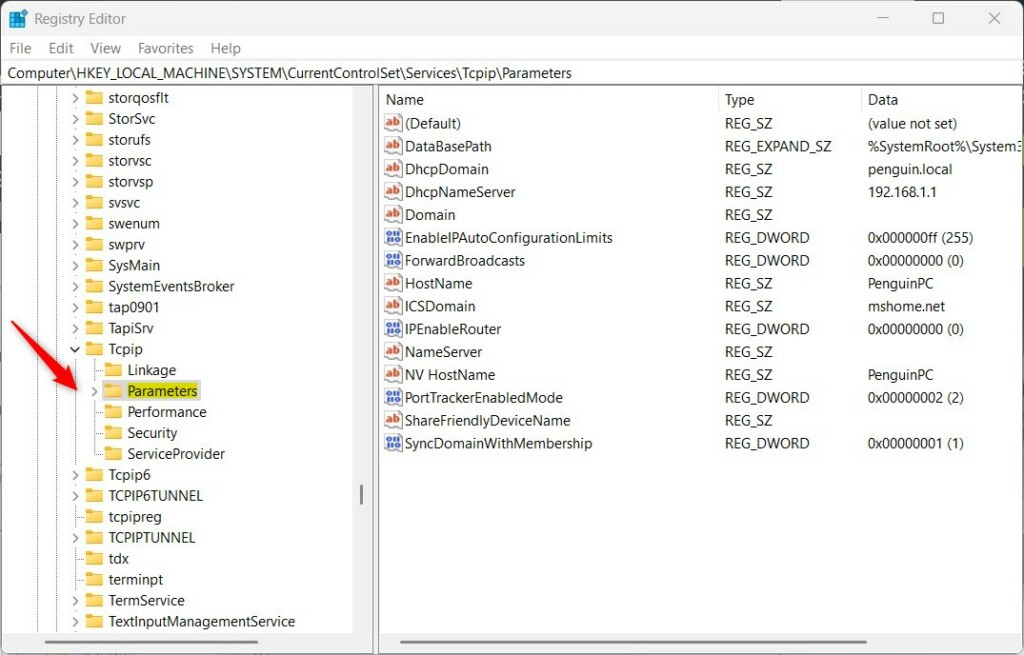
- Navigate to:
HKEY_LOCAL_MACHINE\SYSTEM\CurrentControlSet\Services\Tcpip\Parameters - Right-click in the empty space, select New, then String Value.
- Name it
ShareFriendlyDeviceName. - Double-click it and enter your preferred name.
Summary
Renaming your PC in Windows 11 makes it easier to spot on your network and when using features like Nearby Sharing.
Does changing my device name affect my Microsoft Account?
No, changing your local device name does not affect your Microsoft Account. Your account settings, cloud storage, and linked services remain tied to your email address, not the name of the physical hardware you are using to access them.
Why does my device name have a number appended to it?
Windows often appends a number to your device name if it detects a conflict on your local network. This ensures that every device has a unique identifier so that network discovery and file sharing protocols do not get confused by duplicate names.
Was this guide helpful?

About the Author
Richard
Tech Writer, IT Professional
Richard, a writer for Geek Rewind, is a tech enthusiast who loves breaking down complex IT topics into simple, easy-to-understand ideas. With years of hands-on experience in system administration and enterprise IT operations, he’s developed a knack for offering practical tips and solutions. Richard aims to make technology more accessible and actionable. He's deeply committed to the Geek Rewind community, always ready to answer questions and engage in discussions.

No comments yet — be the first to share your thoughts!