How to Enable or Disable Magnifier Bars on Touchscreen in Windows 11

You enable or disable Magnifier bars on touchscreens in Windows 11 through the Magnifier settings. Magnifier is a Windows tool that enlarges parts of your screen, which is really helpful if you have low vision.
These bars, specifically the docking bars that appear when Magnifier is in docked mode on a touchscreen, can be toggled on or off. In Windows 11 versions 22H2 and later, these bars often hide by default to give touch devices a cleaner look.
If you prefer having these on-screen controls to navigate your magnified view, you can reactivate them. Conversely, if you find them distracting on your touchscreen, you can disable them in a few clicks.
Learn more about making items larger with Magnifier in Windows Use Magnifier to make things on the screen easier to see | Microsoft Support.
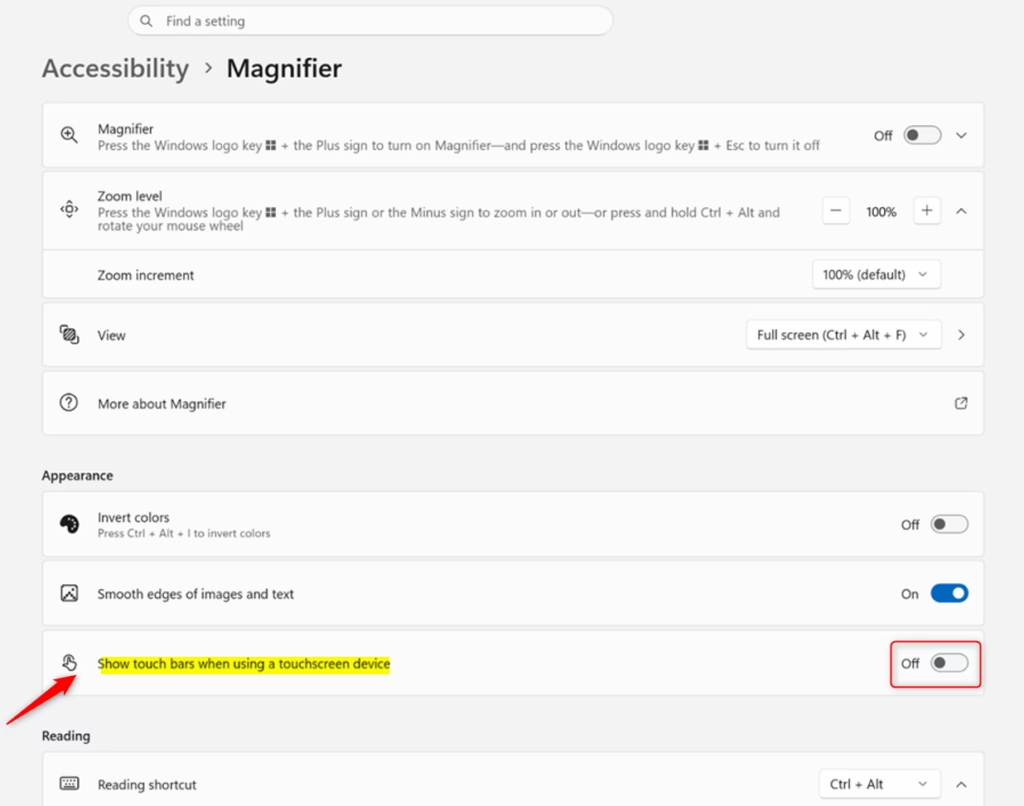
Go to Settings, then Accessibility, and select Magnifier. Toggle the “Show touch bars when using a touchscreen device” option on or off to enable or disable the bars.
Option 1Use Settings
You can turn the magnifier touch bars on or off easily using the Windows Settings app.- Open Settings. You can press the Windows key + I at the same time.
- On the left side, click or tap on Accessibility. Then, on the right side, click or tap on Magnifier. See the screenshot below.
- Click or tap on Magnifier to open its settings.
- Look under the Appearance section. You will see an option called Show touch bars when using a touchscreen device. Turn this option on or off depending on what you want. By default, it is off. See the screenshot below.
- You can now close the Settings window.
Option 2Use the Registry Editor (Advanced)
For advanced users, changing the magnifier touch bars can be done using the Windows Registry Editor.
What happens when done? Changing these settings directly affects how Magnifier behaves on your touchscreen.
Note: Modifying the registry incorrectly can cause serious issues. It’s best to use the Settings app if you’re not comfortable with the registry. This section is for advanced users.
You will need administrator rights for this method.
To Turn On Show Touch Bars:
- Open Registry Editor. You can search for “regedit” in the Windows search bar.
- Navigate to the following key:
HKEY_CURRENT_USER\Software\Microsoft\TabletPC\Magnifier - Right-click on an empty space in the right pane.
- Select New > DWORD (32-bit) Value.
- Name the new value
FullscreenTouchPanels. - Double-click on
FullscreenTouchPanels. - Set the Value data to
1. - Click OK.
To Turn Off Show Touch Bars (Default):
- Open Registry Editor.
- Navigate to the following key:
HKEY_CURRENT_USER\Software\Microsoft\TabletPC\Magnifier - Double-click on
FullscreenTouchPanels. - Set the Value data to
0. - Click OK.
After making changes in the Registry Editor, you might need to restart your computer for the changes to take effect.
Summary
You can easily control whether touch bars appear in Magnifier on your touchscreen in Windows 11. Use the Settings App for a way to turn this feature on or off. For advanced users, the Registry Editor offers another method, but proceed with caution.
What is a bar magnifier?
A bar magnifier, sometimes called a docking bar on Windows 11 touchscreens, is a helpful on-screen control that shows up when you use Magnifier in docked mode.
What are the disadvantages of using a magnifier?
While Magnifier aids low-vision users, disadvantages can include a limited field of view, potential disorientation, and difficulty with precise interactions. On touchscreens, the on-screen bars might also obscure content or feel intrusive if not managed properly, impacting the overall user experience.
How do I get rid of the magnifier on my screen on my iPad?
To disable Magnifier on an iPad, go to Settings > Accessibility > Zoom. Toggle the 'Zoom' switch off . If you've set up Zoom with an accessibility shortcut, you can also triple-click the Home button or the side button to turn it on or off.
Is a loupe better than a magnifying glass?
A loupe is essentially a small, high-power magnifying glass, often with multiple lenses for reduced distortion. For detailed work requiring high magnification and clarity, a loupe is generally superior to a standard magnifying glass due to its optical quality and portability.
Was this guide helpful?

About the Author
Richard
Tech Writer, IT Professional
Richard, a writer for Geek Rewind, is a tech enthusiast who loves breaking down complex IT topics into simple, easy-to-understand ideas. With years of hands-on experience in system administration and enterprise IT operations, he’s developed a knack for offering practical tips and solutions. Richard aims to make technology more accessible and actionable. He's deeply committed to the Geek Rewind community, always ready to answer questions and engage in discussions.



No comments yet — be the first to share your thoughts!