How to Enable or Disable Magnifier in Ubuntu Linux

You can enable or disable the Magnifier accessibility tool in Ubuntu Linux using keyboard shortcuts or system settings.
Magnifier in Ubuntu is a feature that enlarges portions of your screen, acting like a digital magnifying glass to help you see text and images more clearly, especially on displays with lower resolutions or for users with visual impairments.
This tool is built into Ubuntu’s accessibility suite, providing options to control magnification levels and tracking behavior. For instance, you can quickly toggle it on or off using the Super (Windows key) + M shortcut.
Once enabled, you gain granular control over its functionality, adjusting the zoom factor, how it follows your mouse pointer, and where the magnified area appears on your screen.
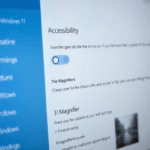
Open Settings, then Accessibility, and finally Zoom. Toggle the Zoom switch to On to enable Magnifier, or Off to disable it.
How to enable pinch zoom in Ubuntu?
Holding down CTRL while pinching or zooming will allow you to perform the gesture. @Bakly is right. AFAIK Ubuntu out of the box is oblivious to the pinch gesture. And the documentation is silent about it as well…
How do you zoom in and zoom out in Ubuntu?
You can zoom in and out in Ubuntu using simple keyboard shortcuts right in the terminal window. To make text bigger, just press CTRL and the equals sign together. To make it smaller, press CTRL and the underscore.
Was this guide helpful?

About the Author
Richard
Tech Writer, IT Professional
Richard, a writer for Geek Rewind, is a tech enthusiast who loves breaking down complex IT topics into simple, easy-to-understand ideas. With years of hands-on experience in system administration and enterprise IT operations, he’s developed a knack for offering practical tips and solutions. Richard aims to make technology more accessible and actionable. He's deeply committed to the Geek Rewind community, always ready to answer questions and engage in discussions.



No comments yet — be the first to share your thoughts!