How to Locate Your Mouse Pointer in Ubuntu Linux

You can locate your mouse pointer in Ubuntu Linux by pressing the CTRL key.
This action activates a visual spotlight, temporarily enlarging and highlighting the area around your cursor to make it easy to find on your screen. This feature, often called “Show mouse location,” is incredibly useful on high-resolution displays or when you manage multiple monitors.
Ubuntu’s standard mouse pointer, typically a small black arrow, can easily blend into busy backgrounds or disappear on large displays. This can be a real frustration, especially for users with visual impairments.
By simply tapping your CTRL key, you bring the pointer into focus, ensuring you never lose track of it again.
Press the CTRL key to reveal a visual spotlight around your mouse pointer. This feature, called “Locate Pointer,” is enabled in System Settings under Accessibility, in the Pointing & Clicking section.
How to find your mouse pointer fast on Ubuntu Linux
You can find your mouse pointer fast on Ubuntu Linux by using a handy feature that makes it temporarily enlarge when you press the CTRL key. This is a great way to quickly locate your cursor if it gets lost on a busy screen. It works just like the same feature in Windows, making it familiar for many users.
Ubuntu Linux keeps most of its settings in one place, called the System Settings panel. This is where you can manage things like system configurations, create new users, and update your software.
Alternatively, click on the System menu in the top-right corner of your desktop bar.
From the System menu, select Settings, just like you see below.

In the Settings app, click the Accessibility tile to open that section.

In the System Settings -> Accessibility panel, look for Pointing & Clicking. Then, turn the Locate Point button to On to enable it.
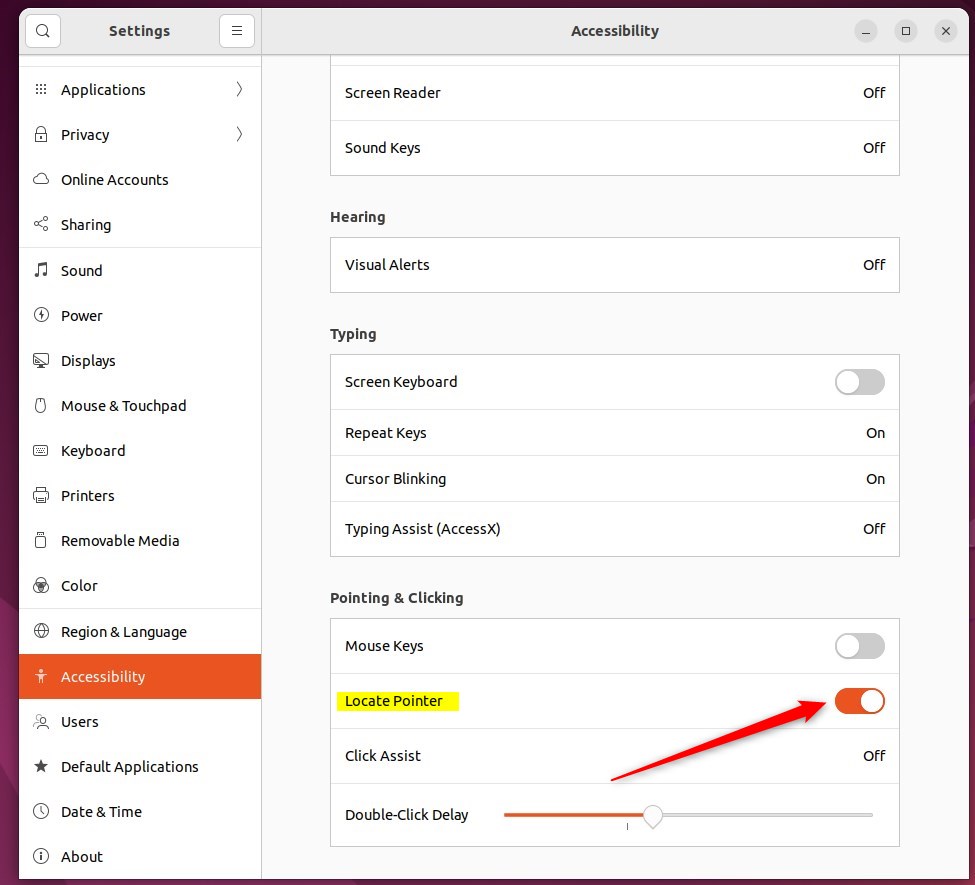
To turn it off, simply flip the switch back to Off.
Once enabled, just hold down the CTRL key, and you’ll see the pointer’s location.
That should do it! You can now close the Settings app.
Conclusion:
- Enabling the Locate Pointer feature can help users quickly find the mouse pointer on Ubuntu Linux.
- This feature is especially useful for individuals with poor vision or those using wide, high-resolution screens.
- The CTRL key can be utilized to toggle the visibility of the pointer’s location, providing a convenient way to keep track of its position.
How do I locate my mouse pointer?
In Settings, select Devices. On the Devices screen, select Mouse in the left-hand column. Under Related settings in the right-hand panel, click Additional mouse options. In the Mouse Properties window, click the Pointer Options tab, and look under Visibility.
How to get cursor in Ubuntu?
And you can see that app image is being downloaded. Let's go here. And it should be in my downloads directory. From there let me clear the screen and if I do ls-ltr.
How do I find the point where my cursor is?
In Mouse Properties, open the Pointer Options tab. Under Visibility, check Show location of pointer when I press the CTRL key. Select OK. Press the CTRL key to have Windows circle the pointer's location.
Was this guide helpful?

About the Author
Richard
Tech Writer, IT Professional
Richard, a writer for Geek Rewind, is a tech enthusiast who loves breaking down complex IT topics into simple, easy-to-understand ideas. With years of hands-on experience in system administration and enterprise IT operations, he’s developed a knack for offering practical tips and solutions. Richard aims to make technology more accessible and actionable. He's deeply committed to the Geek Rewind community, always ready to answer questions and engage in discussions.



[…] features one can enable in Ubuntu Linux. From increasing the mouse pointer size to enabling the pointer locater. These features are there to […]