Enable Cursor Blinking in Ubuntu for Better Accessibility

You can enable keyboard cursor blinking in Ubuntu to make it more accessible if you struggle to see the text insertion point.
Cursor blinking is a feature that makes the cursor flash, helping users with visual impairments easily locate where text will appear.
For example, if you’re using Ubuntu 22.04 LTS and find the default static cursor difficult to track, activating this blinking animation can significantly improve your typing experience.
You can easily toggle cursor blinking on or off directly within Ubuntu’s system settings, often found within the Accessibility options, right next to other visual aids like larger mouse pointers.
Go to Settings, then Accessibility, and under Typing, toggle Cursor Blinking to On. You can also adjust the blinking speed with the slider. This feature helps make the text insertion point easier to see.
How to turn on or off cursor blinking in Ubuntu Linux
You can turn cursor blinking on or off in Ubuntu Linux using the System Settings, which helps make the cursor easier to see when you’re typing.
Here’s how to do that.
Ubuntu Linux keeps most of its settings in one place. You can manage everything from system configurations to creating new users and updates within the System Settings panel.
Alternatively, click on the System menu in the top-right corner of your desktop’s top bar.
From the System menu, select Settings, as shown in the screenshot below.

In the Settings app, click on the Accessibility tile to open that section.

In the System Settings > Accessibility panel, look under Typing and select Cursor Blinking, which is highlighted below.
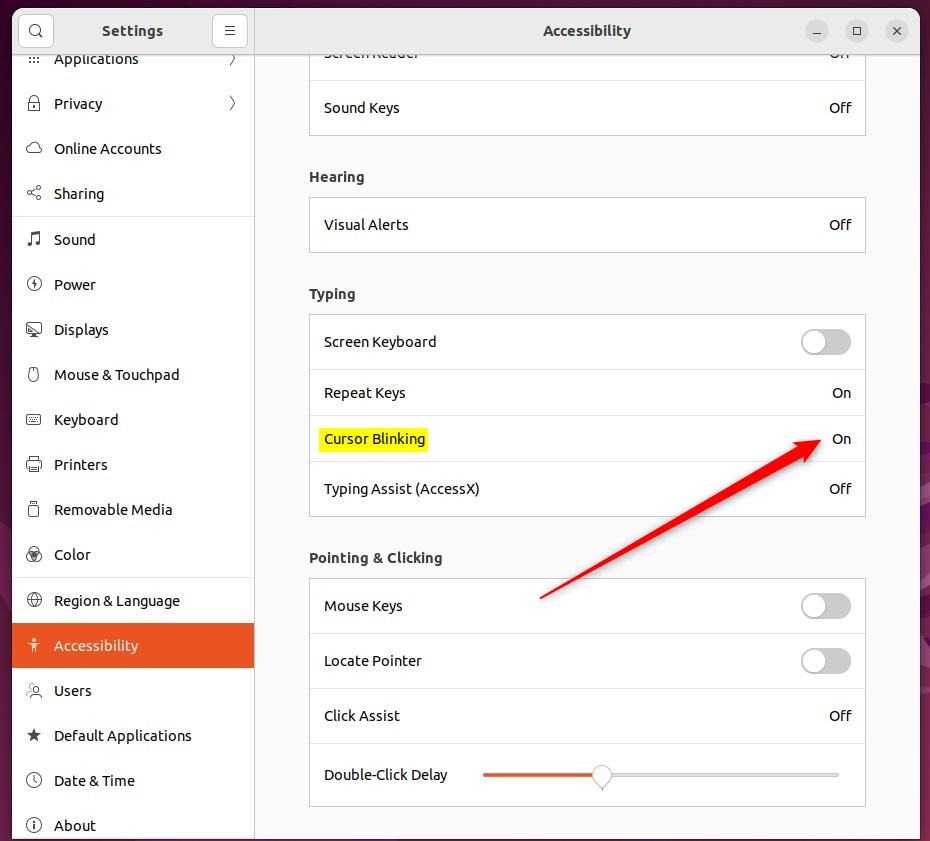
In the Cursor Blinking window, toggle the Cursor Blinking button to the On position to enable it.
To disable it, move the button to the Off position.
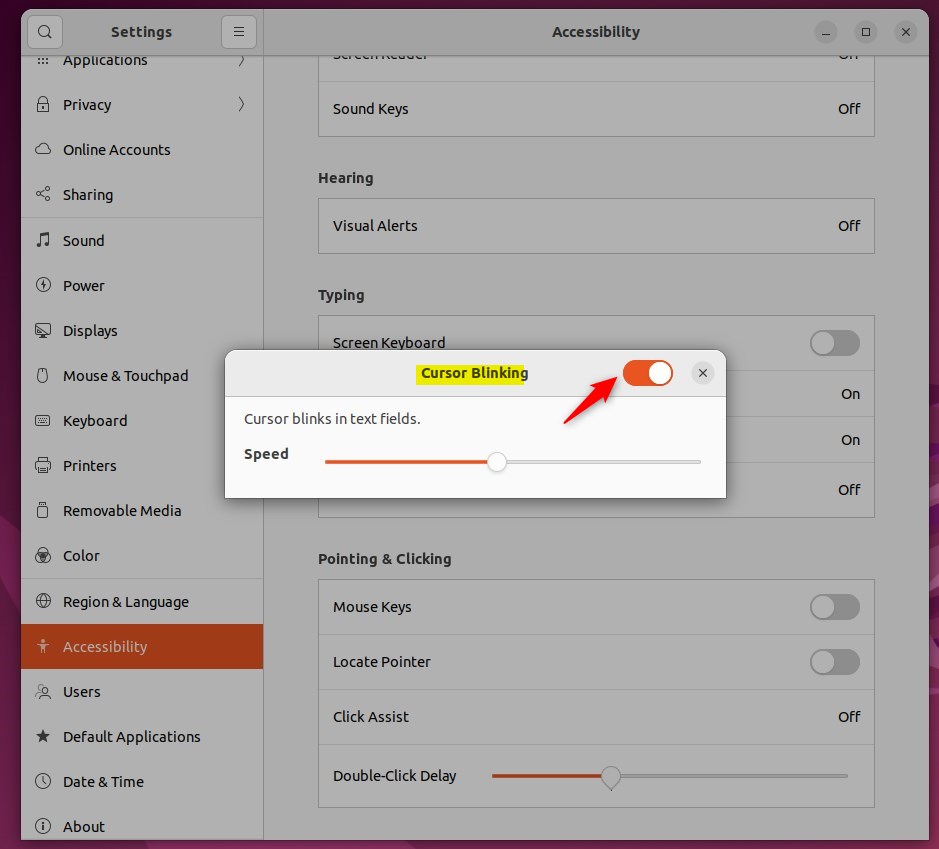
Once enabled, use the Speed slider to adjust how quickly the cursor blinks.
And that’s it! You can now close the Settings app.
Conclusion:
- Enabling cursor blinking can be helpful for users with poor vision, making it easier to locate the keyboard cursor in a text field.
- Ubuntu Linux offers a centralized location for adjusting accessibility settings, including the cursor blinking feature.
- Users can easily toggle the cursor blinking on or off and adjust the blinking speed according to their preferences through the System Settings panel.
- This accessibility feature, along with others like increasing the mouse pointer size and enabling the pointer locator, aims to improve the user experience for individuals with visual challenges.
Why does my cursor keep blinking?
This happens when the display is set to greater than 256 colors. The flickering can be eliminated by going to Control Panel, Mouse and disabling the pointer shadow selection in the Pointers tab.
How do I get rid of the blinking cursor?
Rate. I can find a control panel called keyboard properties change the blink rate down to none. Okay still blinking in terminal. So I need to relaunch. It.
How do I force Ubuntu to boot into recovery mode?
Restart your computer. Before the boot splash screen appears, press the Shift or Esc key (it could be another key, as it depends on the laptop's manufacturer) to enter the GRUB boot menu. In the advanced options, select a recovery mode. Boots normally to your main OS.
Was this guide helpful?

About the Author
Richard
Tech Writer, IT Professional
Richard, a writer for Geek Rewind, is a tech enthusiast who loves breaking down complex IT topics into simple, easy-to-understand ideas. With years of hands-on experience in system administration and enterprise IT operations, he’s developed a knack for offering practical tips and solutions. Richard aims to make technology more accessible and actionable. He's deeply committed to the Geek Rewind community, always ready to answer questions and engage in discussions.

No comments yet — be the first to share your thoughts!