How to Change the Magnifier Zoom Level in Windows 11

Want to make text and images bigger on your Windows 11 screen? Here’s how to change the Magnifier zoom level.
Magnifier is a built-in accessibility tool, meaning it’s designed to help people with vision impairments. It enlarges a part or all of your screen, so you can see details more clearly. This is especially useful if you have difficulty reading small text or distinguishing elements on your display.
Windows 11 lets you adjust the zoom in steps of 100%, 200%, 300%, all the way up to 500%. This helps you find the exact magnification you need.
This guide walks you through the different ways to adjust your Magnifier zoom level, so you can customize how you see your screen.
Use keyboard shortcuts, the Magnifier toolbar, or Windows Settings to adjust zoom. Press Windows key + Plus to zoom in and Windows key + Minus to zoom out. Alternatively, use the + and – buttons on the Magnifier toolbar or the zoom sliders in Accessibility Settings.
What is Magnifier?
What is Magnifier? Magnifier is a tool that enlarges what’s on your screen. It remembers the last zoom level you used, so it starts there automatically. For more details, check out Microsoft’s guide: Use Magnifier to make things on the screen easier to see
Why Use Magnifier?
Magnifier makes it easier to see text and images. This is helpful if you have vision problems or want to see something more clearly.
Option 1Change Zoom Level Using Keyboard Shortcuts
- Turn on Magnifier by pressing the Windows key + Plus (+) on your keyboard.
- To zoom in (make things bigger), press Windows key + Plus (+) again.
- To zoom out (make things smaller), press Windows key + Minus (-).
Option 2Change Zoom Level Using Mouse Scroll Wheel
- Turn on Magnifier (Windows key + Plus (+)).
- Hold down the Ctrl and Alt keys on your keyboard.
- While holding these keys, scroll your mouse wheel up to zoom in or scroll down to zoom out.
Option 3Change Zoom Level Using the Magnifier Toolbar
- Turn on Magnifier (Windows key + Plus (+)).
- Look for the Magnifier toolbar that appears on your screen.
- Click the + button to zoom in or the – button to zoom out.
Option 4Change Zoom Level in Windows Settings
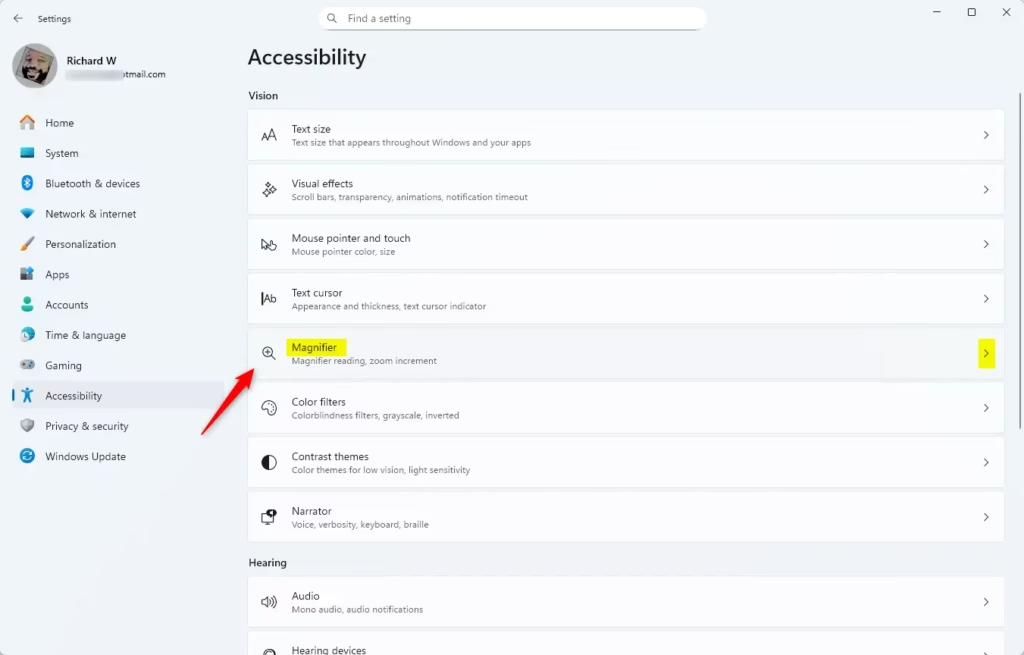
- Press Windows key + I to open Settings.
- Click on Accessibility on the left menu.
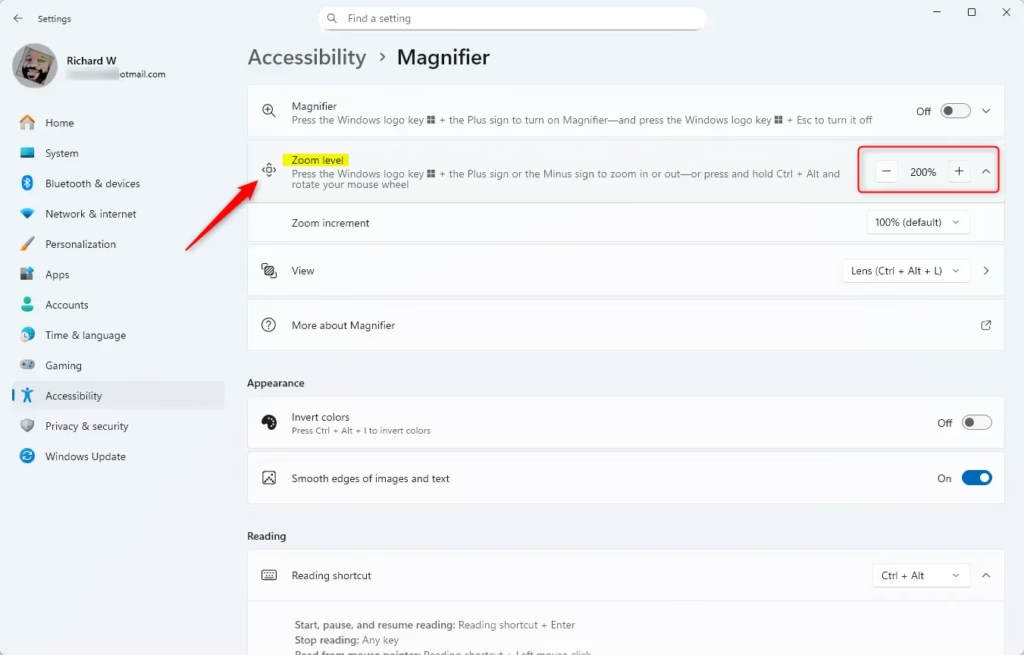
- Click Magnifier on the right.
- Under Zoom level, click the – or + buttons to change the zoom.
- You can close Settings when you’re done.
Option 5Change Zoom Level Using Registry Editor (Advanced)
Windows 11 Magnifier zoom level can be adjusted using the Registry Editor, but this is an advanced method best suited for those comfortable with system settings.
⚠️ Admin privileges required
- Press Windows key + R, type
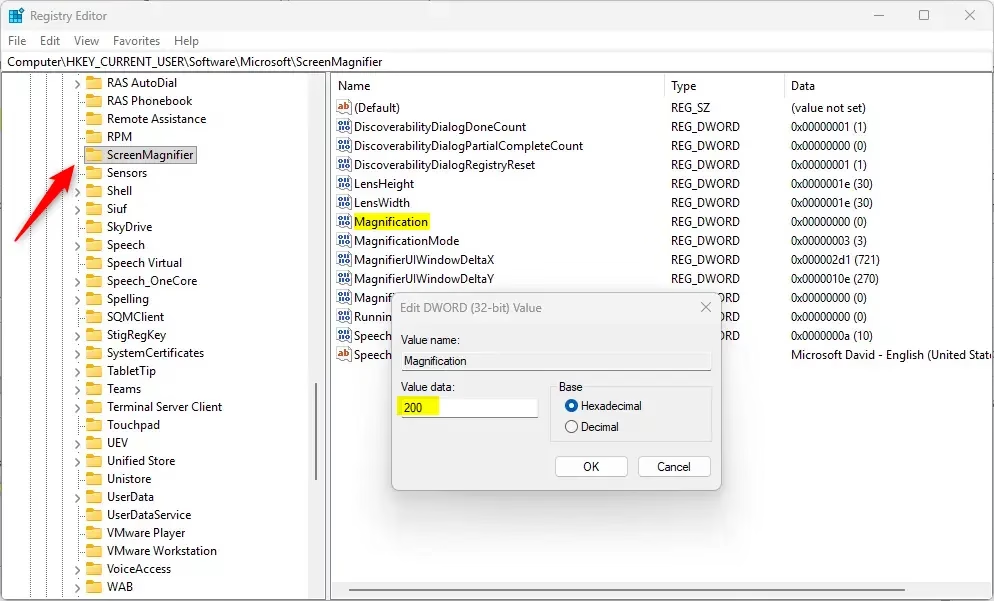
regedit, and press Enter to open Registry Editor. - Navigate to this folder:
Computer\HKEY_CURRENT_USER\Software\Microsoft\ScreenMagnifier - In the right pane, double-click Magnification.
- Select Decimal for the number format.
- Type a number between 100 (100%) and 1600 (1600%) to set your zoom level.
- Click OK and close Registry Editor.
Summary
Windows 11 Magnifier zoom can be changed in several ways, offering flexibility for users who need to adjust screen magnification.
- Keyboard shortcuts: Use Windows key + Plus or Minus to zoom in and out.
- Mouse scroll: Hold Ctrl + Alt and scroll your mouse wheel.
- Magnifier toolbar: Click the + or – buttons on the toolbar.
- Settings: Go to Accessibility and find the Magnifier zoom controls.
- Registry Editor: Change the zoom level directly in the Registry (advanced users only).
Try whichever method works best for you. Each one gives you control over how much your screen magnifies.
Was this guide helpful?

About the Author
Richard
Tech Writer, IT Professional
Richard, a writer for Geek Rewind, is a tech enthusiast who loves breaking down complex IT topics into simple, easy-to-understand ideas. With years of hands-on experience in system administration and enterprise IT operations, he’s developed a knack for offering practical tips and solutions. Richard aims to make technology more accessible and actionable. He's deeply committed to the Geek Rewind community, always ready to answer questions and engage in discussions.


No comments yet — be the first to share your thoughts!