Change How Mouse Pointer and Text Cursor Work with Magnifier in Windows 11

Make your mouse pointer and text cursor easier to see in Windows 11 with Magnifier.
Magnifier is a built-in accessibility tool that enlarges a portion of your screen. Customizing these cursors helps you track them better.
Windows 11 offers specific settings within Magnifier to adjust the color and thickness of both your mouse pointer and the text insertion point, which is that blinking vertical line showing where your text will appear.
You can even change the mouse pointer from its default look to a bright yellow or red. Increasing its size also makes it easier to spot on screen, especially when Magnifier is active.
Adjust Magnifier settings in Windows 11 to change your mouse pointer and text cursor behavior. Open Settings, go to Accessibility, then Magnifier, and select “Within the edges of the screen” or “Centered on the screen” for both options.
What is Magnifier?
Before diving into settings, let’s quickly touch on what Magnifier is. Magnifier is a tool built into Windows 11 that zooms in on parts of your screen, helping you read text or see pictures more clearly.
Why Use Magnifier?
This tool is especially helpful for people who have trouble seeing small text or images, as it enlarges whatever you need to look at.
What Happens When You Change These Settings?
Changing how your mouse pointer and text cursor move in Windows 11 Magnifier can make it easier to see what you’re doing.
Try both options to see which one feels better for you!
How to Change Mouse Pointer and Text Cursor Behavior
- Press
Win + Ion your keyboard to open the Settings app. - On the left menu, click Accessibility.
- On the right side, scroll down and click Magnifier.
- You can also click this link to open Magnifier settings directly: Open Magnifier Settings
You can change the magnifier mouse pointer behavior in Windows 11 by opening the Settings app and going to Accessibility, then Magnifier.
- Click on the View section in Magnifier settings.
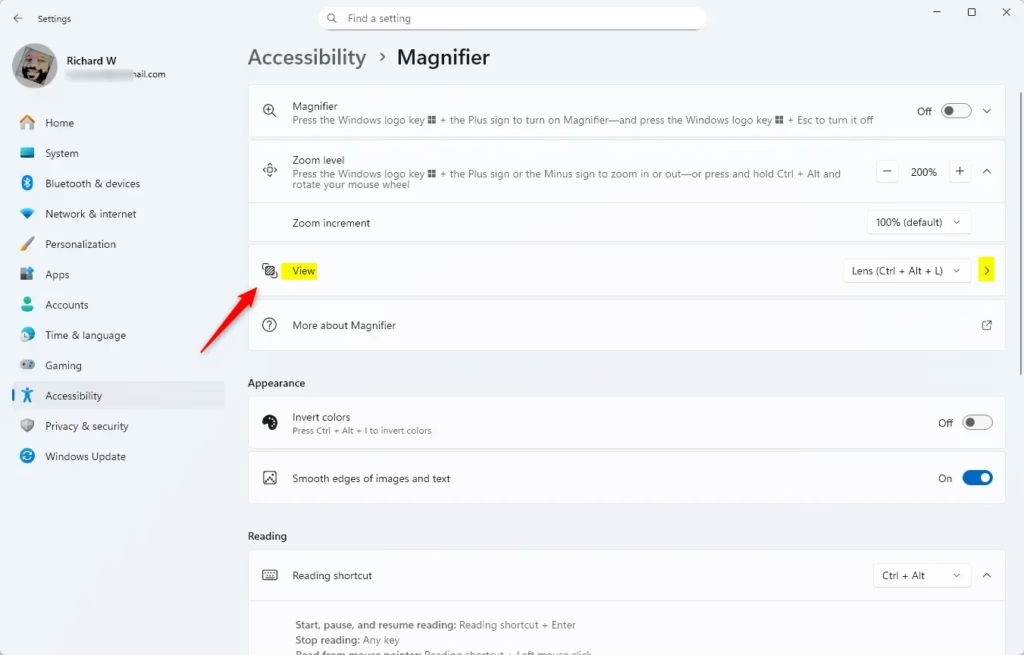
You can change the magnifier mouse pointer behavior in Windows 11 by opening the Settings app and going to Accessibility, then Magnifier.
- Under Keep the mouse pointer, choose either:
- Within the edges of the screen (default), or
- Centered on the screen
- Under Keep the text cursor, choose either:
- Within the edges of the screen, or
- Centered on the screen (default)
- Once you select your choices, you can close the Settings window.
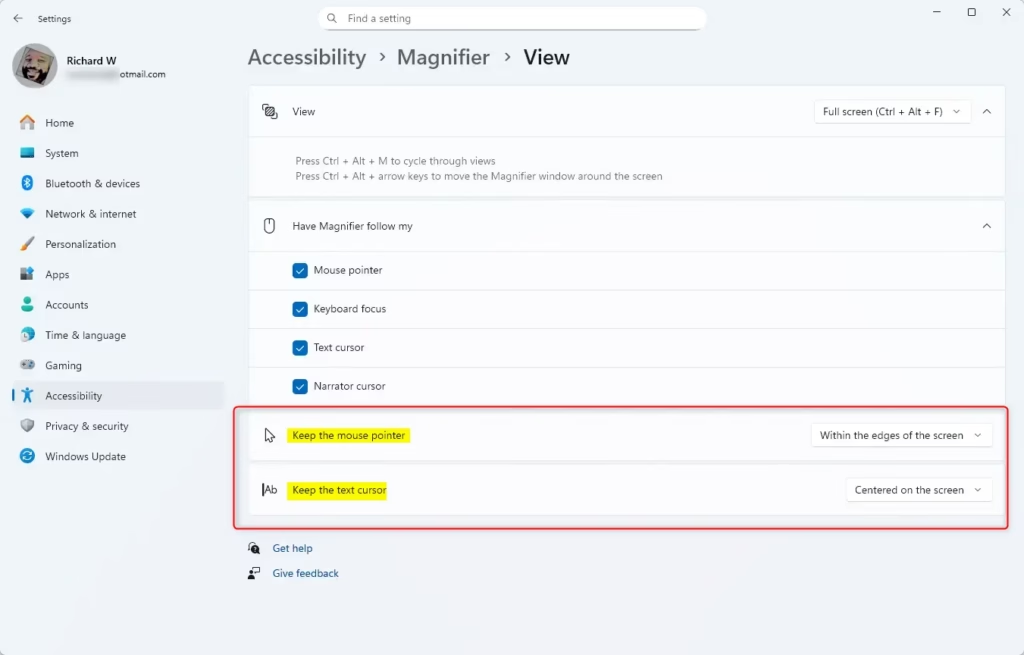
You can change the magnifier mouse pointer behavior in Windows 11 by opening the Settings app and going to Accessibility, then Magnifier.
Summary
Windows 11 Magnifier lets you adjust how your mouse pointer and text cursor behave, offering options to keep them centered or within screen edges.- Magnifier helps you see your screen better by zooming in on text and pictures.
- You can choose how the mouse pointer and text cursor move when using Magnifier.
- Options include keeping them inside the screen edges or always centered.
- Try different settings to find what feels easiest and most comfortable for you.
- Changing these settings is easy and done through the Windows 11 Settings app.
- Using these simple steps, you can make your Windows 11 computer easier to use and enjoy a better viewing experience.
More Help from Microsoft
Learn more about using Magnifier on the official Microsoft support page: Use Magnifier to make things on the screen easier to see – Microsoft Support

How to make mouse pointer more visible in 🪟 Windows 11?
Make your mouse more visible by changing the color and size of the mouse pointer. Select the Start button, then select Settings > Accessibility > Mouse pointer & touch, and choose the options that work best for you.
Was this guide helpful?

About the Author
Richard
Tech Writer, IT Professional
Richard, a writer for Geek Rewind, is a tech enthusiast who loves breaking down complex IT topics into simple, easy-to-understand ideas. With years of hands-on experience in system administration and enterprise IT operations, he’s developed a knack for offering practical tips and solutions. Richard aims to make technology more accessible and actionable. He's deeply committed to the Geek Rewind community, always ready to answer questions and engage in discussions.


No comments yet — be the first to share your thoughts!