How to Change Mouse Pointer Color in Windows 11

Want to make your mouse pointer stand out on your Windows 11 screen? Changing its color is a great way to boost visibility.
Changing your pointer color makes it easier to see on screen. This is great if you often lose track of the default white arrow, especially against busy backgrounds. You can find this personalization option right within Windows 11’s built-in accessibility features.
In Windows 11, you can select from ready-made color themes or create your own custom hue for the pointer. This tweak can really help improve how you navigate your computer.
Why Change Your Mouse Pointer Color?
- If you have trouble seeing the white pointer, a different color can make it easier to find.
- It helps people with vision difficulties use their computer more easily.
- You can pick a color you like to make your computer look unique.
How to Change Your Mouse Pointer Color in 🪟 Windows 11
- Open Windows Settings: Click the Start menu button (the Windows icon) at the bottom-left of your screen, then click Settings. Or, press Windows key + I on your keyboard to open Settings directly.
- Go to Accessibility: In the Settings window, look at the left side and click Accessibility.
- Find Mouse Pointer Settings: On the right side, scroll down and click on the tile called Mouse pointer and touch.
- Turn On Pointer Indicator: Make sure the Pointer indicator option is switched on (you should see a toggle or checkbox).
- Pick a Color: Under Recommended colors, click on a color you like. Your mouse pointer color will change right away.
- Choose a Custom Color: If you don’t like the recommended colors, click the + button to pick another color. Use the color picker or sliders to find the perfect shade, then click Done.
- Close Settings: When you’re happy with your pointer color, just close the Settings window.
You can easily change your mouse pointer color in Windows 11 by opening the Settings app and going to the Accessibility section.
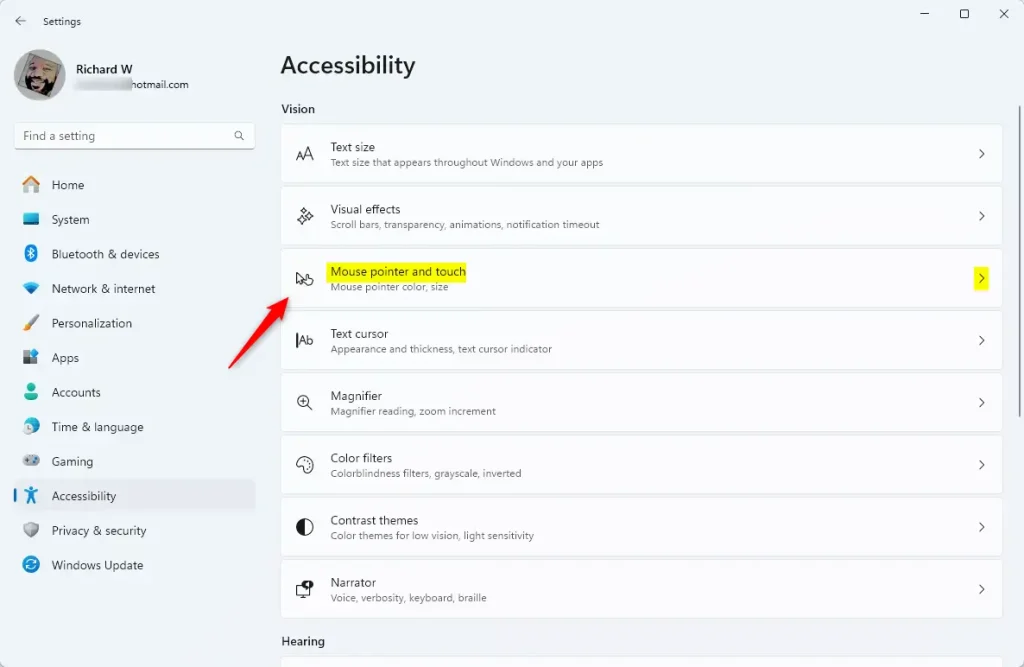
You can easily change your mouse pointer color in Windows 11 by opening the Settings app and going to the Accessibility section.
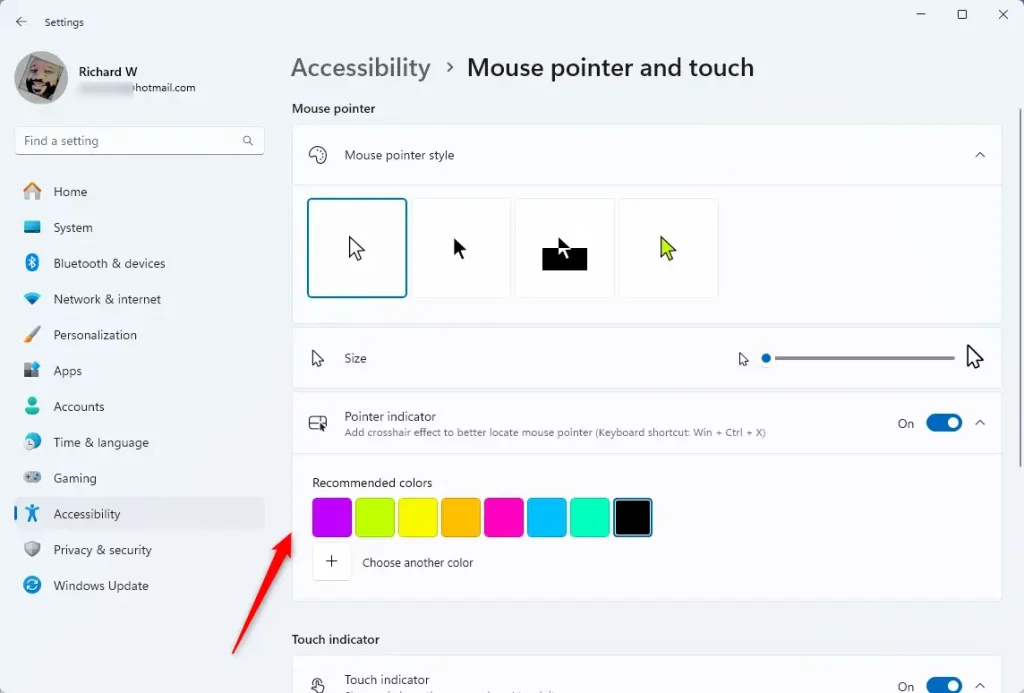
You can easily change your mouse pointer color in Windows 11 by opening the Settings app and going to the Accessibility section.
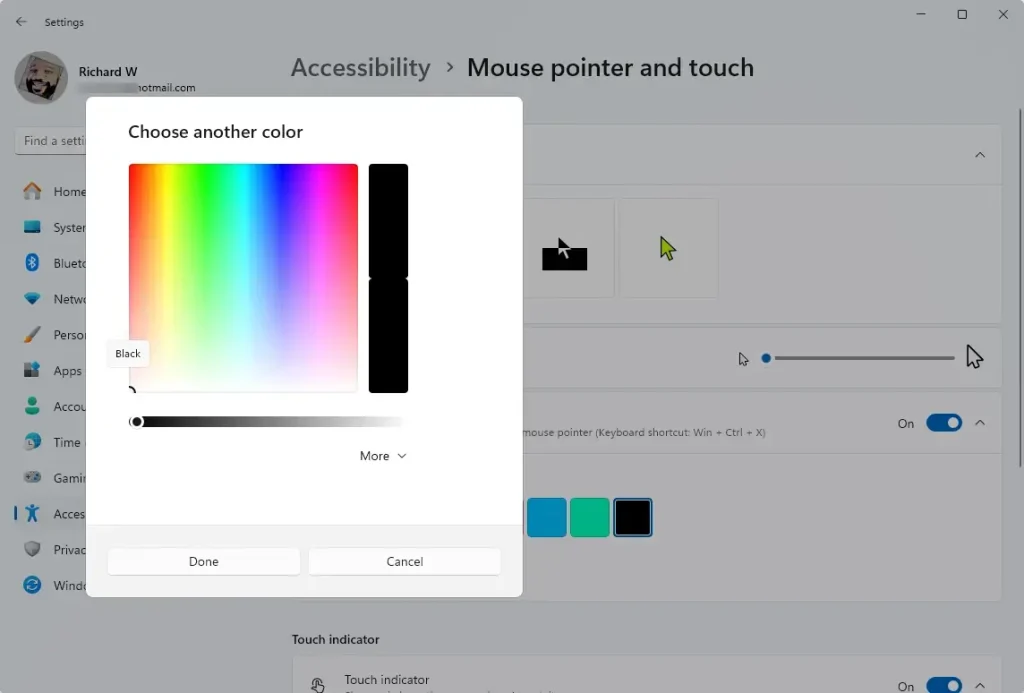
You can easily change your mouse pointer color in Windows 11 by opening the Settings app and going to the Accessibility section.
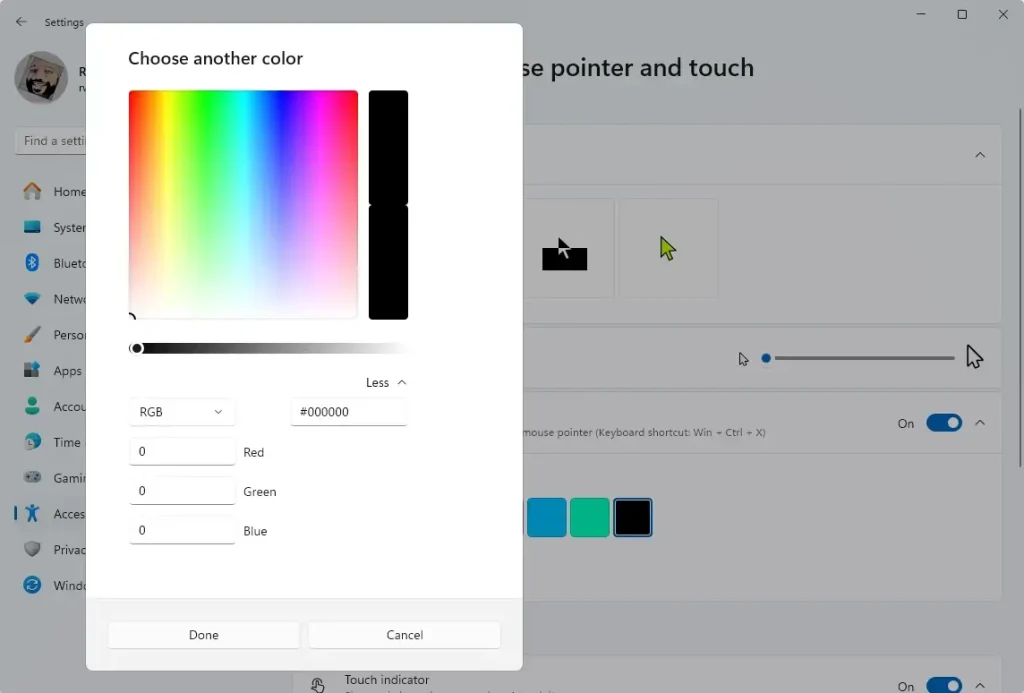
You can easily change your mouse pointer color in Windows 11 by opening the Settings app and going to the Accessibility section.
Summary
- Changing your mouse pointer color helps you see it better, especially if you have trouble with the default color.
- You can pick from preset colors or create your own custom color.
- This feature makes your computer easier to use and lets you personalize how it looks.
Changing your mouse pointer color in Windows 11 makes it easier to spot on your screen, which is great if you find the default hard to see.
How to change Mouse LED color in 🪟 Windows 11?
And that’s it for changing your mouse pointer color in Windows 11. Thanks for watching!
Was this guide helpful?

About the Author
Richard
Tech Writer, IT Professional
Richard, a writer for Geek Rewind, is a tech enthusiast who loves breaking down complex IT topics into simple, easy-to-understand ideas. With years of hands-on experience in system administration and enterprise IT operations, he’s developed a knack for offering practical tips and solutions. Richard aims to make technology more accessible and actionable. He's deeply committed to the Geek Rewind community, always ready to answer questions and engage in discussions.




[…] Mouse pointers (the arrow or cursor) […]