How to Change Mouse Pointer Speed in Windows 11

To change your mouse pointer speed in Windows 11, you’ll adjust a setting in Mouse Properties. The mouse pointer, or cursor, is the on-screen indicator that follows your physical mouse movements.
This adjustment controls how quickly the pointer travels across your screen relative to your mouse’s movement. A higher setting makes the pointer move faster, while a lower setting slows it down.
You’ll find this setting in the “Mouse Properties” window, specifically under the “Pointer Options” tab. On a standard Windows 11 setup, the pointer speed is typically set to the middle of the slider. Here’s how you can adjust it:
Adjust the “Mouse pointer speed” slider in Windows 11 Settings under Bluetooth & devices > Mouse. Move the slider left for slower speed or right for faster speed. You can also use Control Panel’s Mouse Properties or Registry Editor for adjustments.
Option 1Using Settings
- Open Settings by pressing
Win+I. - Click Bluetooth & devices on the left side.
- Click Mouse on the right side.
- Find the Mouse pointer speed slider. Move it left to make the pointer slower or right to make it faster.
- The slider shows speeds from 1 (slowest) to 20 (fastest). The default speed is 10.
- Close Settings when you’re done.
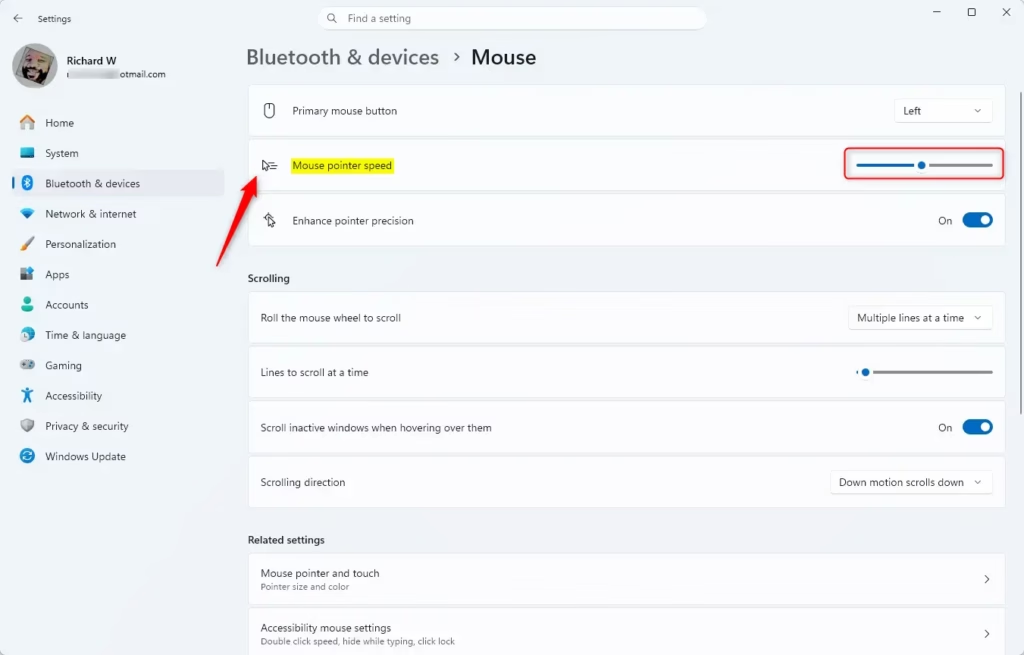
Changing your mouse pointer speed in Windows 11 is easy using the Settings app. You can quickly adjust how fast your cursor moves across the screen by opening Settings, going to Bluetooth & devices, then selecting Mouse, and finally using the slider.
Option 2Using Control Panel
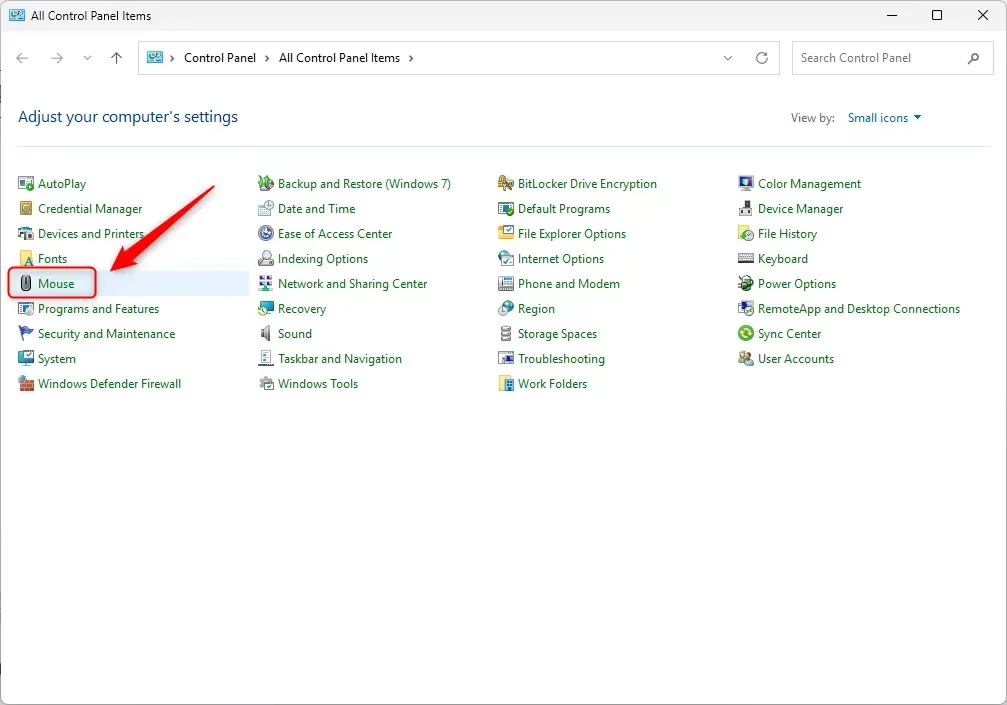
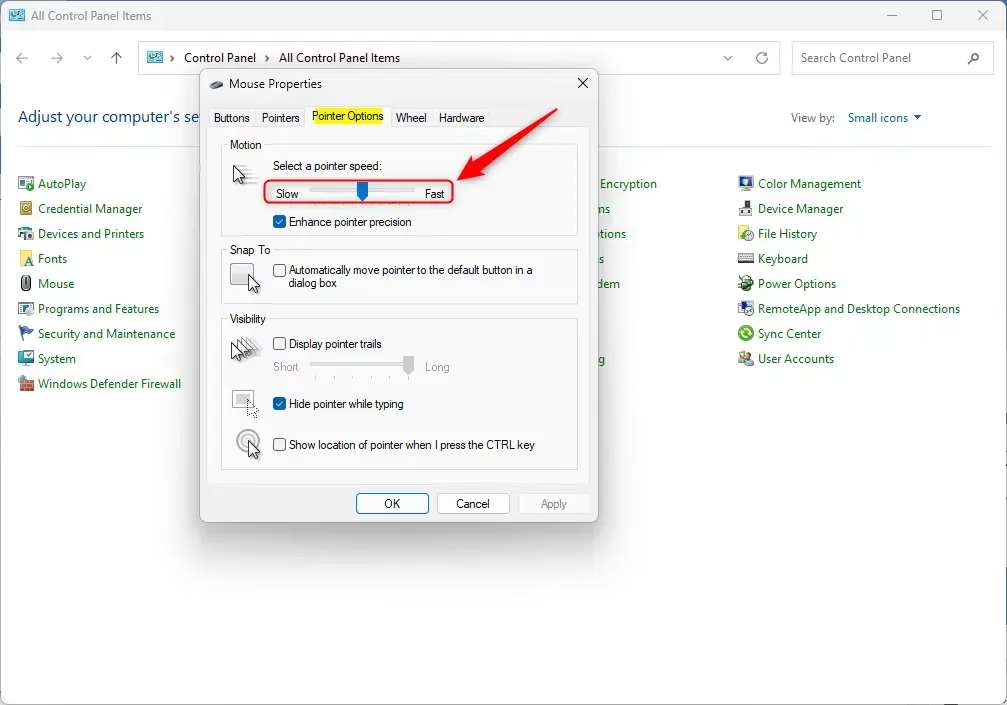
If you prefer the classic way to change your mouse pointer speed in Windows 11, the Control Panel is a great option. Open Control Panel, find the Mouse icon, click the Pointer Options tab, and then use the ‘Select a pointer speed’ slider to make your cursor faster or slower.- Open Control Panel and find the Mouse icon.
- Click the Pointer Options tab.
- Adjust the Select a pointer speed slider. Move it left for slower or right for faster movement.
- Click OK to save your changes.
- Close Control Panel.
Option 3Using Registry Editor
For advanced users, you can change the mouse pointer speed in Windows 11 using the Registry Editor. After opening regedit.exe and navigating to the correct location, you can directly edit the ‘MouseSensitivity’ value to set your desired cursor speed between 1 (slowest) and 20 (fastest).
- Open Registry Editor by typing
regedit.exein your search bar and pressing Enter. - In the left pane, navigate to this location:
HKEY_CURRENT_USERControl PanelMouse - In the right pane, find MouseSensitivity and double-click it.
- Type a number between 1 (slower) and 20 (faster). The default is 10.
- Click OK to save.
- Close Registry Editor.
regedit and press Enter to open the Registry Editor.HKEY_CURRENT_USER\Control Panel\Mouse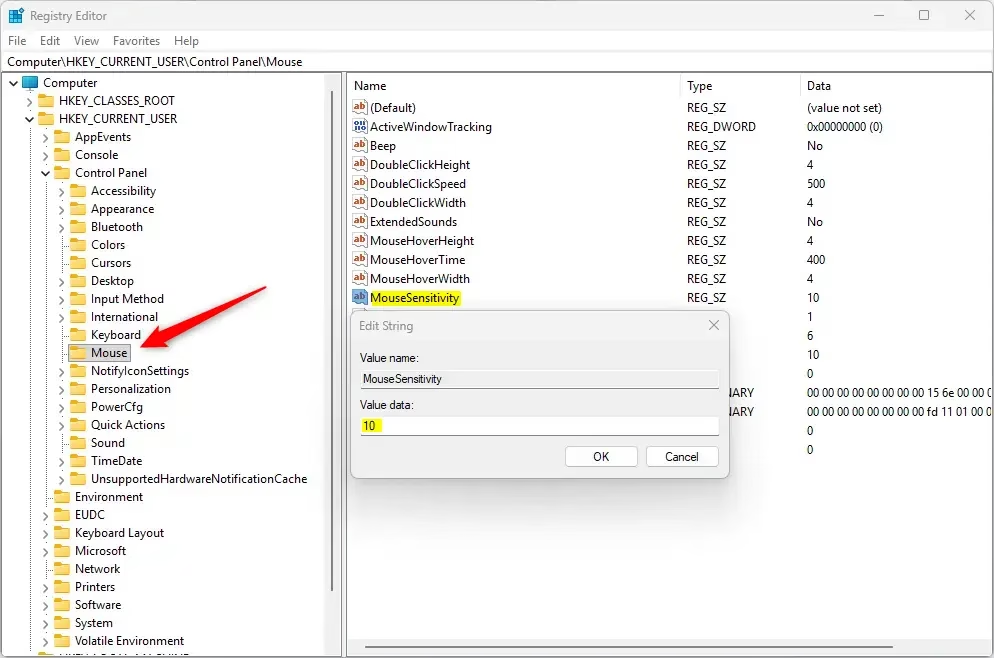
Summary
You’ve learned three simple ways to change your mouse pointer speed in Windows 11: using the easy Settings app, the familiar Control Panel, or the advanced Registry Editor. Each method lets you adjust the slider to find the perfect speed for your cursor, making your computer use more comfortable.
Was this guide helpful?

About the Author
Richard
Tech Writer, IT Professional
Richard, a writer for Geek Rewind, is a tech enthusiast who loves breaking down complex IT topics into simple, easy-to-understand ideas. With years of hands-on experience in system administration and enterprise IT operations, he’s developed a knack for offering practical tips and solutions. Richard aims to make technology more accessible and actionable. He's deeply committed to the Geek Rewind community, always ready to answer questions and engage in discussions.




No comments yet — be the first to share your thoughts!