How to Change Mouse Wheel Scroll Speed in Windows 11

You can change how fast your mouse wheel scrolls in Windows 11 by adjusting the “Wheel scroll lines” setting.
This setting controls how many lines your mouse wheel scrolls with each turn. It lets you fine-tune your scrolling experience.
You can set it to scroll a specific number of lines, such as 3 lines at a time, or configure it to scroll an entire screen at once. This offers a quick way to navigate long documents or web pages more efficiently.
Adjust the “Wheel scroll lines” setting in Windows 11 Settings or Control Panel. Navigate to Mouse settings, then select “Multiple lines at a time” or “One screen at a time” and adjust the slider or input your desired number of lines.
Option One
Change Mouse Wheel Scroll Speed in Settings
- Open Settings by pressing
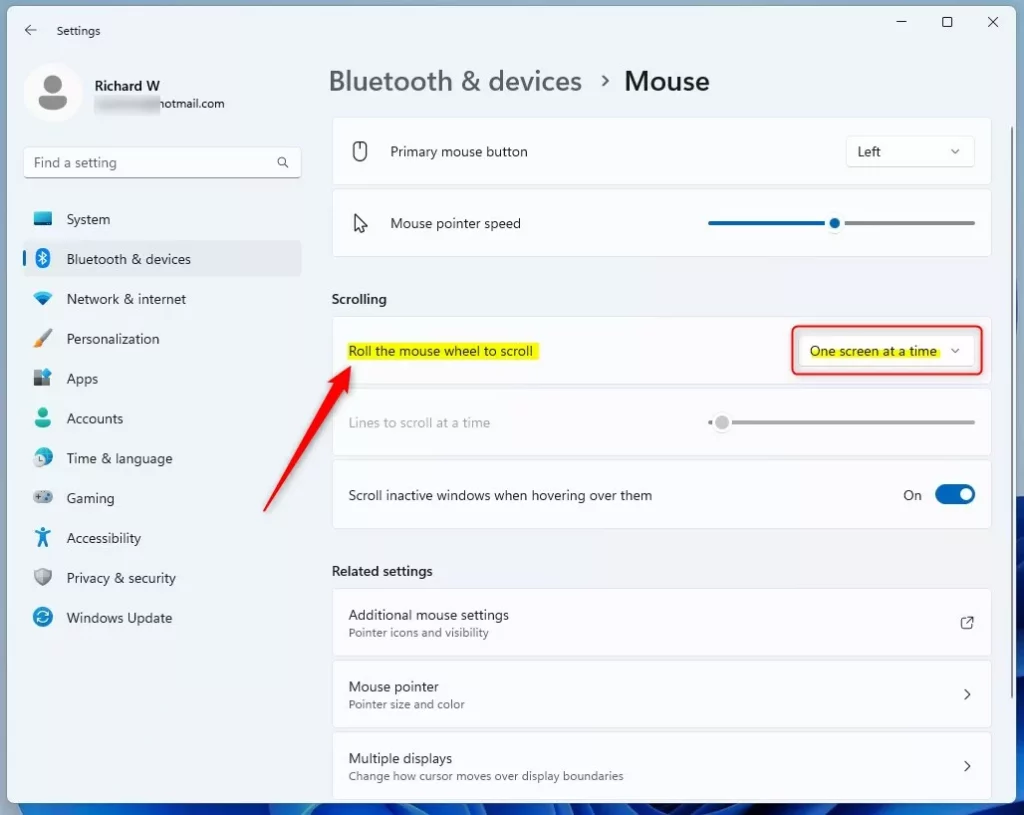
Win+I. - Click Bluetooth & devices on the left side.
- Click Mouse on the right side.
Scroll “Multiple lines at a time”
You can change how many lines your mouse wheel scrolls at a time in Windows 11 using the Settings app.
- Select Multiple lines at a time from the “Roll the mouse wheel to scroll” dropdown menu.
- Move the Lines to scroll at a time slider to what you want.
You can pick between 1 and 100 lines. The default is 3 lines.
- You can close Settings now if you like.
Scroll “One screen at a time”
If you prefer to scroll a full screen with each mouse wheel notch in Windows 11, you can set this in the Control Panel.- Select One screen at a time from the “Roll the mouse wheel to scroll” dropdown menu.
- You can close Settings now if you like.
Option Two
Change Mouse Wheel Scroll Speed in Control Panel
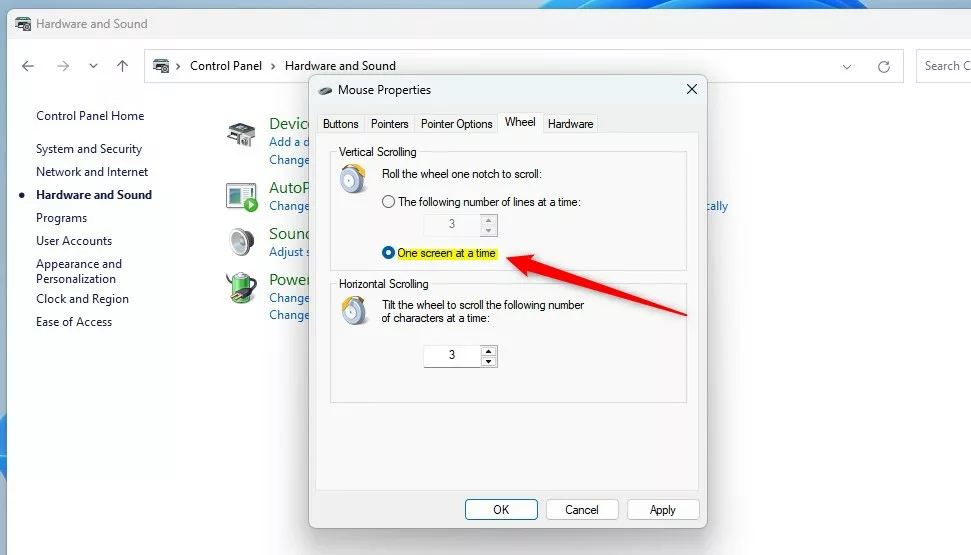
- Open Control Panel and click the Mouse icon.
Scroll “Multiple lines at a time”
This defaults to 3 lines.
- Click the Wheel tab.
- Select the dot next to The following number of lines at a time under Vertical Scrolling.
- Type or pick a number between 1 and 100 for how many lines you want to scroll. The default is 3 lines.
- You can close Control Panel now if you like.
Scroll “One screen at a time”
- Click the Wheel tab.
- Select the dot next to One screen at a time under Vertical Scrolling.
- You can close Control Panel now if you like.

Option Three
Change Mouse Wheel Scroll Speed in Registry Editor
- ⚠️ Admin privileges required. Open Registry Editor by typing
regedit.exein the search box. - In the left pane, navigate to:
HKEY_CURRENT_USER\Control Panel\Desktop - In the right pane, find WheelScrollLines and double-click it to edit.
Scroll “Multiple lines at a time”
This defaults to 3 lines.
- Type a number between 1 and 100 for how many lines you want to scroll. The default is 3 lines.
- Click OK.
- Close Registry Editor.
Scroll “One screen at a time”
- Type
-1as the value. - Click OK.
- Close Registry Editor.
That’s it!
Summary
You can easily change your mouse wheel scroll speed in Windows 11 using the Settings app, Control Panel, or Registry Editor.
Was this guide helpful?

About the Author
Richard
Tech Writer, IT Professional
Richard, a writer for Geek Rewind, is a tech enthusiast who loves breaking down complex IT topics into simple, easy-to-understand ideas. With years of hands-on experience in system administration and enterprise IT operations, he’s developed a knack for offering practical tips and solutions. Richard aims to make technology more accessible and actionable. He's deeply committed to the Geek Rewind community, always ready to answer questions and engage in discussions.




No comments yet — be the first to share your thoughts!