How to Enable or Disable Smooth Edges for Images and Text When Using Magnifier in Windows 11

This guide shows you how to make the edges of pictures and words look smoother or sharper when you use the Magnifier tool on your Windows 11 computer.
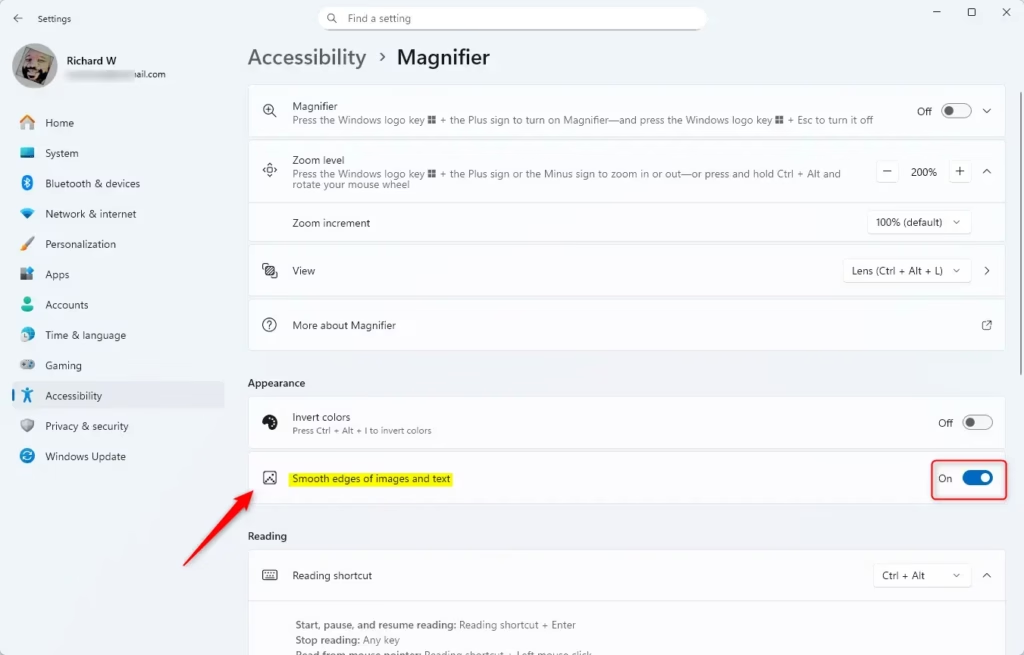
Open Settings by pressing Windows key + I, navigate to Accessibility, then Magnifier. Under Appearance, toggle “Smooth edges of images and text” to enable or disable this feature for clearer or softer visuals.
What is Magnifier?
Magnifier is a built-in Windows tool that makes everything on your screen bigger, helping you see text and images more clearly. You can choose to make the edges of these magnified items look smooth or sharp, depending on what’s easiest for your eyes.
You can choose whether you want the edges of pictures and words to look smooth (soft and less blocky) or sharp (clear but more defined). Try both options to see which one looks better and feels more comfortable for you to read.
Why Should You Use This Feature?
Smooth edges can make text easier on your eyes. Sharp edges can give you more detail. The right choice depends on what works best for you.
Where to Learn More
For more information, check out the official Microsoft page about Using Magnifier to Make Things Easier to See.
How to Turn On or Off Smooth Edges in Magnifier
- Open Settings: Press the Windows key + I on your keyboard to open the Settings window.
- Go to Accessibility: In Settings, click on Accessibility in the left menu. Then select Magnifier on the right side. You can also open Magnifier settings directly by clicking this link: Open Magnifier Settings
- Find the Appearance Section: Click on the arrow or the Magnifier heading to expand the options if needed.
- Turn Smooth Edges On or Off: Look for the setting called “Smooth edges of images and text.”
- To make edges look soft and less blocky, turn this option On.
- To make edges look sharper and clearer, turn this option Off.
- Close Settings: When you finish, you can close the Settings window.
To change whether Magnifier shows smooth edges for text and images, you’ll need to open your Windows Settings. Press the Windows key and the ‘I’ key together to bring up Settings, then go to Accessibility and find Magnifier.
Summary
- Magnifier helps you see text and images bigger on your screen.
- You can choose if you want edges of images and text to be smooth or sharp.
- Try both options to see which one is easier on your eyes.
- Visit the official Microsoft page for more help with Magnifier.
- Adjust these settings to make your computer easier and more comfortable to use.
In short, Magnifier makes things larger on your screen, and you can pick if the edges of text and pictures appear smooth or sharp. Trying both settings can help you find the most comfortable view for your eyes.
How to turn on smooth edges?
To turn smooth edges on or off when Magnifier is active in Windows 11 Home, right-click an empty area on your desktop. Then select Personalize. Select Accessibility and then tap Magnifier.
How to make magnifying glass less blurry?
This is designed to not only hold your magnifier but also to clean it. As you rub this across your lens, you won’t scratch it like you might with paper-based cleaners.
Was this guide helpful?

About the Author
Richard
Tech Writer, IT Professional
Richard, a writer for Geek Rewind, is a tech enthusiast who loves breaking down complex IT topics into simple, easy-to-understand ideas. With years of hands-on experience in system administration and enterprise IT operations, he’s developed a knack for offering practical tips and solutions. Richard aims to make technology more accessible and actionable. He's deeply committed to the Geek Rewind community, always ready to answer questions and engage in discussions.

No comments yet — be the first to share your thoughts!