How to Add a PIN to Your Account in Windows 11

You can add a PIN to your Windows 11 account to create a faster, more secure login method than a traditional password.
Your Windows 11 PIN is a short code, either numbers or letters, that you set up through Windows Hello. Windows Hello is a sign-in option that uses your unique physical traits (like your face or fingerprint) or a PIN to unlock your devices.
This PIN is tied directly to your device and your Microsoft account. It’s a convenient way to get into your PC without needing to recall a complicated password every time. For instance, you can create a PIN that’s only 4 digits long, making it quick to type.
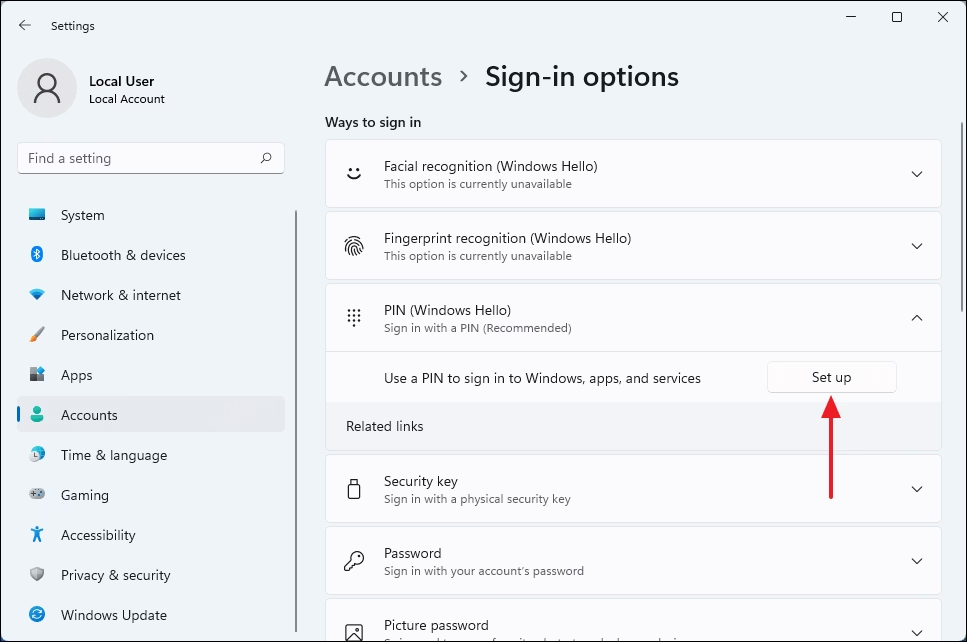
Open Settings, navigate to Accounts, then Sign-in options. Click “PIN (Windows Hello)” and select “Set up”. Follow the prompts to create your PIN, verifying your current password first.
What is Windows Hello and Why Use a PIN?
Windows Hello lets you sign into your Windows 11 computer using a PIN, your face, or your fingerprint instead of a password, and setting up a Windows 11 PIN setup is a great idea because it’s more secure than a regular password.
- Your PIN works only on your device. If someone steals your PIN, they still need your computer or phone to use it.
- Your PIN stays on your device. It’s never sent over the internet, so hackers can’t steal it from a server.
- Your device has special hardware (TPM) that protects your PIN. This hardware stops others from guessing your PIN too many times.
- PINs can be as simple or as complex as you want. You can use numbers, letters, and symbols for extra security.
- You need a PIN even if you use face or fingerprint sign-in. This acts as a backup if biometric sign-in doesn’t work.
Want to learn more? Check out How a PIN is better than a password.
How to Add a PIN to Your Account
Option 1Add a PIN through Settings
- Open Settings by pressing Win + I on your keyboard.
- Click Accounts from the left menu, then select Sign-in options on the right.
- Scroll down until you see ‘PIN (Windows Hello)‘ and click the header to reveal the settings.
- Click the Set up button next to “Use a PIN to sign in to Windows, apps, and services”.
- Click Next if you are using a Microsoft account (skip if you use a local account).
- Type your current account password to verify it’s you, and click Sign in or OK.
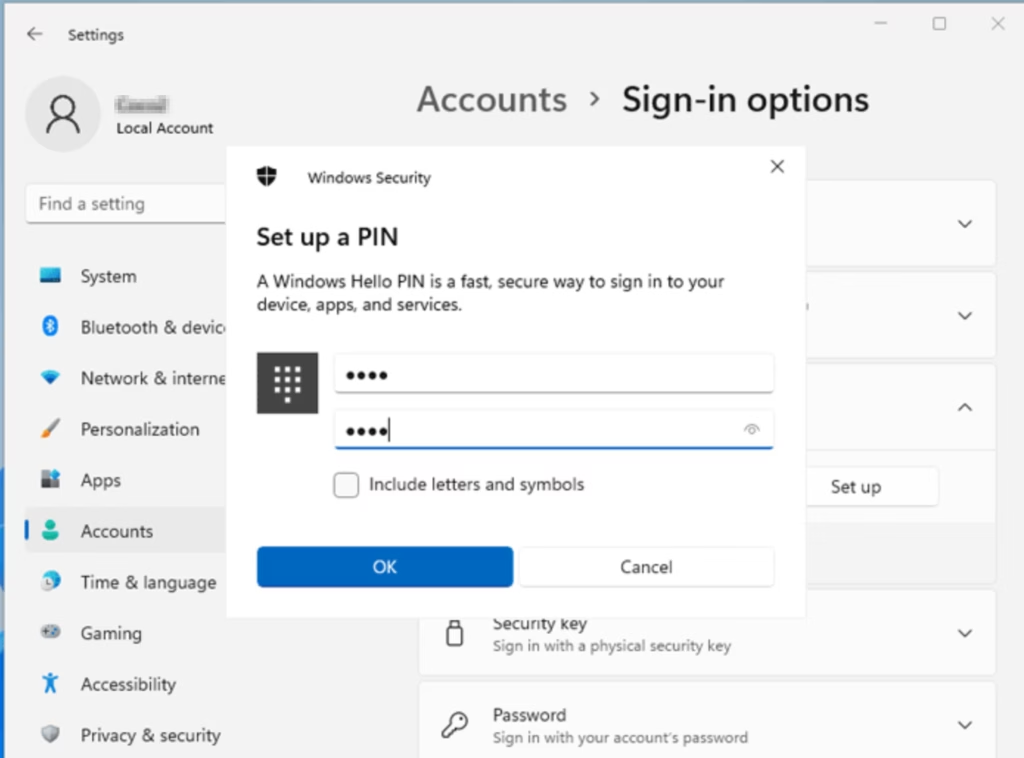
- Choose a PIN (at least 4 digits) you want to use and type it in. You can check Include letters and symbols if you want a more complex PIN.
- Click OK to finish.
You can easily add a PIN to your Windows 11 account through the Settings app by pressing ⊞ Win+I to open it, then going to Accounts and Sign-in options.
Option 2Add a PIN from the Sign-in Screen
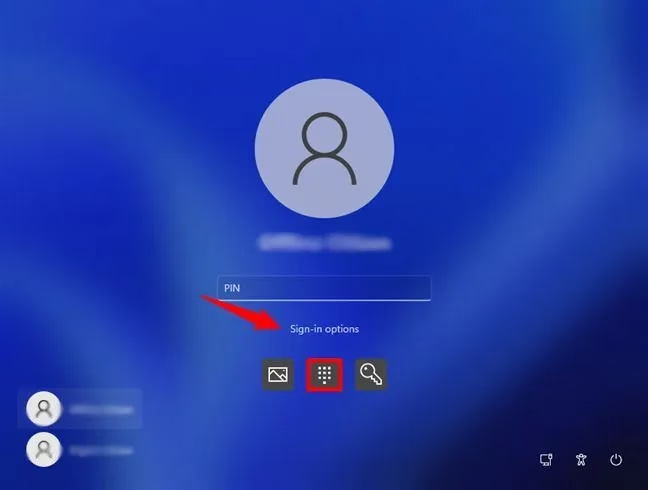
- On the sign-in screen, click Sign-in options below the password box.
- Choose the PIN option.
- Enter your account password (not a PIN) and press Enter.
- Click Next if you’re using a Microsoft account.
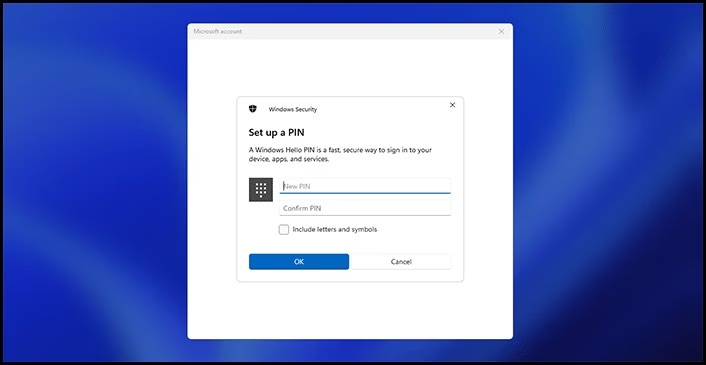
- Create your new PIN and click OK.
- You will now be signed in using your PIN.
If you’re already on the Windows 11 sign-in screen, you can add a PIN by clicking ‘Sign-in options’ below the password box and selecting the PIN option.
Wrapping Up
Setting up a PIN for your Windows 11 account is a smart move that makes signing in quicker and your computer much more secure, offering a faster and safer way to access your device.
- More secure: Your PIN works only on your device and is not sent online.
- Protected by special hardware: Your device keeps your PIN safe and stops hackers.
- Easy to use: Signing in with a PIN is faster than typing a long password.
- Works with biometrics: Use PIN as a backup if fingerprint or face sign-in isn’t available.
- Flexible: You can create a simple or complex PIN.
Now that your new PIN is set up, you can forget about fumbling with long passwords and get straight to work.
Helpful Links
How to set up PIN for pc 🪟 Windows 11?
Starting from the desktop. You can right-click your start button and then select settings. Once you’re in Windows 11 settings, click on accounts. Then, you’ll need to scroll down until you see sign
How do I find out my 🪟 Windows 11 PIN?
You can use the Settings app to change your PIN. If you forgot your PIN, select ‘I forgot my PIN’ and follow the directions to verify your account and create a new one.
Was this guide helpful?

About the Author
Richard
Tech Writer, IT Professional
Richard, a writer for Geek Rewind, is a tech enthusiast who loves breaking down complex IT topics into simple, easy-to-understand ideas. With years of hands-on experience in system administration and enterprise IT operations, he’s developed a knack for offering practical tips and solutions. Richard aims to make technology more accessible and actionable. He's deeply committed to the Geek Rewind community, always ready to answer questions and engage in discussions.




No comments yet — be the first to share your thoughts!