Use Windows Hello for Faster Credit Card Confirmation

You can use Windows Hello to confirm credit card payments faster within Google Chrome, replacing the need to find your physical card’s security code.
Windows Hello offers a biometric authentication method for Windows 10 and 11, allowing you to use your face, fingerprint, or a PIN for secure sign-in and confirmation.
When shopping online with Google Chrome, instead of manually entering the 3- or 4-digit CVC code, you can opt to use Windows Hello for a quicker and more secure verification during checkout.
Enable Windows Hello in Chrome’s Payment methods settings to confirm purchases with your face, fingerprint, or PIN. Navigate to Settings > Autofill and passwords > Payment methods, then toggle on “Windows Hello” and follow the prompts. This replaces manual CVC entry for faster, more secure checkouts.
Use Windows Hello to confirm credit cards instead of CVC
You can use Windows Hello for credit card confirmation in Chrome, letting your face or fingerprint replace the CVC code for quicker and safer online shopping.
Follow these steps to turn this feature on or off:
- Open Google Chrome browser.
- Click the Customize and control Google Chrome button (the three vertical dots) in the top right corner.
- Select Settings from the menu.
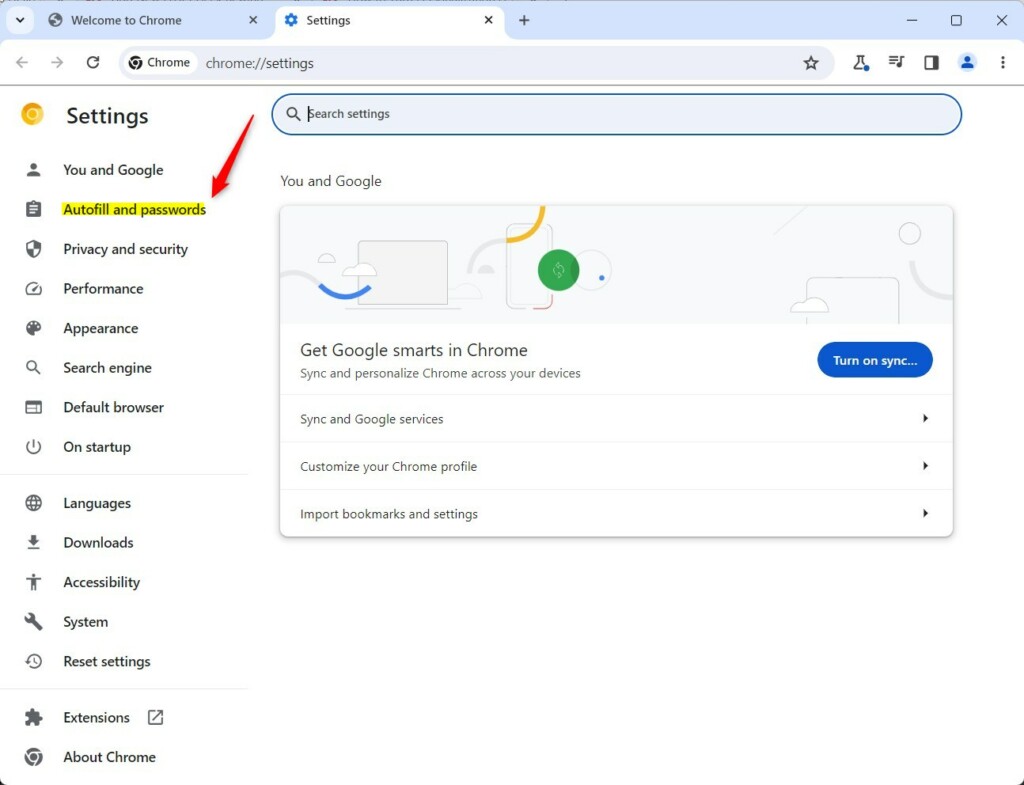
- On the left side of the screen, click Autofill and passwords.
- On the right, click Payment methods.
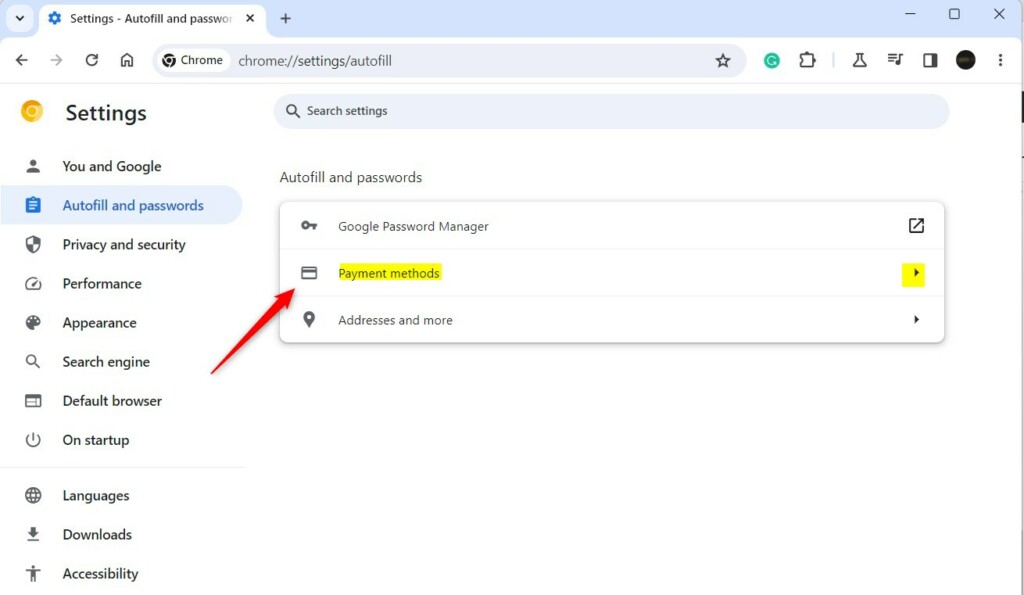
You can also type this address directly into your browser bar to go straight there: chrome://settings/payments
- Find the Windows Hello toggle and switch it to the On position.
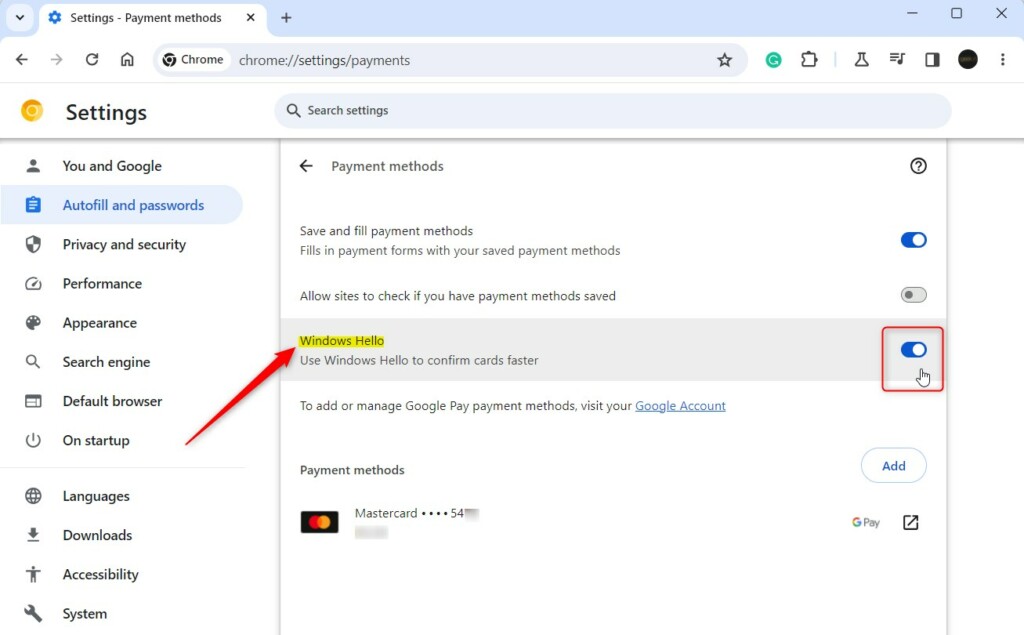
- When you turn it on, you will be asked to confirm your identity using your Windows Hello PIN or the fingerprint you use to sign in to your computer.
- In the pop-up window, click Use Windows Hello and enter your PIN or scan your fingerprint.
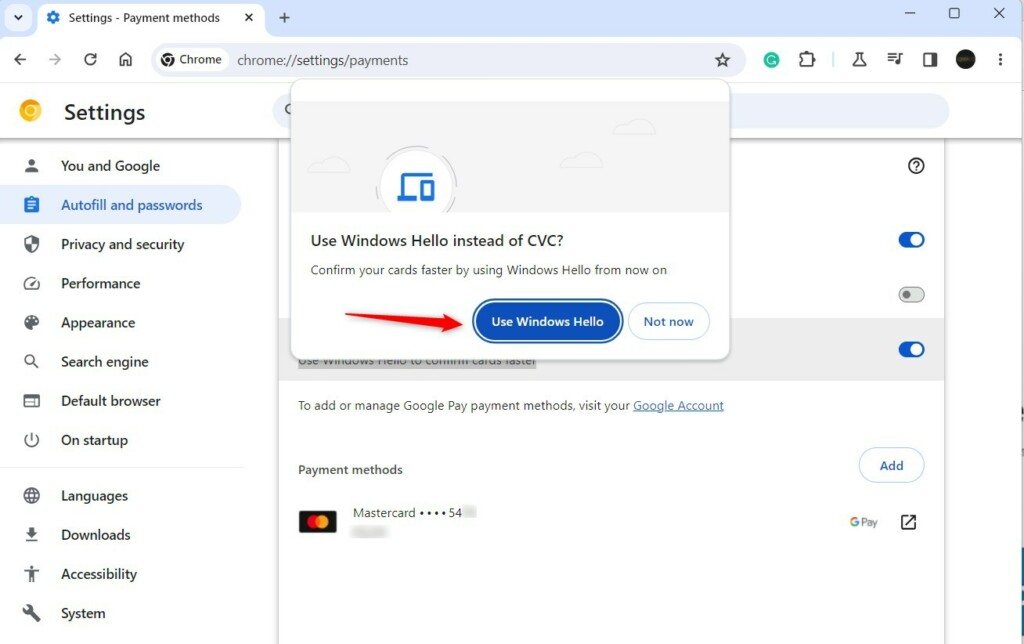
Once you’ve enabled it, you’ll use your Windows PIN, face scan, or fingerprint to confirm your card instead of typing the CVC code. Close your browser when you are finished.
Conclusion
Using Windows Hello for credit card confirmation in Chrome makes online checkouts faster and more secure by using your face or fingerprint instead of the CVC code.
This feature is part of a larger shift toward Passkeys and biometric authentication. By using your computer’s built-in security features, modern browsers are moving away from easily stolen passwords and card codes toward more secure, identity-based logins.
What is Windows Hello Confirmation?
Windows Hello is a more personal and secure way to sign in to your Windows device. Instead of using a password, with Windows Hello you can sign in using facial recognition, fingerprint, or a PIN.
How to check if a credit card is saved on a computer?
Next scroll down and click on settings. In the settings window click on autofill and passwords option on the left sidebar. Here click on payment methods. Now scroll down. And under payment methods.
Was this guide helpful?

About the Author
Richard
Tech Writer, IT Professional
Richard, a writer for Geek Rewind, is a tech enthusiast who loves breaking down complex IT topics into simple, easy-to-understand ideas. With years of hands-on experience in system administration and enterprise IT operations, he’s developed a knack for offering practical tips and solutions. Richard aims to make technology more accessible and actionable. He's deeply committed to the Geek Rewind community, always ready to answer questions and engage in discussions.




It appears you cannot turn the “Always verify when using autofill”” feature on in Chrome “if” you use a desktop PC that has no webcam or fingerprint reader. It seems without these you cannot use windows hello, is that correct? The switch to turn it on is there but it cannot be toggled on, it’s permanently stuck in the off position. So is there a way to use the feature in Chrome without paying the extra M$ hardware tax? It’s just one thing after the other with redmond these days. It’s there way or the highway(or Linux)
Thanks in advance Greg