Disable Autofill Payment Methods in Chrome

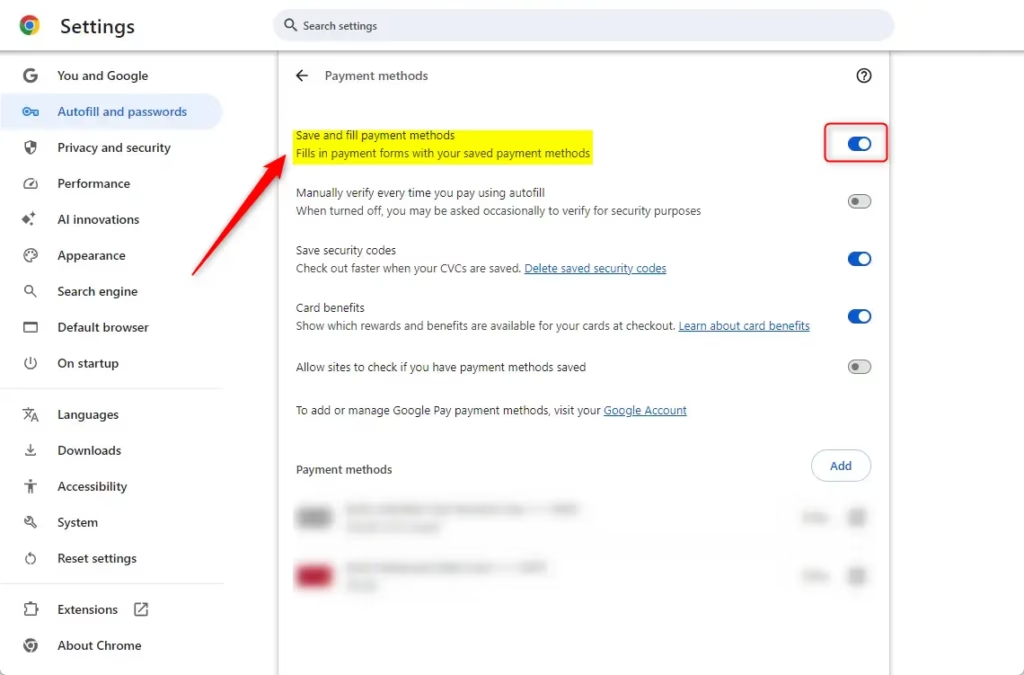
You disable autofill payment methods in Chrome by turning off the “Save and fill payment methods” setting within the browser’s settings menu.
This crucial setting controls whether Chrome securely stores and automatically suggests your credit card and other payment information when you’re shopping online.
For example, without this feature enabled, Chrome will no longer prompt you to save payment details like a Visa card ending in 1234. Disabling autofill payment methods prevents your sensitive financial data from being stored locally by the browser, significantly boosting your privacy, especially on public or shared computers.
Once you turn this off, Chrome will cease asking to save new payment methods and will not display your previously saved options at checkout, giving you complete control over your financial information.
Turn off “Save and fill payment methods” in Chrome’s settings. Navigate to Settings > Autofill and passwords > Payment methods, then toggle the switch. This stops Chrome from saving and suggesting your payment information during online checkouts.
Enable/Disable Saving Credit Card Payment Methods in Chrome
You can easily turn off Chrome’s feature that saves and fills your payment methods directly within the browser settings. This guide shows you how to disable Chrome autofill for credit card details, preventing it from storing them.
- Open Google Chrome browser.
- Type chrome://settings/payments into the address bar and press Enter to go there directly.
- Alternatively, click the three dots in the top right corner and select Settings.
- Select Autofill and passwords from the left menu.
- Click on Payment methods.
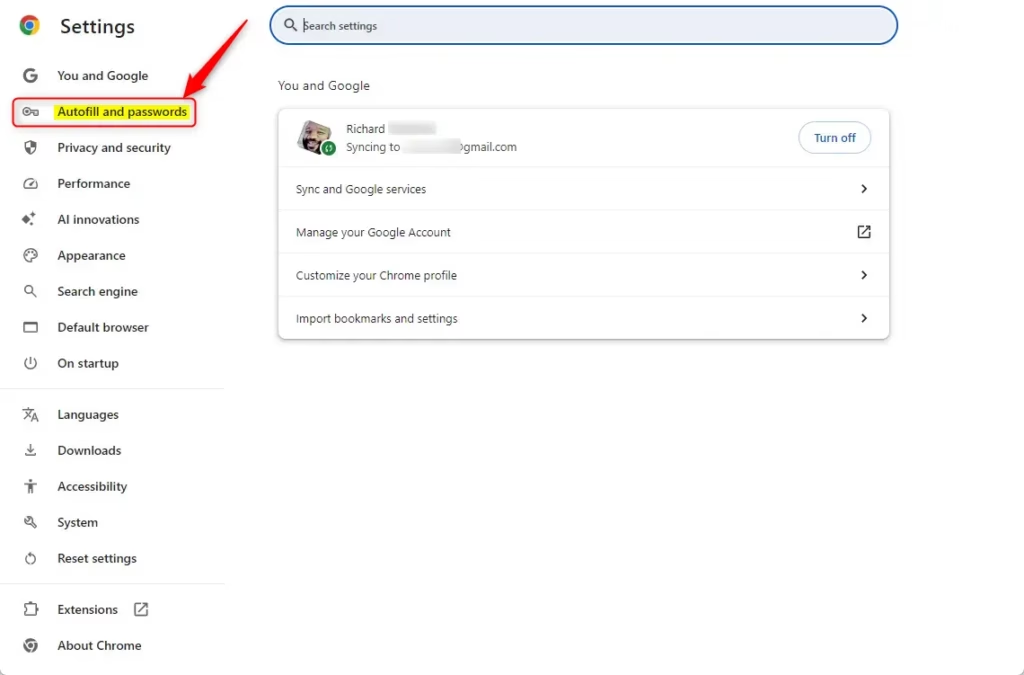
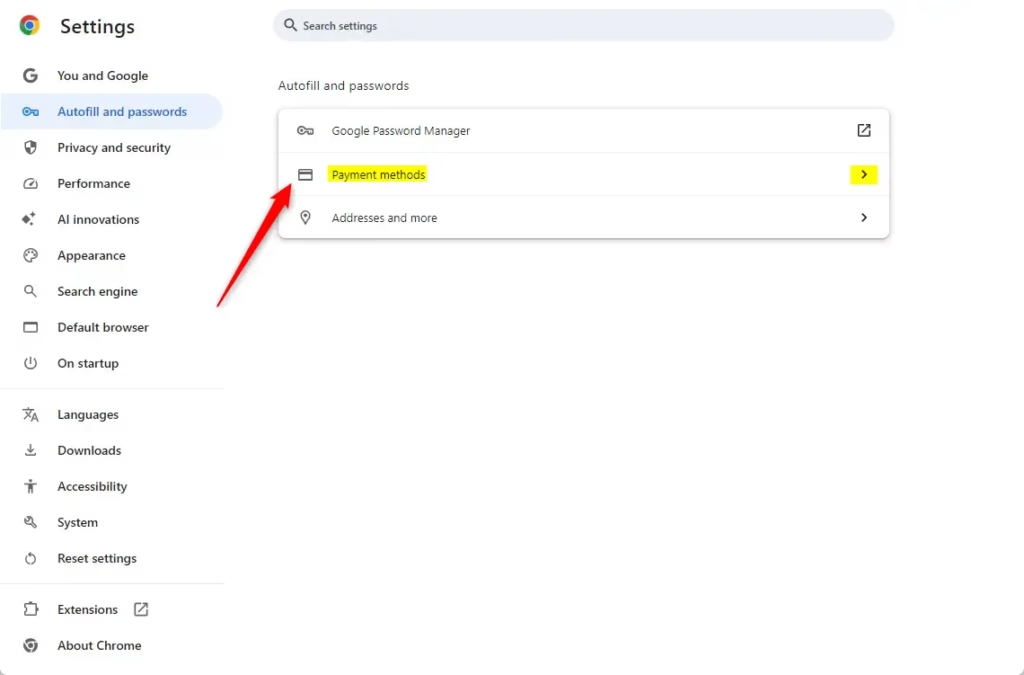
Toggle the switch next to Save and fill payment methods to turn it off or on.
Note: You should also visit payments.google.com to view and manage any cards that are synced to your Google account across all your devices.
Enable / Disable save and fill payment methods in Chrome using the Registry
For more advanced users, you can stop Chrome from saving payment info using the Windows Registry Editor. This method is often used for computers managed by work or school, and it helps disable Chrome autofill through system-level settings.
First, open the Windows Registry. Before you make any changes, make sure to back up your registry or create a System Restore point. This is a safety measure in case something goes wrong.
Go to this path:
Computer\🗝️HKEY_LOCAL_MACHINE\SOFTWARE\Policies\Google\Chrome
If you don’t see the Google or Chrome folders, right-click the Policies folder, select New > Key, and name them correctly.
- Right-click in the Chrome folder.
- Select New > DWORD (32-bit) Value.
- Name it AutofillCreditCardEnabled.
- Double-click it and set the “Value data” to 0 to disable saving cards.
- Set it to 1 to enable it .
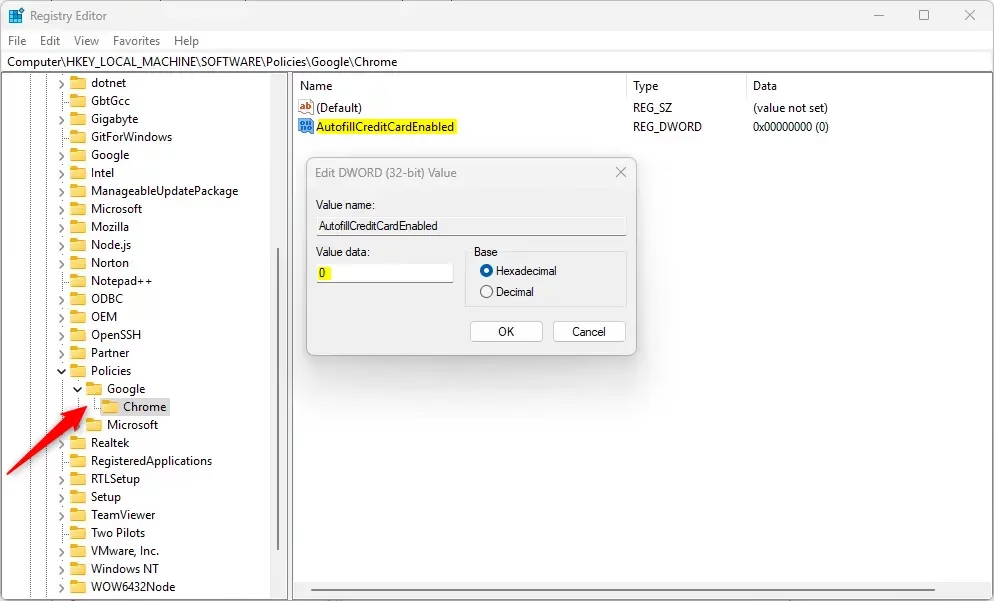
You may need to restart your computer for these changes to take effect. To get things back to normal, delete the AutofillCreditCardEnabled entry.
Reference:
Was this guide helpful?

About the Author
Richard
Tech Writer, IT Professional
Richard, a writer for Geek Rewind, is a tech enthusiast who loves breaking down complex IT topics into simple, easy-to-understand ideas. With years of hands-on experience in system administration and enterprise IT operations, he’s developed a knack for offering practical tips and solutions. Richard aims to make technology more accessible and actionable. He's deeply committed to the Geek Rewind community, always ready to answer questions and engage in discussions.




No comments yet — be the first to share your thoughts!