
You install Google Chrome on Windows 11 by downloading the official installer from Google and running it.
Google Chrome is a popular, free web browser developed by Google, recognized for its fast performance, robust security features, and extensive extension library. It’s one of the most widely used browsers globally.
Getting Chrome onto your Windows 11 PC is a straightforward process. You’ll need to visit the official Google Chrome download page, typically found by searching “download Chrome” in your current browser.
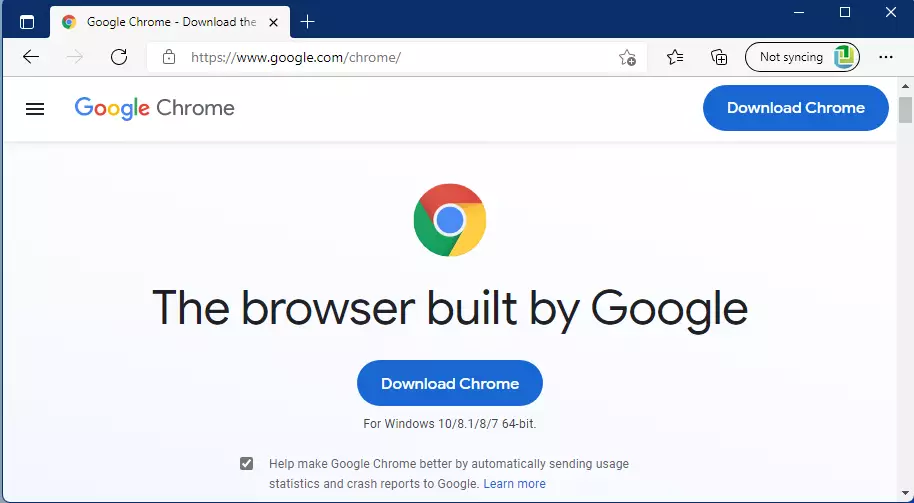
On the download page, simply click the prominent “Download Chrome” button. The installer file, usually named something like “ChromeSetup.exe,” will then begin downloading to your computer. This entire procedure generally takes just a few minutes.
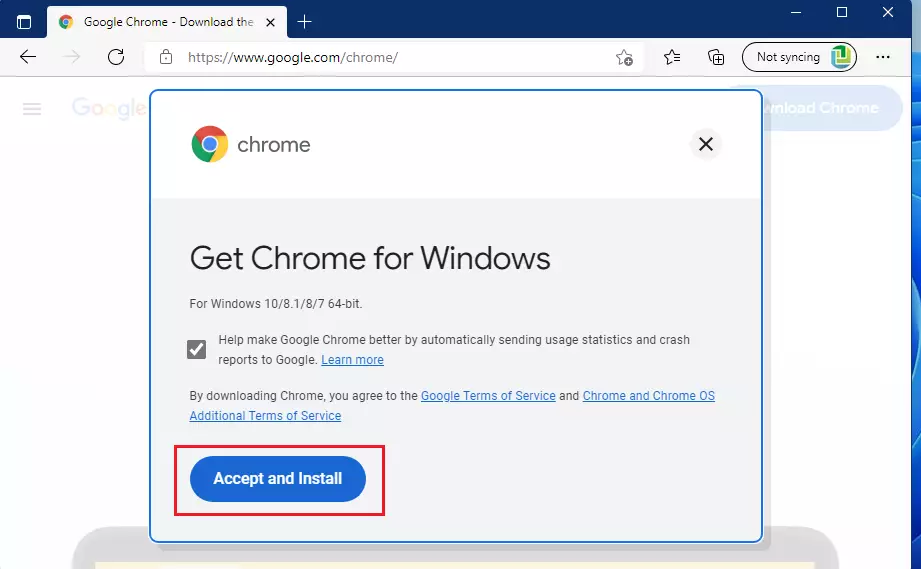
Download the installer from google.com/chrome and run the file. Click the “Download Chrome” button, then “Accept and Install” when prompted. The installer will run automatically to complete the process.
Why Install Chrome on 🪟 Windows 11?
You might want to install Chrome on Windows 11 because it syncs your settings, bookmarks, and history across all your devices when you sign in, making it easy to pick up where you left off.
But if you prefer Chrome and use it on your phone or other devices, you can install it on Windows 11 too. Once you sign in, Chrome will remember your preferences and saved information across all your devices.
How to Download and Install Google Chrome
Step 1Open Microsoft Edge
Click the Microsoft Edge icon on your taskbar at the bottom of your screen.
Step 2Go to Chrome’s Download Page
Visit the link below to download Chrome:
Step 3Click the Download Button
On the download page, click the blue “Download Chrome” button.
Step 4Accept and Install
When a window pops up, click the “Accept and Install” button to begin the download.
Step 5Open the Installer
Once the file downloads, go to your Downloads folder in File Explorer. Double-click the Chrome installer file to begin the installation.
Step 6Wait for Installation to Complete
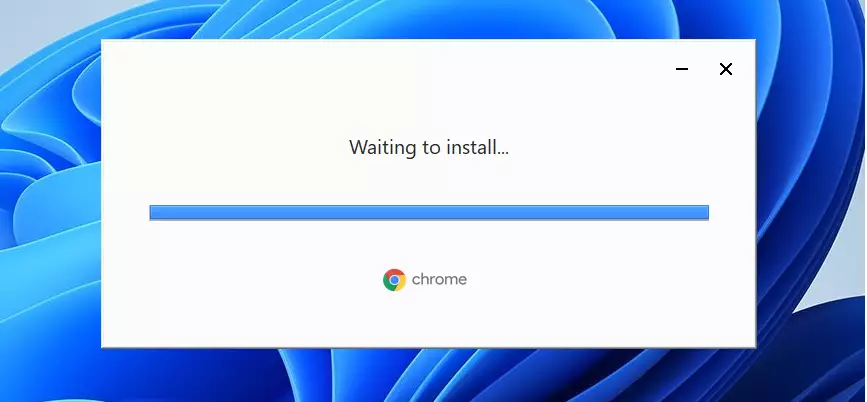
The installer will run automatically. This takes a few moments. Do not close this window while it’s working.
Step 7Chrome is Ready
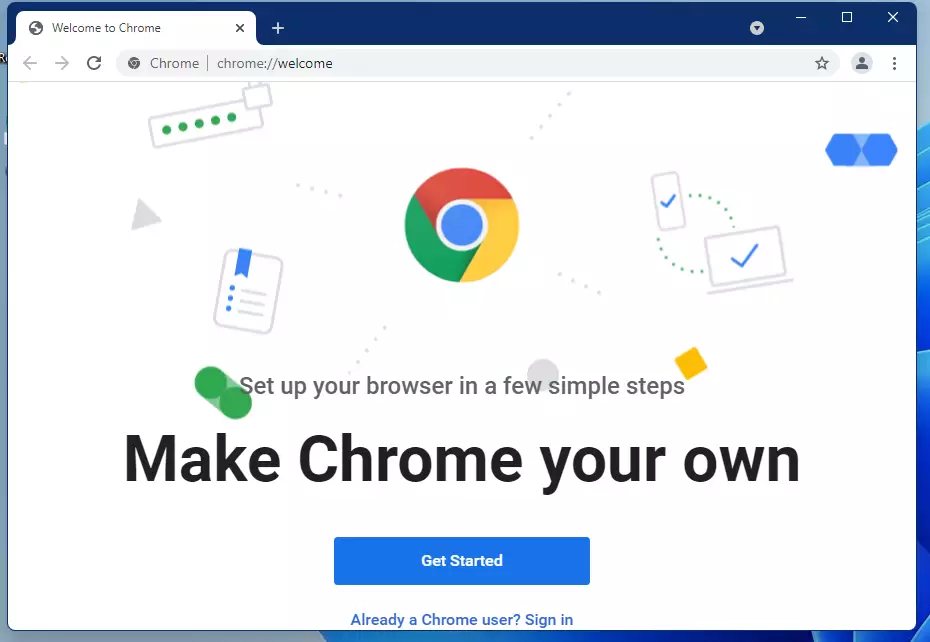
When installation finishes, Chrome will open automatically. You’re done! Chrome is now installed and ready to use.
Make Chrome Your Default Browser
Now that Chrome is installed, you may want to make it your default browser. This means Chrome will open automatically when you click web links. Read the detailed guide below to learn how:
How to make Google Chrome the default web browser on Windows 11
Summary
Installing Google Chrome on Windows 11 is a simple process that lets you use your preferred browser on your new computer.- Google Chrome is a popular web browser that works great on Windows 11.
- Chrome does not come pre-installed on Windows 11, so you must download it yourself.
- The installation process is simple and takes just a few minutes.
- After installing Chrome, you can sign in to sync your preferences and data across devices.
- You can set Chrome as your default browser for a smoother online experience.
- Chrome offers strong security and fast performance for web browsing.
Was this guide helpful?

About the Author
Richard
Tech Writer, IT Professional
Richard, a writer for Geek Rewind, is a tech enthusiast who loves breaking down complex IT topics into simple, easy-to-understand ideas. With years of hands-on experience in system administration and enterprise IT operations, he’s developed a knack for offering practical tips and solutions. Richard aims to make technology more accessible and actionable. He's deeply committed to the Geek Rewind community, always ready to answer questions and engage in discussions.




This doesn’t work on Windows 11. Windows prevents you from downloading. Wants Edge.
This doesn’t work on Windows 11. Windows prevents you from downloading.
It says: For security purposes Windows 10 is able to download in S mode.
This doesn’t work on Windows 11. Windows prevents you from downloading.
Windows 11 makes Edge default and greys out the Make Default button