How to Delete Browsing Data in Google Chrome

You can delete browsing data in Google Chrome to remove your search history, cookies, and cached files.
Browsing data includes information websites store on your PC, such as cookies that keep you logged in and cache files that speed up page loading.
Deleting this data, which can be done within Chrome’s settings, improves your privacy and can boost Chrome’s performance by freeing up disk space.
When you clear your browsing data, you erase records of visited websites, saved form data, and site preferences. This process is essential for managing your digital footprint and ensuring a smoother browsing experience. The steps remain consistent as of 2026.
Open Chrome settings, navigate to Privacy and security, then select Delete browsing data. Choose a time range and the data types you wish to remove, like history or cookies, and click Del data.
Delete browser data in Chrome
You can delete browsing data in Chrome directly from the browser’s settings menu to clear your history, cookies, and cache.
- Open the Google Chrome browser.
- Click the Customize and Control button (three vertical dots) in the top right corner.
- Select Settings.
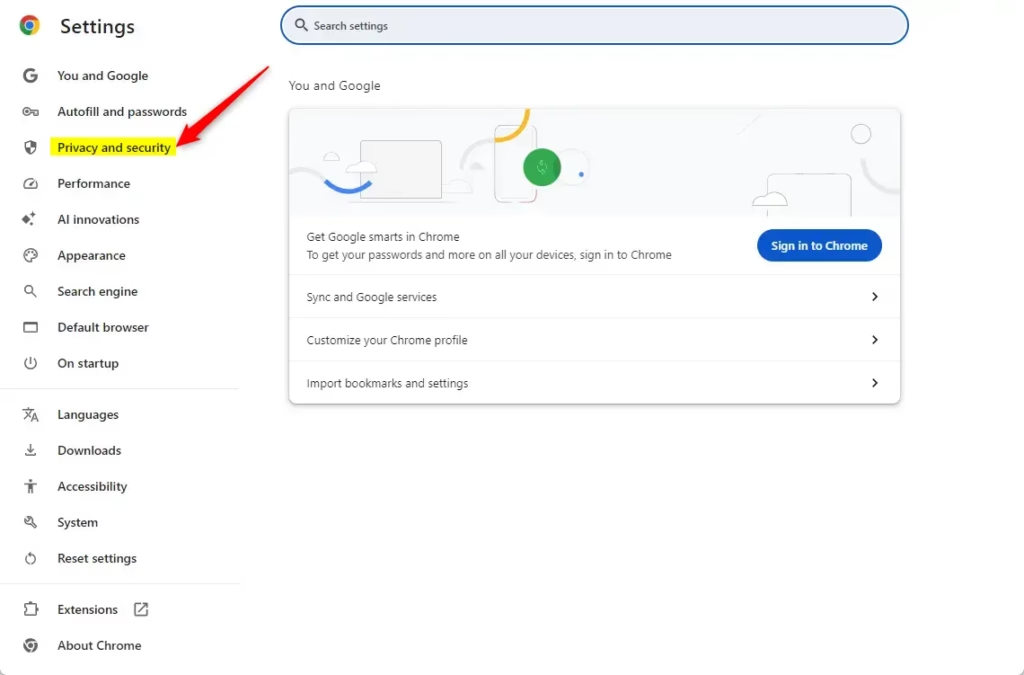
Click Privacy and security on the left menu.
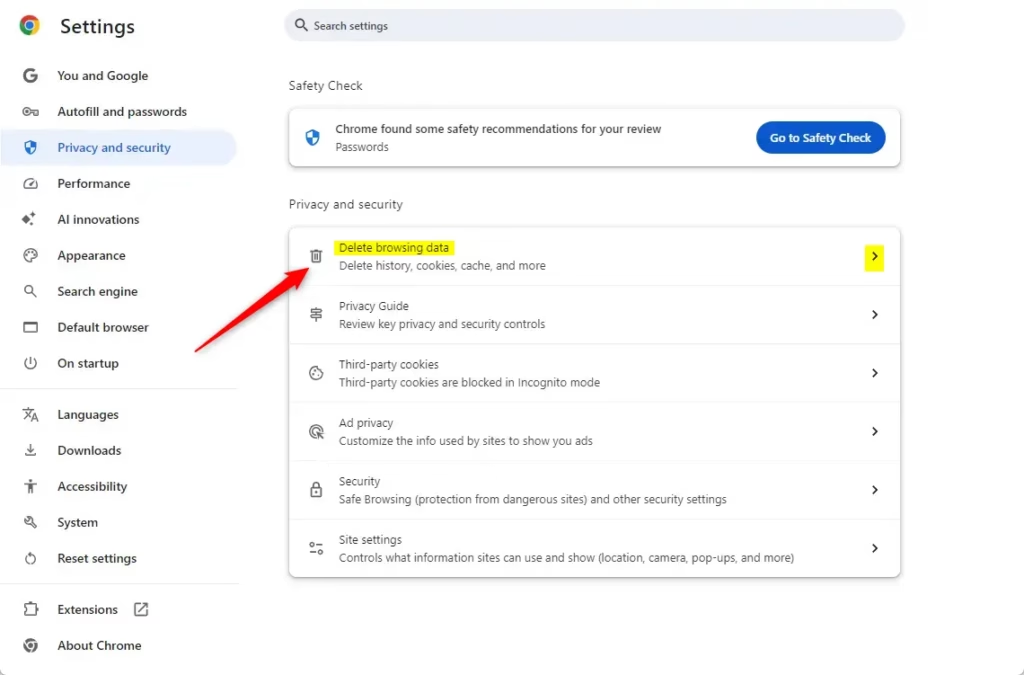
Click Delete browsing data. A new dialog box will pop up on your screen.
The Shortcut
Want a faster way to get there? You can use a keyboard shortcut. Press Ctrl+Shift+Del on Windows or Command + Shift+Del on a Mac to open the deletion box instantly.
Choosing what to delete
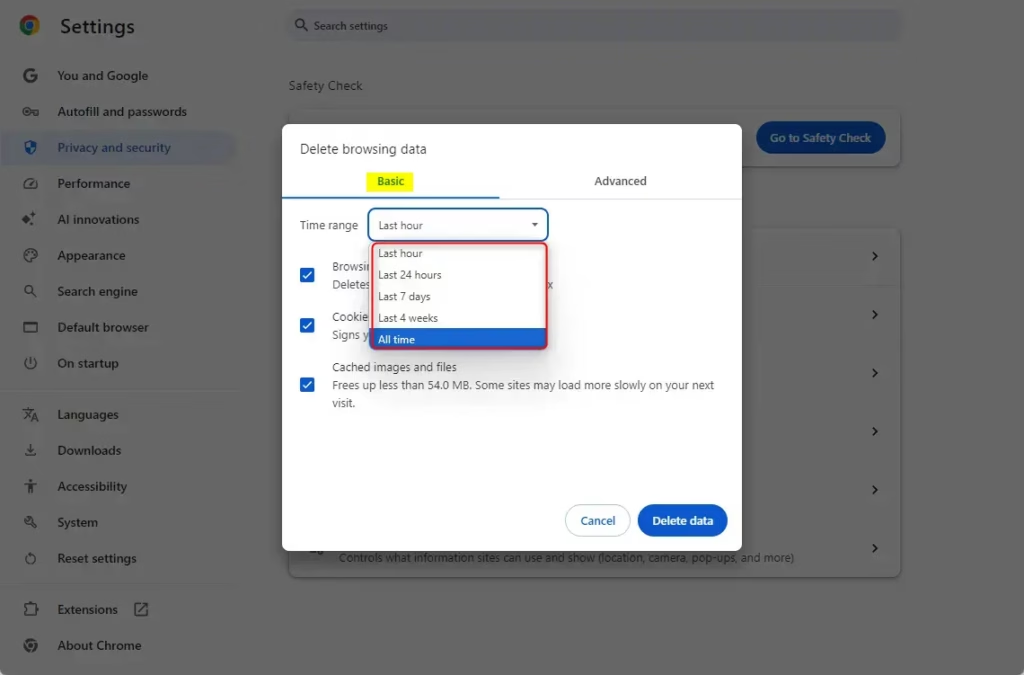
When you choose what to delete in Chrome, you can pick a time range and select specific data types like your browsing history, cookies, or cached files.
Click the Advanced tab for more options. Here, you can clear specific items like your password list or autofill form data.
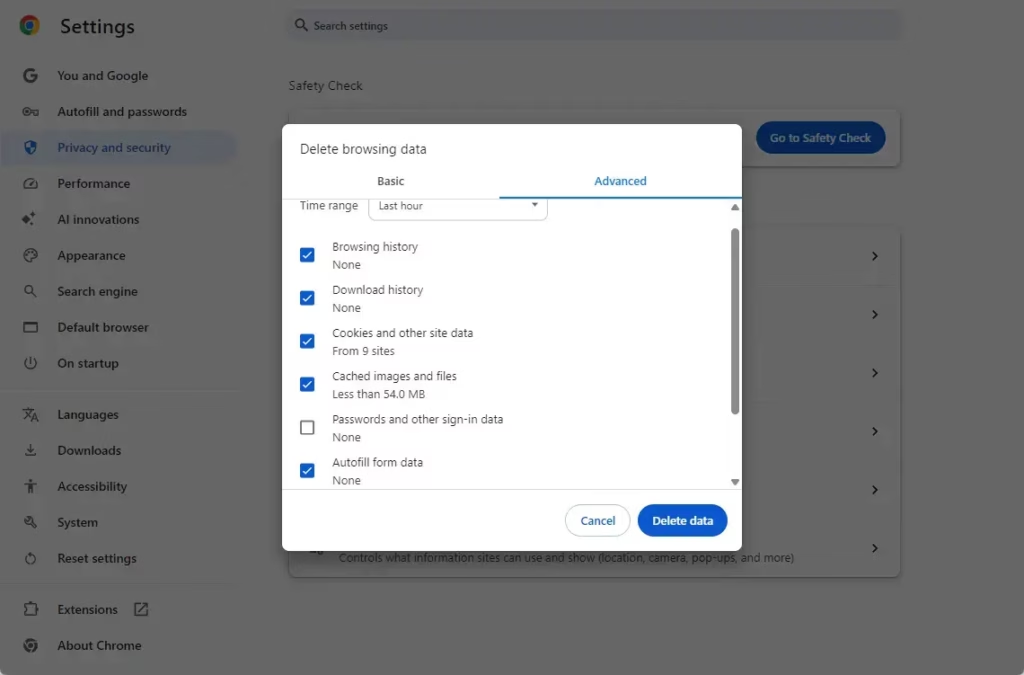
Click the Delete data button to finish.
Advanced Privacy and Control
- Ad Privacy: For a more thorough cleanup, visit the Ad Privacy section within your Privacy and security settings. Here, you can manage how Chrome helps websites show you personalized ads.
- Granular Control: If you only want to clear data for one specific website, go to Site Settings. Select View permissions and data stored across sites. This lets you delete data for individual websites without clearing everything at once.
For advanced privacy control in Chrome, you can manage ad settings or clear data for specific websites individually.
Conclusion
Clearing your browser data regularly keeps your computer tidy and your information private. By using these tools, you stay in control of your digital footprint in 2026.
Was this guide helpful?

About the Author
Richard
Tech Writer, IT Professional
Richard, a writer for Geek Rewind, is a tech enthusiast who loves breaking down complex IT topics into simple, easy-to-understand ideas. With years of hands-on experience in system administration and enterprise IT operations, he’s developed a knack for offering practical tips and solutions. Richard aims to make technology more accessible and actionable. He's deeply committed to the Geek Rewind community, always ready to answer questions and engage in discussions.




No comments yet — be the first to share your thoughts!