How to Enable Memory Saver in Google Chrome

You enable Memory Saver in Google Chrome to free up RAM and speed up your PC.
Memory Saver is a Google Chrome feature designed to reduce the browser’s memory footprint by deactivating inactive tabs. This is crucial for maintaining smooth performance, especially on systems with limited RAM, like those running Windows 11.
When you activate Memory Saver, Chrome automatically puts tabs you haven’t visited for a while into a low-memory state. This frees up valuable system resources for your active tasks.
Once a tab is inactive, it won’t consume significant memory. When you need to access it again, it will instantly reload, making your overall browsing experience much snappier.
Open Chrome, click the three dots, select Settings, then click Performance on the left. Toggle the Memory Saver switch to enable or disable it. You can choose standard or enhanced modes, or add sites to always keep active.
Enable or disable Memory Saver in Google Chrome
You can turn Memory Saver on or off in Google Chrome using the browser’s Performance settings to help it run faster.
First, open the Google Chrome browser.
Click the Customize and Control button (three dots) in the top right corner. Select Settings.
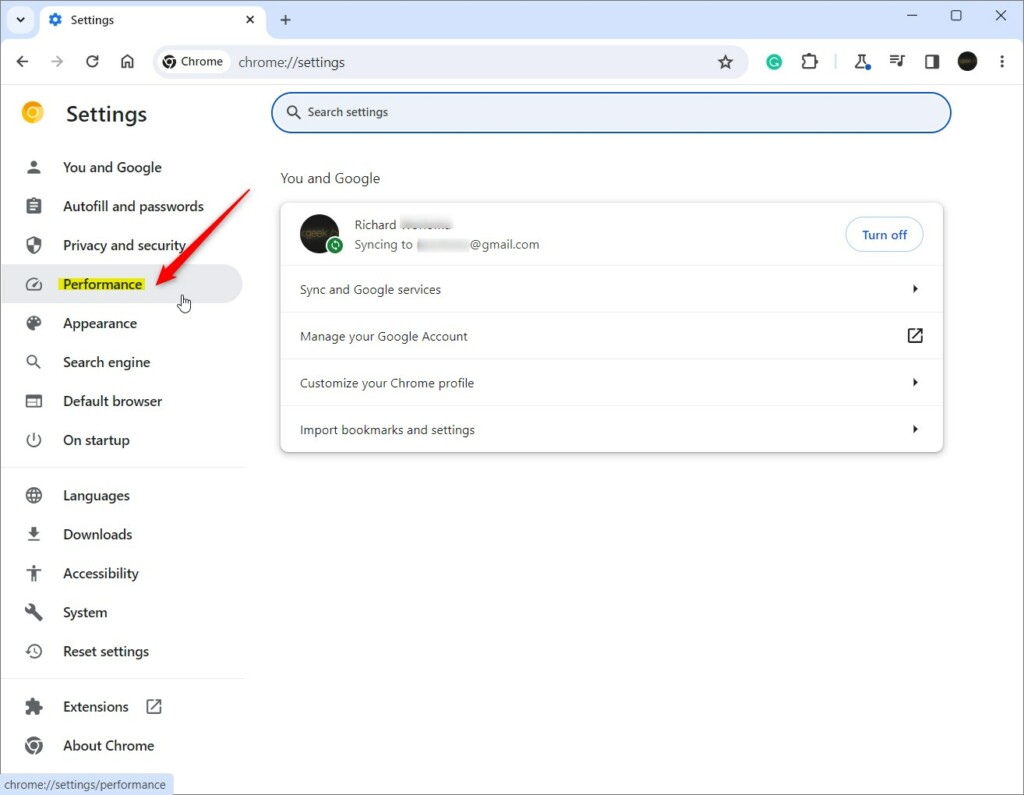
On the left side of the screen, click Performance.
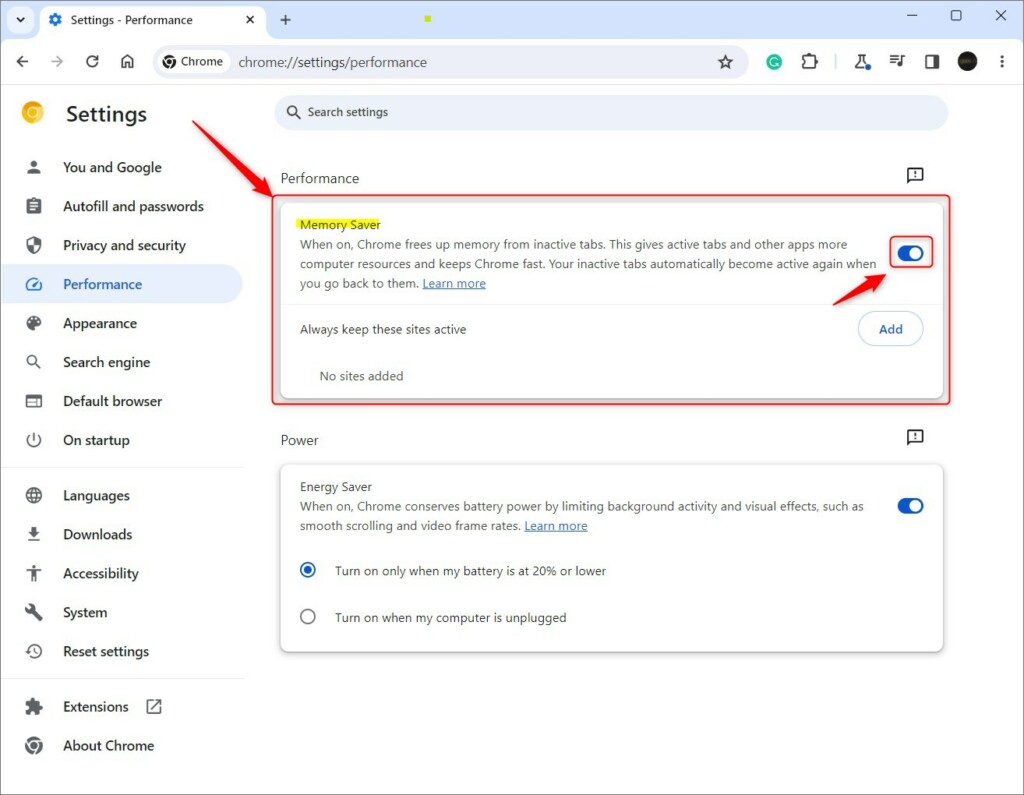
You will see the Memory Saver settings. You can choose between two modes:
- Standard Memory Saver: Chrome frees up memory based on your computer’s needs.
- Enhanced Memory Saver: Chrome predicts which tabs you are done with and puts them to sleep more aggressively to keep your browser fast.
You can also toggle the Energy Saver switch on this same page. This helps your laptop battery last longer by limiting background activity and visual effects.
Always keep sites active
If you want certain websites, like a music player or a live dashboard, to always stay open even when you’re not actively using them, you can tell Chrome to keep them active.
- On the Performance page, look for the section labeled Always keep these sites active.
- Click the Add button.
- Type in the web address (URL) of the site you want to keep active.
- Click Add to save your choice.
Some activities on your computer will naturally prevent tab deactivation, such as:
- Playing audio or video.
- Sharing your screen.
- Active downloads.
- Connected USB or Bluetooth devices.
That should do it!
Reference:
Conclusion:
Enabling Memory Saver in Google Chrome helps your computer run faster and keeps your battery charged longer. By choosing the right mode or adding your favorite sites to the “always active” list, you can customize how Chrome manages your memory.
Was this guide helpful?

About the Author
Richard
Tech Writer, IT Professional
Richard, a writer for Geek Rewind, is a tech enthusiast who loves breaking down complex IT topics into simple, easy-to-understand ideas. With years of hands-on experience in system administration and enterprise IT operations, he’s developed a knack for offering practical tips and solutions. Richard aims to make technology more accessible and actionable. He's deeply committed to the Geek Rewind community, always ready to answer questions and engage in discussions.

No comments yet — be the first to share your thoughts!