How to Turn Google Translate On or Off in Chrome

You can easily turn the Google Translate feature on or off within your Google Chrome browser. Google Translate is a service that automatically translates web pages into your preferred language, breaking down language barriers as you browse.
This powerful tool allows you to read content from websites anywhere in the world in a language you understand. For instance, Chrome typically offers translation for over 100 languages.
Knowing how to toggle this setting gives you control over your browsing experience. You can enable it to discover new international content or disable it if you prefer to view websites in their original language.
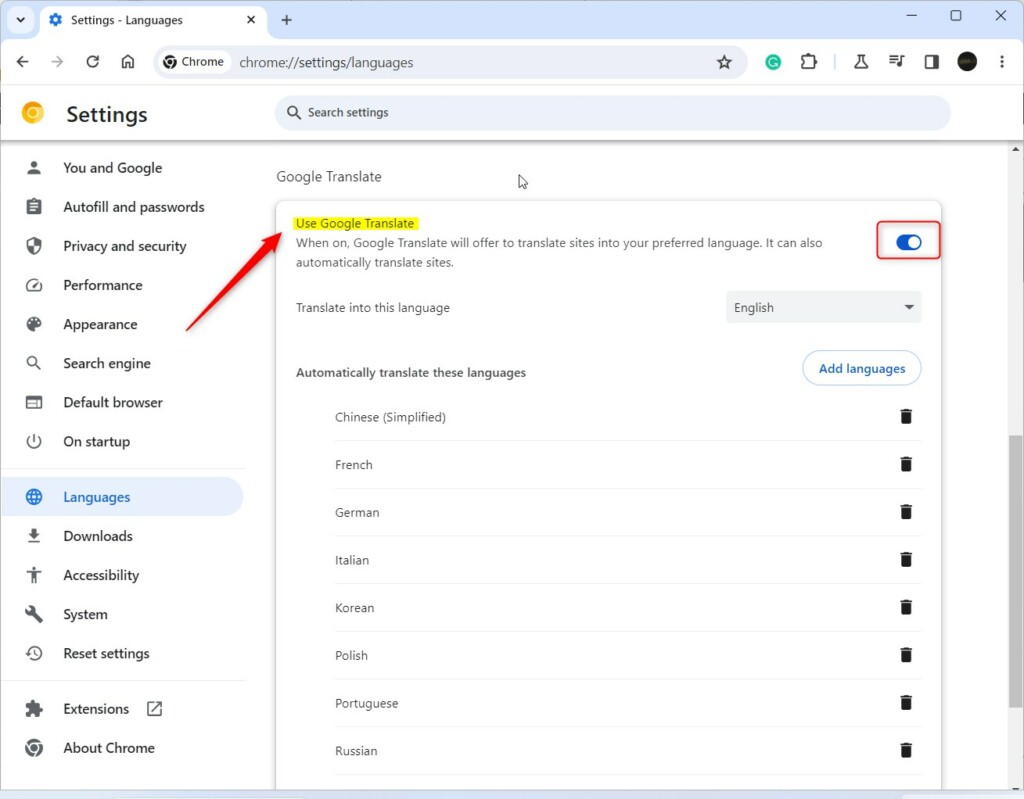
Open Chrome Settings, navigate to Languages, and toggle “Use Google Translate” on or off. You can also manage specific language translation preferences from this menu.
Enable or disable Google Translate in Chrome
You can easily turn off Google Translate in Chrome if you don’t want it to automatically offer translations for web pages.
First, open the Google Chrome browser.
Click the ‘Customize and Control’ icon (that’s the three vertical dots you’ll see in the top right corner) and select Settings.
On the left panel, click Languages.

On the right side, you’ll see an option for Translate. Click it. You can also type chrome://settings/languages into your address bar to go there directly.
Toggle the Use Google Translate switch to the On or Off position.
Using the translation icon
When you visit a page in a foreign language, a Google Translate icon will appear in your address bar. Click this icon to trigger the translation for the current page manually.
Automatic settings
Chrome’s automatic settings let you decide if you want it to always translate pages in a specific language or never translate them.
You can also use the Add languages button to choose specific languages for automatic translation. To stop translating a language, click the delete button next to it. You can also add languages to the Never offer to translate list if you prefer to read them in their original form.
You can now close Google Chrome.
Conclusion
Managing your translation settings helps you browse the web more comfortably. It allows you to explore global content without language barriers. If you have questions, please leave a comment below.
Was this guide helpful?

About the Author
Richard
Tech Writer, IT Professional
Richard, a writer for Geek Rewind, is a tech enthusiast who loves breaking down complex IT topics into simple, easy-to-understand ideas. With years of hands-on experience in system administration and enterprise IT operations, he’s developed a knack for offering practical tips and solutions. Richard aims to make technology more accessible and actionable. He's deeply committed to the Geek Rewind community, always ready to answer questions and engage in discussions.



No comments yet — be the first to share your thoughts!