How to Enable or Disable Sign-in in Google Chrome

You can enable or disable sign-in in Google Chrome to control data syncing and personalized features.
Signing into Chrome synchronizes your bookmarks, history, passwords, and settings across all your devices, from your PC to your smartphone. It also unlocks tailored recommendations and seamless access to Google services.
Without signing in, you won’t experience features like automatic password population or custom theme application on new installations. This guide will walk you through managing Chrome’s sign-in options so you can decide exactly how you want to use the browser.
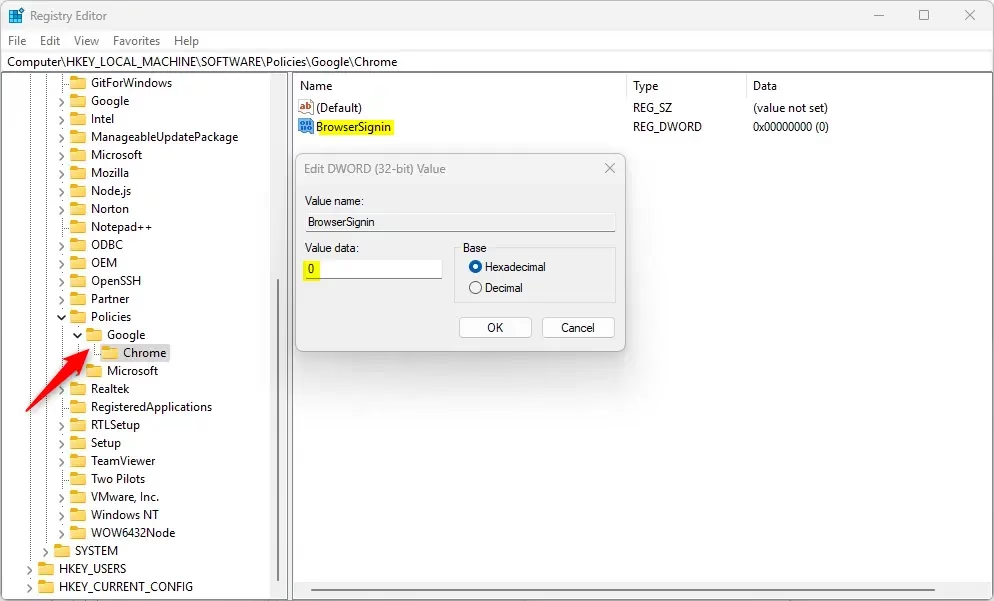
To enable or disable sign-in in Google Chrome, open the Windows Registry Editor. Navigate to Computer\🗝️HKEY_LOCAL_MACHINE\SOFTWARE\Policies\Google\Chrome, create a new DWORD (32-bit) Value named BrowserSignin, and set its value to 0 to disable or 1 to enable.
Why manage browser sign-in?
You might want to limit sign-in to keep your data private or to stop others from syncing their information on your computer. When you sign in, Chrome saves your bookmarks, passwords, and history to your Google account.
What happens when done?
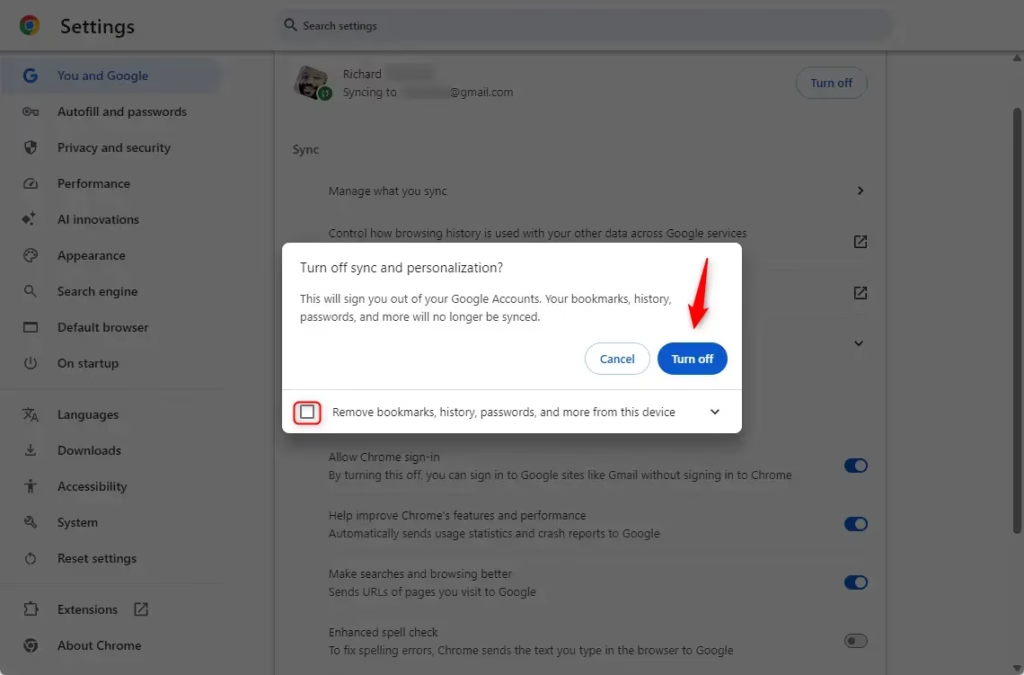
When you disable sign-in, Chrome will no longer sync your personal data. You will be signed out of your Google account inside the browser.
Enable/Disable Browser Sign-in in Chrome
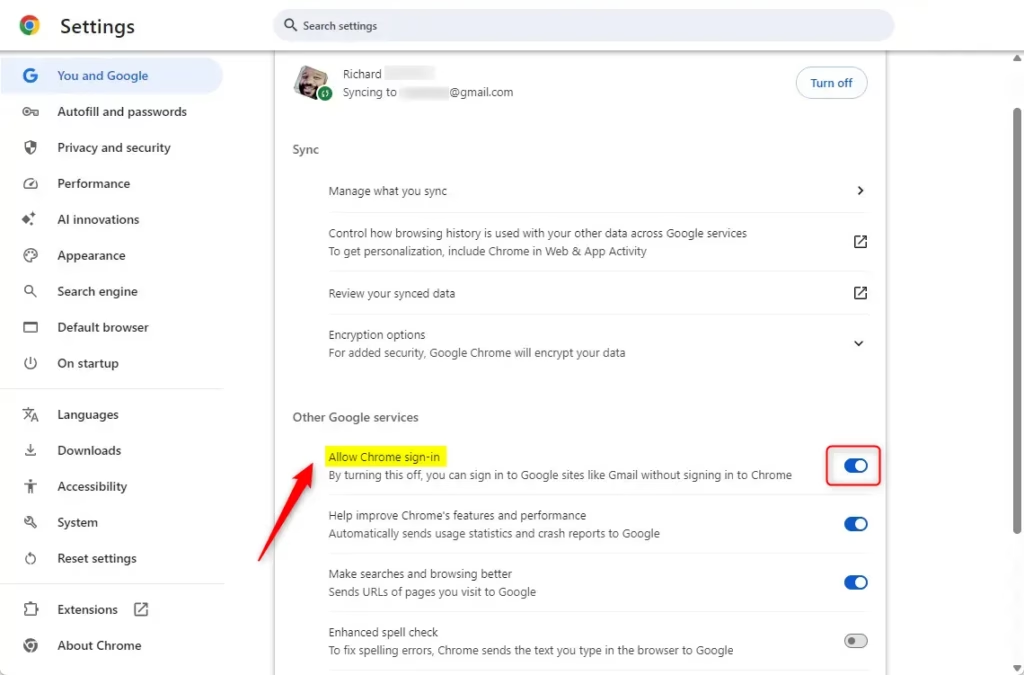
You can’t directly turn off Chrome sign-in through the settings anymore, as it’s now tied to your Google Account profile.
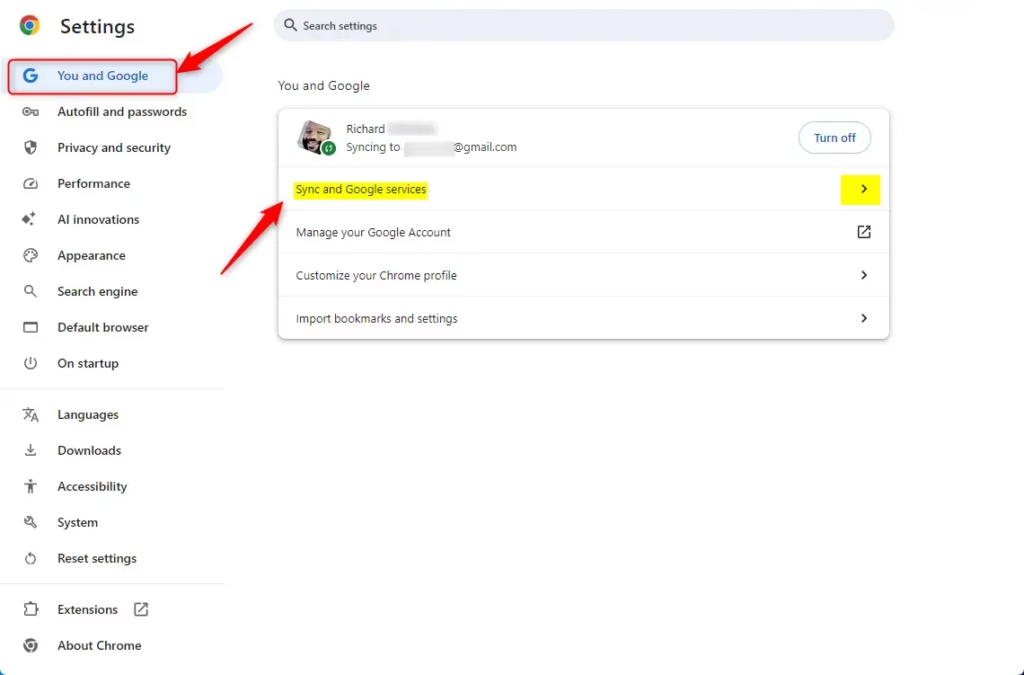
You can manage your account by clicking the “You and Google” section in the browser settings. However, please note that disabling sign-in through the user interface is no longer a standard option. Chrome is designed to stay integrated with your Google profile for a better experience.
Enable / Disable Browser Sign-in using the Registry
You can disable Chrome sign-in using the Windows Registry Editor if you need to force this setting on your computer.
Warning: If you use the registry method, Chrome will display a “Managed by your organization” message in the menu. This message is normal, but it might confuse users who think their computer is being managed by an employer.
First, open the Google Chrome browser. If you choose to use the registry, please back up your files first.
Navigate to this folder path:
Computer\🗝️HKEY_LOCAL_MACHINE\SOFTWARE\Policies\Google\Chrome
If you don’t see the Google or Chrome folders, right-click to create them. Then, right-click inside the Chrome folder, choose New, and select DWORD (32-bit) Value (a type of setting). Name it BrowserSignin.
Double-click BrowserSignin. Then, enter a number:
- 0: Disable browser sign-in
- 1: Enable browser sign-in
- 2: Force users to sign-in
To go back to normal, delete the BrowserSignin file you created. You may need to restart your computer for the changes to take effect.
For more information, visit Chrome Enterprise Policy.
How do I stop Google from forcing me to sign-in?
On the left side of the screen, click Sync and Google services on the right. Then, scroll down to the ‘Other Google services’ section and toggle the option.
How do I stop Chrome from opening on login?
Go to General > Login Items & Extensions. Select Chrome in the Open at Login section. Click the '-' to remove it. Quit System Settings.
How do I skip Chrome sign-in?
Click on Settings. Head over to You and Google > Sync and Google services. Here, you’ll see an option called ‘Allow Chrome sign-in.’ The description says, ‘By turning this off, you can sign into Google sites like Gmail.’
Was this guide helpful?

About the Author
Richard
Tech Writer, IT Professional
Richard, a writer for Geek Rewind, is a tech enthusiast who loves breaking down complex IT topics into simple, easy-to-understand ideas. With years of hands-on experience in system administration and enterprise IT operations, he’s developed a knack for offering practical tips and solutions. Richard aims to make technology more accessible and actionable. He's deeply committed to the Geek Rewind community, always ready to answer questions and engage in discussions.



No comments yet — be the first to share your thoughts!