How to Set Google Chrome to Use System Default Printer

You can set Google Chrome to always use your Windows system’s default printer, overriding its usual behavior of selecting the last-used printer.
Chrome’s “print destination persistence” feature remembers your last printer choice, which can be inconvenient if you have multiple printers like a high-volume office printer and a small home printer.
This tutorial shows you how to disable this persistence within Chrome’s settings. This ensures you print to your preferred default printer every time without manual selection, streamlining your workflow on Windows 10 and 11 PCs.
Edit the Windows Registry to force Chrome to use your system default printer. Navigate to 🗝️HKEY_LOCAL_MACHINESOFTWAREPoliciesGoogleChrome, create a new DWORD value named PrintPreviewUseSystemDefaultPrinter, and set its data to 1. This ensures Chrome always selects your primary printer.
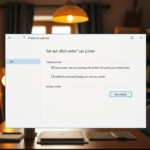
How to change the default printer in Windows
To change the default printer in Windows, first open your Settings and go to ‘Printers & scanners’. Then, pick the printer you want to use and click the ‘Set as default’ button.
Force Chrome to use the system default printer
You can make Chrome always use your Windows default printer by changing a setting in the Windows Registry, but you’ll need administrator rights to do this.
First, back up your registry. Open the Registry Editor and go to:
HKEY_LOCAL_MACHINE\SOFTWARE\Policies\Google\Chrome
If you don’t see the Google or Chrome folders already there, right-click on the folder above them, choose ‘New’ then ‘Key’, and name it as needed. Right-click the Chrome folder, select New > DWORD (32-bit) Value, and name it PrintPreviewUseSystemDefaultPrinter. Set the value to 1 to force the system default.
Troubleshooting ‘Save as PDF’ persistence
If Chrome keeps defaulting to ‘Save as PDF’ instead of your chosen printer, the ‘PrintPreviewUseSystemDefaultPrinter’ registry setting might be the issue.
Enterprise and Domain-joined environments
In a business environment, IT administrators use Group Policy Objects (GPO) to manage these settings across all computers. If you are on a work computer, you may not have permission to edit the registry. Contact your IT department to request a policy update via the Chrome Administrative Templates.
Summary
Chrome often picks the last printer you used, not your system’s default.
Is there a way to disable ‘Save as PDF’ in Chrome?
Chrome does not have a native toggle to completely remove the ‘Save as PDF’ option from the print menu. However, by setting the PrintPreviewUseSystemDefaultPrinter policy to 1, you ensure that your physical printer is always the primary selection, effectively pushing the PDF option to the background.
Does Chrome sync printer settings across devices?
No, Chrome does not sync your specific printer selection or print destination history across different computers. Printer settings are managed locally by the Windows operating system and the specific Chrome installation on that device. You must configure the registry settings on each computer individually to maintain consistent behavior.
Was this guide helpful?

About the Author
Richard
Tech Writer, IT Professional
Richard, a writer for Geek Rewind, is a tech enthusiast who loves breaking down complex IT topics into simple, easy-to-understand ideas. With years of hands-on experience in system administration and enterprise IT operations, he’s developed a knack for offering practical tips and solutions. Richard aims to make technology more accessible and actionable. He's deeply committed to the Geek Rewind community, always ready to answer questions and engage in discussions.



No comments yet — be the first to share your thoughts!