How to See System Restore Points in Windows 11

You can see your Windows 11 system restore points by opening the System Properties window and navigating to the System Protection tab.
System Restore points are saved snapshots of your operating system, allowing you to revert your PC to a previous stable state. This is incredibly useful if a recent software installation or update causes problems.
To access these points, you’ll typically look for restore points created by the System Protection feature. This feature automatically creates restore points at key times, like before major updates, but you can also create them manually.
For instance, if you’re troubleshooting an issue that began after installing a specific application on Windows 11, finding and utilizing a restore point from *before* that installation is your primary solution.
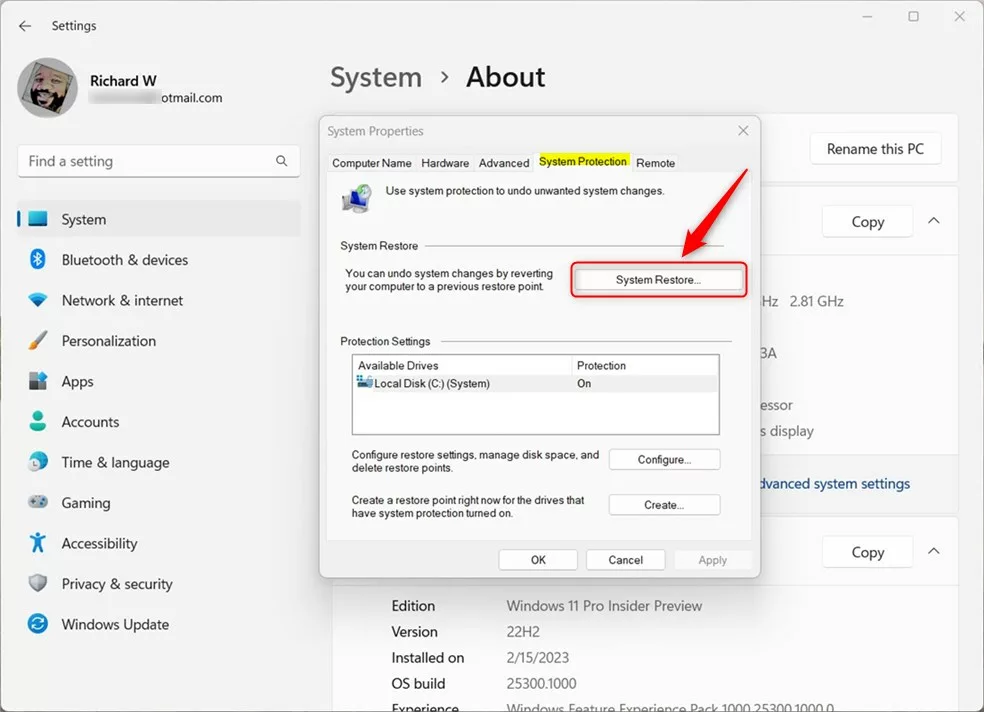
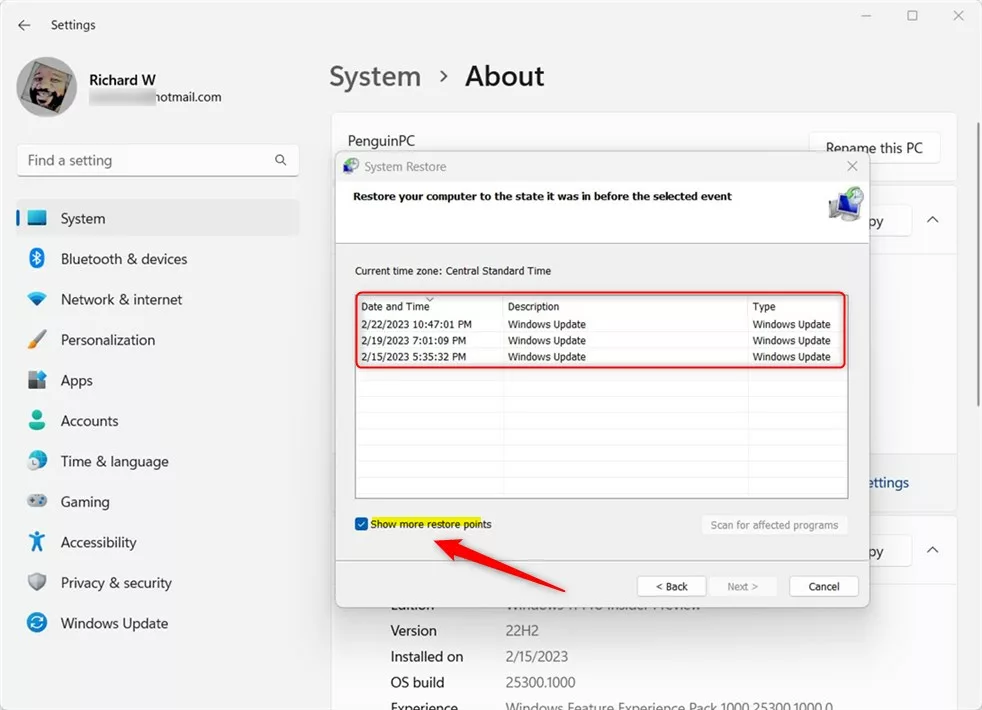
Open Settings, go to System, then About, and click the System protection link. In the System Properties window, select System Restore and check “Show more restore points” to see a list of available restore points.
What Is a System Restore Point?
A restore point is like a photo of your computer’s settings and system files at a certain moment. Windows usually creates these automatically before big changes or every day. You can also make your own whenever you want.
How to See Your Restore Points Using Settings
You can easily see your system restore points in Windows 11 using the Settings app by checking your system protection status.
- Open Settings: Click the Start button and pick Settings. Or press
Windows + Ion your keyboard. - Go to System: In Settings, click System on the left side. Then scroll down and click About.
- Find System protection: On the About page, find and click the System protection link under “Related links.”
- Click System Restore: In the new window, click the System Restore button.
- View all restore points: In the next window, check the box that says Show more restore points. Now you’ll see a list of all available restore points on your computer.
How to See Restore Points Using Commands
If you prefer using commands, you can quickly see your system restore points in Windows 11 through Windows Terminal with a simple PowerShell command.
- Open Windows Terminal as admin: Right-click the Start button and select Windows Terminal (Admin). %📂%SC0%%
- Enter the PowerShell command: Make sure the PowerShell tab is open. Type this command and press Enter:
Get-ComputerRestorePoint | Format-Table -AutoSizeYou’ll see a list of all your restore points with details like date and description.
If you prefer Command Prompt, type this command instead and press Enter:
PowerShell Get-ComputerRestorePoint^|Format-Table -AutoSizeWhy Knowing About Restore Points Helps You
- Restore points help you fix your PC if problems happen after installing new software or updates.
- Knowing how to find restore points means you can quickly fix your computer when needed.
- It’s smart to create your own restore point before making big changes to your system.
Knowing how to find your system restore points in Windows 11 is helpful because they act like a ‘go back’ button for your PC if something goes wrong after an update or new program install.
Summary
System restore points in Windows 11 are like saved versions of your computer that let you go back in time if problems occur, and you can view them using Settings or commands.
Does 🪟 Windows 11 have System Restore points?
Yes, Windows 11 does have System Restore, and you can check if it’s turned on by searching for ‘Create a restore point’ in the Windows search bar and looking at the system protection status.
Should I delete restore points in 🪟 Windows 11?
Deleting system restore points in Windows 11 is a straightforward process that can help you reclaim valuable disk space and maintain system performance.
Is it good to create a System Restore point?
By using System Restore, you can undo these changes without affecting your personal files, providing a safe way to resolve problems without losing important data. System Restore works by utilizing restore points, which are snapshots of the system's configuration and settings at a specific moment.
Was this guide helpful?

About the Author
Richard
Tech Writer, IT Professional
Richard, a writer for Geek Rewind, is a tech enthusiast who loves breaking down complex IT topics into simple, easy-to-understand ideas. With years of hands-on experience in system administration and enterprise IT operations, he’s developed a knack for offering practical tips and solutions. Richard aims to make technology more accessible and actionable. He's deeply committed to the Geek Rewind community, always ready to answer questions and engage in discussions.




No comments yet — be the first to share your thoughts!