How to Change Your PIN in Windows 11

Ready to change your Windows 11 PIN? This guide will walk you through it.
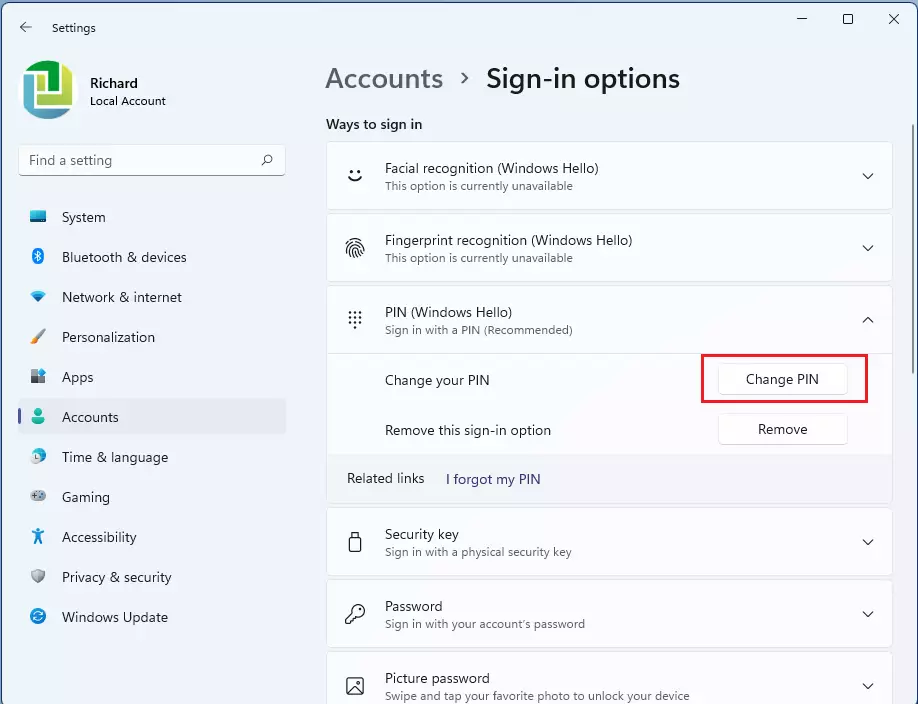
Open Settings, go to Accounts, then Sign-in options. Expand PIN (Windows Hello), click Change PIN, and enter your current and new PIN.
What is a PIN and Why Use It?
A Windows 11 PIN is a quick and secure way to sign into your computer using Windows Hello. It’s a short code that’s just for your device, making it safer than a regular password because it can’t be used anywhere else.
A PIN is safer than a password because:
- It’s only for your device. If someone steals your PIN, they can’t use it on another device.
- It stays on your computer. Your PIN isn’t sent over the internet, so it can’t be intercepted by hackers.
- Your device keeps it extra safe. Windows uses a special chip (called TPM) to protect your PIN from being guessed or stolen.
- You can make it as simple or complex as you want. You can include numbers, letters, and symbols.
- It works with biometrics. You need a PIN as a backup in case fingerprint or face recognition doesn’t work.
Learn more about Windows Hello here: Windows Hello – Microsoft Support
How to Change Your PIN in 🪟 Windows 11
- Open Settings: Press Win + I on your keyboard.
- Go to Accounts: Click Accounts from the left menu.
- Choose Sign-in options: On the right side, click Sign-in options.
- Find PIN (Windows Hello): Under Ways to sign in, click to expand PIN (Windows Hello).
- Click Change PIN: Press the Change PIN button.
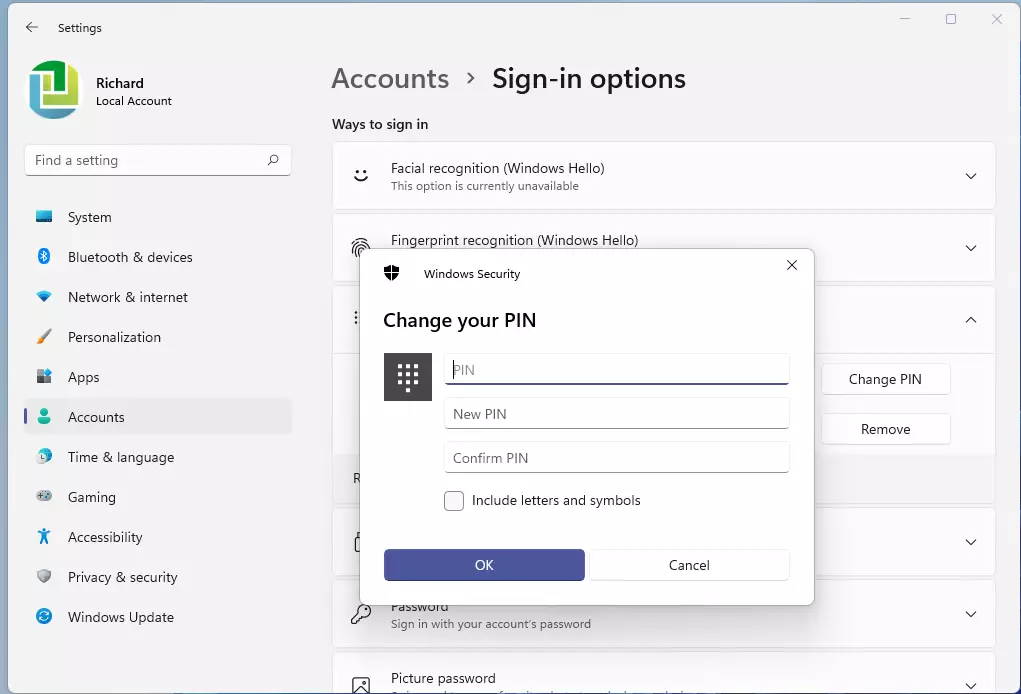
- Enter your current PIN.
- Type your new PIN: You can also check Include letters and symbols if you want a more complex PIN.
- Confirm your new PIN by typing it again.
- Click OK to save your new PIN.
To change your PIN in Windows 11, start by opening the Settings app. You can do this quickly by pressing the Windows key and the ‘I’ key together on your keyboard.
When you’re done, you can close the Settings window.
Why Change Your PIN?
- Keep your device safe: Changing your PIN regularly adds security.
- Make it easier to remember: Choose a new PIN that you find easier to recall but still secure.
- Update your security: If you think someone else knows your PIN, change it right away.
Quick Tips
- Make your PIN at least 6 characters long with a mix of numbers, letters, and symbols if possible.
- Never share your PIN with others.
- If you forget your PIN, you can reset it from the sign-in screen (you’ll need your Microsoft account password).
Helpful Links
- How to Change or Reset Your PIN – Microsoft Support
- Windows Sign-in Options – Microsoft Support
- Windows Hello PIN Errors and Troubleshooting
Why is there no change PIN option in 🪟 Windows 11?
If you’re wondering why the ‘Change PIN’ option might be missing in Windows 11, or how to include letters and symbols in your new PIN, you’ll need to check the relevant box. Then, you can enter your new PIN.
Was this guide helpful?

About the Author
Richard
Tech Writer, IT Professional
Richard, a writer for Geek Rewind, is a tech enthusiast who loves breaking down complex IT topics into simple, easy-to-understand ideas. With years of hands-on experience in system administration and enterprise IT operations, he’s developed a knack for offering practical tips and solutions. Richard aims to make technology more accessible and actionable. He's deeply committed to the Geek Rewind community, always ready to answer questions and engage in discussions.



No comments yet — be the first to share your thoughts!