How to Enable or Disable Windows Hello Biometrics for Domain Users

You can enable or disable Windows Hello biometrics for domain users (accounts connected to a network, like at work or school) in Windows 11 by configuring Group Policy settings.
Windows Hello makes signing in convenient and secure with features like facial recognition, fingerprint scanning, and PIN entry. Many new PCs come with it already installed.
For devices joined to a domain, your IT administrator might restrict these biometric features through organizational security policies.
This guide shows you exactly how to manage Windows Hello biometrics for domain-joined accounts on Windows 11. You’ll understand how to control these settings afterward.
Configure Windows Hello biometrics for domain users via Group Policy Editor or Registry Editor. Navigate to Administrative Templates > Windows Components > Biometrics in Group Policy, then adjust the “Allow domain users to log on using biometrics” setting. Alternatively, in Registry Editor, modify the “Enabled” DWORD value under 🗝️HKEY_LOCAL_MACHINESOFTWAREPoliciesMicrosoftBiometrics.
Turn On or Off Windows Hello Biometrics Using Local Group Policy Editor
The most direct way to control this is using the Local Group Policy Editor. It’s a tool built into Windows that lets you manage advanced settings.
Step 1Open Local Group Policy Editor
Press Windows key + R on your keyboard. Type gpedit.msc and press Enter.
You can find more detailed instructions in this guide: How to Open Local Group Policy Editor in Windows 11.
Step 2Find the Biometrics Settings
In the Local Group Policy Editor window, navigate to this path on the left side:
Computer Configuration → Administrative Templates → Windows Components → Biometrics
Step 3Change the Setting
To control whether domain users can sign in with Windows Hello biometrics, find the ‘Allow domain users to log on using biometrics’ setting in the Biometrics folder and double-click it.
Now select one of these options:
- Not Configured – This means biometrics are allowed.
- Enabled – Biometrics will be allowed for domain users.
- Disabled – Biometrics will NOT be allowed for domain users.
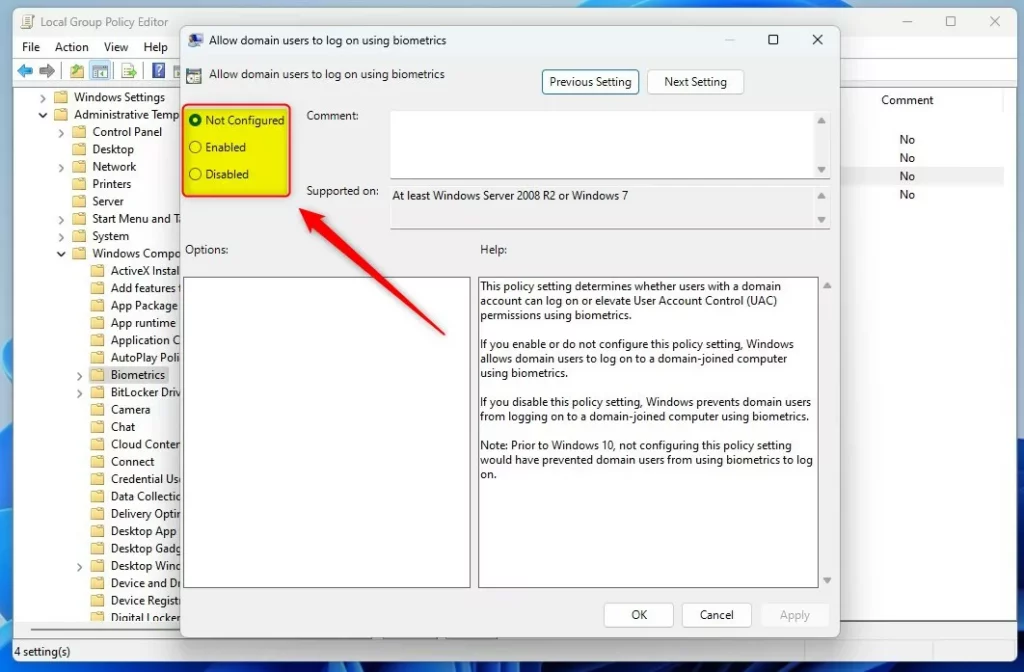
Click OK to save your changes. Then restart your computer for them to take effect.
Turn On or Off Windows Hello Biometrics Using Registry Editor
If you can’t use the Local Group Policy Editor (for example, on Windows Home editions), you can change the setting by editing the Windows Registry.
Warning: Be aware that changing the wrong settings in the registry can cause serious problems with your system. Back up your registry first.
Step 1Open Registry Editor
Press Windows key + R. Type regedit and press Enter.
You can find more info in this guide: How to Open Registry Editor in Windows 11.
Step 2Navigate to the Biometrics Key
Go to this folder path:
HKEY_LOCAL_MACHINE\SOFTWARE\Policies\MicrosoftIf you don’t see a folder named Biometrics under Microsoft, you’ll need to create it:
- Right-click on Microsoft → New → Key.
- Name the new key Biometrics.
Step 3Create or Edit the “Enabled” Value
To set up Windows Hello biometrics for domain users using the Registry Editor, create a new 32-bit DWORD value named ‘Enabled’ inside the Biometrics folder.
Name this new value Enabled.
Double-click the Enabled value. Set the Base to Decimal. Then set the Value data to:
- 1 to turn ON biometrics for domain users.
- 0 to turn OFF biometrics for domain users.
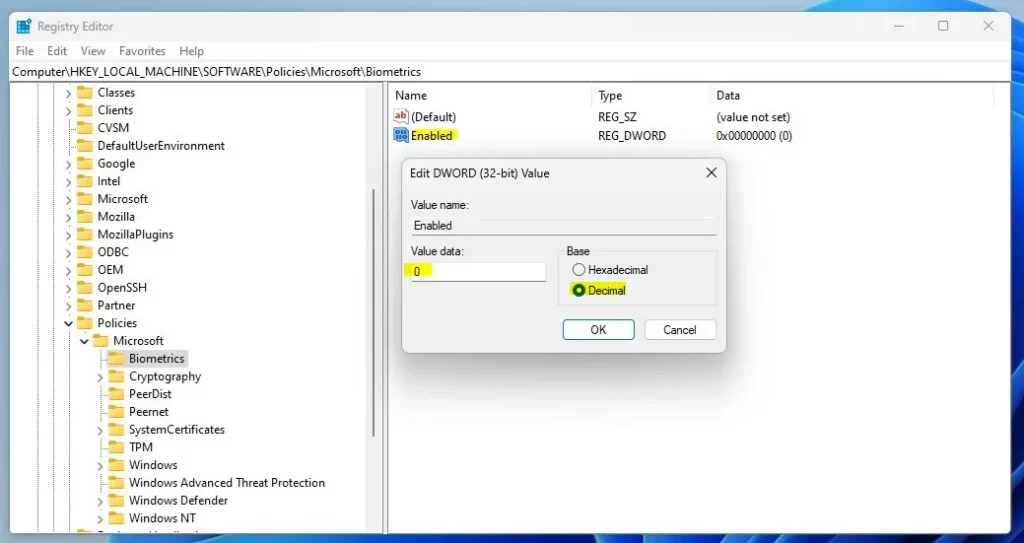
Press OK and close the Registry Editor.
Restart your computer to apply these changes.
Summary
Windows Hello biometrics offers a secure way to sign in using your face, fingerprint, or PIN, and you can manage these options for domain users on your PC.
If your PC is part of a domain (like work or school), these sign-in options might be turned off by default.
You can turn Windows Hello biometrics on or off for domain users by using either the Local Group Policy Editor or the Registry Editor.
Remember to restart your computer after making any changes.
If you want to learn more about Windows Hello features, here are some helpful guides:
How to Sign In with a PIN in Windows 11
Was this guide helpful?

About the Author
Richard
Tech Writer, IT Professional
Richard, a writer for Geek Rewind, is a tech enthusiast who loves breaking down complex IT topics into simple, easy-to-understand ideas. With years of hands-on experience in system administration and enterprise IT operations, he’s developed a knack for offering practical tips and solutions. Richard aims to make technology more accessible and actionable. He's deeply committed to the Geek Rewind community, always ready to answer questions and engage in discussions.


No comments yet — be the first to share your thoughts!