How to Turn On Windows Hello Anti-Spoofing in Windows 11

Turning on Windows Hello anti-spoofing in Windows 11 protects your PC from unauthorized access using fake images or masks.
Anti-spoofing is a security setting for Windows Hello. It makes facial recognition smarter, checking if the “face” being presented is live or fake. This helps prevent someone from using a photograph or a 3D mask to trick your computer into logging them in. Enabling it adds an extra layer of security to your Windows 11 login experience.
Open Settings, navigate to Accounts > Sign-in options, expand Facial recognition (Windows Hello), and check the box for “Enhanced facial recognition protection.” This setting helps prevent unauthorized access using fake images or masks.
What Is Anti-Spoofing?
Anti-spoofing is a security tool that makes facial recognition smarter. It helps your computer tell if someone is trying to trick it with a photo or mask instead of your real face.
Note: Turning on enhanced anti-spoofing can sometimes make it harder to sign in if your device does not support it well.
How to Turn On or Off Anti-Spoofing Using Windows Settings
- Open the Settings app:
- Click the Start menu and select Settings, or
- Press
Windows key + Ion your keyboard.
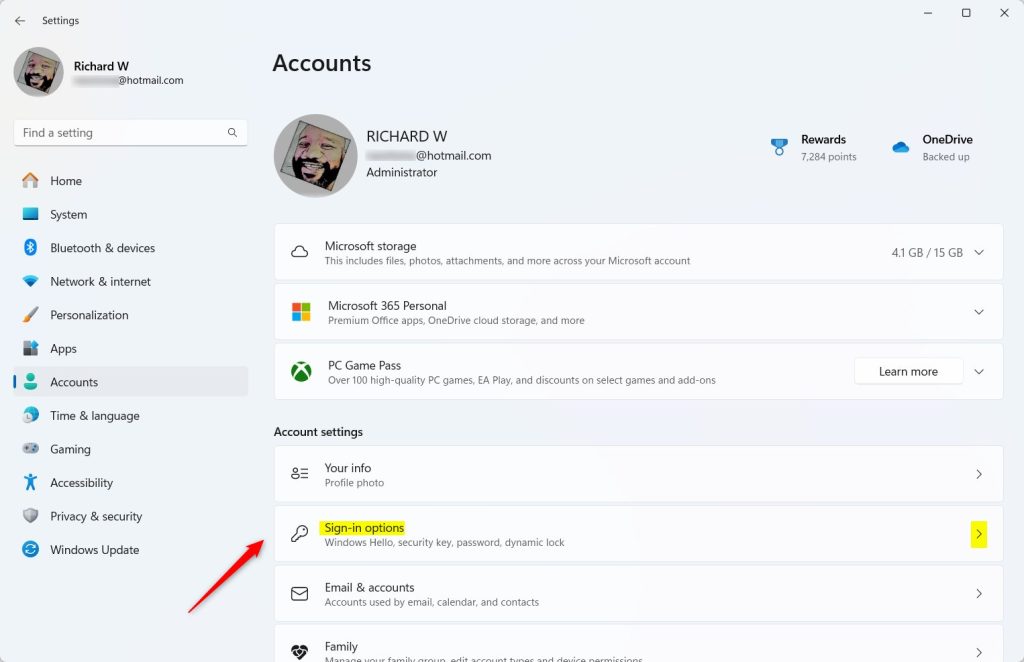
- Click Accounts on the left side menu.
- Click Sign-in options on the right.
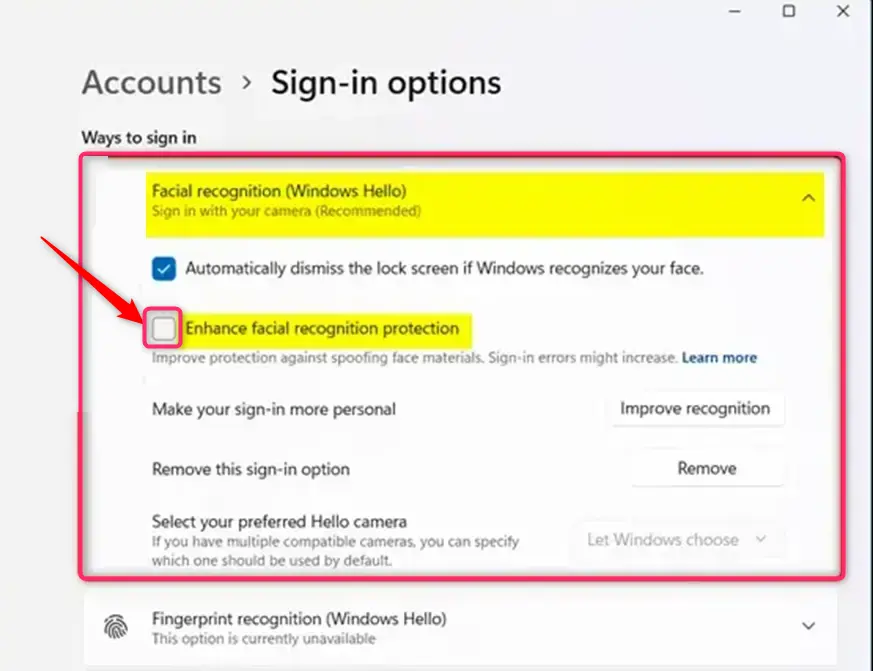
- Find Facial recognition (Windows Hello) and click to expand it.
- Check or uncheck the box next to “Enhanced facial recognition protection” to turn anti-spoofing on or off.
- Click Restart now if your PC asks you to restart.
How to Turn On or Off Anti-Spoofing Using Group Policy Editor (For Advanced Users)
This next method is for those who are comfortable making changes in system settings:
- Open the Local Group Policy Editor:
- Type “Edit group policy” in the Start menu search and open it.
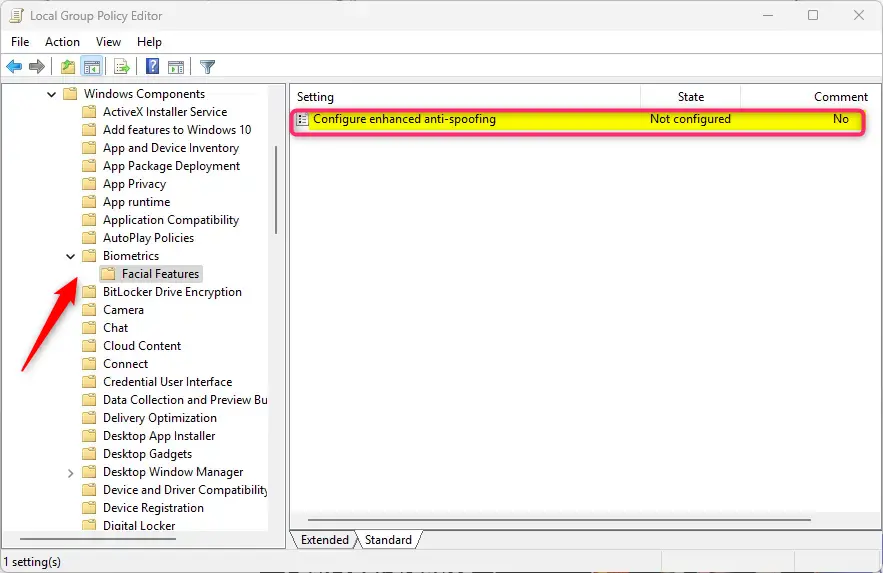
- Navigate to this folder path:
Computer Configuration > Administrative Templates > Windows Components > Biometrics > Facial Features - On the right, double-click Configure enhanced anti-spoofing.
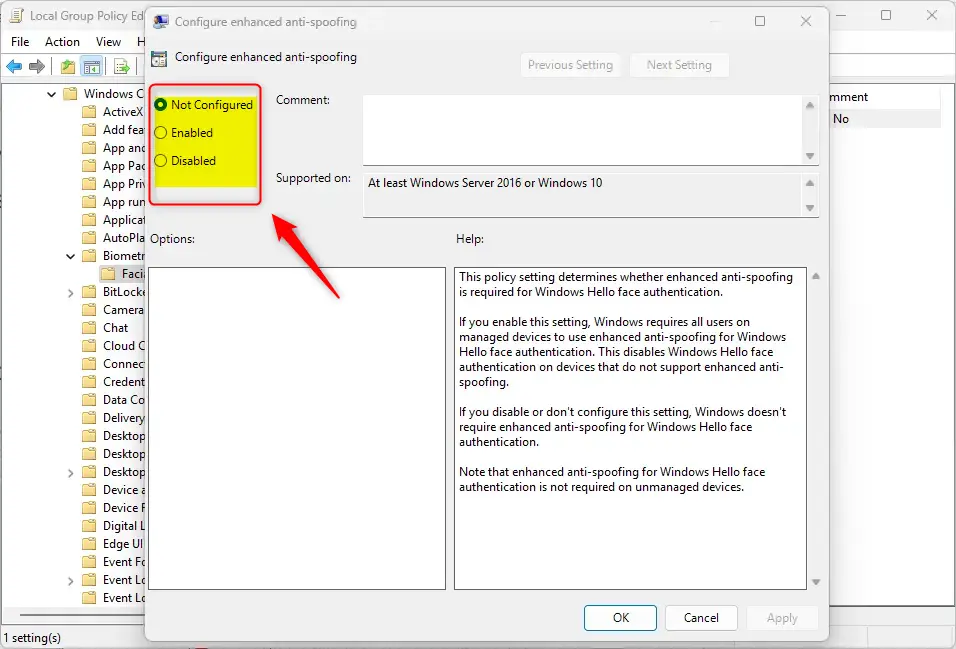
- Select:
- Enabled – to turn on anti-spoofing.
- Disabled – to turn it off.
- Not Configured – default, same as off.
- Click OK to save.
How to Turn On or Off Anti-Spoofing Using Registry Editor (Advanced Users Only)
Warning: Changing the registry can cause problems if not done correctly. Make sure to back up your registry or create a system restore point first.
- Open the Registry Editor:
- Press
Windows key + R, typeregedit, and pressEnter.
- Press
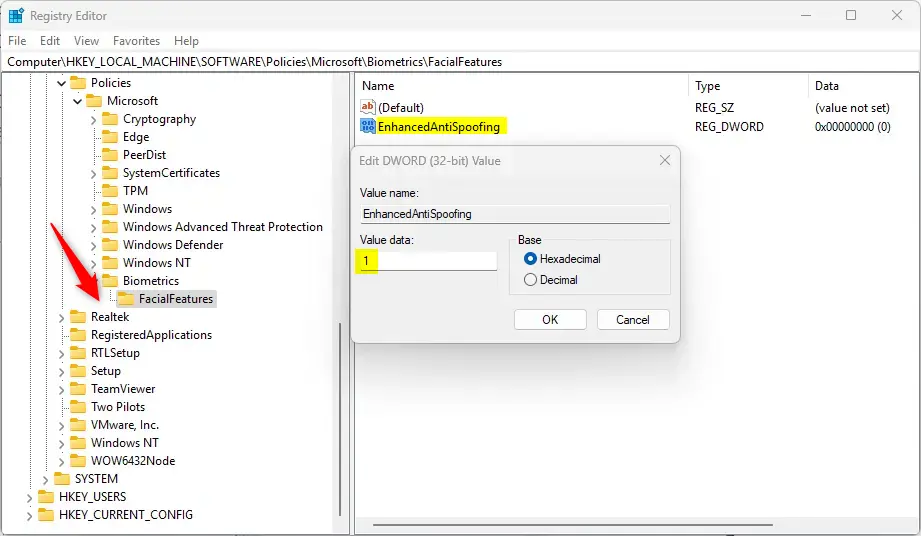
- Go to this folder:
HKEY_LOCAL_MACHINE\SOFTWARE\Policies\Microsoft\Biometrics\Facial Features - If the FacialFeatures folder does not exist, create it by right-clicking Biometrics > New > Key, and name it FacialFeatures.
- Right-click inside FacialFeatures, select New > DWORD (32-bit) Value, and name it EnhancedAntiSpoofing.
- Double-click EnhancedAntiSpoofing and set its value to:
1to turn on anti-spoofing0to turn it off
- Click OK and close the Registry Editor.
- Restart your PC to apply the changes.
Summary
- Better Security: Anti-spoofing helps protect your Windows Hello face sign-in from fake attempts.
- Multiple Ways to Change: You can turn it on or off using Settings, Group Policy Editor, or Registry Editor.
- Possible Sign-in Issues: Turning it on may cause occasional sign-in problems on some devices.
- Be Careful: Always back up your system or registry before making big changes.
- Check Compatibility: Make sure your device supports enhanced anti-spoofing to use it well.
If you follow these steps, you can set your facial recognition security to a level that works best for you!
For more tips on Windows Hello, check out:
How to Sign in with Your Face in Windows 11
How to Use Fingerprint Sign-in
How do you enable anti-spoofing?
Navigate to Anti-Spam > Anti-Spam Filters > Anti-Spoofing. Select Enable Anti-Spoofing to enable the Anti-Spoofing filter.
How do I ensure configure enhanced anti-spoofing is set to enabled?
To enable Enhanced Anti-Spoofing for Windows Hello, navigate to Computer\🗝️HKEY_LOCAL_MACHINE\SOFTWARE\Policies\Microsoft\Biometrics\FacialFeatures in the Registry Editor, then select Edit > New > DWORD (32-Bit) Value. Name the new DWORD value EnhancedAntiSpoofing and set its value to 1.
Does Faceit work on 🪟 Windows 11?
From the 14th of October 2026, Windows 11 will be required to play on FACEIT.
Was this guide helpful?

About the Author
Richard
Tech Writer, IT Professional
Richard, a writer for Geek Rewind, is a tech enthusiast who loves breaking down complex IT topics into simple, easy-to-understand ideas. With years of hands-on experience in system administration and enterprise IT operations, he’s developed a knack for offering practical tips and solutions. Richard aims to make technology more accessible and actionable. He's deeply committed to the Geek Rewind community, always ready to answer questions and engage in discussions.



No comments yet — be the first to share your thoughts!