How to Use InPrivate Browsing in Microsoft Edge

You use InPrivate browsing in Microsoft Edge to prevent the browser from saving your browsing history, cookies, and form data for a specific session.
InPrivate browsing is a privacy feature within Microsoft Edge that creates a temporary browsing session. It ensures that your online activity is not permanently recorded on your device during that session.
When you launch an InPrivate window, Microsoft Edge, which is the default browser for Windows 11, stops saving information like cookies, website data, and details you enter into forms.
While this mode enhances your privacy on your local machine, it’s important to know that it doesn’t make you anonymous online. Websites might still collect data during your session, and your activity could be visible to your ISP or network administrator.
Open an InPrivate window in Microsoft Edge to browse without saving history, cookies, or form data. Press Ctrl+Shift+N, or click the three dots menu and select “New InPrivate window.” You can also right-click the Edge icon on the taskbar and choose the same option.
Open InPrivate browsing windows in Microsoft Edge
Opening an InPrivate browsing window in Microsoft Edge is easy and keeps your online activity private by not saving your history or cookies.
Here’s how you do it.
First, open the Microsoft Edge browser.
Then, press the keyboard shortcut to open an InPrivate browser window (Ctrl+Shift+N).
You can also open an InPrivate window by right-clicking the Microsoft Edge logo in your taskbar and selecting “New InPrivate window.”
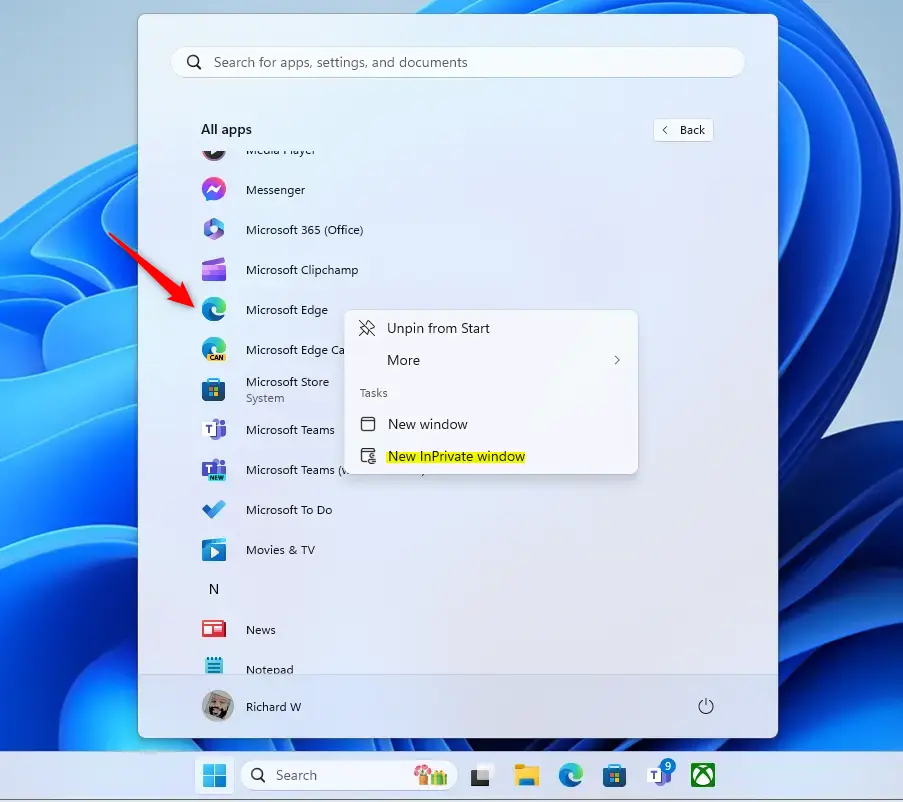
Alternatively, click the Start menu, then select “All apps.” On the All apps list, right-click on the Microsoft Edge icon and then choose “New InPrivate window.”
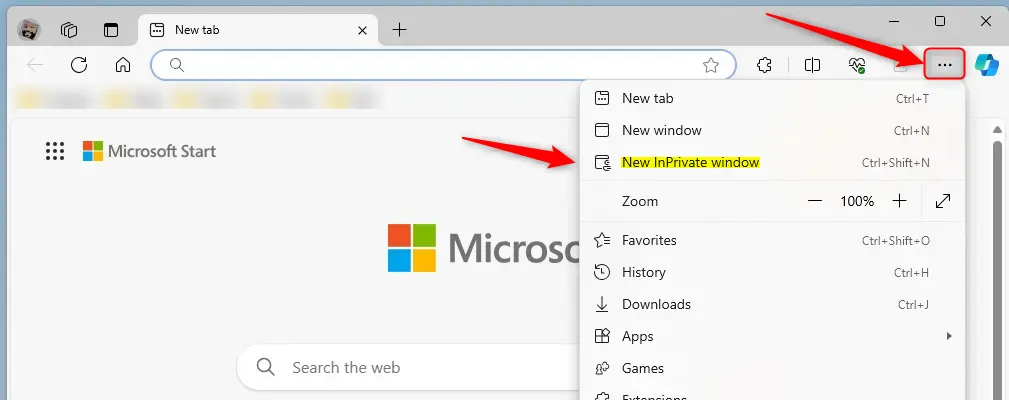
Yet another way to open Edge’s InPrivate browsing windows is to select the Setting and more (Alt+F) 3 horizontal dots button and then select “New InPrivate window.”
Open InPrivate Browsing Window in Microsoft Edge using Shortcut or Command
You can open an InPrivate browsing window in Microsoft Edge straight from your computer’s command line using special commands.
"C:Program Files (x86)MicrosoftEdgeApplicationmsedge.exe" -inprivate
OR
"C:Program Files (x86)MicrosoftEdgeApplicationmsedge.exe" -inprivate -new-window
You can open a particular URL by specifying it after the command. Example:
"C:Program Files (x86)MicrosoftEdgeApplicationmsedge.exe" -inprivate https://geekrewind.com
And that’s it!
Conclusion:
- Opening an InPrivate browsing window in Microsoft Edge allows you to surf the web without leaving a trail of cookies, temporary files, or browsing history on your computer.
- This mode ensures that Edge won’t save your browsing history, search history, or any information you enter in forms during the session.
- While InPrivate browsing provides privacy during the session, it’s important to note that websites can still personalize content based on cookies and site permissions until all InPrivate windows are closed.
- Users can further enhance their privacy by turning on the strict mode in Tracking prevention to restrict personalized content and ads in Edge.
Was this guide helpful?

About the Author
Richard
Tech Writer, IT Professional
Richard, a writer for Geek Rewind, is a tech enthusiast who loves breaking down complex IT topics into simple, easy-to-understand ideas. With years of hands-on experience in system administration and enterprise IT operations, he’s developed a knack for offering practical tips and solutions. Richard aims to make technology more accessible and actionable. He's deeply committed to the Geek Rewind community, always ready to answer questions and engage in discussions.




No comments yet — be the first to share your thoughts!