How to Force Users to Sign Into Microsoft Edge on Windows 11

You force users to sign into Microsoft Edge on Windows 11 by configuring the BrowserSignin policy.
This policy ensures that all users on a Windows 11 machine must log in with a Microsoft account before they can launch and use the Edge browser.
Implementing BrowserSignin is particularly useful for managed environments, such as businesses or schools, where administrators need to control browser access and leverage account-specific features. For example, you can enforce sign-in for all users, preventing anonymous browsing.
Configure the BrowserSignin policy in the Windows Registry. Navigate to ComputerHKEY_LOCAL_MACHINESOFTWAREPoliciesMicrosoftEdge, create a DWORD value named BrowserSignin, and set its value data to 2. This forces users to sign in to Microsoft Edge.
Force users to sign into Microsoft Edge
You can force users to sign into Microsoft Edge on Windows 11 by changing a setting in the Windows Registry.
Here’s how to do it.
First, open the Registry Editor (where you manage Windows settings) and go to the folder key path below.
Before you make any changes, it’s a good idea to back up your registry or create a System Restore point.
ComputerHKEY_LOCAL_MACHINESOFTWAREPoliciesMicrosoftEdge
Right-click on Edge, then select New > DWORD (32-bit) Value, and name the new DWORD ‘BrowserSignin’.
Double-click and open the BrowserSignin name and set the value to 2 to force all users to sign into Edge.
Delete the “BrowserSignin” name created above to restore the default behavior and not to force users to sign into Microsoft Edge with their Microsoft account.
BrowserSignin
You may have to reboot your computer to apply the changes.
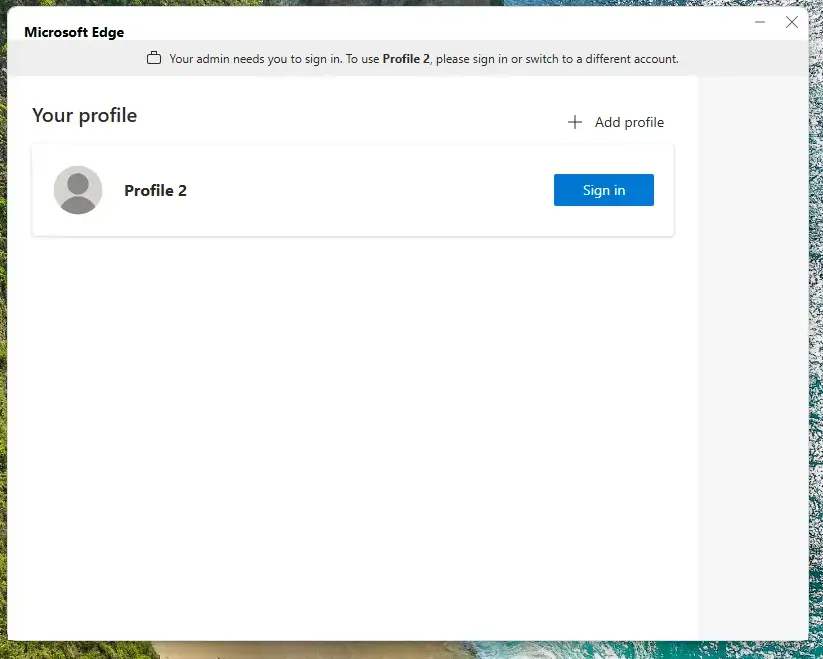
That should do it!
Now, let’s quickly look at why you might want to do this.
In summary, requiring users to sign into Microsoft Edge offers a more structured browsing experience with better data syncing. Here’s a quick recap of the benefits:
- Increased Security: Requires users to authenticate, adding a layer of security to browsing activities.
- Data Synchronization: Ensures browsing data is seamlessly synced across devices.
- Policy Control: Offers system administrators the ability to manage user access effectively.
- Simple Implementation: The process involves making straightforward changes to the Windows Registry.
- Easily Reversible: The enforcement can be undone by deleting the policy entry if needed.
Implementing this policy is a smart move for organizations wanting to streamline user experience while keeping browser use in check.
Was this guide helpful?

About the Author
Richard
Tech Writer, IT Professional
Richard, a writer for Geek Rewind, is a tech enthusiast who loves breaking down complex IT topics into simple, easy-to-understand ideas. With years of hands-on experience in system administration and enterprise IT operations, he’s developed a knack for offering practical tips and solutions. Richard aims to make technology more accessible and actionable. He's deeply committed to the Geek Rewind community, always ready to answer questions and engage in discussions.




No comments yet — be the first to share your thoughts!