How to enable or disable push notifications in Microsoft Edge

You can enable or disable website push notifications directly within Microsoft Edge settings.
Push notifications allow websites to send you timely updates and alerts, but they can quickly become distracting. Microsoft Edge, built on Chromium technology similar to Google Chrome, lets you control these pop-ups.
For example, a news website might use notifications to alert you about breaking stories. However, you might not want every site asking to send you alerts, especially if you’re running Edge version 120 or later.
By managing these settings, you prevent unwanted distractions and keep your PC focused on what matters to you. This guide shows you exactly how to take control.
Enable or disable push notifications in Microsoft Edge
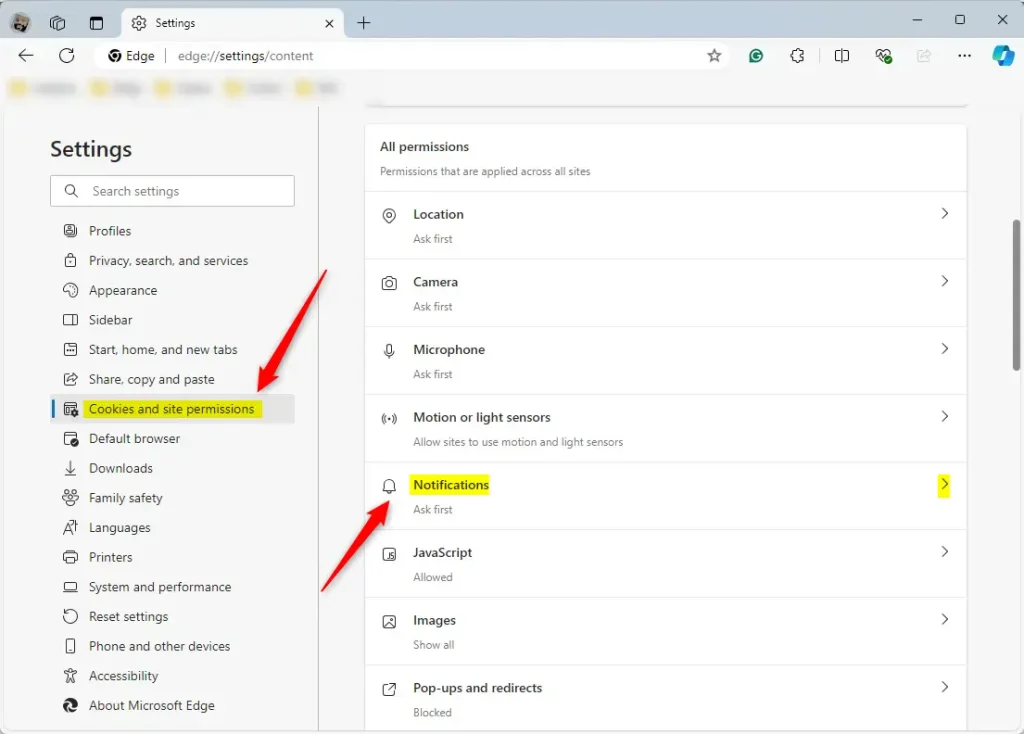
You can manage these settings quickly by pasting edge://settings/content/notifications directly into your address bar. Note that menu labels may vary slightly in newer 2026 versions of the browser.
Follow these steps:
- Open the Microsoft Edge browser.
- Go to the notifications settings page using the URL provided above.
- Look for the setting labeled “Ask before sending (recommended).”
- Toggle the switch to the On or Off position.
Using Quiet Notification Requests
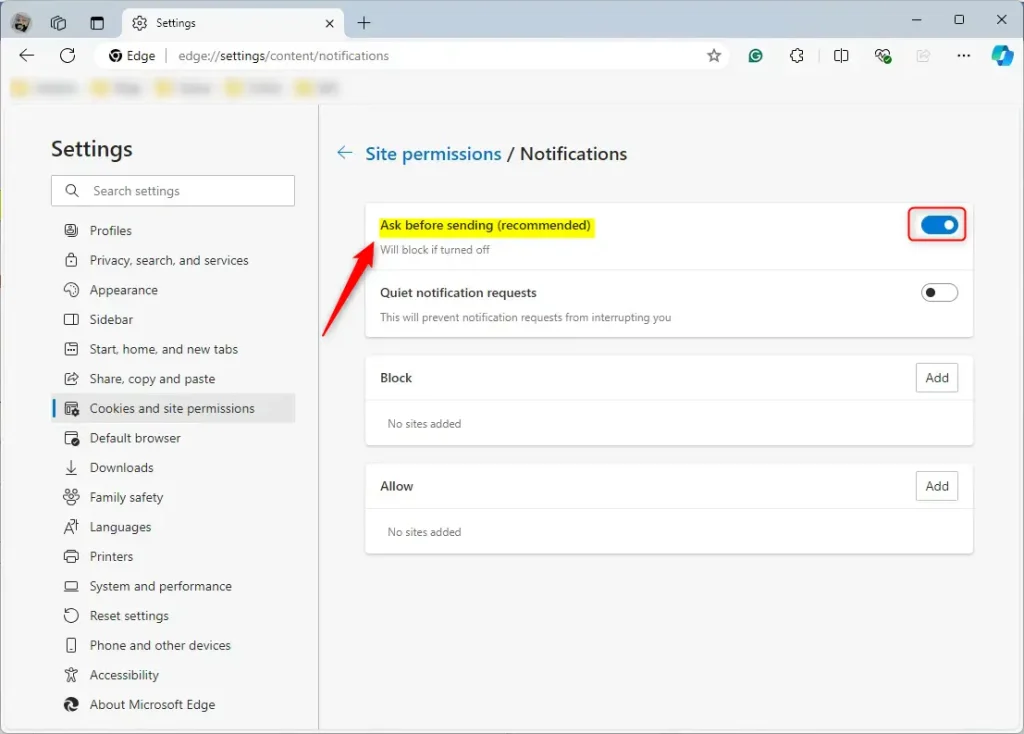
If you find notification prompts annoying but do not want to block them entirely, you can turn on “Quiet notification requests.” This setting prevents pop-ups from interrupting your browsing. Instead, you will see a small icon in the address bar if you want to allow alerts from a specific site.
Managing specific sites
You can manage individual sites under the “Allow” or “Block” lists on the same settings page.
- To stop a site from sending messages, find it under “Allow.”
- Click the three dots next to the site name.
- Select Remove or Block.
Enable or disable push notifications using Windows Registry Editor
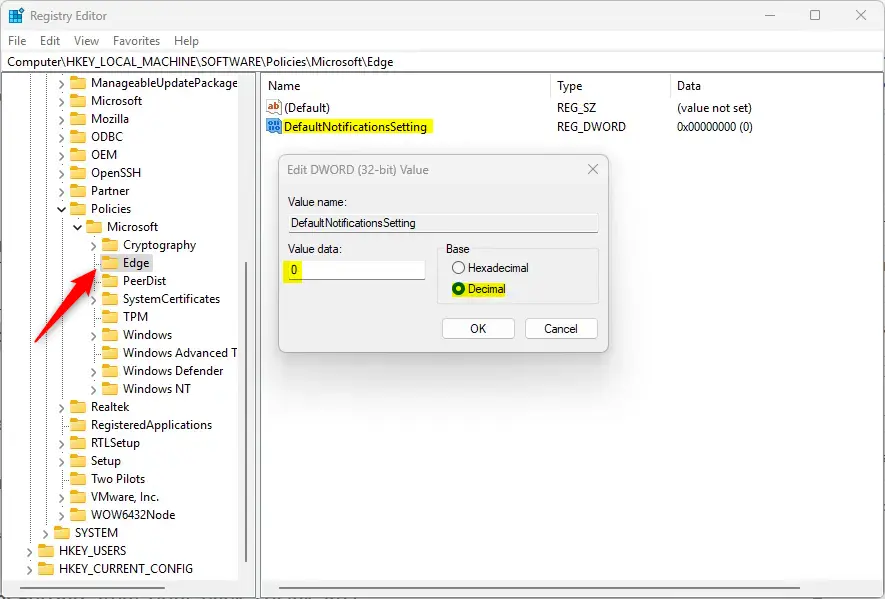
Advanced users can manage these settings for the entire computer using the Registry Editor. Open the Windows Registry editor as an administrator to begin.
Note: The path HKEY_LOCAL_MACHINE\SOFTWARE\Policies\Microsoft\Edge is for system-wide enterprise policies. For individual user configuration, use the equivalent path: HKEY_CURRENT_USER\Software\Policies\Microsoft\Edge.
Follow these steps:
- Navigate to the registry key mentioned above.
- Find the
DefaultNotificationsSetting(REG_DWORD) value. If it does not exist, right-click in the empty space, select New > DWORD (32-bit) Value, and name itDefaultNotificationsSetting. - Double-click the entry and set the value:
- 0: Allow notifications for all users.
- 2: Block notifications for all users.
- 3: Always ask before sending notifications.
- Restart your computer to apply the changes.
To go back to normal, simply delete the DefaultNotificationsSetting item you created.
Conclusion: Managing your notifications helps keep your browser clean and focused. Whether you use the Edge settings menu or the Windows Registry, you are now in control of your digital space.
Was this guide helpful?

About the Author
Richard
Tech Writer, IT Professional
Richard, a writer for Geek Rewind, is a tech enthusiast who loves breaking down complex IT topics into simple, easy-to-understand ideas. With years of hands-on experience in system administration and enterprise IT operations, he’s developed a knack for offering practical tips and solutions. Richard aims to make technology more accessible and actionable. He's deeply committed to the Geek Rewind community, always ready to answer questions and engage in discussions.


No comments yet — be the first to share your thoughts!