How to Block Third-Party Cookies in Microsoft Edge

You block third-party cookies in Microsoft Edge to stop websites from tracking your browsing activity across different sites.
Third-party cookies are small data files that websites, other than the one you’re currently visiting, place on your computer. Advertisers frequently use them for cross-site tracking.
Microsoft Edge, the default browser for Windows 11 and Windows 12, offers a straightforward way to disable these trackers. This change boosts your online privacy by reducing the ability of advertisers to create profiles based on your online behavior.
While disabling third-party cookies is a strong privacy move, be aware that some websites might not work correctly without them, potentially affecting features like saved login details or preferences.
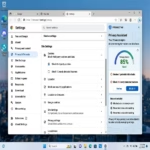
Open Microsoft Edge, click the three dots, select Settings, then Privacy, search, and services. Under Tracking prevention, choose Balanced or Strict to block most third-party cookies.
Allow or block third-party cookies in Edge
Blocking third-party cookies in Edge is simple and can be done right from the browser’s settings.
On the left menu, select Privacy, search, and services. You will see a section for Tracking prevention.
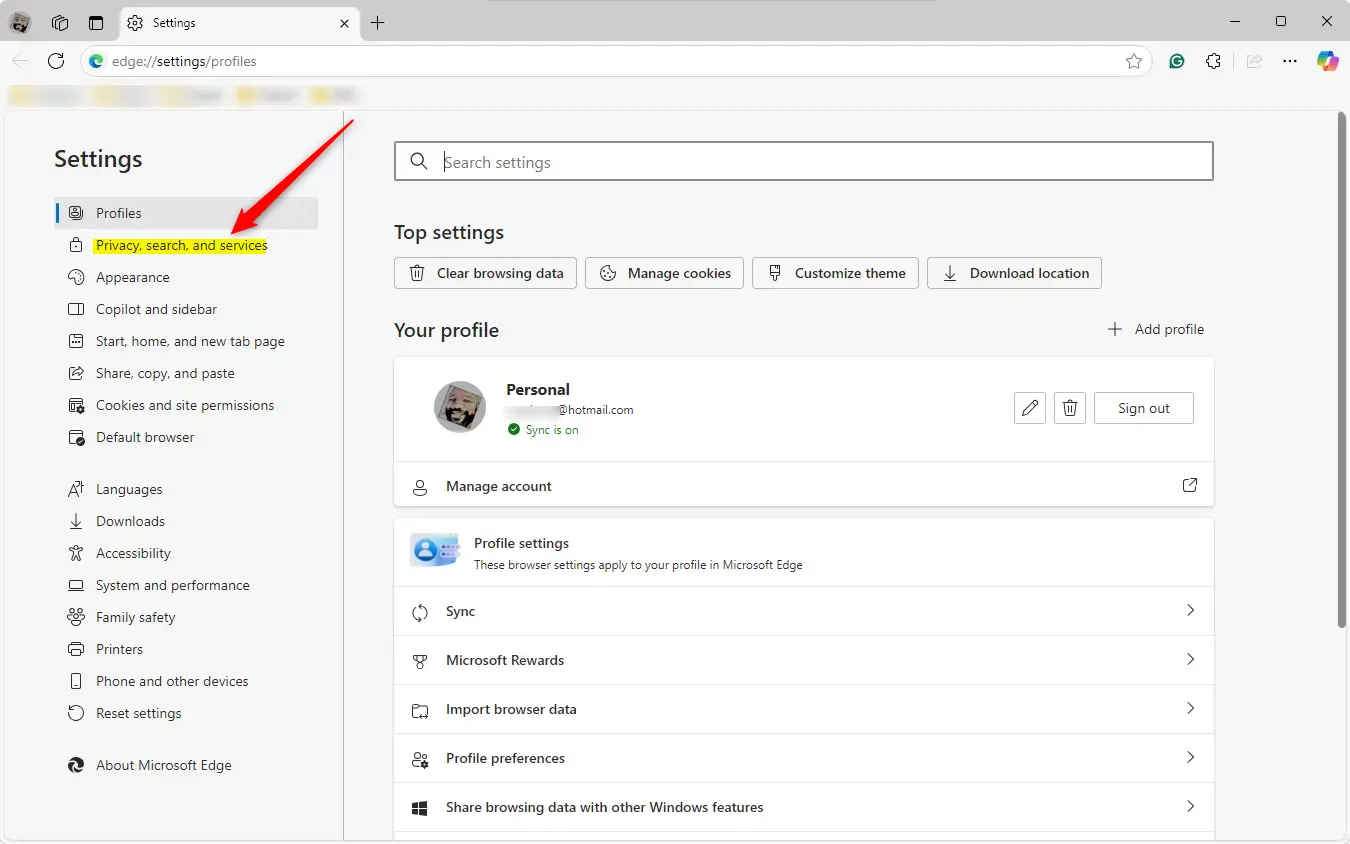
Here are the three modes you can choose:
- Basic: Blocks known harmful trackers but allows most cookies.
- Balanced: The default setting. It blocks trackers from sites you have not visited.
- Strict: Blocks most trackers across all sites. This provides the most privacy but is the most likely to break website features.
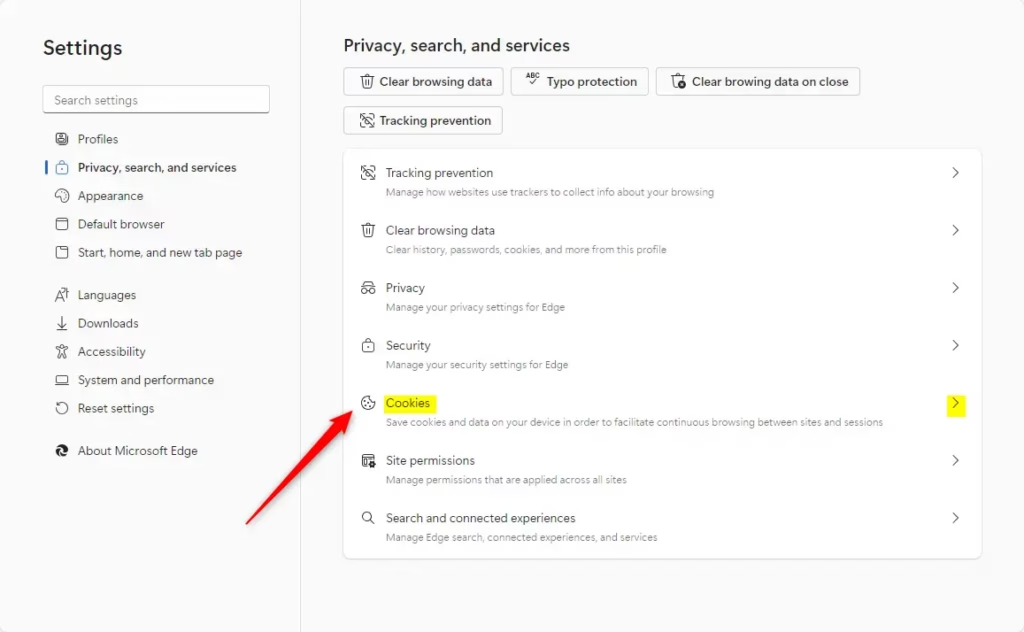
If you need to allow cookies for a specific site, go to Cookies and site permissions > Manage and delete cookies and site data. Click on Allow and add the specific URL of the website you want to exempt from your blocking rules.
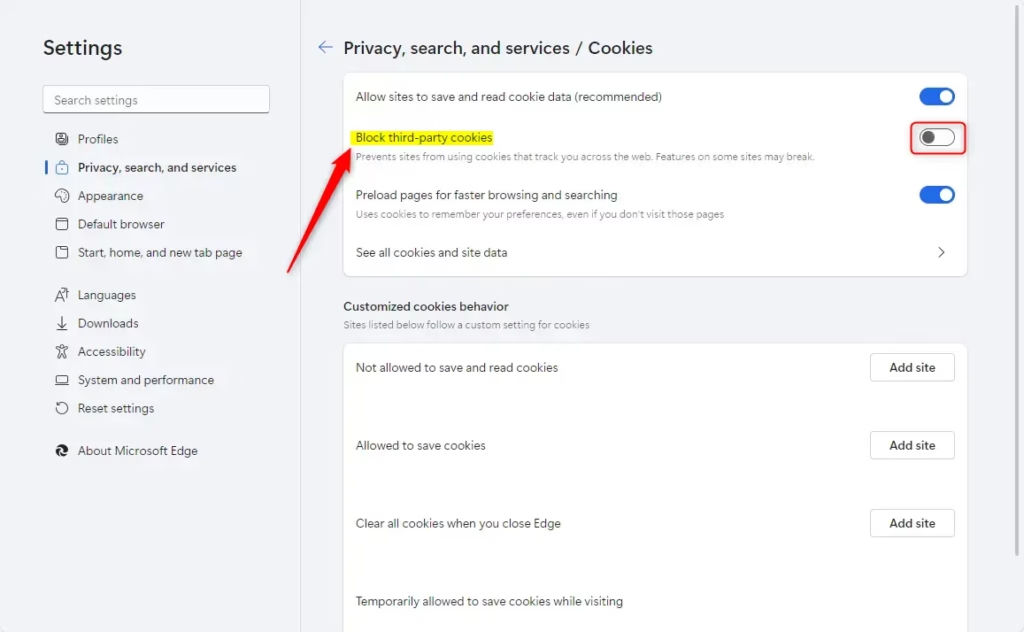
Allow or block third-party cookies in Edge via Registry
You can block third-party cookies in Edge using the Windows Registry, but this method is best for advanced users or IT pros managing company computers.
If you must use the registry, open the Windows Registry and go to this path:
Computer\🗝️HKEY_LOCAL_MACHINE\SOFTWARE\Policies\Microsoft\Edge
Remember to back up your registry before making any changes, or create a System Restore point as a safety step.
Right-click the Edge folder, select New > DWORD (32-bit) Value, and name it BlockThirdPartyCookies. Set the value to 1 to block cookies or 0 to allow them.
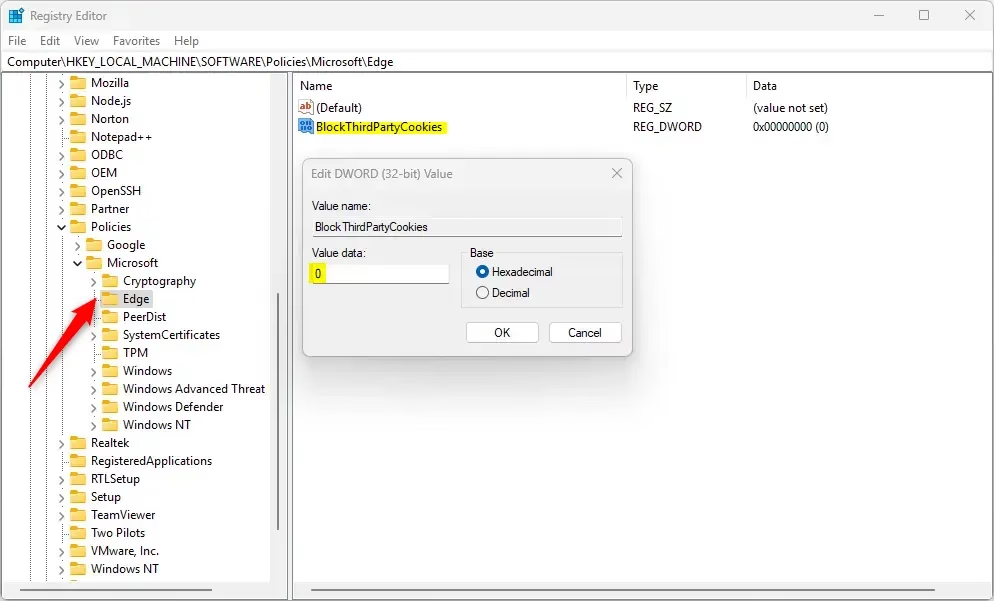
You may need to restart your computer to see the changes. Check the official documentation for more details: Microsoft.
Conclusion: Managing cookies helps you take control of your digital footprint. Choose the setting that balances your need for privacy with your need for a smooth browsing experience.
Should I turn off block third-party cookies?
If you allow third-party cookies: Related sites are allowed to access your activity to personalize content or keep you signed in across sites. If you block third-party cookies: It often prevents this kind of connection between sites.
Was this guide helpful?

About the Author
Richard
Tech Writer, IT Professional
Richard, a writer for Geek Rewind, is a tech enthusiast who loves breaking down complex IT topics into simple, easy-to-understand ideas. With years of hands-on experience in system administration and enterprise IT operations, he’s developed a knack for offering practical tips and solutions. Richard aims to make technology more accessible and actionable. He's deeply committed to the Geek Rewind community, always ready to answer questions and engage in discussions.



No comments yet — be the first to share your thoughts!