
You can turn Microsoft Edge’s AutoSuggest feature on or off right in the browser’s settings.
AutoSuggest, also known as search and site suggestions, provides real-time predictions as you type into the Edge address bar. This feature looks at what you type and your browsing history to suggest links and search terms.
You can toggle this setting on or off to control whether Edge offers suggestions while you browse. For example, turning it off can enhance your privacy by preventing Edge from sending your keystrokes to Microsoft servers for analysis.
This tutorial guides you through the process for both Windows 10 and Windows 11 users.
Open Microsoft Edge, click the three dots, select Settings, then Privacy, search, and services. Navigate to Address bar and search to toggle Search and site suggestions on or off.
What is Microsoft Edge?
Microsoft Edge is the default browser built into Windows. It’s designed to handle your daily web browsing quickly while keeping your data protected.
What is AutoSuggest?
Microsoft Edge AutoSuggest is a handy tool that pops up website and search suggestions as you type in the address bar, helping you browse the web quicker.
Why use AutoSuggest? It saves you time. You do not have to type the full name of a website or a search phrase. The browser guesses what you want and fills it in for you.
What happens when you are done? Once you change these settings, your browser will stop sending your typed letters to the search engine, or it will stop using your history to make guesses, depending on which toggle you turn off.
You can control two main settings:
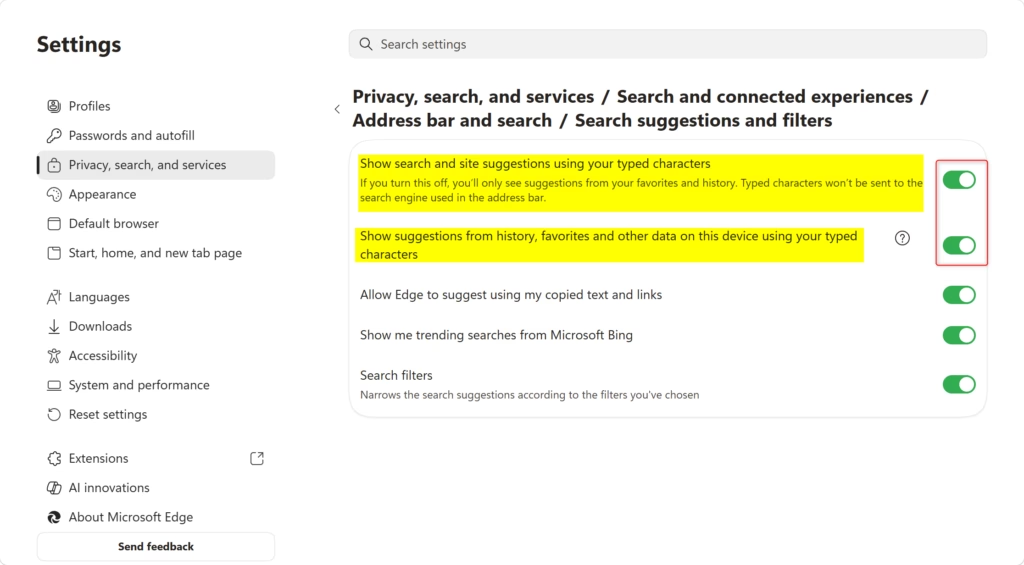
- Search and site suggestions: When turned off, your typed letters stop going to your search engine for suggestions.
- History and favorites suggestions: When turned off, the browser stops looking at your past activity to suggest websites.
Reference: User data and privacy in Microsoft Edge
Learn more about privacy in Microsoft Edge, including how Microsoft uses your data.
Option 1Change AutoSuggest for Your Account
You can easily switch Microsoft Edge AutoSuggest on or off just for your user account by going into the browser’s settings menu.- Open Microsoft Edge.
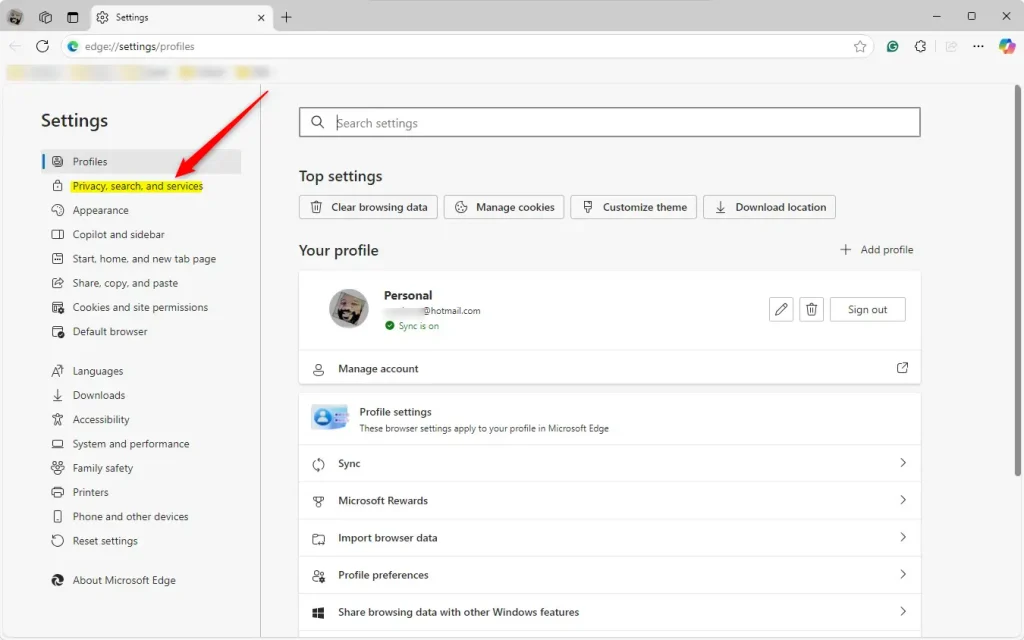
- Click the three dots in the top right corner and select Settings.
- Click Privacy, search, and services on the left.
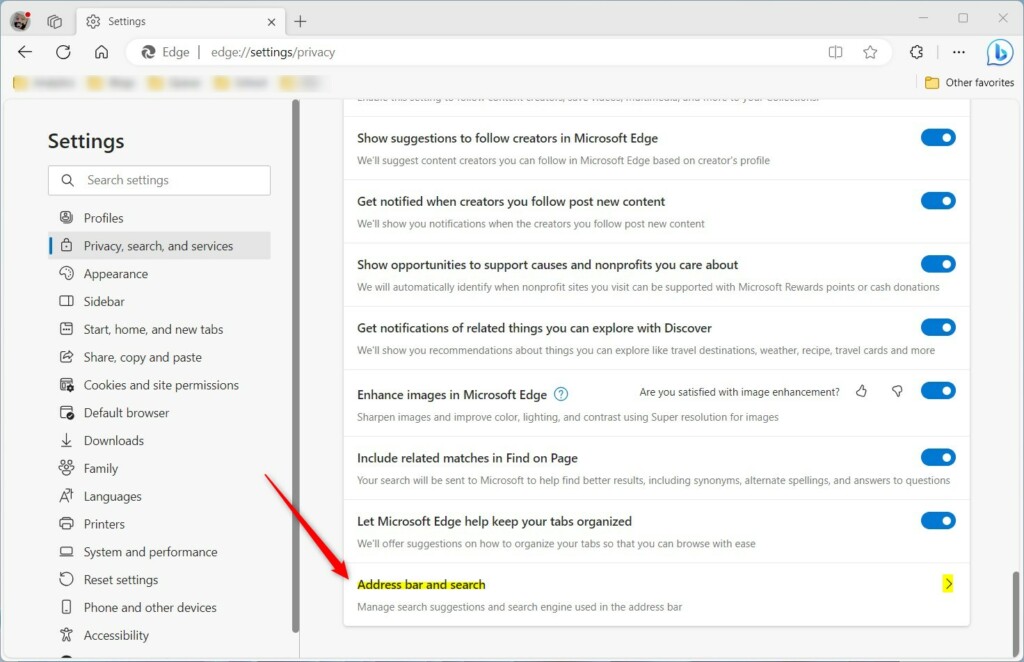
- Click Address bar and search on the right side.
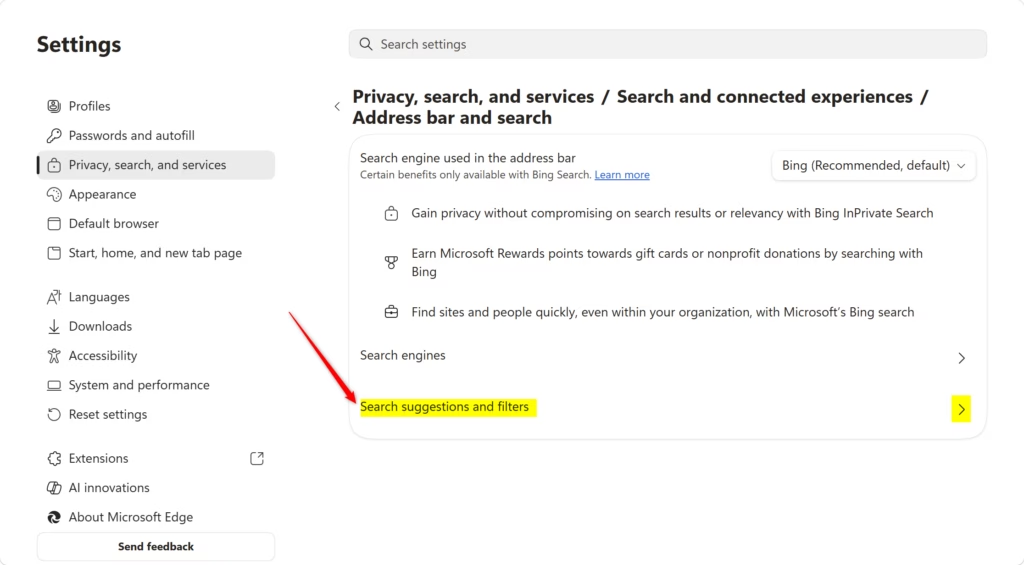
- Change the settings for Search suggestions and filters to match your preference.
Option 2Change AutoSuggest for All Users
If you’re an administrator, you can turn off Microsoft Edge AutoSuggest for all users on a computer using Windows Terminal or the Registry Editor.
If you manage a computer for multiple people, you can set these rules for everyone at once. Keep in mind that this overrides any personal settings.
Open Windows Terminal as an administrator. This is a command console that lets you make system-wide changes. If you prefer, you can use the Registry Editor, which is a database for Windows settings.
Turn On AutoSuggest for All Users
reg add "HKEY_LOCAL_MACHINE\SOFTWARE\Policies\Microsoft\Edge" /v SearchSuggestEnabled /t REG_DWORD /d 1 /f
reg add "HKEY_LOCAL_MACHINE\SOFTWARE\Policies\Microsoft\Edge" /v LocalProvidersEnabled /t REG_DWORD /d 1 /f
Turn Off AutoSuggest for All Users
reg add "HKEY_LOCAL_MACHINE\SOFTWARE\Policies\Microsoft\Edge" /v SearchSuggestEnabled /t REG_DWORD /d 0 /f
reg add "HKEY_LOCAL_MACHINE\SOFTWARE\Policies\Microsoft\Edge" /v LocalProvidersEnabled /t REG_DWORD /d 0 /f
Default (Let Users Choose)
This allows each user to pick their own settings in the Edge menu.
reg add "HKEY_LOCAL_MACHINE\SOFTWARE\Policies\Microsoft\Edge" /v SearchSuggestEnabled /t REG_DWORD /d 1 /f
reg add "HKEY_LOCAL_MACHINE\SOFTWARE\Policies\Microsoft\Edge" /v LocalProvidersEnabled /t REG_DWORD /d 1 /f
Summary
Managing Microsoft Edge AutoSuggest settings is straightforward, letting you pick between getting helpful suggestions for faster browsing or turning them off for more privacy.
How do I turn off auto suggestion in Edge?
Open Edge, go to Settings, then Privacy, search, and services. Find the Address bar and search section and toggle off the suggestion switches.
Where are my autofill settings?
Click the three-dot menu, select Settings, and click Profiles on the left. You can manage passwords, payment info, and personal info there.
Is Microsoft autofill being discontinued?
The standalone extension was retired, but the autofill feature is still built directly into Microsoft Edge.
How to enable autocomplete in Edge?
Go to Settings, click Privacy, search, and services, and turn on the two toggles under the Address bar and search section.
Was this guide helpful?
100% of readers found this helpful (1 votes)

About the Author
Richard
Tech Writer, IT Professional
Richard, a writer for Geek Rewind, is a tech enthusiast who loves breaking down complex IT topics into simple, easy-to-understand ideas. With years of hands-on experience in system administration and enterprise IT operations, he’s developed a knack for offering practical tips and solutions. Richard aims to make technology more accessible and actionable. He's deeply committed to the Geek Rewind community, always ready to answer questions and engage in discussions.



No comments yet — be the first to share your thoughts!