How to Enable or Disable Restore Pages Dialog in Microsoft Edge

You can enable or disable the “Restore pages” dialog in Microsoft Edge to control whether it automatically reopens tabs after a crash or restart.
The “Restore pages” dialog is a helpful feature that appears when Microsoft Edge, the default browser on Windows 11, closes unexpectedly. It gives you the option to bring back all your previously open tabs.
However, you might want to disable this prompt if you prefer a clean start with a new tab page after a browser issue, rather than being presented with the restore option every time.
When you disable this setting, Edge will launch directly to a blank new tab page, bypassing the “Restore pages” dialog entirely. This means you’ll need to manually reopen any desired tabs.
You can disable the “Restore pages” dialog in Microsoft Edge by editing the Windows Registry. Navigate to 🗝️HKEY_LOCAL_MACHINESOFTWAREPoliciesMicrosoftEdge, create a DWORD value named HideRestoreDialogEnabled, and set its data to 1. Restart your computer for the change to take effect.
How to Turn the “Restore pages” Dialog On or Off
You can disable the “Restore pages” prompt in Microsoft Edge by changing a setting in the Windows Registry.
- [Admin Required] Open the Windows Registry on your computer.
- Navigate to this folder path:
HKEY_LOCAL_MACHINE\SOFTWARE\Policies\Microsoft\Edge - If you don’t see an
Edgefolder, right-click on theMicrosoftfolder and create a new subfolder calledEdge.
- Right-click inside the empty space in the
Edgefolder’s right panel. - Select
Newand thenDWORD (32-bit) Value. - Name the new item:
HideRestoreDialogEnabled - Double-click on the item you just created.
- Make sure the
Baseis set toDecimal. - Set the
Value datato one of these options:- Leave blank or delete: The “Restore pages” dialog stays enabled (default).
- Type 1: The “Restore pages” dialog will be disabled for all users in Edge.
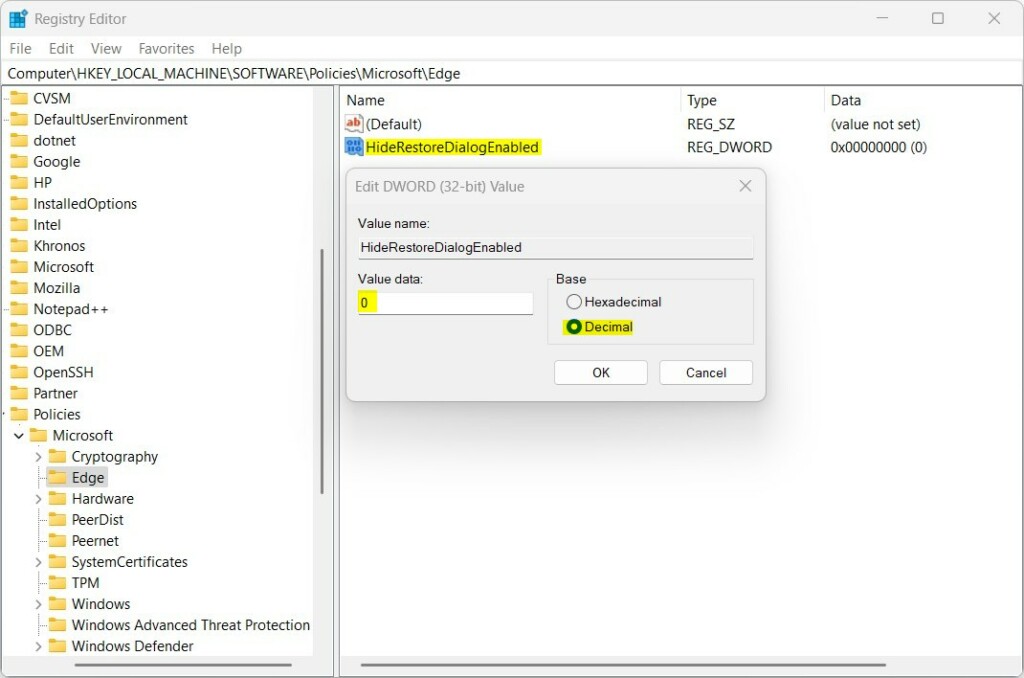
- Click
OKto save your changes. - Restart your computer for the changes to take effect.
That’s it! Your setting will now be applied.
Summary
The “Restore pages” dialog in Microsoft Edge helps you reopen tabs after a crash, but you can disable it if you find it annoying.
How to enable restore pages in Edge?
Click on the three dots. Also known as the ellipsus a drop-own menu will now open click on the history menu item. Then the recently closed option. And then click on the previously closed session.
Was this guide helpful?

About the Author
Richard
Tech Writer, IT Professional
Richard, a writer for Geek Rewind, is a tech enthusiast who loves breaking down complex IT topics into simple, easy-to-understand ideas. With years of hands-on experience in system administration and enterprise IT operations, he’s developed a knack for offering practical tips and solutions. Richard aims to make technology more accessible and actionable. He's deeply committed to the Geek Rewind community, always ready to answer questions and engage in discussions.




No comments yet — be the first to share your thoughts!