How to Reset and Sync Microsoft Edge Data

You reset and sync Microsoft Edge data to fix synchronization issues and ensure your browser settings are consistent across devices.
Resetting Edge sync data means clearing your browsing information, like favorites, passwords, and history, from Microsoft’s cloud. This action then uploads your current local browser data to replace the cleared cloud information.
This process is crucial if, for example, your bookmarks are not appearing on your other Windows 11 or 12 machines. By 2026, Microsoft Edge aims to be a central hub for your digital life, and syncing ensures this experience works smoothly.
This reset also clears AI-related preferences and chat history stored in the cloud, giving you a fresh start with your synchronized Edge experience.
To reset and sync Microsoft Edge data, open Edge, click the three dots, select Settings, then Profiles, and click Sync. Scroll down and select Reset sync, then confirm the action to clear cloud data and upload your current browser data.
Reset Microsoft Edge data in the cloud
You can reset your Microsoft Edge sync data stored in the cloud by visiting the Profiles section within your browser settings.
First, open Microsoft Edge.
Click the ‘Settings and more’ button. It looks like three horizontal dots in the top right corner. Select ‘Settings.’
On the left side of the screen, click ‘Profiles.’
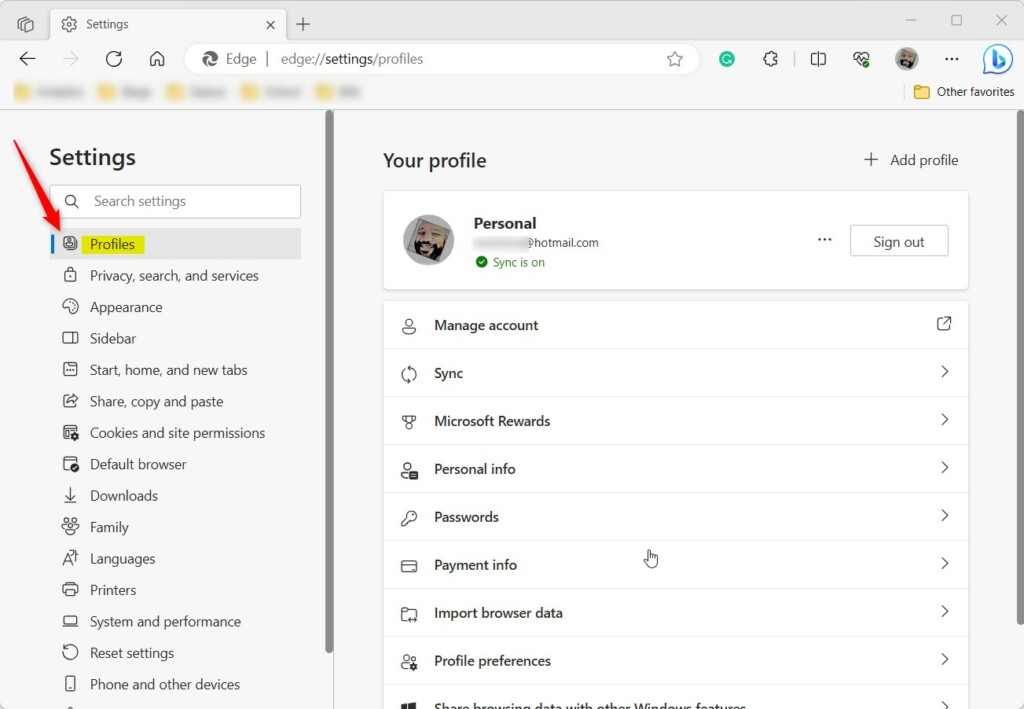
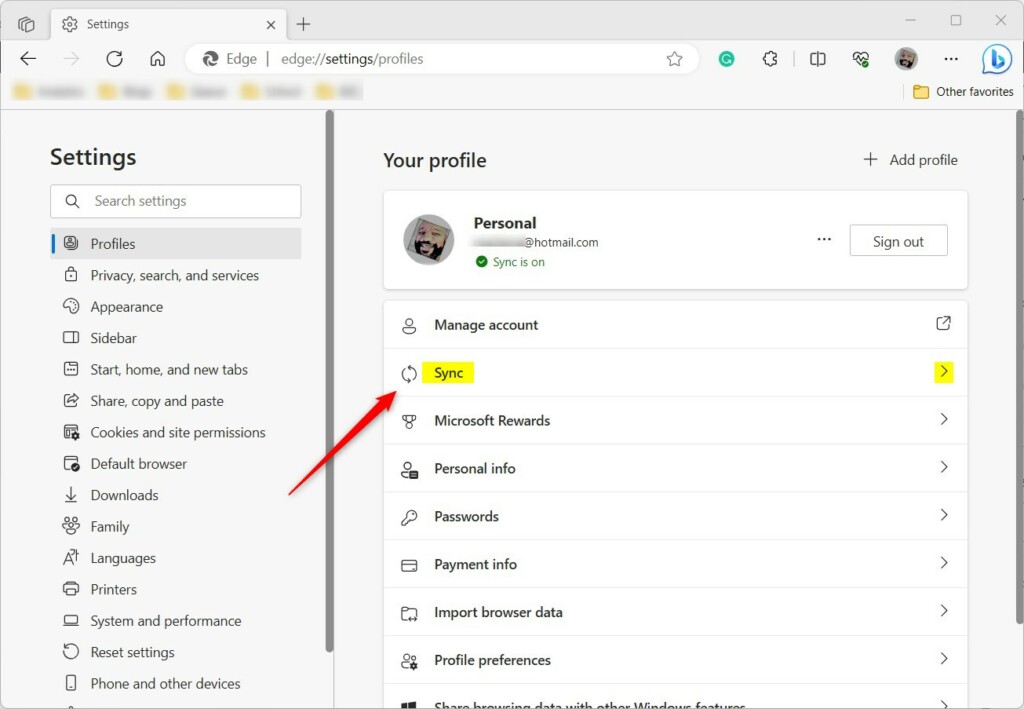
On the right side, click on ‘Sync’ to see your sync options.
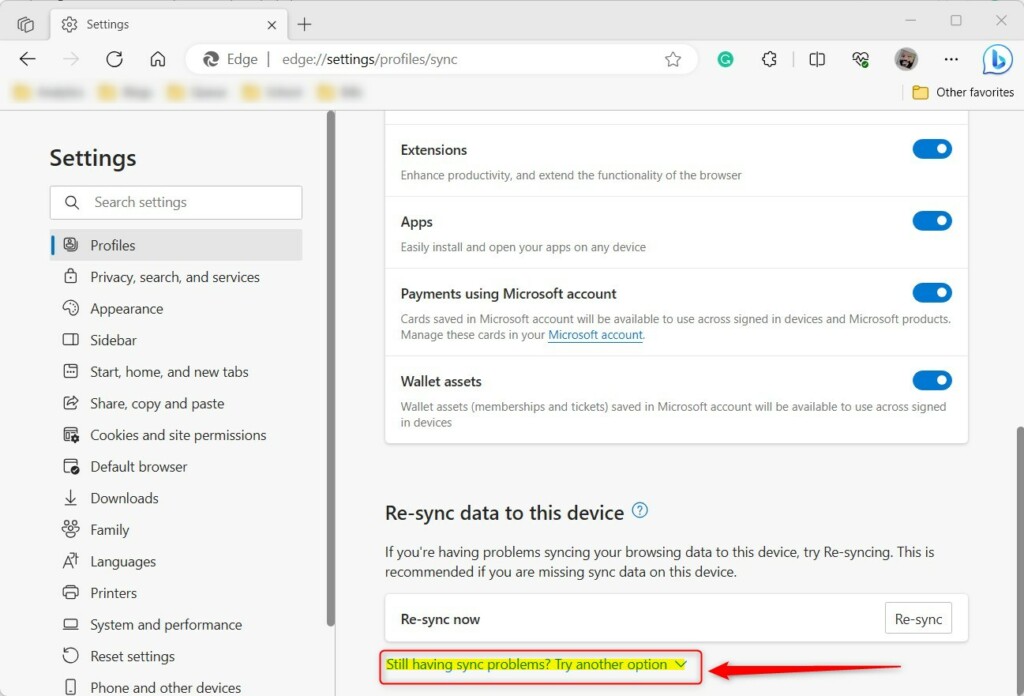
Scroll down to the bottom of the Sync page.
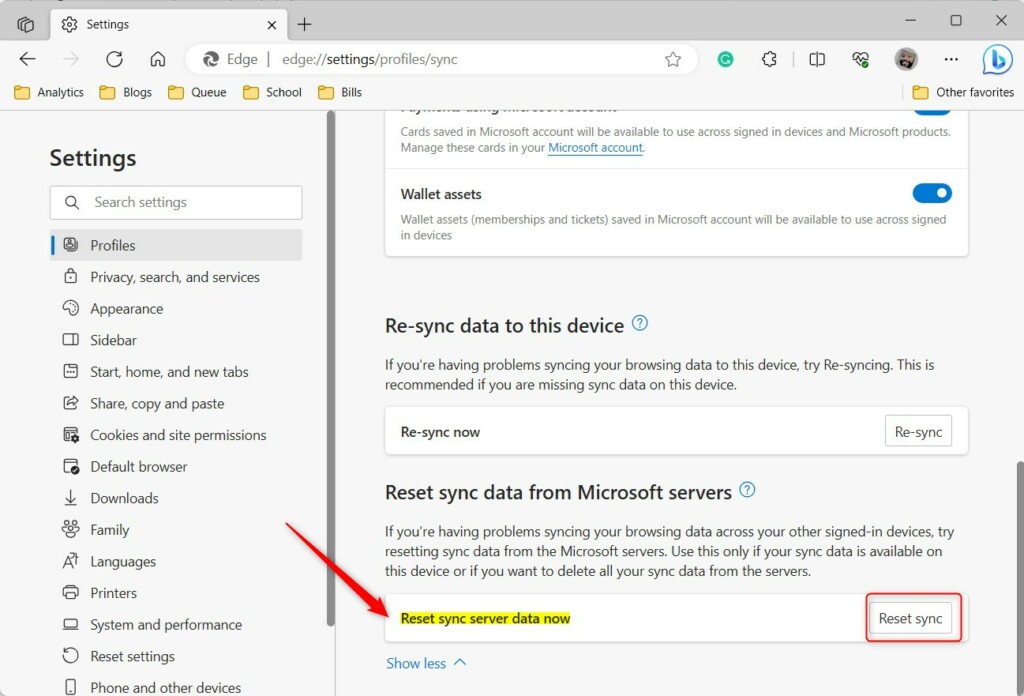
Click the ‘Reset sync’ button. This will clear the data from the cloud.
A confirmation window will appear. Click ‘Reset’ to confirm you want to clear your Microsoft server data.
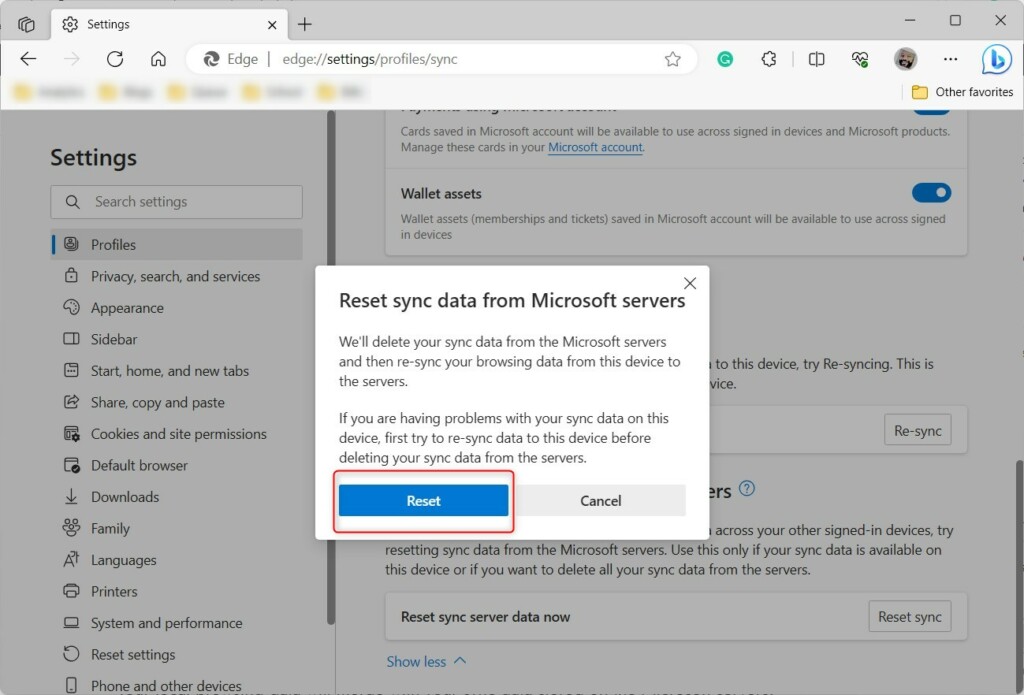
Once you confirm, the old data is deleted. Your browser will then upload your current local data, making sure all your devices are in sync. Close Edge when you’re done.
Reference: Microsoft Support
Conclusion
Resetting your Microsoft Edge sync data helps fix issues and keeps your settings up-to-date across all your devices.
How do I reset Microsoft Sync?
Home screen press settings on the bottom feature bar. Next press general and scroll down and hit master reset. You'll then get a popup asking if you want to reset to factory defaults.
Was this guide helpful?

About the Author
Richard
Tech Writer, IT Professional
Richard, a writer for Geek Rewind, is a tech enthusiast who loves breaking down complex IT topics into simple, easy-to-understand ideas. With years of hands-on experience in system administration and enterprise IT operations, he’s developed a knack for offering practical tips and solutions. Richard aims to make technology more accessible and actionable. He's deeply committed to the Geek Rewind community, always ready to answer questions and engage in discussions.



No comments yet — be the first to share your thoughts!