How to Enable Advanced Graphics in Defender Application Guard

You enable advanced graphics in Microsoft Defender Application Guard by changing a setting in the Group Policy Editor or Registry Editor.
Microsoft Defender Application Guard provides a secure, isolated browser environment within Windows, ideal for browsing risky websites. Advanced graphics settings are typically disabled by default to maximize security and resource conservation in this sandbox.
Enabling this feature, particularly on Windows 11, can significantly enhance visual performance and smoother playback for demanding content within the isolated Edge browser windows.
You’ll find this setting under Computer Configuration > Administrative Templates > Windows Components > Microsoft Defender Application Guard. This tweak is perfect for users who need to access visually intensive sites without compromising the security benefits of Application Guard.
Open Windows Security, navigate to App & browser control, then Isolated browsing, and click Change Application Guard settings. Toggle the Advanced graphics switch to On. Restart your computer to apply the changes.
Method 1Using Windows Security Settings
You can turn on advanced graphics for Application Guard right from the Windows Security app, but you’ll need to be an administrator first.
First, you must install and enable Microsoft Defender Application Guard for the Microsoft Edge browser. Check out this guide if you haven’t done it yet: How to install and enable Microsoft Defender Application Guarde for Edge browser.
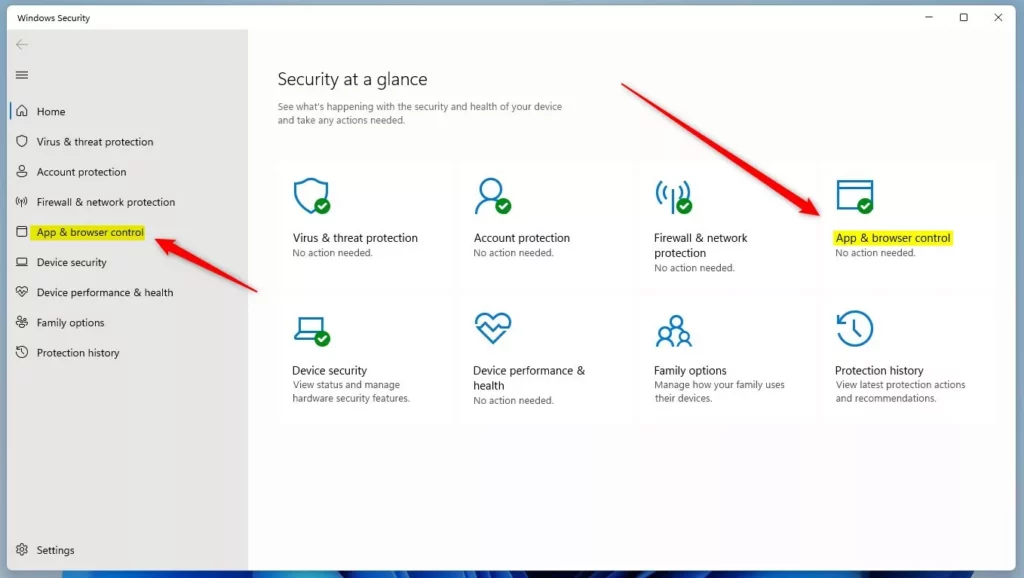
1. Open the Windows Security app. Search for “Windows Security” in your Start menu and click it.
2. Click on the App & browser control section.
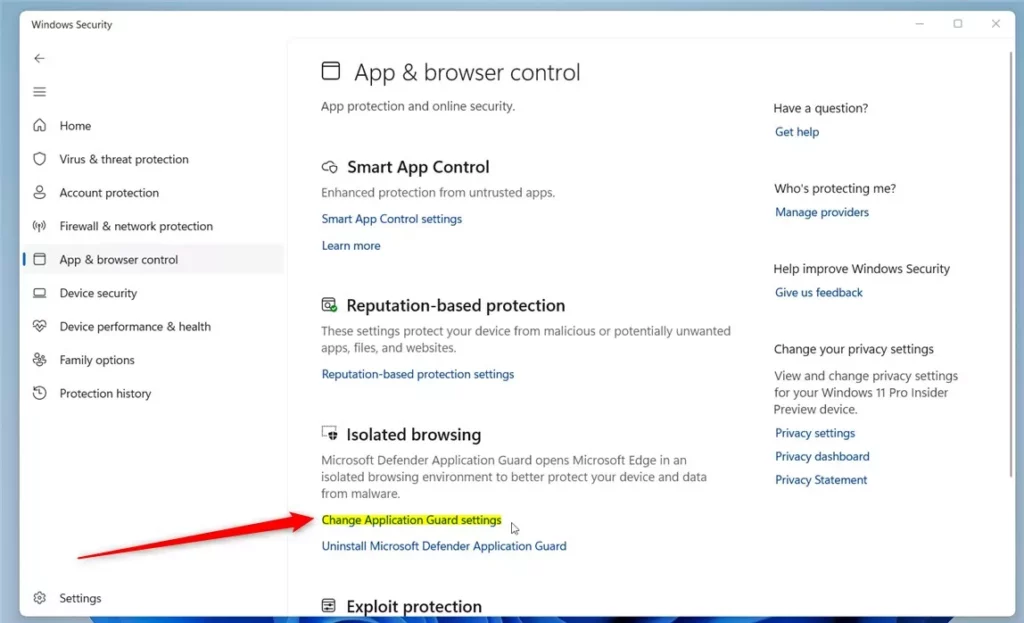
3. Under the Isolated browsing area, click the link that says Change Application Guard settings.
4. Look for the Advanced graphics section. Toggle the switch to On to enable it , or Off to disable it .

5. Restart your computer so the settings can take effect.
Method 2Using the Registry Editor
If you’re comfortable with more technical steps, you can also change Application Guard’s advanced graphics using the Registry Editor, but this needs admin access and careful attention.
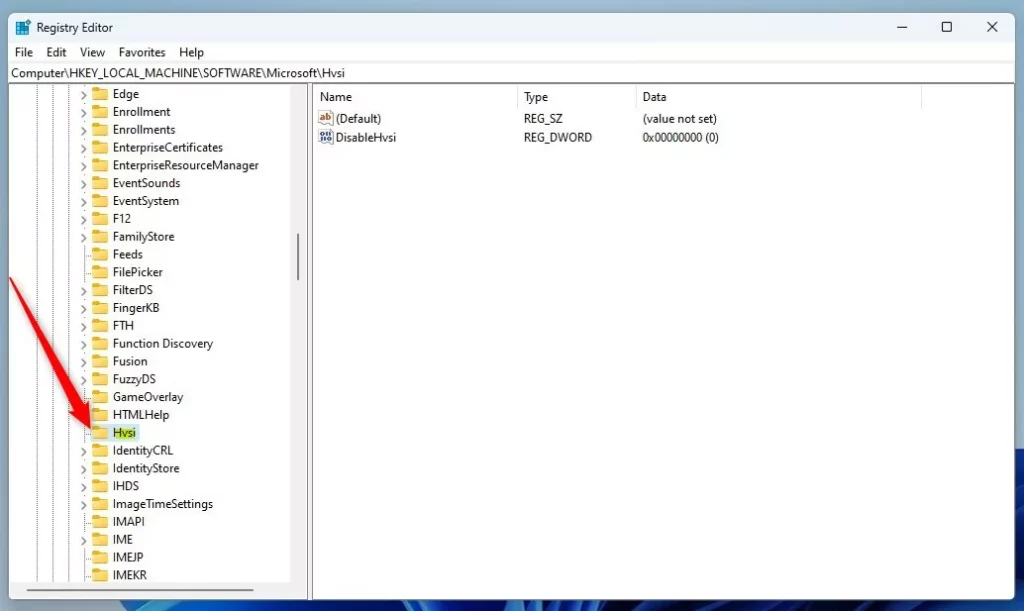
If you prefer not to use the settings menu, you can use the Windows Registry. Open the Windows Registry and go to the following path:
HKEY_LOCAL_MACHINE\SOFTWARE\Microsoft\Hvsi
If you do not see the Hvsi folder, right-click the Microsoft folder, select New, then Key, and name it Hvsi.
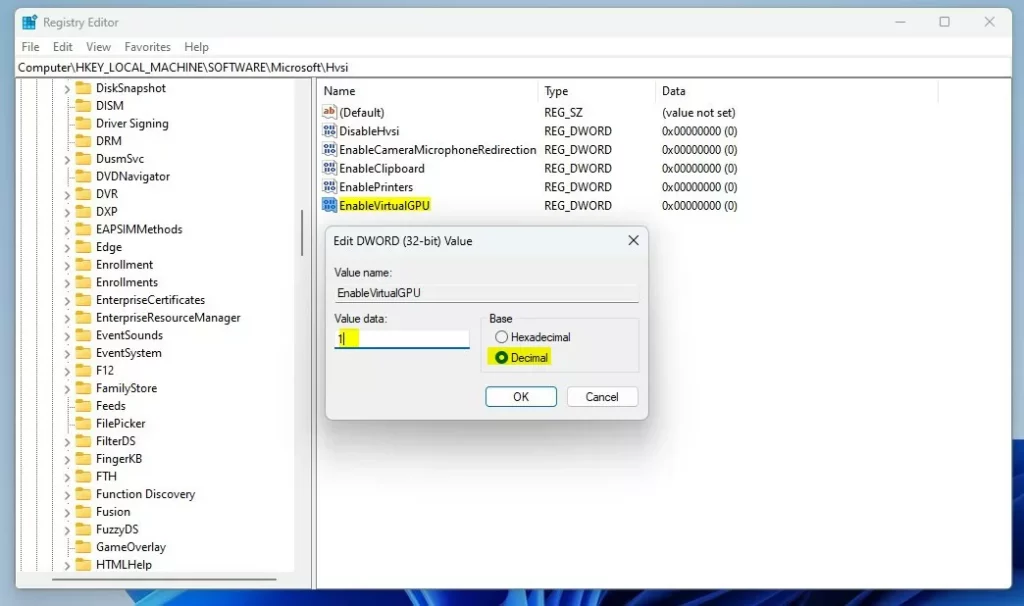
- Right-click in the empty space on the right side of the Hvsi folder.
- Select New, then choose DWORD (32-bit) Value.
3. Name this new value EnableVirtualGPU.
4. Double-click EnableVirtualGPU and set its Value data to 1 to turn Advanced graphics on, or to 0 to turn them off.
5. Restart your computer for the settings to take effect.
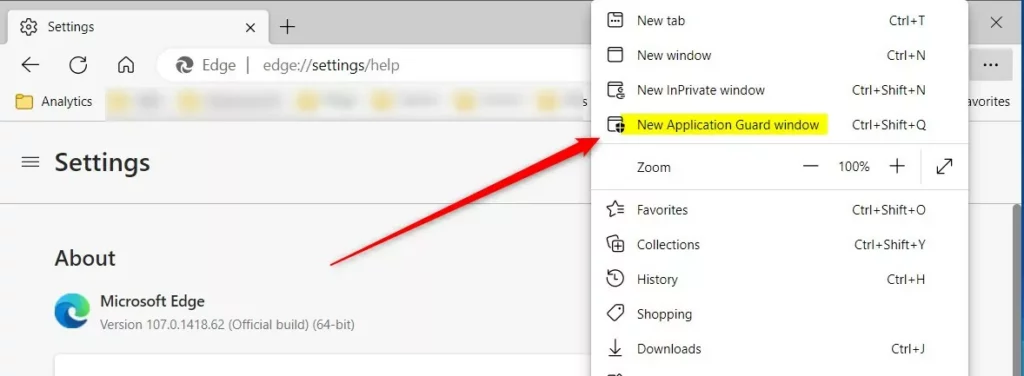
Once finished, you can open an isolated browser window by pressing Ctrl+Shift+Q or by selecting New Application Guard window from the Edge browser menu.
For more details, visit this reference: Microsoft.com
Summary
Enabling Advanced graphics makes your isolated browsing experience faster and more visually smooth. You can toggle this feature easily through the Windows Security app or the Registry Editor. Always remember to restart your computer after changing these settings so they can take effect.
What does Microsoft Defender Application Guard do?
For Microsoft Office, Application Guard helps prevents untrusted Word, PowerPoint, and Excel files from accessing trusted resources. Application Guard opens untrusted files in an isolated Hyper-V-enabled container. The isolated Hyper-V container is separate from the host operating system.
Which apps does Application Guard work with?
Designed for Windows 10/11 and Microsoft Edge, Application Guard uses a hardware isolation approach. This approach lets untrusted site navigation launch inside a container. Hardware isolation helps enterprises safeguard their corporate network and data in case users visit a site that is compromised or is malicious.
Is Microsoft Defender application guard missing 🪟 Windows 11?
This decision was made to streamline our security offerings and focus on more advanced protective measures. As of Windows 11, version 24H2, released in October 2024, MDAG is no longer available. Consequently, the corresponding browser extensions and associated Windows Store apps were removed after May 2024.
Was this guide helpful?

About the Author
Richard
Tech Writer, IT Professional
Richard, a writer for Geek Rewind, is a tech enthusiast who loves breaking down complex IT topics into simple, easy-to-understand ideas. With years of hands-on experience in system administration and enterprise IT operations, he’s developed a knack for offering practical tips and solutions. Richard aims to make technology more accessible and actionable. He's deeply committed to the Geek Rewind community, always ready to answer questions and engage in discussions.



No comments yet — be the first to share your thoughts!