How to Install Microsoft Defender Application Guard on Windows 11

Microsoft Defender Application Guard installs a secure, isolated browser environment on Windows 11.
This feature creates a virtual container for Microsoft Edge, preventing threats from malicious websites and files from impacting your system.
While Microsoft has deprecated Application Guard starting with Windows 11, version 24H2, you can still install it by enabling it through Windows Features.
This protects your personal data and system settings by quarantining any potential threats within the isolated session.
Install Microsoft Defender Application Guard via Windows Security by navigating to App & browser control and enabling Isolated browsing. Alternatively, use PowerShell with the command Dism /online /Enable-Feature /FeatureName:”Windows-Defender-ApplicationGuard”. This requires administrative privileges.
How to install or remove it using the Windows Security app
Turning Microsoft Defender Application Guard on or off is simple using the Windows Security app, making it the easiest method for most people.
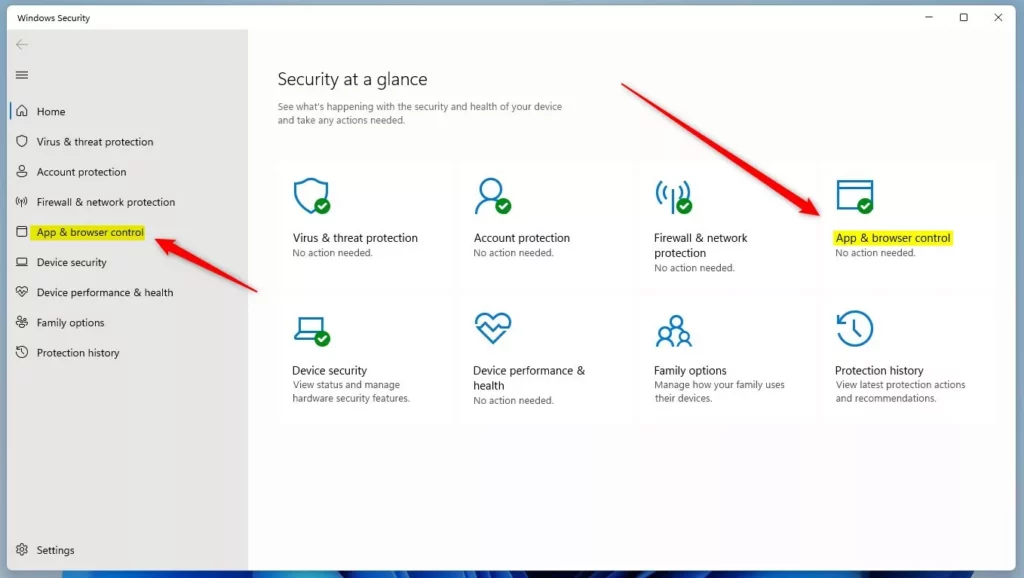
- Open the Windows Security app. You can find this by clicking your Start menu and typing “Windows Security.”
- Click on the App & browser control section.
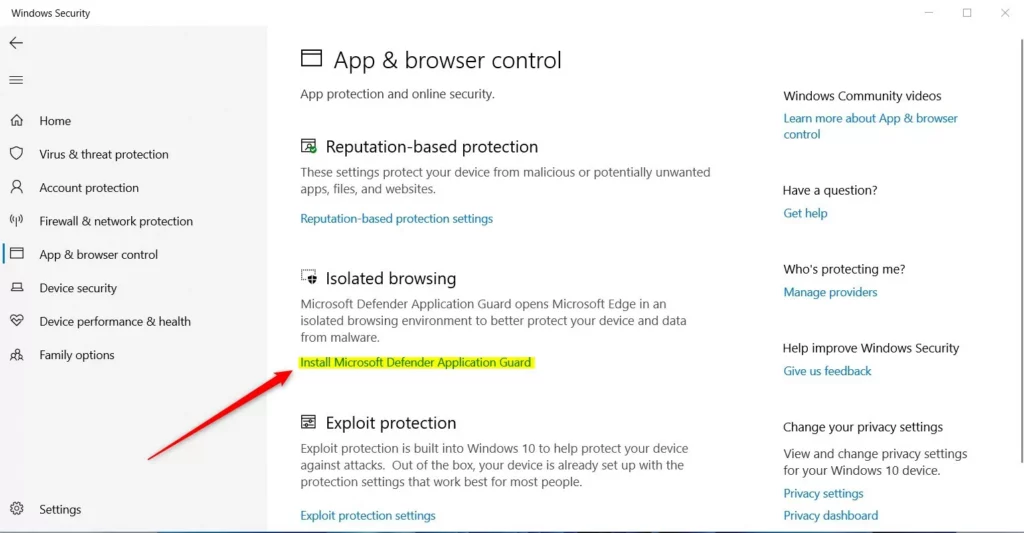
- Under the Isolated browsing area, click the link to install or uninstall the feature.
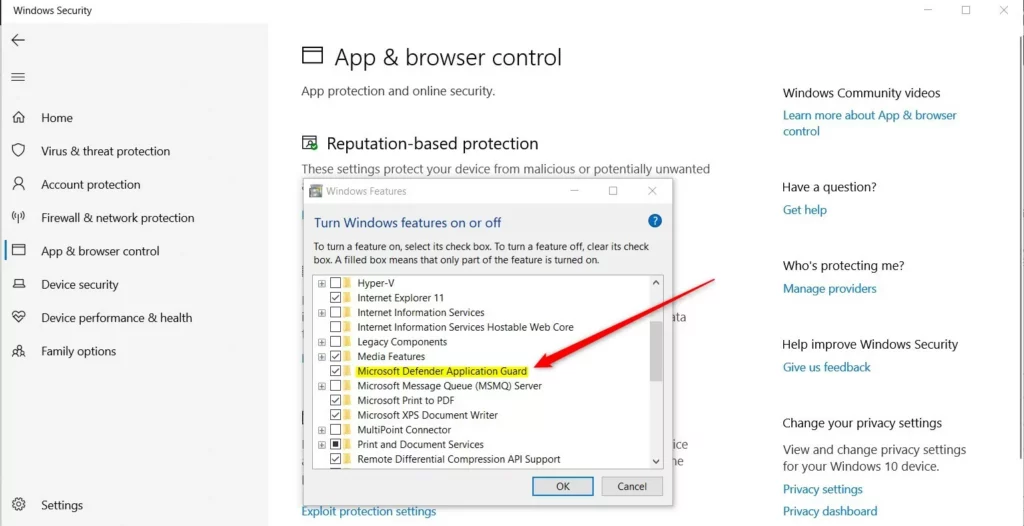
- A new window will appear. Check the box next to Microsoft Defender Application Guard to install it. If you want to remove it, uncheck the box .
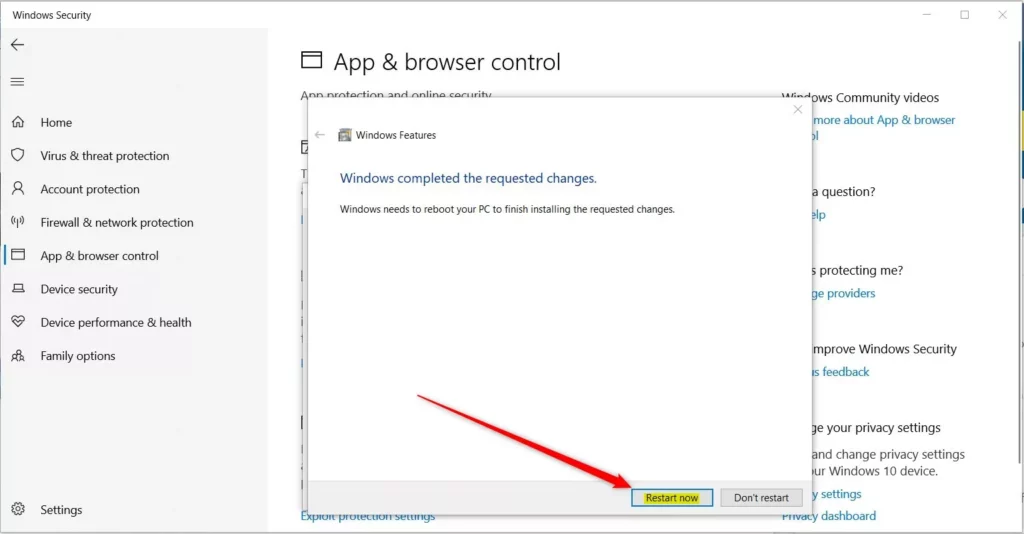
Windows will download the files needed. If you are uninstalling, you will be asked to restart your computer to finish the process.
How to install or remove it using PowerShell
You can install or remove Microsoft Defender Application Guard using commands in PowerShell or Command Prompt if you prefer working with text commands.
To install the feature, run this command:
Dism /online /Enable-Feature /FeatureName:"Windows-Defender-ApplicationGuard"To remove the feature, run this command:
Dism /online /Disable-Feature /FeatureName:"Windows-Defender-ApplicationGuard"If the computer asks if you want to restart, type Y and press Enter.
Troubleshooting and Verification
After installing Microsoft Defender Application Guard, you can check if it’s working by looking in the Windows Features list or trying to open a new Application Guard window.
Summary
Microsoft Defender Application Guard offers extra security by isolating your browsing, but it’s important to know this feature is being phased out and will be removed in future Windows versions.
Is Microsoft Defender Application Guard being deprecated?
Yes, Microsoft has deprecated the Application Guard feature. It is no longer receiving new feature updates and is slated for removal in future Windows versions, specifically starting from Windows 11, version 24H2. Users are encouraged to transition to Microsoft Edge for Business or other modern security isolation technologies.
Does Application Guard work in IE mode?
Yes, Application Guard can be configured to work with Internet Explorer mode in Microsoft Edge. This allows organizations to isolate legacy web applications that require IE mode while maintaining a secure container environment, protecting the host system from potential threats found on older, less secure websites.
Can I download files from the container to the host?
By default, files downloaded inside the Application Guard container are isolated. You can configure policies to allow or block file downloads to the host device. This is typically managed via Group Policy or Intune deployment to ensure that malicious files do not escape the container environment.
What is Microsoft Defender application Guard?
For Microsoft Office, Application Guard helps prevents untrusted Word, PowerPoint, and Excel files from accessing trusted resources. Application Guard opens untrusted files in an isolated Hyper-V-enabled container. The isolated Hyper-V container is separate from the host operating system.
Is Microsoft Defender application guard missing 🪟 Windows 11?
This decision was made to streamline our security offerings and focus on more advanced protective measures. As of Windows 11, version 24H2, released in October 2024, MDAG is no longer available. Consequently, the corresponding browser extensions and associated Windows Store apps were removed after May 2024.
Was this guide helpful?

About the Author
Richard
Tech Writer, IT Professional
Richard, a writer for Geek Rewind, is a tech enthusiast who loves breaking down complex IT topics into simple, easy-to-understand ideas. With years of hands-on experience in system administration and enterprise IT operations, he’s developed a knack for offering practical tips and solutions. Richard aims to make technology more accessible and actionable. He's deeply committed to the Geek Rewind community, always ready to answer questions and engage in discussions.


[…] you install and enable the Microsoft Defender Application Guard for Edge, specific actions such as access to the camera and microphone, file printing, and copying and […]