Fix Windows Security Issues in Windows 11 with a Reset

You can fix Windows Security issues in Windows 11 by resetting the app.
Windows Security is the built-in tool that monitors your PC’s security and health. When it acts up, like closing unexpectedly or refusing to open, a reset often solves the problem.
Resetting this app clears out any corrupted temporary files or data, bringing it back to its original settings. This won’t touch your personal files or any antivirus programs you’ve installed.
This troubleshooting step is particularly useful if you’re seeing errors after a recent Windows 11 update, such as one for build 22621.
Reset the Windows Security app by going to Settings > Apps > Apps & features, finding Windows Security, clicking the three dots, selecting Advanced options, and then clicking Reset. This clears app data and fixes issues without affecting your personal files.
How to reset the app through Settings
- Click the Start button on your taskbar.
- Type Windows Security into the search box.
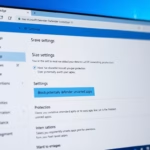
- Right-click the app in the results and choose App settings.
Resetting the Windows Security app through Settings is a straightforward fix if it’s not working right or causing problems.
- Scroll down until you see the Reset section.
- Click the Reset button.
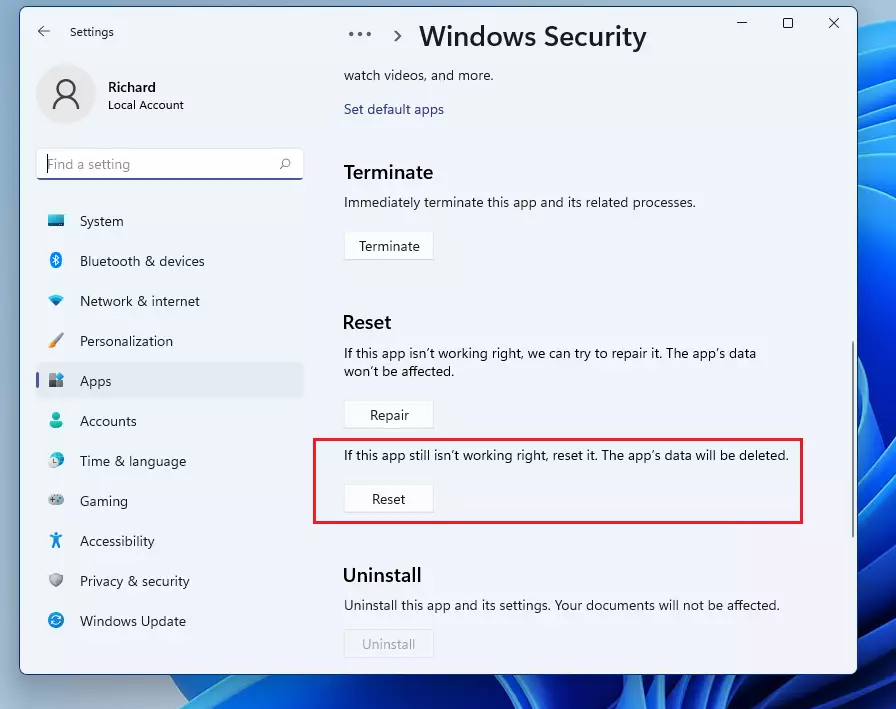
Resetting the Windows Security app through Settings is a straightforward fix if it’s not working right or causing problems.
- A warning will appear telling you that app data will be deleted. Click Reset again to confirm.
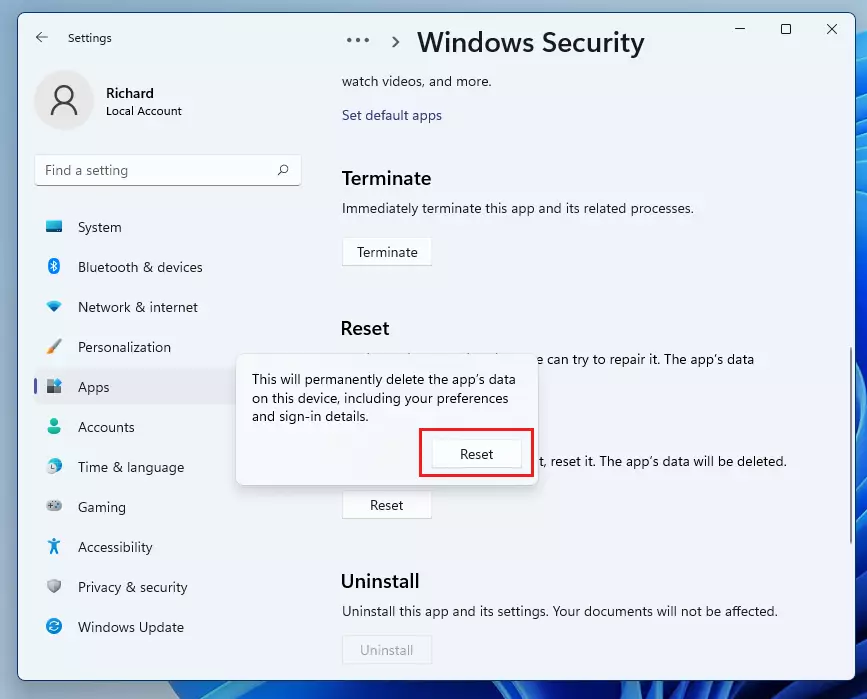
Resetting the Windows Security app through Settings is a straightforward fix if it’s not working right or causing problems.
What if the app is missing?
If your Windows Security app has vanished completely, you can get it back by reinstalling it using a command in PowerShell.
- Click the Start menu and search for PowerShell.
- Right-click PowerShell and select Run as administrator. %📂%LNK0%%
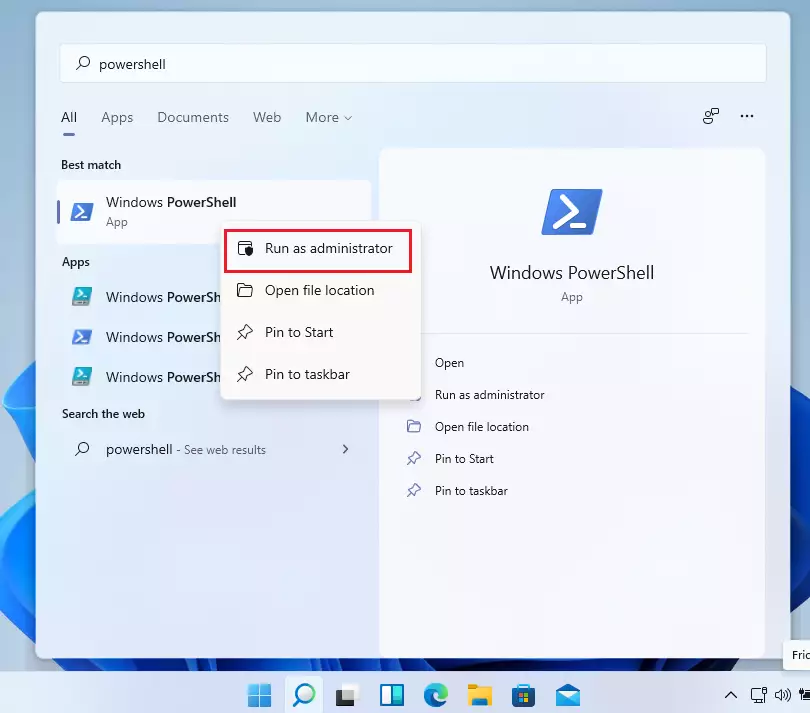
- Type the following command and press Enter:
Get-AppxPackage Microsoft.SecHealthUI -AllUsers | Reset-AppxPackageThe app should now be repaired and ready to use.
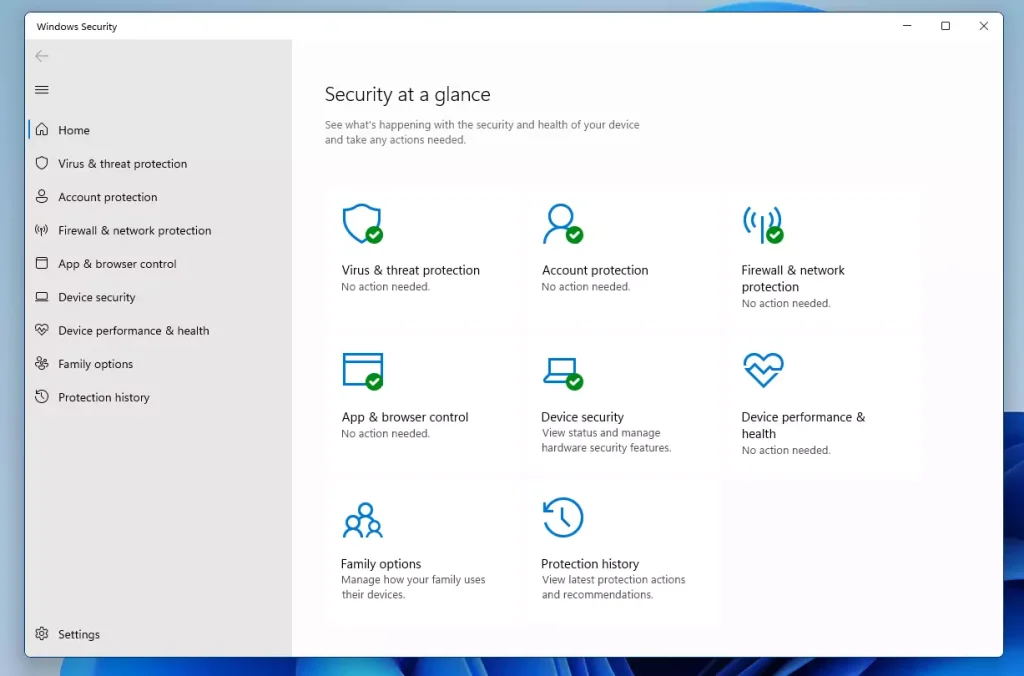
Summary
Resetting the Windows Security app is a quick fix for common problems, helping to restore your system’s main security hub to working order.Was this guide helpful?

About the Author
Richard
Tech Writer, IT Professional
Richard, a writer for Geek Rewind, is a tech enthusiast who loves breaking down complex IT topics into simple, easy-to-understand ideas. With years of hands-on experience in system administration and enterprise IT operations, he’s developed a knack for offering practical tips and solutions. Richard aims to make technology more accessible and actionable. He's deeply committed to the Geek Rewind community, always ready to answer questions and engage in discussions.


Windows Security App was not found/ listed in Apps. How can we fix this?
I have the same problem. Can you please answer it?
I also have the same problem where the Windows Security App was not found
To resolve the issue with the app no longer appearing. Run the below in an elevated powershell.
Get-AppxPackage Microsoft.SecHealthUI -AllUsers | Reset-AppxPackageThis worked perfectly. Thank you.
Thank you for the fix!
This is what fixed it for me as well!
Only Home option is showing in windows security app with blank screen and nothing else, when opened from windows search. But from settings app not able to open windows security. Tried the above code in powershell but of no use, same issue.
Upgraded from win 10 to win 11
Worked like a charm. Thanks
Thanks Richard.
Your post here resolved my Windows 11 missing Security App.
Regards.
[…] the search box on the taskbar, type Windows Security and select Windows Security in the results […]
[…] Windows Security app […]
[…] the search box on the taskbar, type Windows Security and select Windows Security in the results […]
[…] Protection history page in the Windows Security app is where you can view actions that Microsoft Defender Antivirus has […]
[…] Protection history page in the Windows Security app is where you can view actions that Microsoft Defender Antivirus has […]
[…] the search box on the taskbar, type Windows Security and select Windows Security in the results […]
[…] First, open the Windows Security app. […]
[…] the LSA feature is disabled by default. However, you can turn it on and off anytime using the Windows Security app, Windows Registry editor, and the Local Group Policy […]
[…] is how to turn Real-time Protection on or off in the Microsoft Defender Antivirus Windows Security app in Windows […]
[…] is how to turn On or Off controlled folder access in Microsoft Defender Antivirus in Windows Security app in Windows […]
[…] One way to check a device’s Secure Boot status is to use the Windows Security app. […]
[…] First, open the Windows Security app. […]
[…] article describes steps to view or identify their device’s security providers in the Windows Security app when using Windows […]
[…] article describes steps to hide or show the Windows Security app Family options section in Windows […]
[…] article describes steps to hide or show the Windows Security app Device security section in Windows […]
[…] article describes steps to hide or show the Windows Security app App & browser control section in Windows […]
[…] article describes steps to hide or show the Windows Security app Account Protection section in Windows […]
[…] article describes steps to hide or show the Windows Security app Firewall & Network Protection section in Windows […]
[…] article describes steps to hide or show the Windows Security app Virus & Threat Protection section in Windows […]
[…] article describes steps to enable or disable the Windows Security app Account protection notifications in Windows […]
[…] article describes steps to enable or disable the Windows Security app Virus & threat protection notifications in Windows […]
[…] article describes steps to enable or disable Windows Security app Firewall & Network Protection notifications in Windows […]
[…] the search box on the taskbar, type Windows Security and select Windows Security in the results […]
[…] the search box on the taskbar, type Windows Security and select Windows Security in the results […]
[…] the search box on the taskbar, type Windows Security and select Windows Security in the results […]
[…] the search box on the taskbar, type Windows Security and select Windows Security in the results […]
[…] the search box on the taskbar, type Windows Security and select Windows Security in the results […]
[…] the search box on the taskbar, type Windows Security and select Windows Security in the results […]
[…] First, open the Windows Security app. […]
[…] installing, open the Windows Security […]
[…] the search box on the taskbar, type Windows Security and select Windows Security in the results […]
[…] open the Windows Security […]
[…] First, open the Windows Security app. […]
[…] article explains how to enable the new “Administrator Protection” feature in the Windows Security app on Windows […]
[…] the search box on the taskbar, type Windows Security and select Windows Security in the results […]
[…] First, open the Windows Security app. […]
[…] First, open the Windows Security app. […]
[…] Starting with Windows 11, the Microsoft Vulnerable Driver Blocklist feature is enabled by default. However, you can turn it on and off using the Windows Security app. […]
[…] First, open the Windows Security app. […]
[…] A Guide to Resetting the Windows Security App in Windows 11 […]
[…] the search box on the taskbar, type Windows Security and select Windows Security in the results […]
[…] One way is to use the Windows Security app. […]
[…] One way is to use the Windows Security app. […]
[…] on the Windows Security app from the […]
[…] on the Windows Security app when it […]
[…] Open the Windows Security app: Click the Start button (Windows icon on the bottom-left), type Windows Security, and press Enter. Or, you can click this link to learn more about the Windows Security app: Windows Security app guide. […]
[…] Windows 11 computer uses the Windows Security app to help keep you safe. One part of this app is called Firewall & Network Protection. It can […]
[…] Open Windows Security. […]
[…] Open the Windows Security app: Click the Start button (Windows icon) and type Windows Security, then press Enter. Or click this link to learn how: Open Windows Security app […]
[…] the Windows Security app. You can find it by clicking the Start menu and typing “Windows […]