How to See Your Security Providers in Windows 11

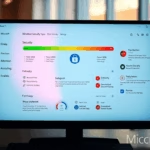
Wondering what’s keeping your Windows 11 PC safe? You can see your security providers right within the Windows Security app.
Windows 11 has several security programs, like Microsoft Defender Antivirus or third-party antivirus software (like Norton or McAfee, which you install yourself), that shield your PC from threats.
Knowing which security solution is active ensures your system remains secure. For instance, if you’re using a third-party antivirus like Norton or McAfee, it will be listed here.
You can check this directly from your computer’s Windows Security settings.
Open the Windows Security app, click Settings, then click Manage providers. This screen will show you the antivirus, firewall, and web protection programs currently safeguarding your PC. Microsoft Defender is listed if no third-party software is active.
What Are Security Providers?
Security providers in Windows 11 are the programs that protect your computer from online dangers, like viruses and hackers.
- Antivirus — stops viruses and malware from harming your files
- Firewall — blocks people from accessing your computer without permission
- Web Protection — keeps you safe while you browse the internet
If you don’t have a third-party antivirus program (one you installed yourself), Microsoft Defender will protect you automatically.
How to Check Your Security Providers in 🪟 Windows 11
Follow these steps to find out which security software is running on your device:
Step 1Open the Windows Security App
- Click the Start menu (the Windows icon at the bottom-left of your screen)
- Type
Windows Securityin the search box - Click Windows Security when you see it in the results
Step 2 Go to Settings
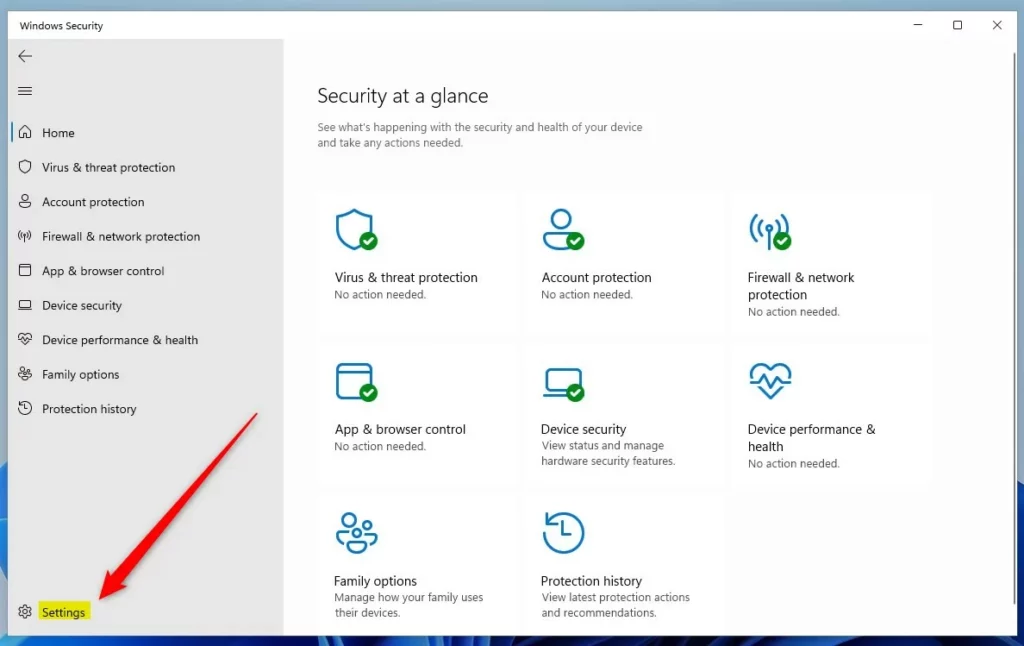
In the Windows Security app, look at the bottom left side of the page. You’ll see a Settings icon. Click on it.
Step 3Find Your Security Providers
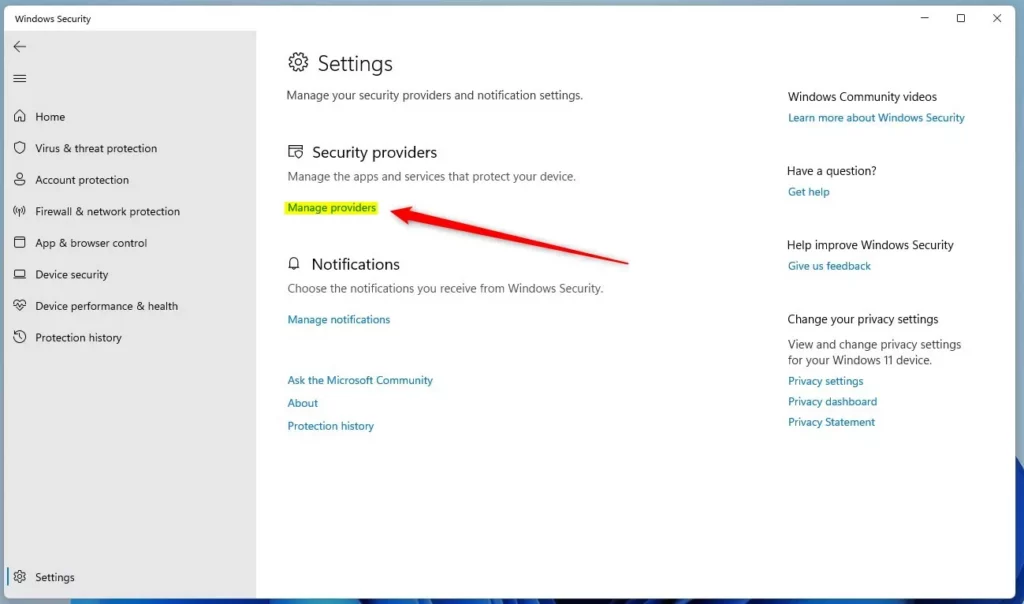
On the Settings page, find the section called “Security providers.” Click the link that says Manage providers.
Step 4View Your Providers
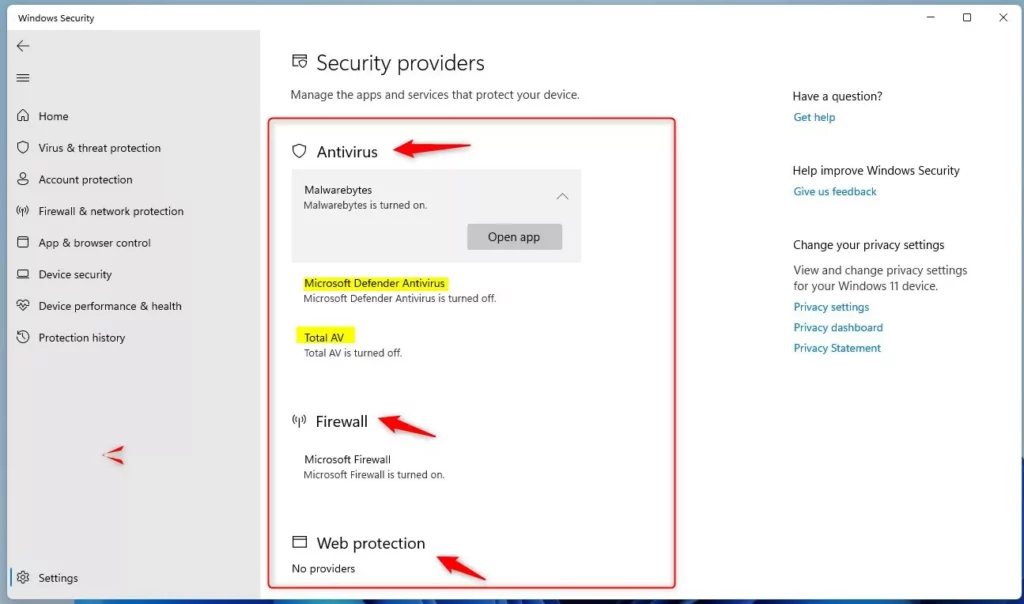
Now you’ll see a list showing which programs protect your PC. The list includes:
- Antivirus
- Firewall
- Web Protection
If you don’t have another security program installed, Microsoft Defender will be listed as your provider for all three.
Summary
The Security Providers page in Windows Security shows you exactly which programs are protecting your PC.
Was this guide helpful?

About the Author
Richard
Tech Writer, IT Professional
Richard, a writer for Geek Rewind, is a tech enthusiast who loves breaking down complex IT topics into simple, easy-to-understand ideas. With years of hands-on experience in system administration and enterprise IT operations, he’s developed a knack for offering practical tips and solutions. Richard aims to make technology more accessible and actionable. He's deeply committed to the Geek Rewind community, always ready to answer questions and engage in discussions.


No comments yet — be the first to share your thoughts!