How to Hide the Firewall & Network Protection Section in Windows 11 Security app

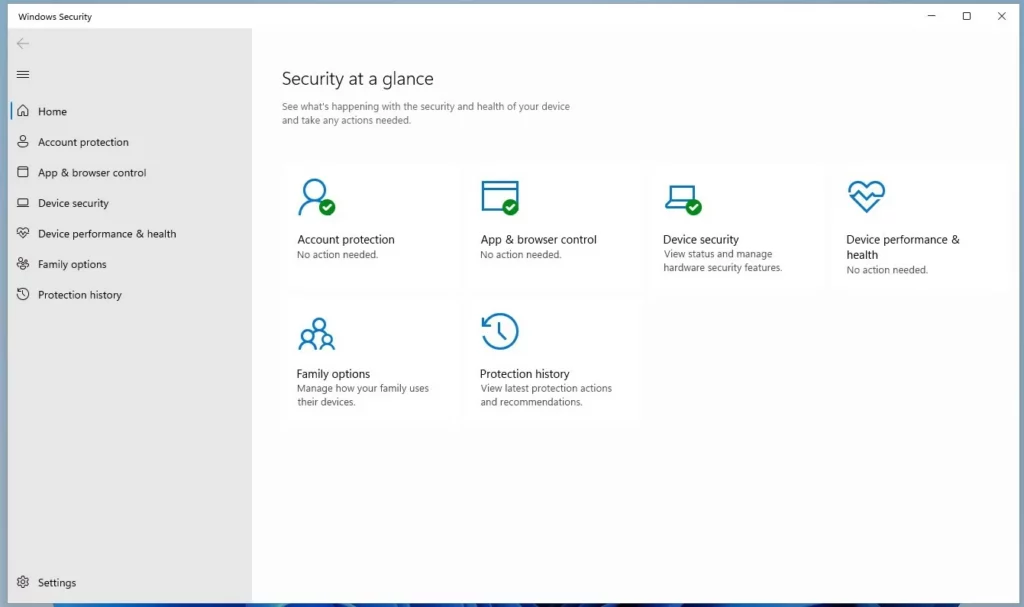
This guide walks you through hiding or showing the Firewall & Network Protection area in the Windows 11 Security app.
Hide the Firewall & Network Protection section by enabling “Hide the Firewall and network protection area” in the Local Group Policy Editor or by setting the UILockdown DWORD value to 1 in the Registry Editor. These methods prevent users from accessing or modifying firewall settings within the Windows Security app.
Before You Begin
Warning: Modifying system settings can be risky. Before we begin, it’s a good idea to create a System Restore point. This allows you to revert changes if something goes wrong. This guide is intended for advanced users or administrators managing shared computers.
Why Hide the Firewall Section?
You might want to hide the Firewall & Network Protection area to prevent other users from changing your security settings. This is common in office environments or family computers where you want to ensure the Microsoft Defender Firewall remains active and untouched.
What Happens When You Are Done?
Once you apply these changes, the specific tab will vanish from the Windows Security app. Keep in mind, this only hides the user interface. It does not disable the firewall itself. Your computer remains protected by the existing security policy.
Method 1Using Local Group Policy Editor
You can hide the Firewall & Network Protection section in Windows 11 Security using the Local Group Policy Editor if you have a Pro, Enterprise, or Education version of Windows and admin rights.
1. Press ⊞ Win+R, type gpedit.msc (the Local Group Policy Editor), and hit Enter.
2. Navigate to the following path: Computer Configuration\Administrative Templates\Windows Components\Windows Security\Firewall and network protection
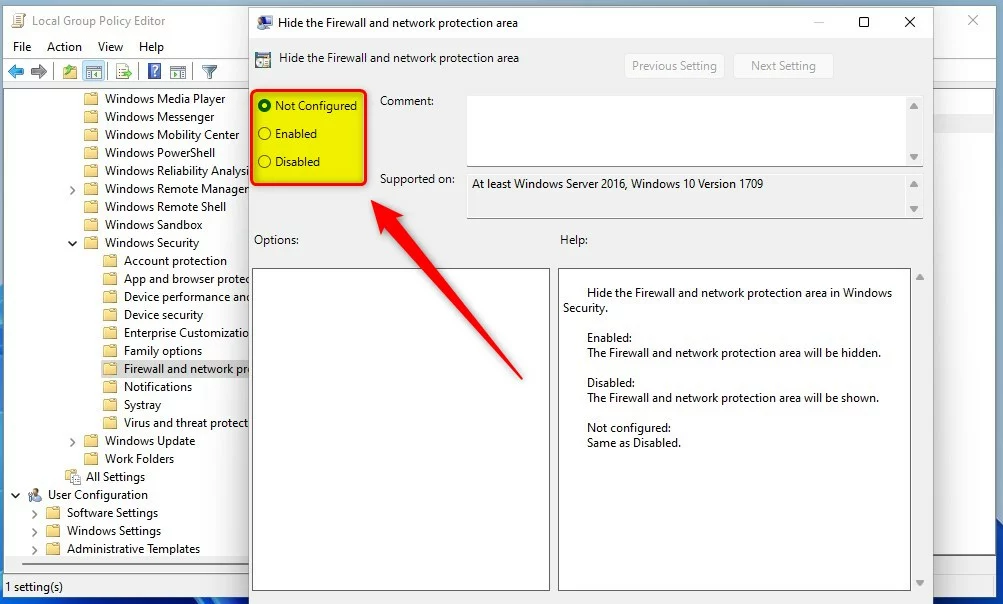
3. Double-click ‘Hide the Firewall and network protection area.’
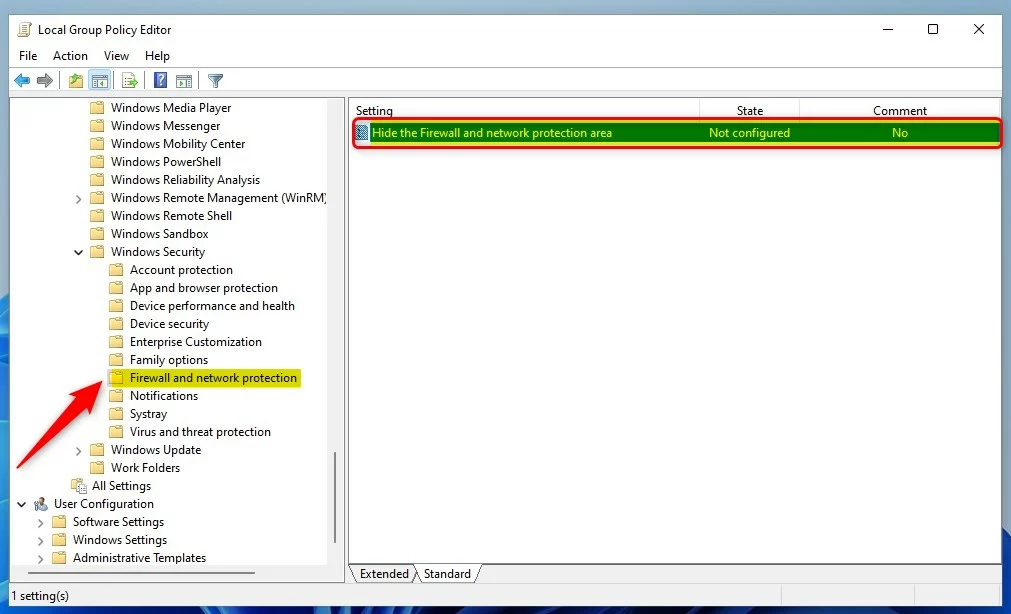
4. Choose ‘Enabled’ to hide the section, or ‘Not Configured’ to make it visible again.
Method 2Using the Windows Registry
If you have Windows 11 Home, you can hide the Firewall & Network Protection section by changing the Windows Registry, but proceed with caution as incorrect edits can cause problems.
1. Press ⊞ Win+R, type regedit, and hit Enter.
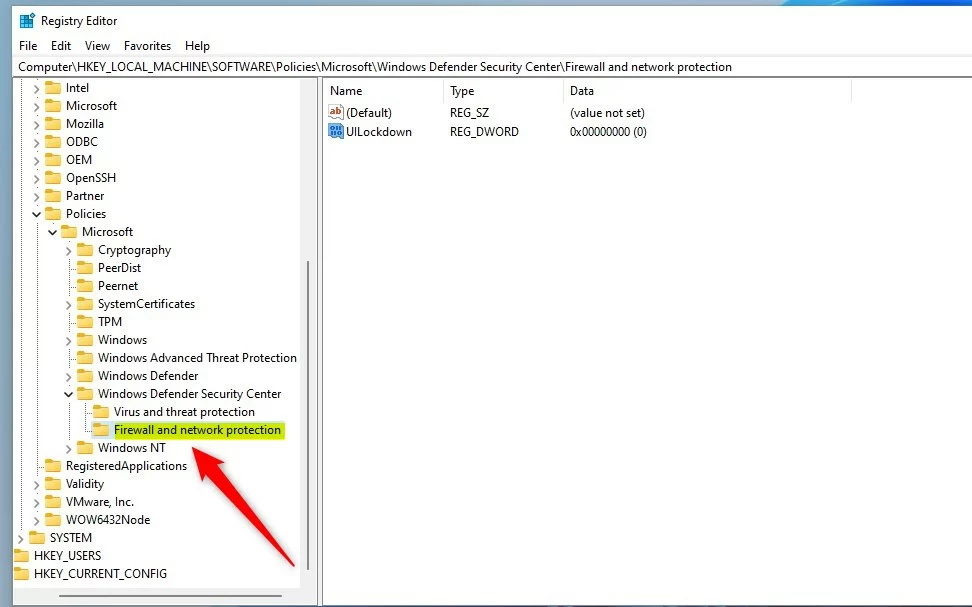
2. Go to: HKEY_LOCAL_MACHINE\SOFTWARE\Policies\Microsoft\Windows Defender Security Center\Firewall and network protection
3. If the key is missing, right-click the parent folder, select New > DWORD (32-bit) Value (a type of registry entry), and name it UILockdown.
4. Set the value to 1 to hide the section or 0 to show it.
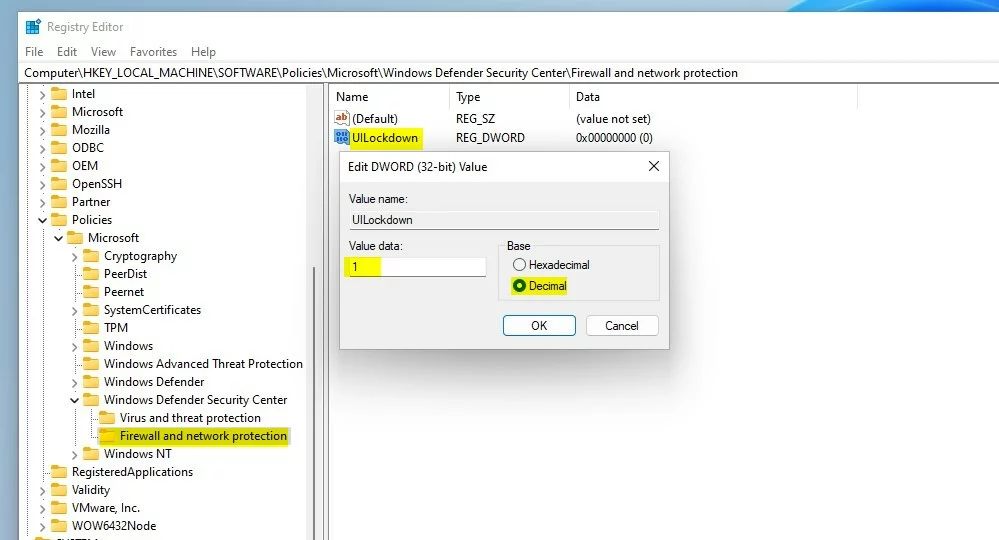
5. Restart your computer to apply the changes.
Summary
Hiding the Firewall & Network Protection section is an effective way to lock down security configurations. Whether you use the Group Policy Editor or the Registry, you can manage the visibility of these settings. Always remember to use caution when editing the registry to keep your system stable.
Does hiding the firewall section disable the firewall itself?
No, hiding the firewall section in Windows Security doesn’t turn off your firewall; it just removes the option from view, so your computer stays protected from network threats.
Why can’t I find the Local Group Policy Editor on 🪟 Windows 11 Home?
The Local Group Policy Editor (gpedit.msc) is a feature exclusive to Windows 11 Pro, Enterprise, and Education editions. It is not included in the Home edition. If you are using Windows 11 Home, you must use the Registry Editor method to manage these specific security policies instead.
Is it safe to hide security settings from other users?
Hiding security settings like the firewall section is generally safe if you’re the administrator wanting to stop others from making accidental changes, but always back up first and use strong passwords.
Was this guide helpful?

About the Author
Richard
Tech Writer, IT Professional
Richard, a writer for Geek Rewind, is a tech enthusiast who loves breaking down complex IT topics into simple, easy-to-understand ideas. With years of hands-on experience in system administration and enterprise IT operations, he’s developed a knack for offering practical tips and solutions. Richard aims to make technology more accessible and actionable. He's deeply committed to the Geek Rewind community, always ready to answer questions and engage in discussions.



[…] app has many sections that allow you to quickly see the status of your virus and threat protection, firewall and network security, device security controls, and […]
[…] app has many sections that allow you to quickly see the status of your virus and threat protection, firewall and network security, Account protection, App and Browser Control, Device Security, and […]
[…] app has many sections that allow you to quickly see the status of your virus and threat protection, firewall and network security, Account protection, App and Browser Control, and […]
[…] App has many sections that allow you to quickly see the status of your virus and threat protection, firewall and network security, Account protection, and […]