How to Hide the Virus & Threat Protection Section in Windows 11 Security app

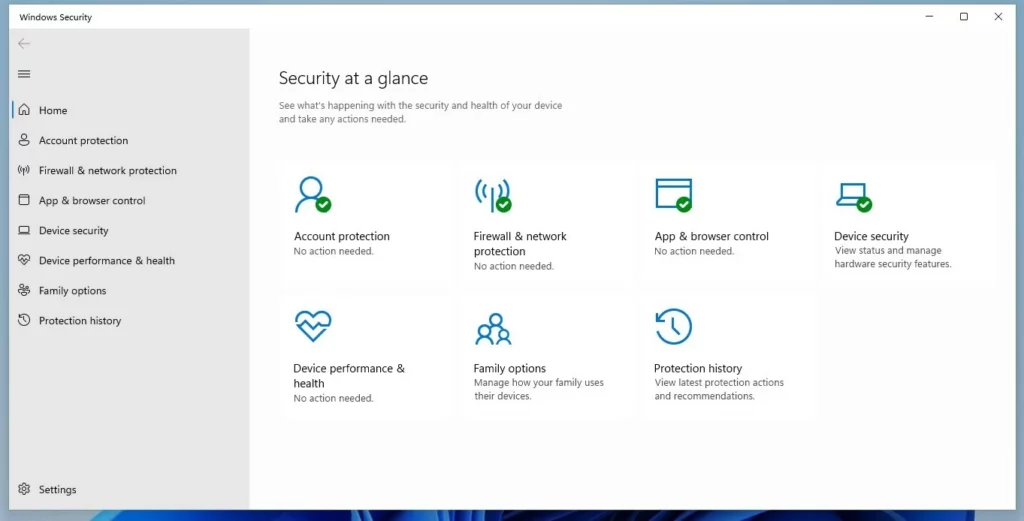
You can hide the Virus & Threat Protection section in the Windows 11 Security app by editing the registry. The Windows Security app is your central hub for managing all your PC’s built-in protection features.
Hiding this specific section helps declutter your view without disabling your antivirus protection. This is useful if you’re troubleshooting conflicts with other security software or preparing a system for remote access. For instance, hiding it offers a cleaner dashboard view in Windows 11, version 23H2.
You can hide the Virus & Threat Protection section by using the Local Group Policy Editor, the Windows Registry, or PowerShell. These methods involve enabling a specific policy or setting a registry value to lock the user interface for that section.
Why Hide or Disable Security Settings?
Why hide it? You might want to stop others from changing your security settings, or perhaps you’re trying out a different antivirus. What happens when done: The Virus & Threat Protection icon disappears from the Windows Security dashboard, effectively locking that part of the interface.
Safety and Security Risks
Disabling Windows Defender or hiding its interface doesn’t necessarily stop the background service. If you fully disable real-time protection, your computer becomes vulnerable to malware, ransomware, and viruses. Always ensure you have a reliable third-party antivirus installed before turning off built-in protections.
Method 1Using Local Group Policy Editor
You can hide the Virus & Threat Protection section in Windows 11 using the Local Group Policy Editor. This method involves opening the editor and changing a specific setting to make the section disappear from the Windows Security app.
1. Press Win + R (the Windows key and R at the same time), type gpedit.msc, and press Enter.
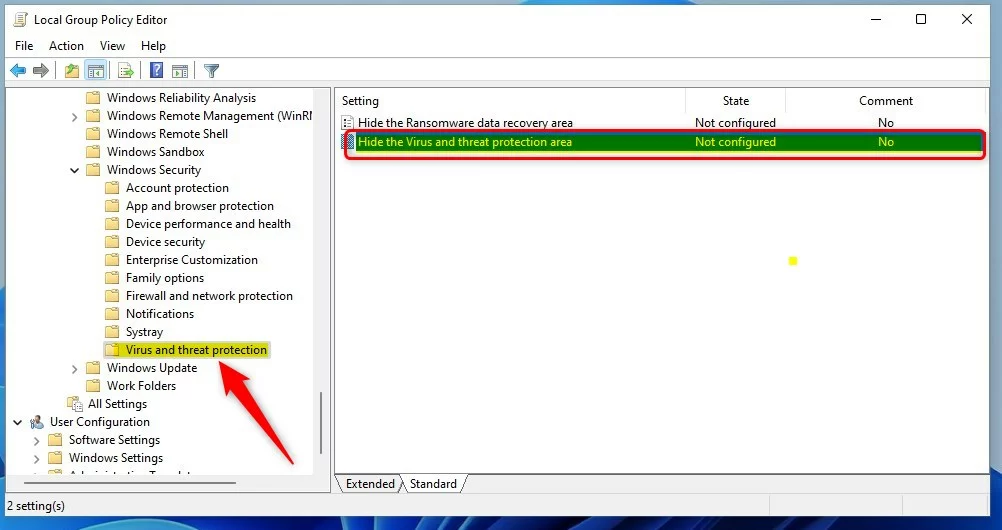
2. Navigate to: Computer Configuration\Administrative Templates\Windows Components\Windows Security\Virus and threat protection
3. Double-click ‘Hide the Virus and threat protection area’.
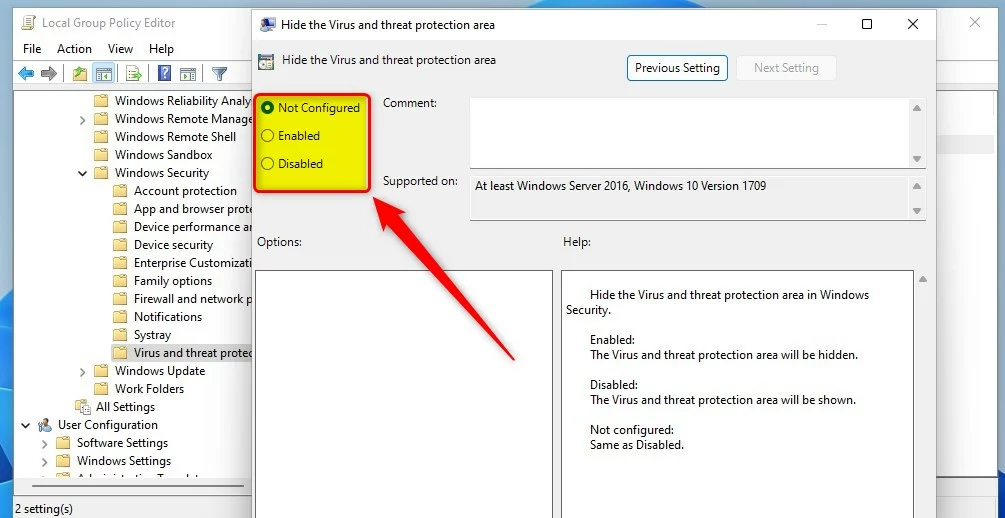
4. Select Enabled to hide the section, or Disabled to show it.
Method 2Using the Windows Registry
If you’re comfortable editing the Windows Registry, you can also hide the Virus & Threat Protection area in Windows 11 using this method. It involves opening the Registry Editor and creating or modifying a specific value to conceal the section.
- Press
Win + R(the Windows key and R at the same time), typeregedit, and press Enter. - Navigate to: 🗝️HKEY_LOCAL_MACHINE\SOFTWARE\Policies\Microsoft\Windows Defender Security Center\Virus and threat protection
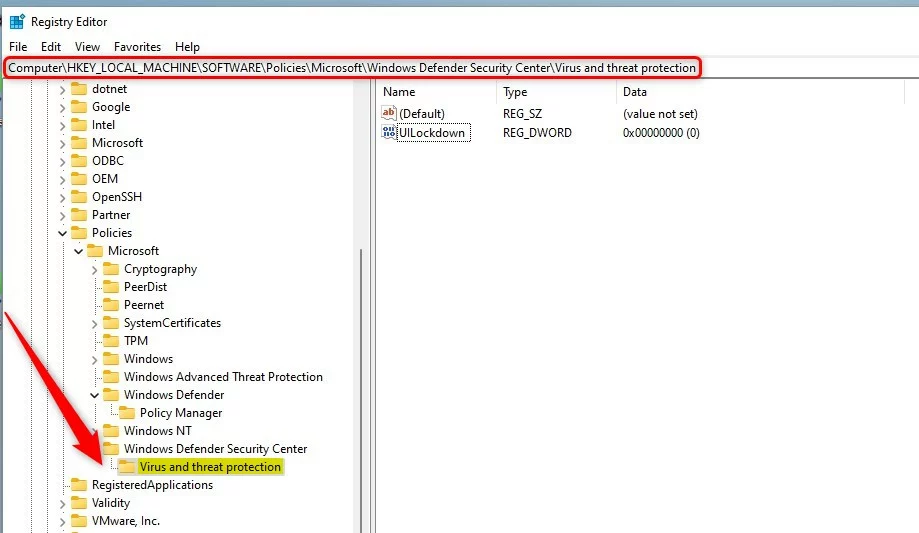
3. Right-click in the right pane, select New > DWORD (32-bit) Value, and name it UILockdown.
4. Set the value to 1 to hide, or 0 to show.
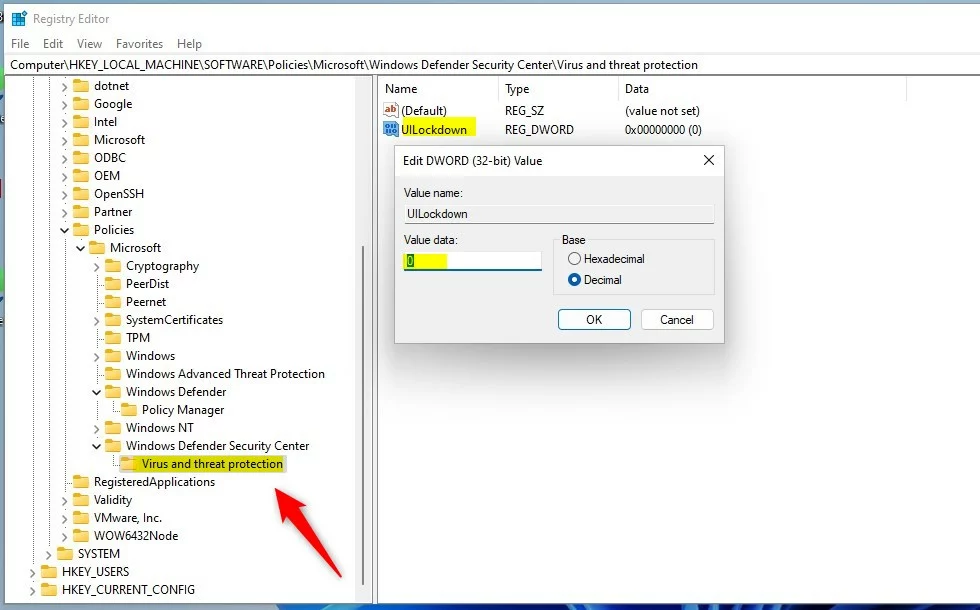
Restart your computer to apply the changes.
Method 3PowerShell Method
Note: You’ll need administrator privileges for this.
- Right-click the Start button and select Terminal (Admin).
- To hide the area, run this command:
Set-ItemProperty -Path "HKLM:\SOFTWARE\Policies\Microsoft\Windows Defender Security Center\Virus and threat protection" -Name "UILockdown" -Value 1
3. To show it again, change the value to 0.
Summary
Hiding the Virus & Threat Protection section in Windows 11 can be done using the Group Policy Editor or the Windows Registry, offering ways to manage the security app’s appearance.
Why does Windows Defender keep turning itself back on?
Windows Defender is designed to protect your system. If you do not have another antivirus installed, Windows will automatically re-enable real-time protection to ensure your PC remains secure against threats. Windows does this automatically to keep your PC safe, and you can’t permanently disable it without changing specific policies.
Is it safe to disable Windows Defender permanently?
It is generally not safe to disable Windows Defender unless you have a high-quality third-party antivirus installed. Without active protection, your computer is exposed to malicious software, data theft, and system corruption. Always keep your security software active to maintain a safe computing environment.
How do I exclude specific files from Windows Defender scans?
Instead of disabling protection, you can add exclusions. Go to Windows Security > Virus & threat protection > Manage settings > Exclusions. Click Add or remove exclusions and select the files, folders, or processes you want the antivirus to ignore during its regular system scans.
Was this guide helpful?

About the Author
Richard
Tech Writer, IT Professional
Richard, a writer for Geek Rewind, is a tech enthusiast who loves breaking down complex IT topics into simple, easy-to-understand ideas. With years of hands-on experience in system administration and enterprise IT operations, he’s developed a knack for offering practical tips and solutions. Richard aims to make technology more accessible and actionable. He's deeply committed to the Geek Rewind community, always ready to answer questions and engage in discussions.



[…] app has many sections that allow you to quickly see the status of your virus and threat protection, firewall and network security, Account protection, App and Browser Control, Device Security, and […]
[…] app has many sections that allow you to quickly see the status of your virus and threat protection, firewall and network security, Account protection, App and Browser Control, and […]
[…] App has many sections that allow you to quickly see the status of your virus and threat protection, firewall and network security, Account protection, and […]
[…] app has many sections that allow you to quickly see the status of your virus and threat protection, Firewall and network security, device security controls, and […]
[…] app has many sections that allow you to quickly see the status of your virus and threat protection, firewall and network security, device security controls, and […]