How to Hide or Show Family Options in Windows Security

You can hide or show the Family Options section in Windows Security to customize your dashboard.
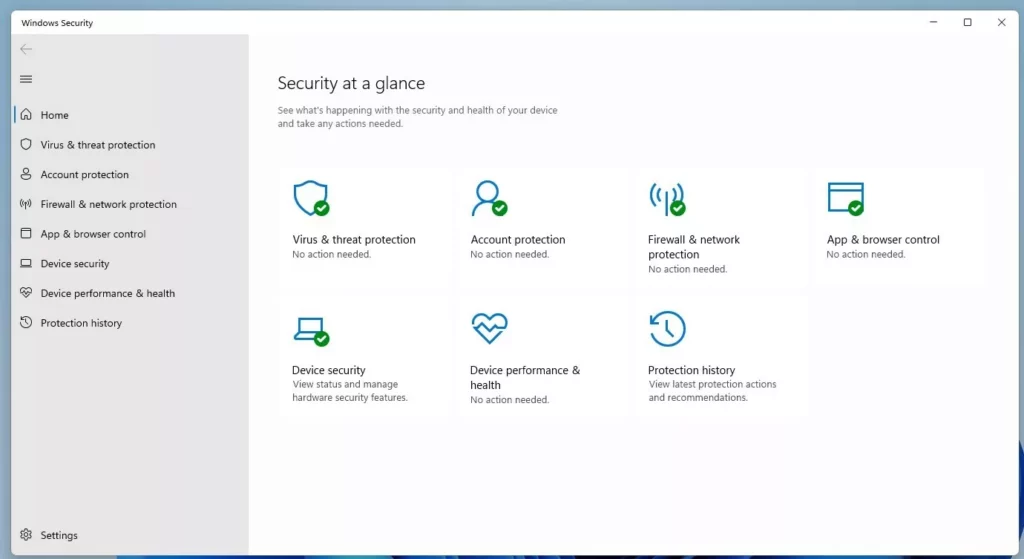
Family Options is a feature within Windows Security that links to Microsoft Family Safety, allowing you to manage digital experiences for children, such as setting screen time and content filters. This section is typically visible by default in Windows 11.
If you don’t utilize Microsoft Family Safety, hiding this section declutters your Windows Security interface and removes direct access to those specific management tools.
Hide or show Family Options in Windows Security using the Local Group Policy Editor or Registry Editor. Navigate to Computer Configuration > Administrative Templates > Windows Components > Windows Security > Family options and adjust the “Hide the Family options area” setting, or modify the UILockdown value in the registry.
Applies To
This guide applies to both Windows 10 and Windows 11. Note that the interface may look slightly different between versions, but the underlying settings remain the same.
Important Warning: Registry Editor
Warning: Modifying the registry can cause system issues if done incorrectly. Always back up your registry before making changes. Only proceed if you are comfortable with advanced settings.
Using the Local Group Policy Editor
You can hide or show the Windows Security Family options using the Local Group Policy Editor if you’re an administrator. This tool lets you control various settings on your computer, including how the Family options appear in Windows Security.
First, open the Local Group Policy Editor by clicking the Start Menu and searching for “Edit group policy.” Select the result to open the tool.
In the left menu, follow this path:
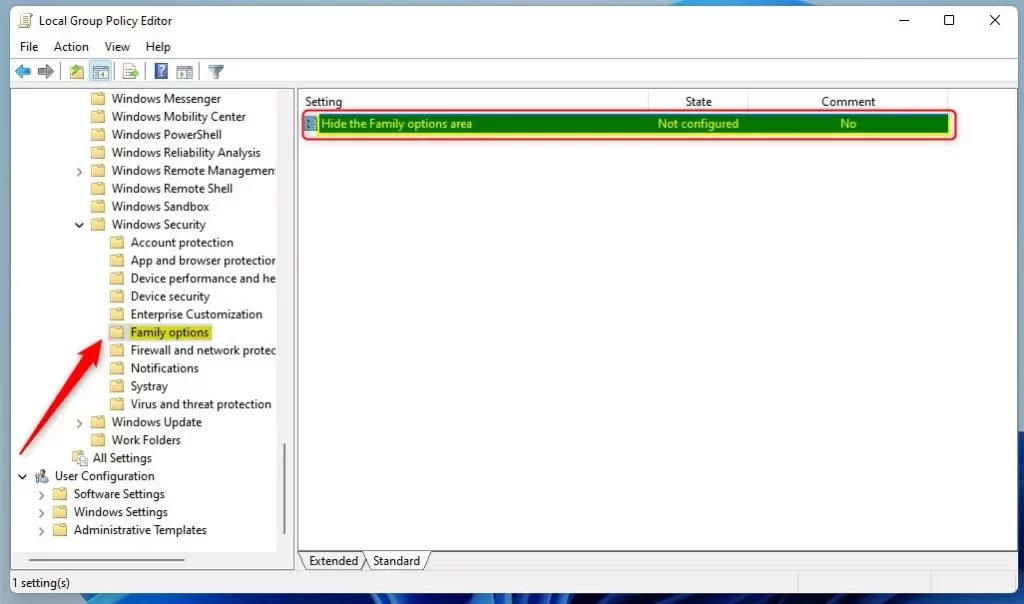
Computer Configuration > Administrative Templates > Windows Components > Windows Security > Family options
On the right side, double-click the setting named “Hide the Family options area.”
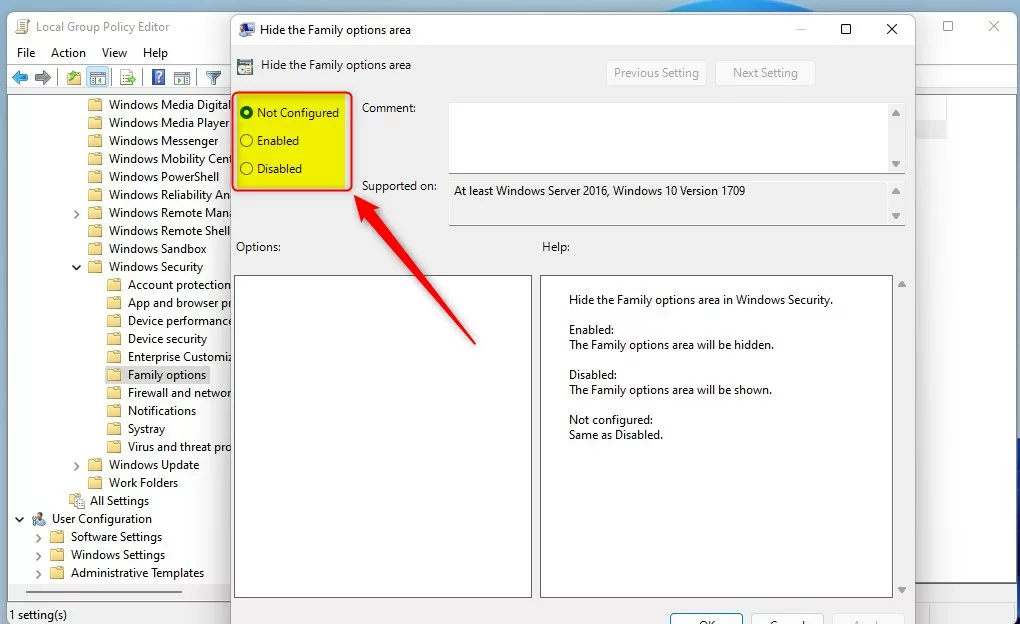
Choose one of these settings:
- Not Configured: This is the default setting.
- Enabled: Hides the Family options area.
- Disabled: Shows the Family options area.
Using the Windows Registry
If you can’t use the Group Policy Editor, such as on Windows Home, you can change the Windows Security Family options by editing the Windows Registry. This method is a good alternative for adjusting settings when the Group Policy Editor isn’t available.
If you’re on Windows Home edition, you might notice the Group Policy Editor isn’t available. In this case, use the Windows Registry instead. Open the Registry Editor and navigate to this path:
HKEY_LOCAL_MACHINE\SOFTWARE\Policies\Microsoft\Windows Defender Security Center\Family options
If the folders aren’t there, right-click the “Windows” key and select ‘New’ > ‘Key’ to create them.
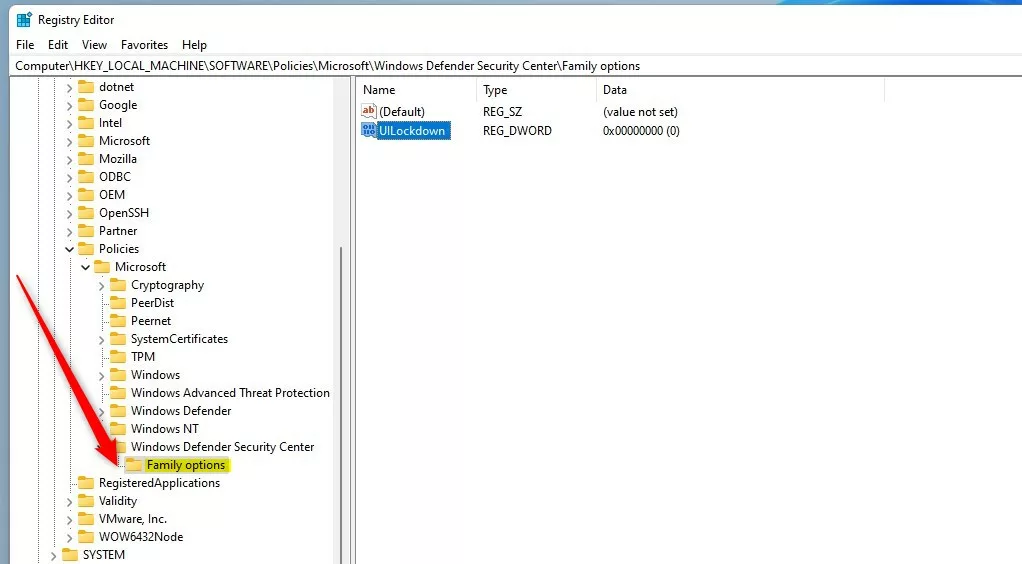
On the right side, right-click in the empty space, select ‘New,’ then ‘DWORD (32-bit) Value.’ Name it `UILockdown` (a DWORD value, which is a type of numerical data).
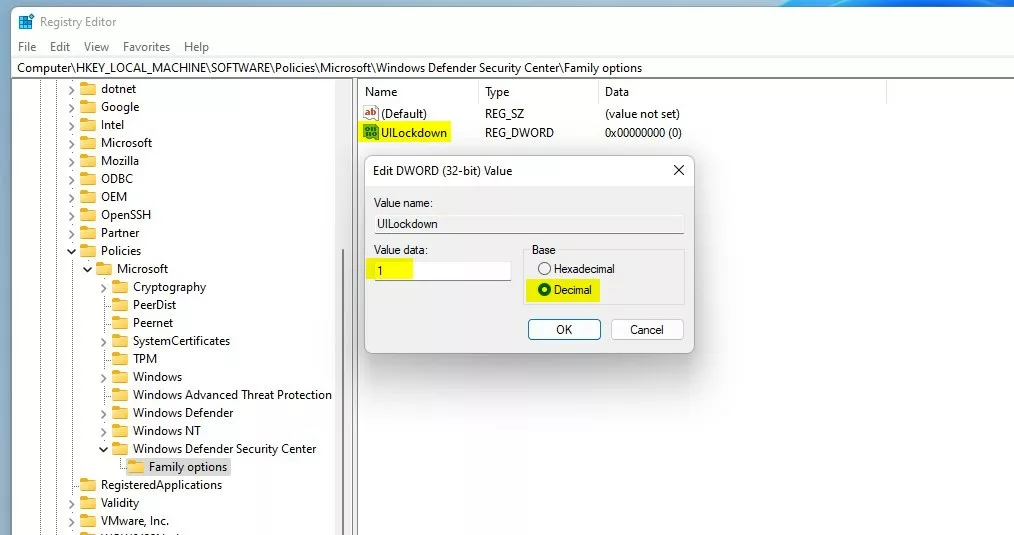
Double-click this new value and set its ‘Value data’ to:
- 0: Shows the Family options section in Windows Security app.
- 1: Hides the Family options section.
Restart your computer for the changes to take effect.
Summary
You can easily manage the Windows Security Family options by using either the Group Policy Editor or the Registry to hide or show them.
Can I remove Family Options on Windows Home edition?
Yes, you can remove it on Windows Home edition by using the Registry Editor method described above. Since Windows Home does not include the Group Policy Editor, the registry is the primary way to hide or show these specific security settings manually.
Do Family Options work without a Microsoft account?
No, Family Options require a Microsoft account to function. These features rely on cloud-based syncing to track screen time, content filters, and activity reports across your devices. Without a linked Microsoft account, the Family Safety features cannot monitor or enforce any restrictions on your computer.
Why is the Family Options section missing from my Windows Security app?
The Family Options section might be missing from your Windows Security app because a system policy or registry setting hid it, or your account isn’t part of a Microsoft Family group.
Was this guide helpful?

About the Author
Richard
Tech Writer, IT Professional
Richard, a writer for Geek Rewind, is a tech enthusiast who loves breaking down complex IT topics into simple, easy-to-understand ideas. With years of hands-on experience in system administration and enterprise IT operations, he’s developed a knack for offering practical tips and solutions. Richard aims to make technology more accessible and actionable. He's deeply committed to the Geek Rewind community, always ready to answer questions and engage in discussions.




No comments yet — be the first to share your thoughts!