How to Hide the Device Security Section in the Windows Security app on Windows 11

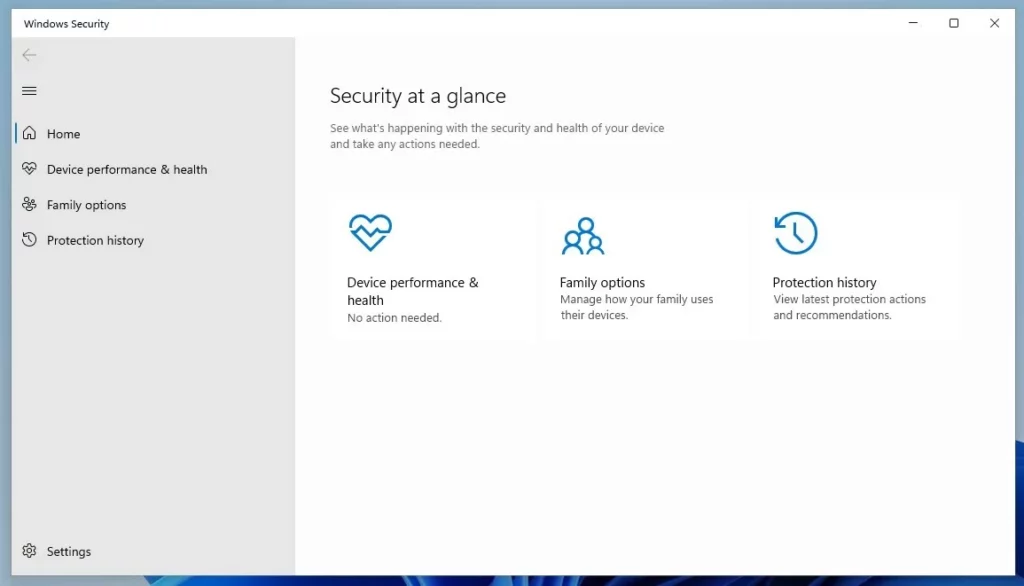
You can hide the Device Security section in the Windows Security app on Windows 11 by editing the Windows Registry.
Device Security within Windows Security displays your PC’s hardware security features, such as virtualization-based security (VBS). VBS leverages your hardware to create isolated secure areas, boosting data protection against malware.
If you prefer a cleaner interface and find this section unnecessary, you can effectively remove it.
This method involves creating a specific registry key, `DeviceGuard`, under `🗝️HKEY_LOCAL_MACHINE\SOFTWARE\Microsoft\Windows Defender\Security Center`.
Edit the Windows Registry by navigating to 🗝️HKEY_LOCAL_MACHINE\SOFTWARE\Policies\Microsoft\Windows Defender Security Center\Device security. Create a DWORD value named UILockdown and set its data to 1 to hide the section or 0 to show it. Restart your PC to apply the changes.
Understanding Core Security Features
Windows 11’s Device Security works by using your computer’s special hardware to protect it from online threats.
- Core Isolation and Memory Integrity: This uses virtualization to isolate computer processes. It prevents malicious code from entering high-security areas of your system.
- Security Processor (TPM 2.0): The Trusted Platform Module (TPM) is a hardware chip that stores encryption keys. It ensures your PC is secure during startup.
- Secure Boot: This feature checks that your PC boots using only trusted software from the manufacturer.
- Kernel-mode Hardware-enforced Stack Protection: This adds a layer of protection to stop attackers from hijacking your system’s memory.
- Credential Guard: This protects your login information by storing it in a virtualized container.
- Local Security Authority (LSA) Protection: This prevents unauthorized processes from accessing sensitive system memory.
Best Practices for a Secure Environment
To keep your Windows 11 system safe, always keep your firmware and drivers updated. Enable Memory Integrity in the Device Security settings if your hardware supports it. Avoid downloading software from unverified sources, and ensure your Microsoft vulnerable driver blocklist is active to prevent known exploits.
Why hide these settings?
You might want to hide these options if you manage a computer for others and do not want them to change security settings. This is common in office or school environments where you want to keep the security baseline consistent.
What happens when done?
Once you apply these changes, the Device security menu will either disappear from the Windows Security app or reappear, depending on the setting you choose. This does not disable the security features themselves; it only hides the user interface.
Hide or Show Device Security via Group Policy
You can hide or show the Device Security section in Windows 11 using the Group Policy editor if you’re an administrator.
1. Open the Local Group Policy Editor by clicking the Start Menu and searching for “Edit group policy.”
2. Select “Edit group policy” to open the editor.
3. In the left panel, navigate to this path:
Computer Configuration\Administrative Templates\Windows Components\Windows Security\Device security
4. In the right pane, double-click on “Hide the Device security area.”
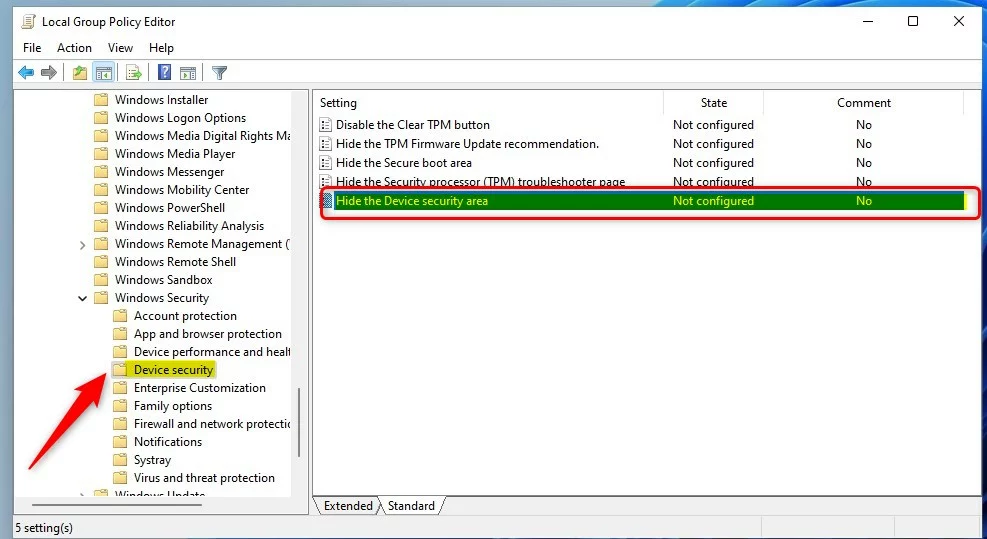
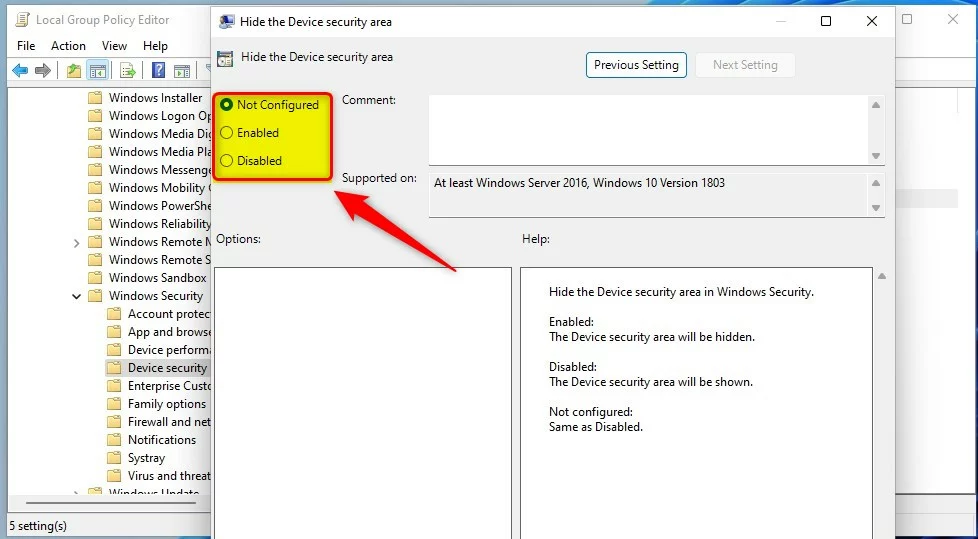
5. Choose one of the following options:
- Not Configured: The default setting.
- Enabled: Hides the Device security area.
- Disabled: Shows the Device security area.
Hide or Show Device Security via Registry
If you can’t use Group Policy, you can change the Device Security section’s visibility in Windows 11 using the Registry editor, as long as you have admin access.
If you cannot use the Group Policy editor, you can use the Windows Registry instead. Open the Registry Editor and go to this path:
🗝️HKEY_LOCAL_MACHINE\SOFTWARE\Policies\Microsoft\Windows Defender Security Center\Device security
If the folders do not exist, right-click the “Windows” key to create them.
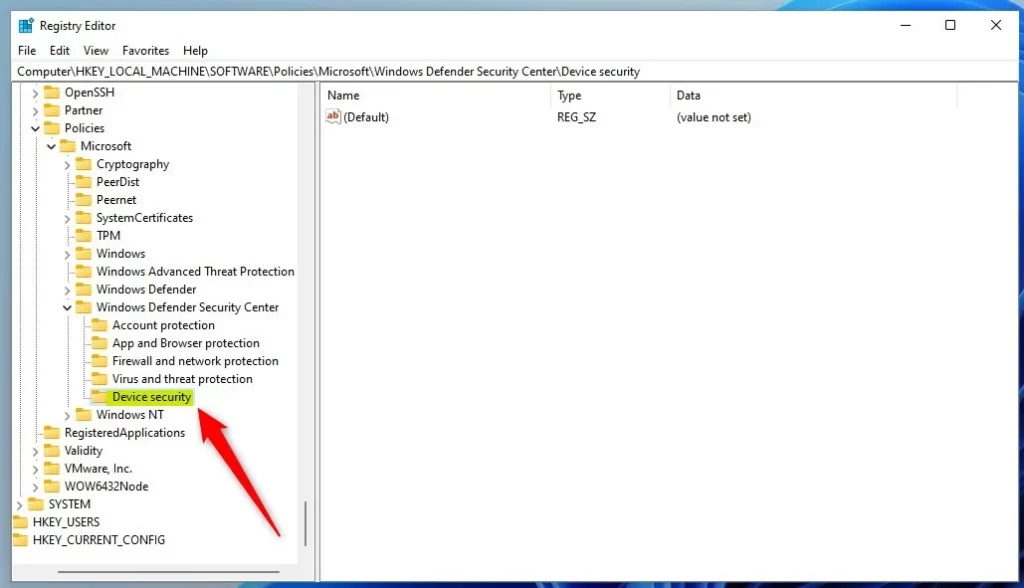
- In the right pane, right-click and select New > DWORD (32-bit) Value.
- Name this new value
UILockdown. - Double-click the
UILockdownfile. Set the Value data to 0 to show the section, or to 1 to hide it within the Windows Security app.
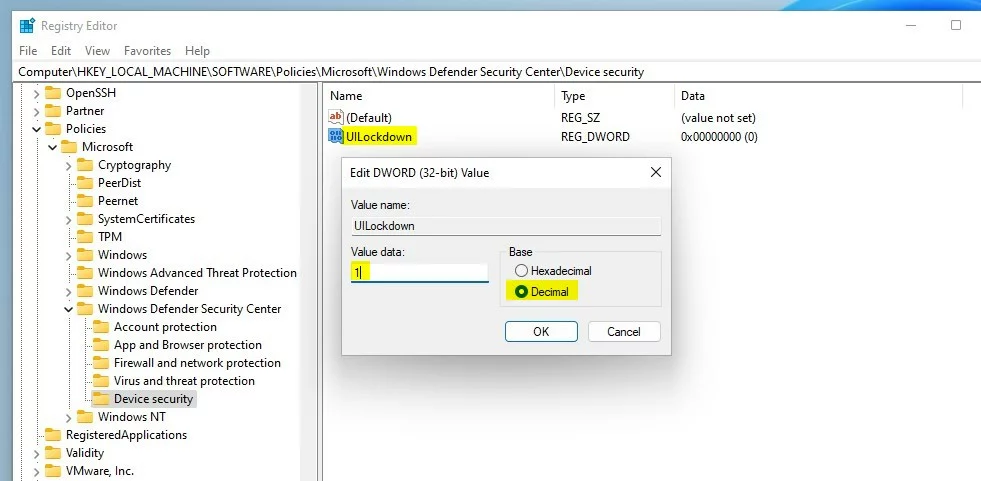
4. Restart your computer to apply the changes.
Summary
Windows 11 Device Security offers important hardware protection against today’s threats, and you can control its appearance using Group Policy or the Registry.
What is the difference between Device Security and Virus & threat protection?
Device Security protects your computer using hardware features like TPM to stop attacks at a basic system level, while Virus & threat protection looks for and removes active malware and viruses.
Why is my Device Security page showing ‘Standard hardware security not supported’?
Your Device Security page might say ‘Standard hardware security not supported’ because your computer’s hardware doesn’t have the latest features needed for things like Memory Integrity.
Was this guide helpful?

About the Author
Richard
Tech Writer, IT Professional
Richard, a writer for Geek Rewind, is a tech enthusiast who loves breaking down complex IT topics into simple, easy-to-understand ideas. With years of hands-on experience in system administration and enterprise IT operations, he’s developed a knack for offering practical tips and solutions. Richard aims to make technology more accessible and actionable. He's deeply committed to the Geek Rewind community, always ready to answer questions and engage in discussions.




[…] threat protection, firewall and network security, Account protection, App and Browser Control, and Device Security. This guide shows you how to hide or show the Windows Security app Family options […]