How to Enable Core Isolation Memory Integrity in Windows 11

You enable Core Isolation Memory Integrity in Windows 11 to protect your PC from sophisticated kernel-level threats and malicious drivers.
This Windows security feature uses Virtualization-based Security (VBS) and Hypervisor-protected Code Integrity (HVCI) to create an isolated, protected memory environment.
This protected space prevents untrusted code from altering your Windows kernel, blocking malware that tries to exploit driver vulnerabilities. Windows 11 checks drivers for integrity before they run, ensuring only trusted code loads.
Activating Core Isolation requires hardware virtualization, which sandboxes critical system processes. This significantly hardens your PC against attacks without impacting performance.
Open Windows Security, navigate to Device security, then Core isolation details, and toggle the Memory integrity switch to On. This feature protects your system kernel by preventing malicious drivers from running.
How to enable or disable Core Isolation Memory Integrity
You can easily turn Core Isolation Memory Integrity on or off in Windows Security to help protect your PC from certain types of malware.
- In the search box on your taskbar, type Windows Security and select it from the list.
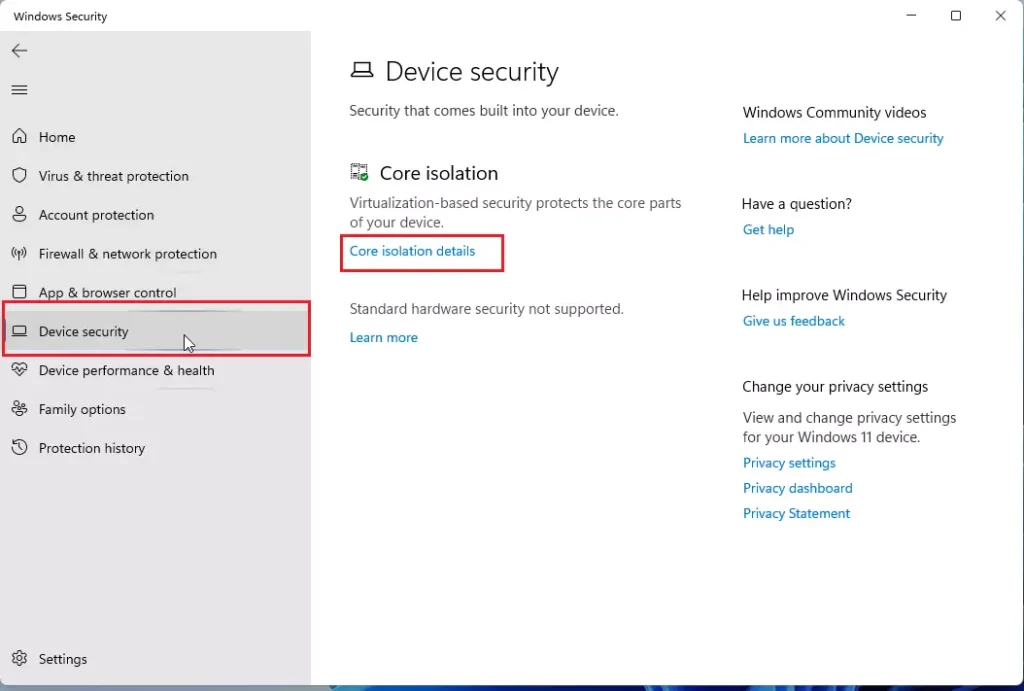
open windows security app - Inside the Windows Security window, click on Device security.
- On the next page, click the link labeled Core isolation details.
windows 11 core isolation memory integrity - Toggle the Memory integrity switch to On or Off.
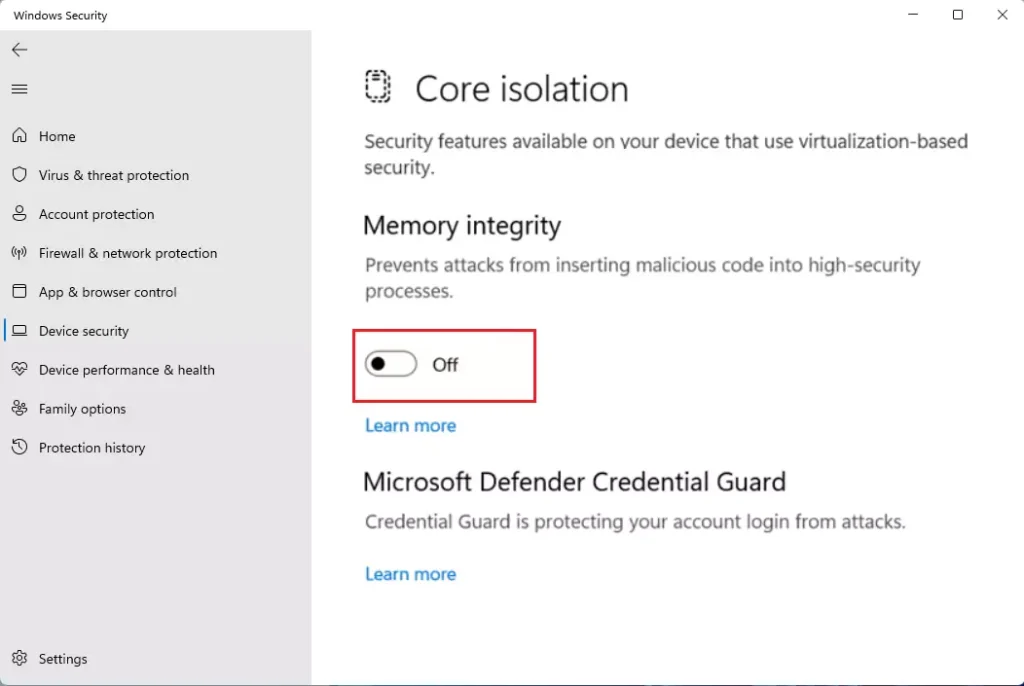
windows 11 turn on memory integrity core isolation
Troubleshooting Incompatible Drivers
If you’re having trouble turning on Memory Integrity, it’s usually because an old or incorrect driver is getting in the way.
To fix this, you should visit your computer manufacturer’s website. Look for updated drivers for your hardware. If you cannot find an update, you may need to uninstall the device or the software associated with that driver. You can often find the specific file path, such as 📁C:\Windows\System32\drivers, to identify the culprit.
Comparison of Windows Security Features
| Feature | Purpose |
|---|---|
| Core Isolation | Uses virtualization to isolate core processes. |
| Secure Boot | Ensures only trusted firmware boots the PC. |
| Kernel-mode Hardware-enforced Stack Protection | Protects against memory-based attacks. |
Summary
Core Isolation Memory Integrity is a security feature that uses virtualization to protect your computer’s core system from harmful software.Why is Memory Integrity greyed out?
Memory Integrity might be greyed out if your computer’s hardware doesn’t support virtualization, or if this setting is turned off in your computer’s BIOS.




No comments yet — be the first to share your thoughts!