How to Verify Device Encryption Support in Windows 11

You can verify if your Windows 11 PC supports Device Encryption by checking your system information.
Device Encryption is a security feature that automatically encrypts your drive, protecting your data if your device is lost or stolen. It scrambles your files, making them unreadable to anyone without your login credentials or recovery key.
This feature is typically available on devices that meet specific hardware requirements, including a TPM 2.0 chip. You can usually find Device Encryption settings within the Windows Security app.
Check your system information by running msinfo32 and looking for “Automatic Device Encryption Support.” Alternatively, go to Settings > Privacy & security > Device encryption to see if the feature is available and enabled.
Prerequisites for Device Encryption
Before you begin, ensure your system meets these requirements:
- A TPM 2.0 chip (Trusted Platform Module).
- UEFI firmware with Secure Boot enabled.
- A Microsoft Account (for automatic recovery key backup).
- Modern Standby support (for automatic encryption).
Device Encryption vs. BitLocker
Device Encryption is a simplified version of BitLocker. It is designed for most users and works automatically on supported hardware. Standard BitLocker is a more advanced tool for Windows 11 Pro, Enterprise, or Education users. It offers more control over how your drives are locked and managed.
Check Support Using System Information
This tool gives you a quick report on your hardware status.
- Click the Start menu and type
msinfo32. - Right-click “System Information” and select “Run as administrator.” (Requires admin privileges)
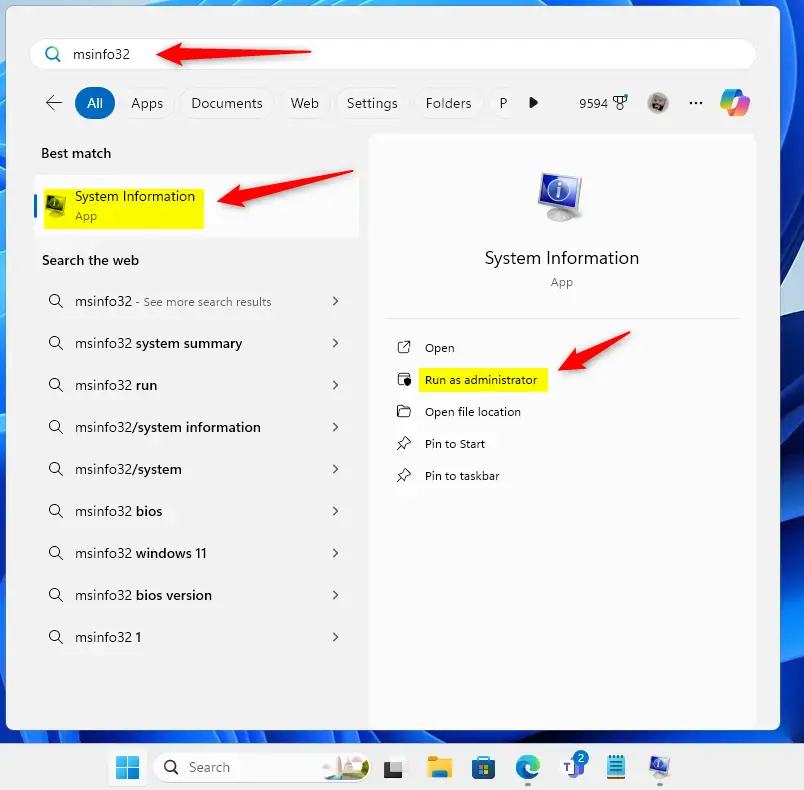
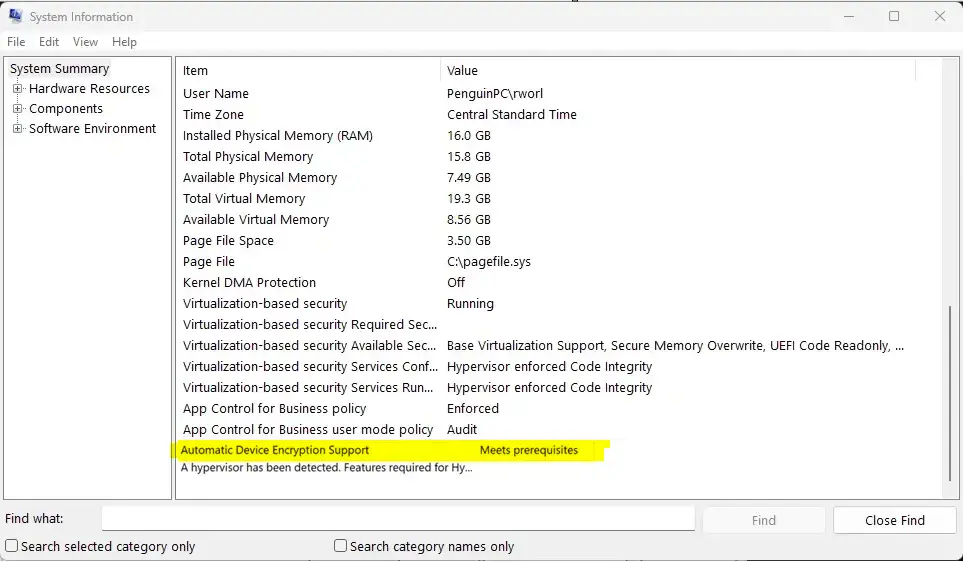
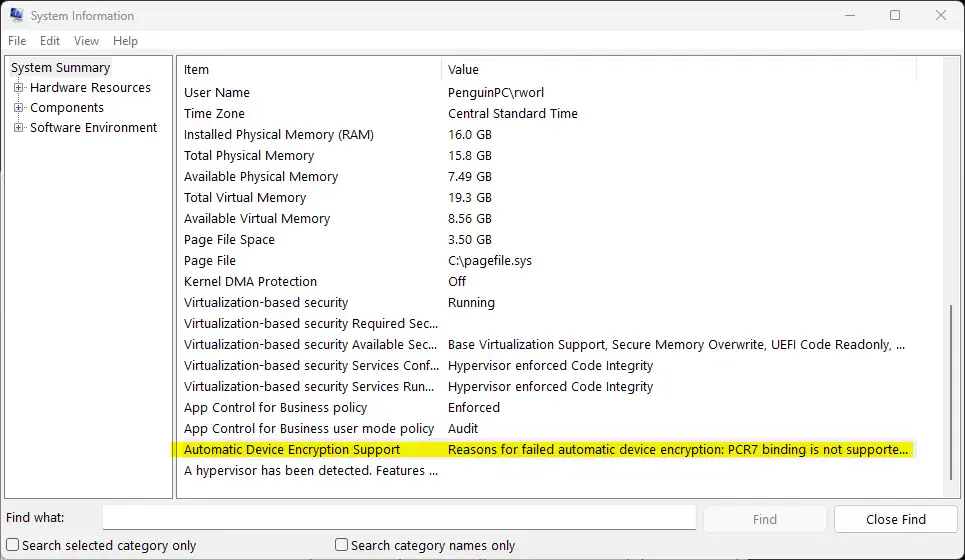
- Scroll down the list until you see “Automatic Device Encryption Support.”
- If your computer is ready, it will say “Meet prerequisites.” If not, it will explain why.
Check Support Using Windows Settings
This is the easiest way to see if you can turn encryption on or off.
- Open the “Settings” app by pressing the Windows key + I.
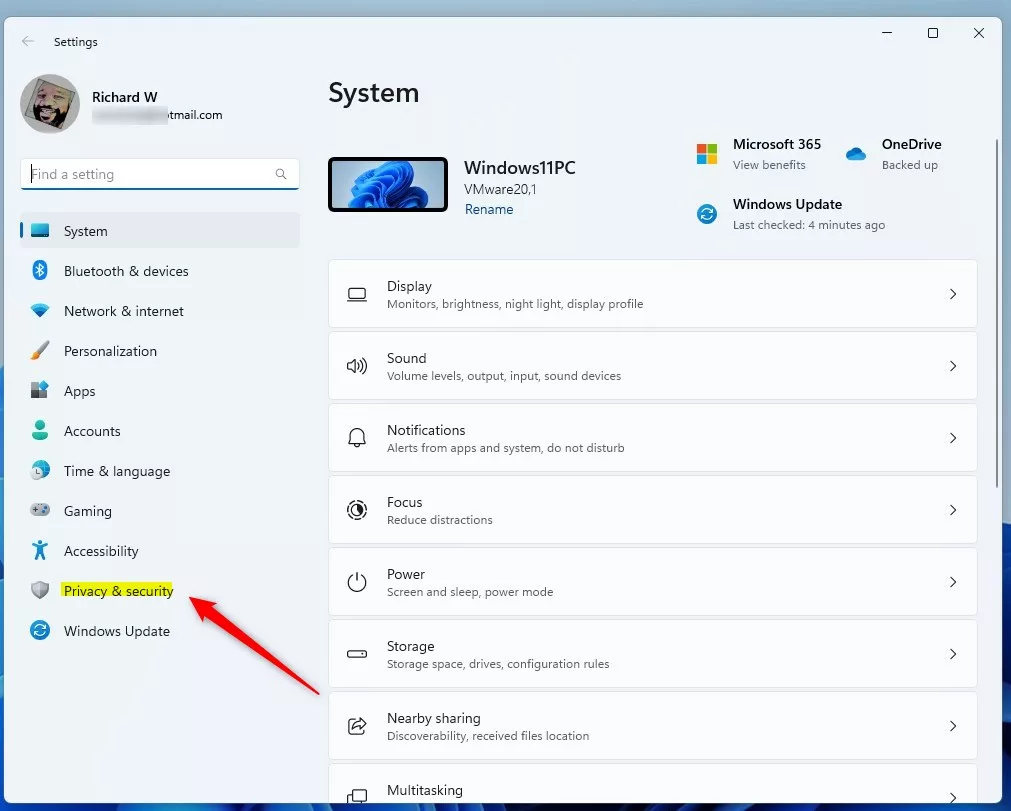
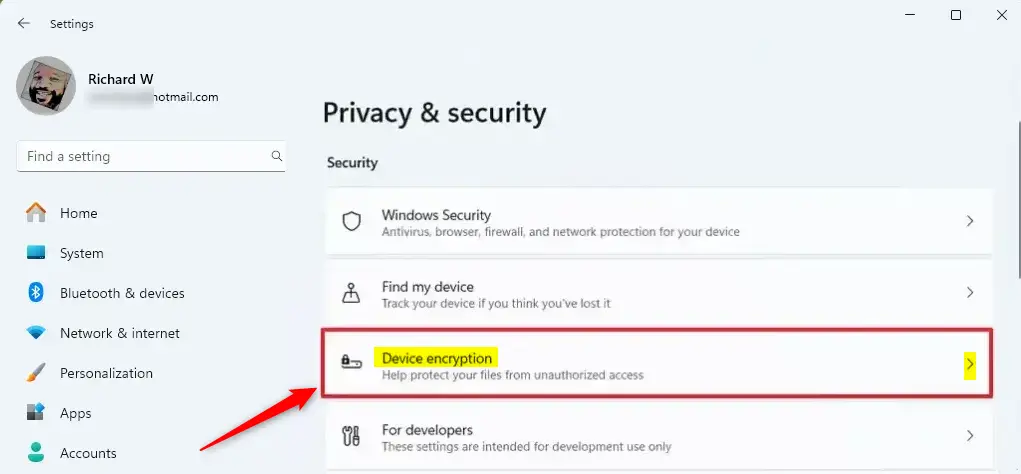
- Click “Privacy & security” on the left menu.
- Click the “Device encryption” tile on the right.
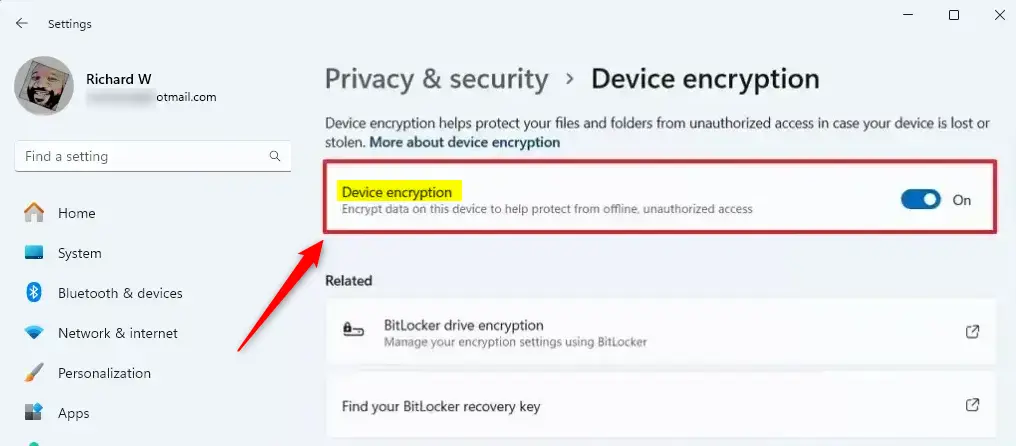
- Here, you can see if the feature is available and toggle it on or off.
Summary
Device Encryption is a vital security feature for Windows 11 users. It protects your data using TPM 2.0 and Secure Boot. By checking your status in msinfo32 or Settings, you can ensure your hardware is ready. Always back up your recovery key to your Microsoft account to prevent data loss. If your device does not support this, consider using standard BitLocker if you have a Pro version of Windows.
Reference: Microsoft Official Documentation
Does device encryption slow down my computer?
For most modern computers, you will not notice any speed difference. Windows uses hardware-based acceleration to handle encryption tasks. This means the processor does not have to work extra hard, keeping your system running smoothly while your data stays protected in the background.
What happens if I forget my recovery key?
If you forget your recovery key and cannot access your account, you may lose access to your files permanently. Windows cannot bypass this security measure. Always save your key to your Microsoft account or print a physical copy to avoid being locked out of your device.
Can I use device encryption without a Microsoft account?
While you can technically use encryption, it is highly discouraged. A Microsoft account is required to automatically back up your recovery key to the cloud. Without this, you have no way to recover your data if the system fails or asks for a key unexpectedly.
Was this guide helpful?

About the Author
Richard
Tech Writer, IT Professional
Richard, a writer for Geek Rewind, is a tech enthusiast who loves breaking down complex IT topics into simple, easy-to-understand ideas. With years of hands-on experience in system administration and enterprise IT operations, he’s developed a knack for offering practical tips and solutions. Richard aims to make technology more accessible and actionable. He's deeply committed to the Geek Rewind community, always ready to answer questions and engage in discussions.



[…] article explains how to check if your device’s “Secure Boot” is enabled, disabled, or not supported on Windows […]