How to Enable or Disable Device Encryption in Windows 11

Device encryption in Windows 11 scrambles your files, making them readable only with your login details to protect your data.
This built-in security feature locks away your personal information, keeping it safe from unauthorized eyes if your PC is lost or stolen.
You can turn device encryption on or off easily through the Windows 11 Settings app.
For device encryption to work, your computer needs a Trusted Platform Module (TPM) version 2.0 or newer, and you must be signed into Windows with your Microsoft account.
Enable device encryption in Windows 11 by going to Settings > Privacy & security > Device encryption and toggling it on. This feature requires TPM 2.0 and signing in with a Microsoft account.
Why Use Device Encryption?
Device encryption is a security feature that protects your data by turning it into unreadable code. If your laptop is lost or stolen, unauthorized users cannot access your files without your recovery key. This is essential for protecting sensitive personal information.
What Happens When You Enable It?
Turning on device encryption in Windows 11 scrambles your files, making them unreadable without your login details or a recovery key.
Hardware and Software Prerequisites
Device Encryption vs. BitLocker
| Feature | Device Encryption | BitLocker |
|---|---|---|
| Availability | Home & Pro | Pro, Enterprise, Education |
| Setup | Automatic/Simple | Manual/Advanced |
| Management | Limited | Full control via Group Policy |
How to Enable Device Encryption
Device encryption in Windows 11 protects your files by scrambling them so only your account can access them. You can turn on this security feature directly from the Settings app by following a few simple steps.
Press Windows key + I or click Start and select Settings.

Step 2: Find Privacy & Security
Click Privacy & security on the left sidebar.
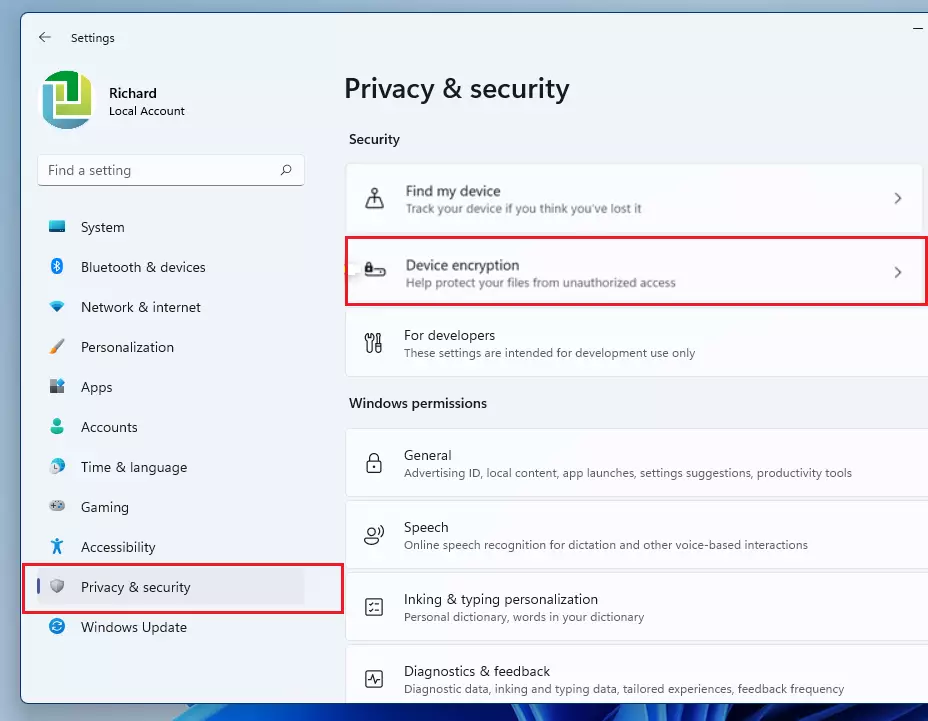
Step 3: Enable Device Encryption
Click Device encryption. If the toggle is currently off, click it to turn it On. Note: This step requires admin privileges.
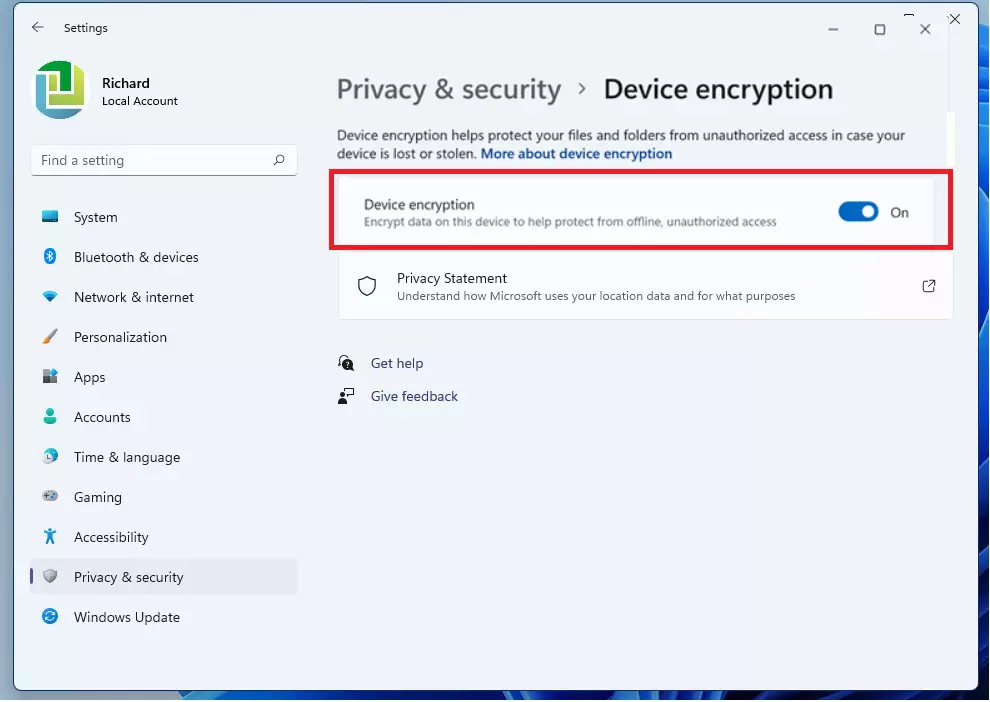
Troubleshooting Missing Options
If you do not see the Device Encryption option, your hardware may not meet the requirements. You can verify your TPM status by running tpm.msc in the Run dialog. If your device lacks these features, you may need to use standard BitLocker if you are running Windows 11 Pro.
Summary
Device encryption adds a crucial security layer to your Windows 11 PC by scrambling your data, keeping it safe if your device is lost or stolen.
Does 🪟 Windows 11 Home support device encryption?
Yes, Windows 11 Home supports device encryption, provided your hardware meets the necessary security requirements like TPM 2.0 and Secure Boot. If your device does not meet these specific hardware standards, the option will not appear in your settings menu, and you cannot enable it manually.
What happens if I forget my recovery key?
If you lose your recovery key and cannot log in, you will be permanently locked out of your files. Windows requires this key to verify your identity during major hardware changes or system errors. Always store your key in your Microsoft account or a secure physical location.
Was this guide helpful?

About the Author
Richard
Tech Writer, IT Professional
Richard, a writer for Geek Rewind, is a tech enthusiast who loves breaking down complex IT topics into simple, easy-to-understand ideas. With years of hands-on experience in system administration and enterprise IT operations, he’s developed a knack for offering practical tips and solutions. Richard aims to make technology more accessible and actionable. He's deeply committed to the Geek Rewind community, always ready to answer questions and engage in discussions.




No comments yet — be the first to share your thoughts!